1.
General Techniques
G1: Adding a link at the top of each page that goes directly to the main content area
Applicability
All technologies that contain links
This technique relates to:
Description
The objective of this technique is to provide a mechanism to bypass blocks of material that are repeated on multiple Web pages by skipping directly to the main content of the Web page. The first interactive item in the Web page is a link to the beginning of the main content. Activating the link sets focus beyond the other content to the main content. This technique is most useful when a Web page has one main content area, rather than a set of content areas that are equally important.
Note:
[begin delete]When possible, a visible link is preferred over a hidden link.
[2100]
[end delete]Visible links are necessary for those navigating with a keyboard including switch users, those using techniques that generate keyboard strokes slowly, screen magnification software users, screen reader users working with sighted colleagues, keyboard only users and those navigating using voice recognition software.
Examples
Example 1: An online newspaper
An on-line newspaper contains many sections of information: a search function, a corporate banner, sidebars, minor stories, how to contact the newspaper, etc. The lead story is located in the middle of the page. The first link that the user reaches when tabbing through the page is titled "Skip to Lead Story". Activating the link moves visual focus to the story. Pressing tab again takes the user to the first link in the main story.
Example 2: A "Skip to main content" link
A Web page includes a variety of navigation techniques on each page: a bread crumb trail, a search tool, a site map, and a list of related resources. The first link on the page is titled "Skip to Main Content". A user activates the link to skip over the navigation tools.
Resources
Resources are for information purposes only, no endorsement implied.
Tests
Procedure
-
Check that a link is the first focusable control on the Web page.
-
Check that the description of the link communicates that it links to the main content.
-
[begin add] Check that the link is either always visible or visible when it has keyboard focus.
[2100]
[end add]
-
Check that activating the link moves the focus to the main content.
-
Check that after activating the link, the keyboard focus has moved to the main content
Expected Results
G4: Allowing the content to be paused and restarted from where it was stopped
Applicability
Any technology that includes moving or scrolling content.
This technique relates to:
Description
The objective of this technique is to provide a way to pause movement or scrolling of content. If the user needs to pause the movement, to reduce distraction or to have time to read it, they can do so, and then restart it as needed. This mechanism can be provided either through interactive controls that conform to WCAG or through keyboard shortcuts. If keyboard shortcuts are used, they are documented.
Examples
-
A site contains a scrolling news banner at the top of the page. Users who need more time to read it can press the Escape key to pause the scrolling. Pressing Escape again restarts it.
-
A Web page contains a link labeled "How to tie a shoe" which links to a Flash animation. Text immediately preceding the link informs the user that pressing the spacebar will pause the animation and restart it again.
Tests
Procedure
On a page with moving or scrolling content,
-
Use the mechanism provided in the Web page or by the user agent to pause the moving or scrolling content.
-
Check that the moving or scrolling has stopped and does not restart by itself.
-
Use the mechanism provided to restart the moving content.
-
Check that the movement or scrolling has resumed from the point where it was stopped.
Expected Results
G5: Allowing users to complete an activity without any time limit
Applicability
This technique applies to any technologies or methods supporting the implementation of an activity which does not require timed interaction for its functionality.
This technique relates to:
Description
The objective of this technique is to provide users with all the time they need to complete an activity. This technique involves providing a specified activity which does not require timed interaction. Users are allowed as much time as they need to interact with the activity.
Examples
-
An interactive exam for a course provides all questions on one Web page. Users can take as much time as they need to complete it.
-
In an interactive game, users can take as much time as they like on their turn instead of having to complete their move within a limited amount of time.
-
In an online auction, each bidder can submit only one bid rather than submitting multiple competitive bids based on timing. The bidding is open for a full day, providing enough time for anyone to complete the simple bid form. Once bidding is closed, the best bid wins.
Resources
Resources are for information purposes only, no endorsement implied.
Tests
Procedure
-
Determine if any timed interactions are present.
Expected Results
G8: Creating an extended audio description for the synchronized media content
Applicability
Any audio synchronized media technology
This technique relates to:
Description
The objective of this technique is to all additional audio description to be
inserted into a synchronized media presentation when there is not enough time in the
gaps int the dialog. This is done by simply freezing the image so that
additional audio description of the video can be played. When the
description is finished, the synchronized media continues.
This technique provides people who are blind or who otherwise would miss
information presented visually with additional audio description beyond that
which can be provided by standard audio description. Often the gaps in
dialog are insufficient to allow enough audio description to be inserted to
cover all the important visual information being presented. This technique
freezes the synchronized media presentation to allow additional audio description to
be played. The synchronized media presentation is then resumed.
Because it disrupts viewing for those who do not need the additional
description, techniques that allow you to turn the feature on and off are
often provided. Alternately, versions with and without the additional
description can be provided.
Examples
Example 1
Example 1: A Training film has narrative that runs almost
continuously throughout. An alternate version is available for
people who have difficulty viewing the video portion. The
alternate version freezes the video and provides audio description
of key information.
Resources
Resources are for information purposes only, no endorsement implied.
Tests
Procedure
-
Play synchronized media with extended audio description enabled
-
Check to see if synchronized media freezes from time to time to allow
audio description to convey important information regarding
visual content
Expected Results
G9: Creating captions for live synchronized media
Applicability
Applies to all technologies that present Audio Visual information
This technique relates to:
Description
The objective of this technique is to allow users who cannot hear to be able
to access real-time synchronized media broadcasts. It is more difficult to create
accurate real-time captions because there is little time to correct mistakes
or to listen a second time or consult someone to be sure the words are
accurately reproduced. It is also harder to simplify or paraphrase
information if it is flowing too quickly.
Real-time typing text entry techniques exist using stenographic and rapid
typing technologies. Re-voicing speech-to-text (where a person listens to
speech and then carefully re-voices it into a computer trained to their
speech) is used today for telephone relay services and may be used in the
future for captioning. Eventually speech-to-text with correction will be
possible.
Examples
Example 1
Example 1: A television studio uses a real-time captioning service
to create captions for its evening news online.
Resources
Resources are for information purposes only, no endorsement implied.
Tests
Procedure
-
a procedure and policy are in place to ensure that captions are
delivered in real-time
Expected Results
G10: Creating components using a technology that supports the accessibility
API features of the platforms on which the user agents will be run to expose the
names and roles, allow user-settable properties to be directly set, and provide
notification of changes
Applicability
programming technologies that have standard components that are programmed
to interface with accessibility APIs
This technique relates to:
Description
The objective of this technique is to allow assistive technology to
understand Web content so that it can convey equivalent information to the
user through an alternate user interface.
Sometimes content is not created using markup language but rather using a
programming language or tools. In many cases, these technologies have
interface components that are already programmed to interface with
accessibility APIs. If and author uses these components and fills in the
properties (e.g. name, etc) the resulting user interface components in the
content will be accessible to assistive technology.
However, if an author wants to create a user interface component that is new
and they cannot use standard components, then they need to be sure to add
the accessibility provisions themselves - and implement them in a way that
is compatible with the accessibility API.
Examples
Example 1
Example 1: A Web page uses java to create an applet. A group of
authors wants to create an entirely new type of interface component
so they can not use existing Java objects. They use Java swing classes
to create their component because the Java swing classes already
have provisions for connecting to different accessibility APIs.
Using the Java swing classes they are able to create an interface
component that exposes its name and role, is able to be set by AT
and alerts AT to any updates.
Example 2: A Web page uses an original ActiveX control that is
written in the C++ programming language. The control is written to
explicitly support the Microsoft Active Accessibility (MSAA) API to
expose information about accept commands. The control then interacts
directly with assistive technology running the user agent on systems
that support MSAA.
Resources
Resources are for information purposes only, no endorsement implied.
Tests
Procedure
-
Render content using an accessible User Agent
-
Use an Accessibility Tool designed for the Accessibility API of
the User agent to evaluate each user interface component
-
Check that name and role for each user interface component is
found by the tool.
-
Change the values on the component
-
Check that the Accessibility tool is alerted.
Expected Results
G11: Creating content that blinks for less than 3 seconds
Applicability
Technologies that support blinking content.
This technique relates to:
Description
The objective of this technique is to minimize the distraction caused by blinking content and enable users to re-focus on the other content on the page.
Blinking content can be created using a variety of technologies, many of which include options to loop blinking content continuously or to otherwise specify the amount of time the blinking content is displayed. Limiting the blinking of content to three seconds minimizes the distraction that blinking can cause. This will benefit people with certain types of learning disabilities and people with low vision.
Examples
Tests
Procedure
-
Find all items that blink.
-
For each item that blinks, determine if the interval between the start and end of the blinking is less than three seconds.
Expected Results
G13: Describing what will happen before a change to a form control is made
Applicability
Applies to content that includes forms.
User Agent and Assistive Technology Support Notes
(none listed)
This technique relates to:
Description
The objective of this technique is to provide information to users about
what will happen when a change to a form control results in a change of
context. Because changing the value of a form control does not typically
result in a change of context, it is important that authors provide
instructions that make the user aware of the behavior in advance. Where
possible, it is a good idea to programmatically associate the instructions
describing the change with the form control itself.
Examples
Example 1
-
A series of radio buttons at the top of a page include
options for German, French and Spanish. Instructions precede
the buttons that instruct the user that the language will be
changed upon selecting an option.
-
A 50 question online survey displays one question at a time.
Instructions appear at the beginning of the survey that
explain that users will be taken to the next question of the
survey upon selecting an answer to each question.
Resources
Resources are for information purposes only, no endorsement implied.
Tests
Procedure
-
Locate content where changing the setting of a form control
results in a change of context
-
Check to see that an explanation of what will happen when the
control is changed is available prior to the controls activation
Expected Results
G14: Ensuring that information conveyed by color differences is also available in text
Applicability
All technologies that support color and text.
This technique relates to:
Description
The objective of this technique is to ensure that when color differences are used to convey information, such as required form fields, the information conveyed by the color differences are also conveyed explicitly in text.
Examples
Example 1: A color-coded schedule
The schedule for sessions at a technology conference is organized into three tracks. Sessions for Track 1 are displayed over a blue background. Sessions in Track 2 are displayed over a yellow background. Sessions in Track 3 are displayed on a green background. After the name of each session is a code identifying the track in text: T1 for Track 1, T2 for Track 2, and T3 for Track 3.
Example 2: A color-coded schedule with icons
The schedule for sessions at a technology conference is organized into three tracks. Next to the title of each session is a colored icon showing what track it belongs to: blue icons represent track 1, yellow icons represent Track 2, and green icons represent Track 3. Each icon is associated with a text alternative reading "Track 1," "Track 2," or "Track 3," as appropriate.
Example 3: A table showing the conference schedule
The schedule for sessions at a technology conference is organized into three tracks. The schedule for each day is shown in a data table with headers for Time, Title, and Track. Sessions for Track 1 are displayed over a blue background. Sessions in Track 2 are displayed over a yellow background. Sessions in Track 3 are displayed on a green background.
Example 4: A form with required fields
A form contains several required fields. The labels for the required fields are displayed in red. In addition, at the end of each label is an asterisk character, *. The instructions for completing the form indicate that "all required fields are displayed in red and marked with an asterisk *", followed by an example.
Example 5: A form with a green submit button
An on-line loan application explains that green buttons advance in the process and red buttons cancel the process. A form contains a green button containing the text Go. The instructions say "Press the button labeled Go to submit your results and proceed to the next step."
Resources
No resources available for this technique.
Tests
Procedure
For each item where a color difference is used to convey information:
-
Check that the information conveyed is also available in text and that the text is not conditional content.
Expected Results
G15: Ensuring that content does not violate the general flash threshold or red flash threshold
Applicability
Applies to any technology
This technique relates to:
Description
The purpose of this technique is to allow people who have photosensitive seizures to view Web sites without encountering material that is likely to cause a seizure. Warnings can be provided but people may miss them and children may not be able to read or understand them. With this technique all material is checked and if it violates flash or red flash thresholds it is either not put on the site or it is modified so that it does not violate the thresholds.
Examples
-
An animation of a thunderstorm shows six flashes of lightning. The flashes are so fast that the general flash threshold is violated. The animation is modified to create a short pause after each pair of lightning flashes. After the changes are made, the animation does not violate the general flash threshold.
Resources
Resources are for information purposes only, no endorsement implied.
Tests
Procedure
Check to see to see that content does not violate the general flash and/or red flash threshold
-
determine (with or without instruments) that there are no more than three flashes (6 transitions) of any kind in any one second period
Note: If there are three flashes, check that the Light/Dark status at the end of the 1-second period is the same as at the start.
OR
-
determine that flashing is greater than 50 hz OR
-
use a tool that to determine that neither the General Flash nor Red Flash threshold were exceeded
Expected Results
G17: Ensuring that a contrast ratio of at least 7:1 exists between text [begin add](and images of text)[end add]
and background behind the text
Applicability
Any technology that produces visual output.
This technique relates to:
Description
The objective of this technique is to make sure that users can read text
that is presented over a background. This technique goes beyond the 5:1
contrast technique to provide a higher level of contrast to make it easier
for people with low vision to read.
If the background is a solid color (or all black or all white) then the
contrast ratio of the text can be maintained by making sure that each
of the text letters have a 7:1 contrast ratio with the background.
If the background or the letters vary in relative luminance (or are patterned), then
the background around the letters can be chosen or shaded so that the
letters maintain a 7:1contrast ratio with the background behind them
even if they do not have that contrast ratio with the entire background.
The contrast ratio can sometimes be maintained by changing the
relative luminance of the letters as the relative luminance of the background changes across
the page.
Another method is to provide a halo around the text that provides the
necessary contrast ratio if the background image or color would not
normally be sufficiently different in relative luminance.
Examples
-
A black background is chosen so that light colored
letters that match the company's logo can be used.
-
Text is placed over a picture of the college campus.
Since a wide variety of colors and darknesses appear in the picture
the area behind the text is fogged white so that the picture is very
faint and the maximum darkness is still light enough to maintain a
7:1 contrast ratio with the black text written over the picture.
Resources
Resources are for information purposes only, no endorsement implied.
Tests
Procedure
-
Measure the relative luminance of each letter (unless they are all
uniform) using the formula:
Note: For aliased letters, use the relative luminance value found two pixels in
from the edge of the letter.
-
Measure the relative luminance of the background pixels
immediately next to the letter using same formula.
-
Calculate the contrast ratio using the following
formula.
-
Check that the contrast ratio is equal to or
greater than 7:1
Expected Results
G18: Ensuring that a contrast ratio of at least 5:1 exists between text (and images of text)
and background behind the text
Applicability
Any technology that produces visual output.
This technique relates to:
Description
The objective of this technique is to make sure that users can read text
that is presented over a background. For Success Criterion 1.4.3, this technique describes the minimum contrast ratio for text that is less than 18 point (if not bold) and less than 14 point (if bold). For Success Criterion 1.4.5, this technique relaxes the 7:1 contrast ratio requirement for text that is at least 18 point (if not bold) or at least 14 point (if bold).
If the background is a solid color (or all black or all white) then the
relative luminance of the text can be maintained by making sure that each
of the text letters have 5:1 contrast ratio with the background.
If the background or the letters vary in relative luminance (or are patterned) then
the background around the letters can be chosen or shaded so that the
letters maintain 5:1 contrast ratio with the background behind them
even if they do not have that contrast ratio with the entire background.
The contrast ratio can sometimes be maintained by changing the
relative luminance of the letters as the relative luminance of the background changes across
the page.
Another method is to provide a halo around the text that provides the
necessary contrast ratio if the background image or color would not
normally be sufficiently different in relative luminance.
Examples
-
A black background is chosen so that light colored letters that match the companies logo can be used.
-
Text is placed over a picture of the college campus.
Since a wide variety of colors and darknesses appear in the picture,
the area behind the text is fogged white so that the picture is very
faint and the maximum darkness is still light enough to maintain a
5:1 contrast ratio with the black text written over the picture.
See also the contrast samples in related resources.
Resources
Resources are for information purposes only, no endorsement implied.
Tests
Procedure
-
Measure the relative luminance of each letter (unless they are all
uniform) using the formula:
Note: For aliased letters, use the relative luminance value found two pixels in
from the edge of the letter.
-
Measure the relative luminance of the background pixels
immediately next to the letter using same formula.
-
Calculate the contrast ratio using the following
formula.
-
Check that the contrast ratio is equal to or
greater than 5:1
Expected Results
The contrast ratio is equal to or greater than 5:1
G19: Ensuring that no component of the content flashes more than three times in any 1-second period
Applicability
Applies to any technology
This technique relates to:
Description
The objective of this technique is to avoid flashing at rates that are known to cause seizures if the flashes are bright and large enough. Since some users may be using screen enlargers, this technique limits the flashing of any size content to no more than three flashes in any 1-second period.
Note 1:
This technique is stricter than the Level 1 Success Criteria but is easier to test and can be used to meet the Level 1 Success Criteria because all failure thresholds in the Level 1 Success Criteria involve flashing 3.5 flashes or more within one second. Most content does not flash at all and even content that blinks does not blink this fast except on rare occasions. Therefore, in order to avoid having to carry out the more complex testing specified by the Success Criteria, one could follow this technique to ensure that content only flashes one, two, or at most three times in any 1-second period.
Note 2:
Regarding 3.5 Flashes; if there are seven transitions from dark to light or light to dark, it would be 3.5 flashes, which is more than the allowed three flashes (six transitions).
Examples of 3.5 flashes or seven transitions:
Examples
Resources
Resources are for information purposes only, no endorsement implied.
Tests
Procedure
-
Check that there are no more than three flashes during any 1-second period.
-
If there are three flashes, check that the Light/Dark status at the end of the 1-second period is the same as at the start.
Expected Results
[begin delete]
G20: Ensuring that the only way to get to an inaccessible version is from a link from the accessible version
Applicability
Content where a nonconforming and conforming version are provided as alternatives to each other.
This technique relates to:
Description
The objective of this technique is to ensure that users can always access an accessible version of the content. When content is provided in a format that does not conform to WCAG, the site as a whole can still conform if alternate versions of the inaccessible content are provided. The conformance criterion requires that alternate versions are available "from the nonconforming content or its URI." It is the intent of that wording that it can be sufficient to provide a link to conforming content from the nonconforming content (see Providing a link at the top of the nonconforming content that points to an alternate version that does meet the Success Criteria for the level claimed).
In order for the link to alternate content to fulfill its intent, the link needs to conform to WCAG requirements, that is, be accessible. In some technologies, even though the content as a whole may not conform, a link can be provided that does conform. In other technologies, however, it is not even possible to provide a link to alternate content within that technology that conforms. Users may be unable to find the alternate content if the only pointer is in an inaccessible technology.
This technique describes how to provide alternate content in such a situation. In this technique, the WCAG conforming version contains a link to the nonconforming version. This way, users access the conforming content, and only access the nonconforming content if they wish, via a link. In order to ensure users do not accidentally get "stuck" in inaccessible content, the nonconforming version is excluded from search engine results, site maps (unless the conforming version is also included), etc.
Examples
-
An online physics course uses a proprietary modeling language to provide interactive demonstrations of physical processes. Because the technology is new and not widely used, it does not provide accessibility features supported by user agents. Students in the course access a WCAG conforming description of the processes and models, but that is not interactive. A link is provided to the nonconforming enhanced interactive version. Students may choose to access the interactive version, but those who do not are still able to learn about the process.
Tests
Procedure
Where WCAG conforming alternatives are provided for nonconforming content:
-
Check that there is a link to the nonconforming content from the conforming content.
-
Check that the nonconforming content does not appear in search engine results, site maps, and the site's regular navigation.
Expected Results
G21: Ensuring that users are not trapped in content
Applicability
All technologies which support interactive operation.
This technique relates to:
Description
The objective of this technique is to ensure that keyboard users do not become trapped in a subset of the content that can only be exited using a mouse or pointing device. A common example is content rendered by plug-ins. Plug-ins are user agents that render content inside the user agent host window and respond to all user actions that takes place while the plug-in has the focus. If the plug-in does not provide a keyboard mechanism to return focus to the parent window, users who must use the keyboard may become trapped in the plug-in content.
This problem can be avoided by using one of the following mechanisms to provide a way for users to escape the subset of the content:
-
Ensuring that the keyboard function for advancing focus within content (commonly the tab key) exits the subset of the content after it reaches the final navigation location.
-
Providing a keyboard function to move the focus out of the subset of the content. Be sure to document the feature in an accessible manner within the subset.
-
If the [begin add]technology used in the [end add]subset of the content natively provides a "move to parent" keyboard command, documenting that command before the user enters the plug-in so they know how to get out again.
[begin add] If the author uses a technology that allows users to enter the sub-content with keyboard and does not allow users to exit the sub-content with keyboard by default (i.e. it is not a feature of the Web content technology or its user agents) then, in order to implement this technique the author would either build such a capability into their content or not use the technology.
[2043]
[end add]
Examples
-
Once a user tabs into an applet, further tabs are handled by the applet preventing the person from tabbing out. However, the applet is designed so that it returns keyboard focus back to the parent window when the person finishes tabbing through the tab sequence in the applet.
-
[begin change] A page that includes content that is not accessibility-supported contains instructions about how to move focus back to the accessibility-supported content via the keyboard. The instructions precede the non accessibility-supported content.
[2155]
[end change]
-
The help information available from the content that is not accessibility supported documents how to move focus back to the accessibility-supported content via the keyboard, and the help information can be accessed via the keyboard.
-
The help information available for the Web page documents how to move focus
from the content that is not accessibility supported to the accessibility-supported content via the keyboard, and the help information can be accessed via the keyboard.
Resources
No resources available for this technique.
Tests
Procedure
-
tab through content from start to finish.
-
check to see if keyboard focus is trapped in any of the content such that the person cannot move out of any part of the content and continue through the rest of the content.
Expected Results
G53:
Identifying the purpose of a link using link text combined with the text of the enclosing sentence
Applicability
All technologies that contain links.
This technique relates to:
[begin add] User Agent and Assistive Technology Support Notes
JAWS 5.0 and later includes the following keystrokes:
-
alt+leftArrow: read previous sentence
-
alt+rightArrow: read next sentence
-
alt+NumPad 5: read current sentence
-
Ctrl+NumPad5: read current paragraph
Window-Eyes 5.5 has hotkeys to read the current sentence and current paragraph.
[begin add] To surf the internet with WindowEyes you must be in browse mode. Current sentence and current paragraph hot keys do not work in browse mode in version 6.1.
[end add]
[begin add] The factory default settings for reading surrounding link context are as follows:
[end add]
[begin add] Desktop settings:
[end add]
[begin add] -
Character = CTRL-NUMPAD-LEFT ARROW
-
Word = CTRL-NUMPAD-RIGHT ARROW
-
Line = CTRL-NUMPAD-CENTER
-
Sentence = Not available in Browse mode
-
(Next Sentence command is undefined by default on Desktop mode but the next line is the DOWN Arrow.)
-
Next Paragraph = P
-
Prior Paragraph = Shift P
-
Current Paragraph = Not Available in Browse mode
[end add]
[begin add] Laptop
[end add]
[begin add] -
Character = ALT-SHIFT-LESS THAN
-
Word Prior = ALT-SHIFT-J
-
Word = ALT-SHIFT-K
-
Word Next = ALT-SHIFT-L
-
Sentence Prior = ALT-SHIFT-7
-
Sentence = unavailable in browse mode
-
Sentence Next = unavailable in browse mode
-
Paragraph = Undefined on Laptop by default
-
Line Prior = ALT-SHIFT-U
-
Line = ALT-SHIFT-I
-
Line Next = ALT-SHIFT-O
[end add]
Description
The objective of this technique is to identify the purpose of a link from the link and its sentence context. The sentence enclosing the link provides context for an otherwise unclear link. The description lets a user distinguish this link from links in the Web page that lead to other destinations and helps the user determine whether to follow the link. Note that simply providing the URI of the destination is generally not sufficiently descriptive.
Note: These descriptions will be most useful to the user if the additional information needed to understand the link precedes the link. If the additional information follows the link, there can be confusion and difficulty for screen reader users who are reading through the page in order (top to bottom).
Examples
Example 1:
A Web page contains the sentence "To advertise on this page, click here."
Although the link phrase 'click here' is not sufficient to understand the link, the information needed precedes the link in the same sentence.
Example 2:
A Web page contains the sentence "The first pilgrims came to America on the Mayflower."
Example 3:
In the news summary containing the sentence "The Smallville Times reports that the School Board chose a 2007 school calendar that starts on August 27.", the words "reports that" are a link to an article in the Smallville Times about the School Board meeting.
Note: Although this example satisfies the Success Criterion, putting information needed to understand the link after the link in this way is awkward for those who are reading through the document with a screen reader.
Resources
No resources available for this technique.
Tests
Procedure
For each link in the content that uses this technique:
-
Check that the link is part of a sentence
-
Check that text of the link combined with the text of its enclosing sentence describes the purpose of the link
Expected Results
G54: Including a sign language interpreter in the video stream
Applicability
Applies to all technologies that present synchronized media information
This technique relates to:
Description
The objective of this technique is to allow users who cannot hear or read text rapidly to be able to access synchronized media material.
For those who communicate primarily in sign language it is sometimes less preferable and sometimes not possible for them to read and understand text at the rate it is presented in captions. For these latter individuals it is important to provide sign language presentation of the audio information.
One universally compatible way of doing this is to simply embed a video of the sign language interpreter in the video stream. This has the disadvantage of providing a lower resolution image that cannot be easily enlarged without enlarging the entire image.
Note 1:
If the video stream is too small, the sign language interpreter will be indiscernible. When creating a video steam that includes a video of a sign language interpreter, make sure there is a mechanism to play the video stream full screen in the accessibility-supported content technology. Otherwise, be sure the interpreter portion of the video is adjustable to the size it would be had the entire video stream been full screen.
Note 2:
Since sign language is not usually a signed version of the printed language, the author has to decide which sign language to include. Usually the sign language of the primary audience would be used. If intended for multiple audiences, multiple sign languages may be used. Refer to advisory techniques for multiple sign languages.
Examples
Resources
Resources are for information purposes only, no endorsement implied.
Tests
Procedure
-
Have someone watch the program who can hear and is familiar with the sign language being used.
-
Check to see if there is a sign language interpreter on screen.
-
Check to see that dialog and important sounds are being conveyed by the interpreter visible on screen.
Expected Results
G55: Linking to definitions
Applicability
All technologies that include links.
This technique relates to:
Description
The objective of this technique is to make the definition of a word, phrase, or abbreviation available by providing the definition, either within the same Web page or in a different Web page, and establishing a link between the item and its definition.
Links are a powerful option for providing access to the definition of a word, phrase, or abbreviation. A user can use the link to find the definition quickly and easily, and then return to his place in the content via the user agent's Back button.
Examples
Example 1
Technical terms and abbreviations in an article about sports injuries are linked to definitions in a medical dictionary.
Example 2
A textbook contains a glossary of new vocabulary words introduced in each chapter. The first occurrence of each of these words is linked to its definition in the glossary.
Example 3
A general glossary of abbreviations is provided. All occurrences of abbreviations are linked directly to the appropriate definition within that glossary.
Example 4
The word
jargon
is linked to its definition in the WCAG2 Glossary.
Example 5
The word "modulo" is jargon used in Web content about mathematics. A definition for modulo is included within the Web page. Each occurrence of the word modulo is linked to its definition.
Example 6
A Japanese idiom is linked to its definition. This example uses a link within the page to navigate to the definition of an idiomatic expression.
<p>....<a href="#definition">さじを投げる</a>....</p>

<h3>脚注:</h3>
<dl>
<dt id="definition" name="definition">さじを投げる</dt>
<dd>どうすることもできなくなり、あきらめること。</dd>
</dl>
Resources
No resources available for this technique.
Tests
Procedure
For each word, phrase, or abbreviation to be defined:
-
Check that at least the first instance of the item is a link.
-
Check that each link navigates to the definition of the item.
Expected Results
G56: Mixing audio files so that non-speech sounds are at least 20 decibels
lower than the speech audio content
This technique relates to:
Description
The objective of this technique is to allow authors to include sound behind
speech without making it too hard for people with hearing problems to
understand the speech. Making sure that the foreground speech is 20 db louder than the
backgound sound makes the speech 4 times louder than the background audio.
For information on Decibels (dB), refer to About Decibels.
Examples
Example 1: An announcer speaking over a riot scene
Example 2: Sufficient audio contrast between a narrator and background music
The following is a link to an mp3 file. It is an audio track that has been mixed so that there is sufficient contrast between the foreground and background sounds. When it is listened to, the foreground is heard clearly above the background.
Example of good audio contrast (MP3)
Here is a transcript of the speaking voice on this good contrast example:
"Usually the foreground refers to a voice that is speaking and should be understood. My speaking voice right now is 20 decibels above the background which is the music. This is an example of how it should be done."
Example 3: Audio track that has been mixed with sufficient contrast between the foreground and background as seen in a popular audio editing program.
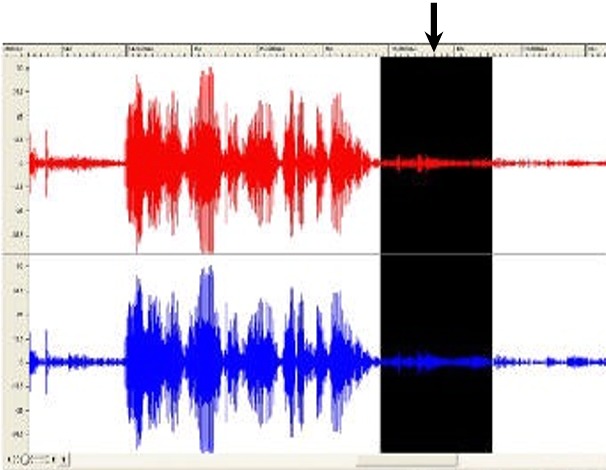
After the foreground and the background sound tracks have been mixed to one single file, that single file can be opened in any popular audio editing software package and viewed in an editing window that renders a visual representation of the audio content. This can be used to help determine the contrast level between the foreground and background of an audio track.
The graphic below (figure 1) is a visual representation of the mp3 audio file above that has sufficient contrast between the foreground and the background. Both the foreground and the background are in the selected portion of the wave file.
Figure 1
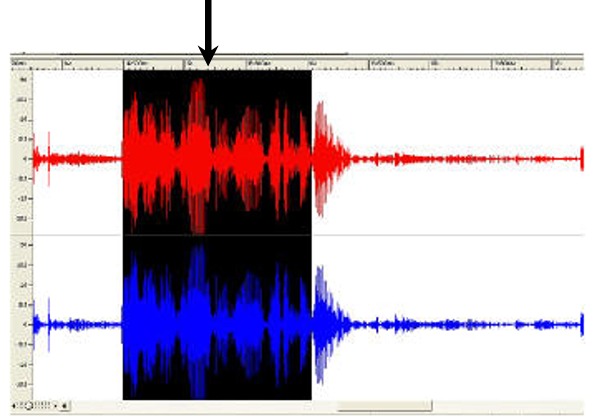
The selected region of the wave file in figure 1 above which contains both the foreground and background sound is a very large wave. The selected region of Figure 2 below which contains only background sound is a much smaller wave.
Figure 2
Failure Example 4: Insufficient Audio Contrast between a narrator and background music
The following is a link to an MP3 audio example of insufficient contrast between a narrator and background music:
Example of bad audio contrast (MP3)
Here is the transcript of the voice on the insufficient contrast example:
"This is an example of a voice that is not loud enough against the background. The voice, which is the foreground sound, is only about 2 decibels above the background sound. Therefore is difficult to understand for a person who is hard of hearing. It is hard to discern one word from the next. This is an example of what not to do."
Resources
Resources are for information purposes only, no endorsement implied.
Tests
Procedure
-
Locate loud values of background content between foreground
speech
-
Measure the volume in dB(A) SPL
-
Measure the volume of the foreground speech in dB(A) SPL
-
Subtract the values
-
Check that the result is 20 or greater.
Expected Results
G57: Ordering the content in a meaningful sequence
This technique relates to:
Description
The objective of this technique is to ensure that the order of content presented to assistive technologies allows the user to make sense of the content. Some techniques permit the content to be rendered visually in a meaningful sequence even if the underlying order of the content is confusing.
For example, when mixing languages with different directionality in HTML, the bidirectional algorithm may place punctuation in the wrong place. Correctly ordered content maintains the punctuation in the correct sequence in the content stream and uses markup to override the bidirectional algorithm, rather than moving the punctuation in the content stream so that the default rendering positions it correctly.
When rendered visually, white space characters such a space or tab may not appear to be part of the content. However, when inserted into the content to control visual formatting, they may interfere with the meaning of the content.
At a larger granularity, controlling the placement of blocks of content in an HTML document using layout tables may produce a rendering in which related information is positioned together visually, but separated in the content stream. Since layout tables are read row by row, if the caption of an illustration is placed in the row following the illustration, it may be impossible to associate the caption with the image.
Examples
Example 1
A Web page from a museum exhibition contains a navigation bar containing a long list of links. The page also contains an image of one of the pictures from the exhibition, a heading for the picture, and a detailed description of the picture. The links in the navigation bar form a meaningful sequence. The heading, image, and text of the description also form a meaningful sequence. CSS is used to position the elements on the page.
Markup:

<h1>My Museum Page</h1>
<ul id="nav">
	<li><a href="#">Link 1</a></li>
	...
	<li><a href="#">Link 10</a></li>
</ul>
<div id="description">
<h2>Mona Lisa</h2>
<p>
<img src="img.png" alt="Mona Lisa">
</p>
<p>...detailed description of the picture...</p>
</div>

CSS:

ul#nav
{
	float: left;
	width: 9em;
	list-style-type: none;
	margin: 0;
	padding: 0.5em;
	color: #fff;
	background-color: #063;
}

ul#nav a
{
	display: block;
	width: 100%;
	text-decoration: none;
	color: #fff;
	background-color: #063;
}

div#description
{
	margin-left: 11em;
}
Resources
No resources available for this technique.
Tests
Procedure
-
Linearize content using a standard approach for the technology (e.g., removing layout styles or running a linearization tool)
-
Check to see if the order of content yields the same meaning as the original
Expected Results
G58: Placing a link to the full text alternative for synchronized media including any interaction
immediately next to the non-text content
Applicability
This technique is not technology specific and can be used in any technology that supports links.
This technique relates to:
Description
With this technique, a link to the collated document of captions and audio description is provided. The collated document could be at another location on the same Web page or at another URI. A link to the collated document is immediately adjacent to the non-text content. The link can be immediately before or after the synchronized media content. If the collated document is on the same Web page as other content then put "End of document" at the end so that they know when to stop reading and return to their previous place. If a "Back" button will not take the person back to the point from which they jumped, then a link back to the non-text content location is provided.
Examples
Example 1: An .MOV Document in an HTML Document
Code on a page called "Olympic_Sports.htm"
<a name="Olympic_Wrestling"></a>
<p><a href="http://www.example.com/movies/olympic_wrestling.mov">Olympic Wrestling movie</a>,
<a href="http://www.example.com/transcripts/olympic_wrestling_transcript.htm>Olympic
Wrestling collated Transcript</a></p>
Example 2: The link back to the .MOV Document in an HTML Document
Code on the page olympic_wrestling_transcript.htm
<p>Sports announcer 1: This is a great battle tonight between England's "Will Johnson" and
"Theodore Derringo" from Argentina</p>

<p>Scenery: There is a mat set out in the middle of the stadium with 500 people in the
stands...</p>

<p> ...more dialogue ...<p>

<p> ...more scenery...</p>

<p> ...etc...</p>

<p>Sports announcer 2: And that is all for tonight, thank you for joining us tonight where
Will Johnson is the new Gold Medalist.
<a href="../movies/Olympic_Sports.htm#Olympic_Wrestling>Return to Movie page</a> </p>
Resources
No resources available for this technique.
Tests
Procedure
-
Check for the presence of a link immediately before or after the non-text content
-
Check that it is a valid link that points directly to the collated document of this particular synchronized media.
-
Check for the availability of a link or back function to get the user back to the original location of the synchronized media content
Expected Results
G59: Placing the interactive elements in an order that follows sequences and relationships within the content
Applicability
All technologies that contain interactive elements and define a default tab order for interactive elements.
This technique relates to:
Description
The objective of this technique is to ensure that interactive elements receive focus in an order that follows sequences and relationships in the content. When designing the content, the interactive elements such as links and form controls are placed in the content so that the default tab order follows the sequences and relationships in the content. Each technology defines its default tab order, so the mechanism for placing the controls in the content will depend on the technology used.
As an example, in HTML, the default focus order follows the order in which elements appear in the content source. When the order of the HTML source matches the visual order of the Web page, tabbing through the content follows the visual layout of the content. When the source order does not match the visual order, the tab order through the content must reflect the logical relationships in the content that are displayed visually.
Examples
-
A form contains two text input fields that are to be filled in sequentially. The first text input field is placed first in the content, the second input field is placed second.
-
A form contains two, side-by-side sections of information. One section contains information about an applicant; the other section contains information about the applicant's spouse. All the interactive elements in the applicant section receive focus before any of the elements in the spouse section. The elements in each section receive focus in the reading order of that section.
Resources
No resources available for this technique.
Tests
Procedure
-
Determine the order of interactive elements in the content.
-
Determine the logical order of interactive elements.
-
Check that the order of the interactive elements in the content is the same as the logical order.
Expected Results
G60: Playing a sound that turns off automatically within three seconds
Applicability
Applies to all technologies except those for voice interaction.
This technique relates to:
Description
The purpose of this technique is to allow authors to play a sound on their
Web page but avoid the problem of users not being able to use their screen
readers due to interference by the content sound. It also allows the author
to avoid putting controls on the Web page to control the sound - and the problem
faced by users with screen readers in finding the control (when unable
to hear their screen reader).
The technique is simple. The sound plays for 3 or less seconds and stops
automatically.
Examples
-
Example 1: A Web page opens with a trumpet fanfare and then goes silent
-
Example 2: A homepage opens with a short greeting by the chairman
and then goes silent.
-
Example 3: A Web page opens with instructions on how to use the page.
-
Example 4: A Web page opens with a warning and then goes silent.
Resources
Resources are for information purposes only, no endorsement implied.
(none)
Tests
Procedure
-
Load the Web page
-
Check that all sound that plays automatically stops in 3 seconds
or less
Expected Results
G61: Presenting repeated components in the same relative order each time they
appear
This technique relates to:
Description
The objective of this technique is to make content easier to use by making
the placement of repeated components more predictable. This technique helps
maintain consistent layout or presentation between Web pages by presenting components that are repeated in these Web units in the same relative order each time they appear. Other
components can be inserted between them, but their relative order is not
changed.
This technique also applies to navigational components that are repeated.
Web pages often contain a navigation menu or other
navigational component that allows the user to jump to other Web pages. This technique makes the placement of navigational
components more predictable by presenting the links or programmatic
references inside a navigational component in the same relative order each
time the navigational component is repeated. Other links can be removed or
inserted between the existing ones, for example to allow navigation inside a
subsection of a set of Web pages, but the relative order is not
changed.
Examples
-
A Web site has a logo, a title, a search form and a navigation bar
at the top of each page; these appear in the same relative order on
each page where they are repeated. On one page the search form is
missing but the other items are still in the same order.
-
A Web site has a left-hand navigation menu with links to the major
sections of the site. When the user follows a link to another
section of the site, the links to the major sections appear in the
same relative order in the next page. Sometime links are dropped and
other links are added, but the other links always stay in the same
relative order. For example, on a Web site of a company that sells
products and offers training, when a user moves from the section on
products to the section on training, the links to individual
products are removed from the navigation list, while links to
training offerings are added.
Resources
Resources are for information purposes only, no endorsement implied.
Tests
Procedure
-
List components that are repeated on each Web page in a set
of Web pages (for example, on each page in a Web site).
-
For each component, check that it appears in the same relative
order with regard to other repeated components on each Web page where it appears.
-
For each navigational component, check that the links or
programmatic references are always in the same relative order.
Expected Results
G62: Providing a glossary
Applicability
Any technology containing text.
This technique relates to:
Description
The objective of this technique is to make the definition of a word, phrase, or abbreviation available by providing the definition in a glossary. A glossary is an alphabetical list of words, phrases, and abbreviations with their definitions. Glossaries are most appropriate when the words, phrases, and abbreviations used within the content relate to a specific discipline or technology area. A glossary can also provide the pronunciation of a word or phrase.
The glossary is included at the end of the Web page or the glossary is located via one of the mechanisms for locating content within a set of Web pages. (See Understanding Success Criterion 2.4.5.)
If the glossary contains several definitions for the same word, phrase, or abbreviation, simply providing the glossary is not sufficient to satisfy this Success Criterion. A different technique should be used to find the correct definition. This is especially important if the uses of the word, phrase, or abbreviation are not unique within the Web page, that is, if different occurrences of the item have different definitions.
Examples
Example 1
Users of on line chat forums have created several acronyms and abbreviations to speed up typing conversations on the computer. For example, LOL refers to "laughing out loud" and FWIW abbreviates "for what it's worth". The site provides a glossary page that lists the expansions for the commonly used acronyms and abbreviations.
Example 2
A Web page discussing mathematical theory includes a glossary of commonly used mathematical terms, abbreviations and acronyms.
Example 3
A textbook contains a glossary of new vocabulary words introduced in each chapter.
Example 4
Dutch text uses the phrase 'Hij ging met de kippen op stok' (He went to roost with the chickens). The glossary explains that this phrase means 'Hij ging vroeg naar bed' (He went to bed early).
Example 5: A glossary of idiomatic expressions
The American novel "The Adventures of Huckleberry Finn" includes many idiomatic expressions that were used in the southwestern United States in the 1840s. In an online edition designed for students, each idiomatic expression is linked to an item in the glossary.
Resources
No resources available for this technique.
Tests
Procedure
-
Check that either
-
Check that each word, phrase, or abbreviation to be defined is defined in the glossary
-
Check that the glossary contains only one definition for each item.
Expected Results
Note: The definition of abbreviation used in WCAG is : "shortened form of a word, phrase, or name where the original expansion has not been rejected by the organization that it refers to and where the abbreviation has not become part of the language."
G63: Providing a site map
This technique relates to:
Description
This is one of a series of techniques for locating content that are sufficient for addressing Success Criterion 2.4.5.
A site map is a Web page that provides links to different sections of the site. To make the site map available within the site, at a minimum every page that is listed in the site map contains a link to the site map.
The site map serves several purposes.
-
It provides an overview of the entire site.
-
It helps users understand what the site contains and how the content is organized.
-
It offers an alternative to complex navigation bars that may be different at different parts of the site.
There are different types of site maps. The simplest and most common kind of site map is an outline that shows links to each section or sub-site. Such outline views do not show more complex relationships within the site, such as links between pages in different sections of the site. The site maps for some large sites use headings that expand to show additional detail about each section.
A site map describes the contents and organization of a site. It is important that site maps be updated whenever the site is updated. A Web page that does not link to all the sections of a site, that presents an organization that is different from the site's organization, or that contains links that are no longer valid is not a valid site map.
Examples
Example 1
The Web Accessibility Initiative provides a WAI site map that lists different sections of its Web site. The site map shows the different sections of the Web site, and shows some of the substructure within those sections.
Example 2
The site map for an on-line magazine lists all the sections of the magazine and the subsections in each section. It also include links for Help, How to Contact Us, Privacy Policy, Employment Opportunities, How to Subscribe, and the home page for the magazine.
Resources
Resources are for information purposes only, no endorsement implied.
-
Graphic Organizers page at the National Center for Accessible Curriculum provides a useful overview of different kinds of graphic organizers and their uses, plus a summary of relevant research on the effectiveness of graphical organizers for students with learning disabilities.
-
Usability Glossary: sitemap
Tests
Procedure
-
Check that the site contains a site map.
-
Check that the links in the site map lead to the corresponding sections of the site.
-
For each link in the site map, check that the target page contains a link to the site map.
-
For each page in the site, check that the page can be reached by following some set of links that start at the site map.
Expected Results
G64: Providing a Table of Contents
This technique relates to:
Description
This is one of a series of techniques for locating content that are sufficient for addressing Success Criterion 2.4.5.
A table of contents provides links to sections and subsections of the same document. The information in the document is usually organized hierarchically, and is intended to be read sequentially. Just as there could be many books in a library, each with its own table of contents, a Web site may contain many documents, each with its own table of contents.
The table of contents serves two purposes:
The table of contents typically includes only major sections of the document, though in some cases an expanded table of contents that provides a more detailed view of a complex document may be desirable.
The sections of the document could be located on the same Web page or divided into multiple Web pages. A table of contents is particularly useful when a document is divided into multiple Web pages.
There is a distinction between a table of contents and other Navigational elements such as a Navigation Bar or Site Map. A table of contents provides links to sections of the same document. Those sections could be located on the same Web page or spread across multiple Web pages. But together, they make a complete idea. To better understand this, consider a hard copy book which has sections. Each section belongs to the book. There could be many books in a library. In this example, the "library" is the entire Web site.
Examples
Example 1
The Web Content Accessibility Guidelines 2.0 contains a table of contents that is a hierarchical list of links to the sections and subsections of the document. The hierarchy of the table of contents reflects the organization of the sections, and each item in the table of contents is a link that takes the user directly to that section.
Example 2
Resources
No resources available for this technique.
Tests
Procedure
-
Check that a table of contents or a link to a table of contents exists in the document.
-
Check that the values and order of the entries in the table of contents correspond to the names and order of the sections of the document.
-
Check that the entries in the table of contents link to the correct sections of the document.
Expected Results
G65: Providing a breadcrumb trail
This technique relates to:
Description
A breadcrumb trail helps the user to visualize how content has been structured and how to navigate back to previous Web pages, and may identify the current location within a series of Web pages. A breadcrumb trail either displays locations in the path the user took to reach the Web page, or it displays the location of the current Web page within the organization of the site.
Breadcrumb trails are implemented using links to the Web pages that have been accessed in the process of navigating to the current Web page. They are placed in the same location within each Web page in the set.
It can be helpful to users to separate the items in the breadcrumb trailing with a visible separator. Examples of separators include ">", "|", "/", and "::".
Examples
Example 1
A developer searches within the Web site of an authoring tool manufacturer to find out how to create hyperlinks. The search results bring him to a Web page with specific instructions for creating hyperlinks using the authoring tool. It contains the following links to create a breadcrumb trail:
Home :: Developer Center :: How To Center
In this example the breadcrumb trail does not contain the title of the current Web page, "How to create hyperlinks". That information is available as the title of the Web page.
Example 2
A photographer's portfolio Web site has been organized into different galleries and each gallery has further been divided into categories. A user who navigates through the site to a Web page containing a photo of a Gentoo penguin would see the following breadcrumb trail at the top of the Web page:
Home / Galleries / Antarctica / Penguins / Gentoo Penguin
All of the items except "Gentoo Penguin" are implemented as links. The current location, Gentoo Penguin, is included in the breadcrumb trail but it is not implemented as a link.
Resources
No resources available for this technique.
Tests
Procedure
When breadcrumb trails have been implemented in a set of Web pages:
-
Navigate to a Web page.
-
Check that a breadcrumb trail is displayed.
-
Check that the breadcrumb trail displays the correct navigational sequence to reach the current location or the correct hierarchical path to the current location within the site structure.
-
For a breadcrumb trail that does not include the current location:
-
Check that all elements in the breadcrumb trail are implemented as links.
-
For a breadcrumb trail that does include the current location:
-
Check that all elements except for the current location are implemented as links.
-
Check that the current location is not implemented as a link.
-
Check that all links navigate to the correct Web page as specified by the breadcrumb trail.
Expected Results
G68: Providing a descriptive label that describes the purpose of live
audio-only and live video-only content
Applicability
Applies to all technologies
This technique relates to:
Description
This technique provides a descriptive label for Live audio-only and live
video-only content. This label may be used in combination with a full text
transcript of the audio or a full text or audio description of the video.
Those alternative however are not part of this technique. The purpose of
this technique is to ensure that the user can determine what the non-text
content is - even if they cannot access it. NOTE: Even if full alternatives
are also available, it is important that users be able to identify the
non-text content when they encounter it so that they are not confused, and
so that they can associate it with the full alternative when they encounter
it.
Examples
Example 1
-
A live video feed of the east coast highway has the
following descriptive label "Live video picture of East
Coast Highway just south of the I-81 interchange showing
current traffic conditions."
-
A live audio feed of the Mississippi House of
Representatives has the following descriptive label "Live
audio from the microphones in the Mississippi House of
Representatives."
Resources
Resources are for information purposes only, no endorsement implied.
Tests
Procedure
-
remove, hide, or mask the non-text content
-
display the text alternative(s)
-
check that the purpose of the non-text content is clear - even
if content is lost.
Expected Results
G69: Providing a full synchronized media text alternative including any interaction
Applicability
General technique. Applies to all technologies
This technique relates to:
Description
The purpose of this technique is to provide an accessible alternative way of presenting the information in a synchronized media presentation.
In a synchronized media presentation, information is presented in a variety of ways including
-
dialogue,
-
sounds (natural and artificial),
-
the setting and background,
-
the actions and expressions of people, animals, etc.,
-
text or graphics,
-
and more.
In order to present the same information in accessible form, this technique involves creating a document that tells the same story and presents the same information as the synchronized media. Such a document is sometimes called a screenplay. It includes all the important dialogue and actions as well as descriptions of backgrounds etc. that are part of the story.
If an actual screenplay was used to create the synchronized media in the first place, this can be a good place to start. In production and editing however, the synchronized media usually changes from the screenplay. For this technique, the original screenplay would be corrected to match the dialogue and what actually happens in the final edited form of the synchronized media.
In addition, some special types of synchronized media include interaction that has to occur at particular places in the playing of the synchronized media. Sometimes it may result in an action taking place (e.g. something is purchased, sent, done, etc.). Sometimes it may change the course of the synchronized media (e.g. the synchronized media has multiple paths that are determined by user input). In those cases links or some other mechanism would be used in the full synchronized media text alternative to allow people using the alternative to be able to have the same options and abilities as those using the synchronized media.
Examples
-
A training film shows employees how to use a new piece of equipment. It involves a person talking throughout while they demonstrate the operation. The screenplay used to create the training film is used as a starting point. It is then edited and corrected to match the dialogue etc. The film and the resulting full synchronized media text alternative are then made available on the company Web site. Employees can then use either or both to learn how to use the machine.
-
An interactive shopping environment is created that allows users to steer themselves around in a virtual store and shop. A full synchronized media text alternative allows the users to access the same shopping in text with links to choose aisles and to purchase things instead of dragging them into a virtual shopping basket.
Resources
No resources available for this technique.
Tests
Procedure
-
View the synchronized media presentation while referring to the full text alternative for synchronized media.
-
Check that the dialogue in the full synchronized media text alternative matches the dialogue in the synchronized media presentation
-
Check that full synchronized media text alternative has descriptions of sounds.
-
Check that full synchronized media text alternative has descriptions of setting and setting changes.
-
Check that full synchronized media text alternative has descriptions of actions and expressions of any 'actors' (people, animals etc).
Expected Results
G70: Providing a function to search an on-line dictionary
This technique relates to:
Description
The objective of this technique is to provide the definition of words, phrases, jargon, or abbreviation expansions by adding a mechanism to access an on-line dictionary to the Web page. This technique uses existing resources on the Web to provide the definition rather than requiring the author to create a glossary or other mechanism within the site. By providing access from within the Web page, a user can easily locate the desired definition.
Examples
Example 1
A site that describes how a computer works would include a search form on each Web page. The search would be performed against an on-line dictionary of computer terms, acronyms, and abbreviations. Since the dictionary is specialized for computer terms, the acronym expansion found should be more accurate than with a general dictionary.
Example 2
An on-line course in English grammar provides a paragraph of text which introduces new vocabulary words. Each of the vocabulary words is a link to an on-line dictionary to find the definition of the word. Activating a link will open up a new window to an on-line dictionary site with the specific vocabulary word defined.
An on-line course in English grammar provides a paragraph of text which introduces new vocabulary words. Each of the vocabulary words is a link to an on-line dictionary to find the definition of the word. Activating a link will open up a new window to an on-line dictionary site with the specific vocabulary word defined.
Resources
No resources available for this technique.
Tests
Procedure
For each word, phrase, or abbreviation to be defined:
-
Check that a mechanism exists within the Web page to search for the word, phrase, or abbreviation via an on-line dictionary.
-
Check that the result of the search of the dictionary for the word, phrase, or abbreviation includes the correct definition.
Expected Results
Note: The definition of abbreviation used in WCAG is : "shortened form of a word, phrase, or name where the original expansion has not been rejected by the organization that it refers to and where the abbreviation has not become part of the language."
G71: Providing a help link on every Web page
This technique relates to:
User Agent and Assistive Technology Support Notes
The example following does not work with JAWS—implicit labels are poorly supported, and JAWS does not read the Help link as part of the label before announcing the control (as required by the Success Criterion).
Description
The objective of this technique is to provide context sensitive help for users as they enter data in forms by providing at least one link to the help information on each Web page. The link targets a help page with information specific to that Web page. Another approach is to provide a help link for every interactive control. Positioning this link immediately before or after the control allows users to easily tab to it if they have problems in the control. Displaying the help information in a new browser window ensures that any data that has already been entered into the form will not be lost. NOTE: A link is not the only means to provide help.
Examples
Example 1
The example below shows a label element enclosing both an input form control, and a help link following the "input" in sequence. Including the help link within the label element allows screen reader users to have access to the help link when interacting with the input form control.
<form action="test.html">
	<label for="test">Test control
	<input type="text" name="test" id="test" />
	<a href="help.html" target="_blank">Help</a></label>
</form>
Tests
Procedure
-
Identify a Web page that contains forms.
-
Determine if there is at least one link to help information specific to completing the form on this Web page or other resource.
-
Determine if there are links either before or after each interactive control to help information specific to that control.
Expected Results
G73: Providing a long description in another location with a link to it that
is immediately adjacent to the non-text content
Applicability
Applies to all technologies
This technique relates to:
Description
The objective of this technique is to provide a way to link to remote long
descriptions in technologies that do not have a long description feature
built directly into them (e.g. longdesc) or where the feature is known to
not be supported.
With this technique, the long description is provided in another location
than the non-text content. This could be at another location within the same
URI or at another URI. A link to that long description is provided that is
immediately adjacent to the non-text content. The link can be immediately
before or after the non-text content. If the description is located along
with other text then put "End of description" at the end so that they know
when to stop reading and return to the main content. If a "Back" button will
not take the person back to the point from which they jumped, then a link
back to the non-text content location is provided.
This technique was commonly used in HTML before 'longdesc' was added to the
specification. In HTML it was called a D-Link because it was usually
implemented by putting a D next to images and using the D as a link to the
long description. This technique is not technology specific and can be used
in any technology that supports links.
Examples
Example 1: Bar chart
There is a bar chart on a Web page showing the sales for the top
three salespeople.
The short text alternative says "October sales chart for top three
salespeople."
Immediately after the non-text content is a small image denoting a
long description. The alternate text for the image is "Long
description of chart". The image links to the bottom of the page
where there is a section titles "Description of charts on this
page". The link points to this specific description: " Sales for
October show Mary leading with 400 units. Mike follows closely with
389. Chris rounds out our top 3 with sales of 350. [end of
description]"
Example 2: Bar chart - in non-HTML technology where user agent "back"
is not supported for security reasons.
There is a bar chart on a Web page showing the sales for the top
three salespeople.
The short text alternative says "October sales chart for top three
salespeople."
Immediately after the non-text content is a small image denoting the
long description. The alternate text for the image is "Long
description of chart". The image links to another page titled
"Description of charts in October Sales Report". The description
link points to this specific description: "Sales for October show
Mary leading with 400 units. Mike follows closely with 389. Chris
rounds out our top 3 with sales of 350. End of description.
<link> Back to Sales Chart
</link> ]"
Example 3: Caption used as link
There is a chart. The figure caption immediately below the chart
serves as a link to the long description. The Title attribute of the
link makes it clear that this is a link to a long description.
Example 4: Transcript of an audio-only file
There is a recording of a speech by Martin Luther King. Links to the
audio file and the transcript appear side by side.
Resources
Resources are for information purposes only, no endorsement implied.
Tests
Procedure
-
check for the presence of a link immediately before or after the
non-text content
-
check that the link is a valid link that points directly to the
long description of this particular non-text content.
-
check that the long description conveys the same information as
the non-text content
-
check for the availability of a link or back function to get the
user back to the original location of the non-text content
Expected Results
All 4 of the above are true
G74: Providing a long description in text near the non-text content, with a
reference to the location of the long description in the short description
Applicability
Applies to all technologies
This technique relates to:
Description
The objective of this technique is to provide a long description without
requiring the user to jump off to another location for the description. It
also allows all users to see the description which may be useful to anyone
who might miss some features in the non-text content.
With this technique, the long description is provided as part of the
standard presentation (i.e. everyone receives it). The description is
located near the non-text content but does not have to be the very next
item. For example, there may be a caption under a chart with the long
description provided in the following paragraph.
The location of this long description is then provided within the short text
alternative so the user knows where to look for it if they cannot view the
non-text content.
Examples
Example 1: Bar chart
There is a bar chart on a Web page showing the sales for the top
three salespeople.
The short text alternative says: "October sales chart for top three
salespeople. Details in text following the chart:"
The following is in the paragraph immediately below the chart. "
Sales for October show Mary leading with 400 units. Mike follows
closely with 389. Chris rounds out our top 3 with sales of 350"
Resources
Resources are for information purposes only, no endorsement implied.
Tests
Procedure
-
check that the short text alternative includes the location of
the long description
-
Check that the long description is near the non-text content
both visually and in the linear reading order
-
check that the long description conveys the same information as
the non-text content
Expected Results
All 3 of the above are true
G75: Providing a mechanism to postpone any updating of content
Applicability
Content that automatically updates itself.
This technique relates to:
Description
The objective of this technique is to ensure that users can postpone automatic updates of content, or other non-emergency interruptions. This can be accomplished either through a preference or by alerting users of an imminent update and allowing them to suppress it. If a preference is provided, automatic content update can be disabled by default and users can specify the frequency of automatic content updates if they choose to enable the setting.
Examples
Tests
Procedure
-
Find pages with content that automatically updates.
-
For each automatic update, look for a mechanism to adjust the timing of the updates.
-
Check that automatic updating is disabled by default or that the user is warned before an automatic update occurs and allowed to suppress it.
Expected Results
G76: Providing a mechanism to request an update of the content instead of
updating automatically
Applicability
Any technology or combination of technologies that support automatic updates.
This technique relates to:
Description
The objective of this technique is to let the user control if and when
content is updated, in order to avoid confusion or disorientation caused by
automatic refreshes that cause a change of context. Users of screen readers
may find automatic updates confusing because it is not always clear what is
happening. When a page is refreshed, the screen reader's “virtual cursor",
which marks the user's current location on the page, is moved to the top of
the page. People who use screen magnification software and people with
reading disabilities may also be disoriented when pages are refreshed
automatically.
Some content is frequently updated with new data or information. Some
developers force automatic updates by inserting code in the content that
causes the content to request a new copy of itself from the server. These
updates and the frequency of these updates are not always under the user's
control. Instead of triggering updates automatically, authors can provide a
mechanism that allows the user to request an update of the content as
needed.
Examples
Example 1
In HTML, a developer can provide a button or link that
allows the user to update the content. For example, on a
page with news items located at http://www.example.com/news.jsp
<a href="news.jsp">Update this page</a>
Example 2
In a Web interface for e-mail (Webmail), a developer can
provide a button or link to fetch new incoming mails instead
of updating automatically.
Resources
Resources are for information purposes only, no endorsement implied.
Tests
Procedure
-
Find mechanisms to update the content (if such a mechanism is
present).
-
For each such mechanism, check if it allows the user to request
an update.
-
For each such mechanism, check if it can cause an automatic
update.
Expected Results
G78: Providing a sound track that includes audio description
Applicability
Applies to any technology that has a sound track and visual content.
This technique relates to:
Description
The objective of this technique is to provide an audio (spoken) version of information that is provided visually so that it is possible for people who cannot see to be able to understand audio-visual material better.
Since most user agents today cannot merge multiple sound tracks, this technique adds the additional audio information to synchronized media by replacing the soundtrack with a new copy of the original soundtrack that has the additional audio description added. This added information focuses on actions, characters, scene changes and on-screen text (not captions) that are important to understanding the content.
Since it is not helpful to have this new information obscure key audio information in the original sound track (or be obscured by loud sound effects), the new information is added during pauses in dialog and sound effects. This limits the amount of supplementary information that can be added to program.
The soundtrack with the audio description (of visual information) can either be an alternate sound track that the user can choose, or it can be the standard sound track that everyone hears.
Examples
-
Example 1: A travelogue of the northeast has additional audio description added during the gaps in the dialog to let listeners who are blind know what the person is talking about at any point in time.
-
Example 2: A lecture has audio description added when the instructor says things like "and this is the one that is most important" to let listeners who are blind know what "this" is.
-
Example 3: A movie file has two audio tracks, one of which has audio description. Users can choose either one when listening to the movie.
Resources
Resources are for information purposes only, no endorsement implied.
Tests
Procedure
-
Select audio track with descriptions if there is a choice of audio tracks
-
Listen to the synchronized media
-
Check to see if gaps in dialog are used to convey important information regarding visual content
Expected Results
G79: Providing a spoken version of the text
Applicability
Technologies that support links, audio formats.
This technique relates to:
Description
Some users who have difficulty sounding out (decoding) words in written text find it very helpful to hear the text read aloud. This service can now be provided easily using either recorded human speech or synthetic speech. For example, there are a number of products that authors can use to convert text to synthetic speech, then save the spoken version as an audio file. A link to the spoken version can then be provided within the content. Cost depends in part on the quality of the voice used and whether the text is likely to change frequently.
-
Spoken versions of short texts and static text content
This method is effective for small amounts of text and for longer documents that do not change often.
-
Make a recording of someone reading the text aloud, or use a tool that converts individual documents or selected passages into synthetic speech. Choose the clearest, most attractive voice if a choice is available.
-
Save the spoken version as an audio file. Use an audio format that is widely available and supported by media players.
-
Provide a link to the audio version.
-
Identify the audio format (for example, .MP3, .WAV, .AU, etc.).
-
Provide a link to a media player that supports the format.
-
Spoken versions of text that changes
Server-based methods may be best when pages change often or when user choice determines text content. Some server-based tools allow users to select any text they are interested in and listen to it. Typically, the user presses a button which starts the text-to-speech conversion and reads the text aloud.
Examples
Example 1: A Web site for a government agency
The Web site for a municipal housing authority has a button on every page labeled "Read this page aloud." The user selects the button and the page is spoken by a synthetic voice.
Resources
No resources available for this technique.
Tests
Procedure
-
Check if a spoken version of the content is available.
Expected Results
G80: Providing a submit button to initiate a change of context
Applicability
Content that includes forms.
This technique relates to:
Description
The objective of this technique is to provide a mechanism that allows users
to explicitly request changes of context. Since the intended use of a submit
button is to generate an HTTP request that submits data entered in a form,
this is an appropriate control to use for causing a change of context and is
a practice that does not create confusion for users.
Examples
Example 1
Example 1: A submit button is used for each form that causes a
change in context.
Resources
Resources are for information purposes only, no endorsement implied.
Tests
Procedure
-
Find all forms in the content
-
For each form, check that it has a submit button
Expected Results
G81: Providing a synchronized video of the sign language interpreter that can
be displayed in a different viewport or overlaid on the image by the player
Applicability
Applies to all synchronized media technologies that allow synchronization of
multiple video streams
This technique relates to:
Description
The objective of this technique is to allow users who cannot hear or read
text rapidly to be able to access synchronized media material without affecting the
presentation of the material for all viewers.
For those who communicate primarily in sign language it is sometimes less
preferable and sometimes not possible for them to read and understand text
at the rate it is presented in captions. For these latter individuals it is
important to provide sign language presentation of the audio information.
This technique accomplishes this by providing the sign language
interpretation as a separate video stream that is synchronized with the
original video stream. Depending on the player, this secondary video stream
can be overlaid on top of the original video or displayed in a separate
window. It may also be possible to enlarge the sign language interpreter
separately from the original video to make it easier to read the hand, body
and facial movements of the signer.
NOTE: Since sign language is not usually a signed version of the printed
language, the author has to decide which sign language to include. Usually
the sign language of the primary audience would be used. If intended for
multiple audiences, multiple languages may be used. See advisory technique
for multiple sign languages.
Examples
Example 1
Example 1: A university provides a synchronized sign language
interpreter video stream that can be displayed, at the viewer's
option, along with any of their education programs.
Resources
Resources are for information purposes only, no endorsement implied.
(none)
Tests
Procedure
-
Enable the display of the sign-language window in the player.
-
Have someone watch the program who can hear and is familiar with
the sign language being used.
-
Check to see if there is a sign language interpreter on screen
or in a separate window.
-
Check to see that dialog and important sounds are being conveyed
by the interpreter and are synchronized with the audio.
Expected Results
G82: Providing a text alternative that identifies the purpose of the non-text content
Applicability
Applies to all technologies
This technique relates to:
Description
The purpose of this technique is to provide useful information via the text
alternative even if the full function of the non-text content cannot be
provided.
Sometimes, a text alternative cannot serve the same purpose as the original
non-text content (for example an applet meant to develop two dimensional
rapid targeting skills and eye hand coordination.) In these cases this
technique is used. With this technique a description of the purpose of the
non-text content is provided.
Examples
Example 1
-
An eye-hand coordination development applet has the
following text alternative "Applet that uses the mouse and
moving targets to develop eye-hand coordination"
-
A camera applet that has a round disk where you push on the
edges to control a remote camera and a slider in the middle
for zooming has the following text alternative "Control for
aiming and zooming remote video camera".
Resources
Resources are for information purposes only, no endorsement implied.
Tests
Procedure
-
remove, hide, or mask the non-text content
-
replace it with the text alternative
-
check that the purpose of the non-text content is clear - even
if function is lost.
Expected Results
G83:
Providing text descriptions to identify required fields that were not completed
Applicability
Content that includes mandatory fields in user input
This technique relates to:
Description
The objective of this technique is to notify the user when a field that must be completed has not been completed. When users fail to provide input for any mandatory form fields, information is provided in text to enable the users to identify which fields were omitted. One approach is to use client-side validation and provide an alert dialog box identifying the mandatory fields which were omitted. Another approach, using server-side validation, is to re-display the form (including any previously entered data), with either a text description at the location of the omitted mandatory field, or a text description that identifies the omitted mandatory fields.
Examples
-
A user attempts to submit a form but has neglected to provide input or select a choice in one or more mandatory fields. Using client-side validation, the omission is detected and an alert dialog appears informing the user that mandatory fields have not been completed. The labels of the fields with this problem are changed to identify the problem field, and links to the problem fields are inserted in the document after the submit button so the user can move to them after dismissing the alert.
-
A user attempts to submit a form but has neglected to provide input or select a choice in one or more mandatory fields. Using server-side validation, the omission is detected and the form is re-displayed with a text description at the top informing which mandatory fields were omitted. Each omitted mandatory field is also identified using a text label so that the user does not have to return to the list at the top of the form to find the omitted fields.
-
A user is completing a form that contains mandatory fields. The labels of the fields indicate whether or not they are mandatory. The user tabs to a mandatory field, and tabs out of the field without entering any data or selecting a choice. A client-side script modifies the label of the field to indicate that leaving it blank was an error.
Tests
Procedure
-
Fill out a form, deliberately leaving one or more required (mandatory) fields blank, and submit it.
-
Check that a text description is provided identifying the mandatory field(s) that was not completed.
Expected Results
G84: Providing a text description when the user provides information that is not in the list of allowed values
Applicability
Content that collects user input where a limited set of values must be input.
This technique relates to:
Description
When users enter input that is validated, and errors are detected, the nature of the error needs to described to the user in manner they can access. One approach is to present an alert dialog that describes fields with errors when the user attempts to submit the form. Another approach, if validation is done by the server, is to return the form (with the user's data still in the fields) and a text description at the top of the page that indicates the fact that there was a validation problem, describes the nature of the problem, and provides ways to locate the field(s) with a problem easily. The "in text" portion of the Success Criterion underscores that it is not sufficient simply to indicate that a field has an error by putting an asterisk on its label or turning the label red. A text description of the problem should be provided.
When input must be one of a set of allowed values, the text description should indicate this fact. It should include the list of values if possible, or suggest the allowed value that is most similar to the entered value.
Examples
-
The user inputs invalid data on a form field. Before the user submits the form, an alert dialog appears that describes the nature of the error so the user can fix it.
-
The user inputs invalid data on a form field and submits the form. The server returns the form, with the user's data still present, and indicates clearly in text at the top of the page that there were input errors. The text describes the nature of the error(s) and clearly indicates which field had the problem so the user can easily navigate to it to fix the problem.
Tests
Procedure
-
Enter invalid data in a form field.
-
Check that information is provided in text about the problem.
Expected Results
G85: Providing a text description when user input falls outside the required format or values
Applicability
Content that accepts user data input, with restrictions on the format, value, and/or type of the input.
This technique relates to:
Description
The objective of this technique is to provide assistance in correcting input errors where the information supplied by the user is not accepted . When users enter data input that is validated, and input errors are detected, information about the nature and location of the input error is provided in text to enable the users to identify the problem. One approach is to use client-side validation and provide an alert dialog box that describes the error immediately when users enter invalid data in field. Another approach, using server-side validation, is to re-display the form (including any previously entered data), and a text description at the top of the page that indicates the fact that there was an error
, describes the nature of the problem, and provides ways to easily locate the field(s) with a problem.
However the text description is provided, it should do one of the following things to assist the user:
-
Provide examples of the correct data entry for the field,
-
Describe the correct data entry for the field,
-
Show values of the correct data entry that are similar to the user's data entry, with instructions to the user as to how to enter one of these correct values should the user choose to do so.
Examples
-
The user inputs invalid data on a form field. When the user exits the field, an alert dialog appears that describes the nature of the error so the user can fix it.
-
The user inputs invalid data on a form field and submits the form. The server returns the form, with the user's data still present, and indicates clearly in text at the top of the page that there were input errors. The text describes the nature of the error(s) and clearly indicates which field had the problem so the user can easily navigate to it to fix the problem.
-
The user inputs invalid data on a form field and attempts to submit the form. Client side scripting detects the error, cancels the submit, and modifies the document to provide a text description after the submit button describing the error, with links to the field(s) with the error. The script also modifies the labels of the fields with the problems to highlight them.
Tests
Procedure
-
Fill out a form, deliberately enter user input that falls outside the required format or values
-
Check that a text description is provided that identifies the field in error and provides some information about the nature of the invalid entry and how to fix it.
Expected Results
G86: Providing a text summary that requires reading ability less advanced than the upper secondary education level
This technique relates to:
Description
The objective of this technique is to provide a summary of content that is difficult to read. The summary is provided in addition to the original content.
Users with disabilities that make it difficult to decode words and sentences are likely to have trouble reading and understanding complex text. This technique provides a short statement of the most important ideas and information in the content. The summary is easier to read because it uses shorter sentences and more common words than the original.
The following steps can be used to prepare the summary:
-
Identify the most important ideas and information in the content.
-
Write one or more paragraphs that use shorter sentences and more common words to express the same ideas and information. (The number of paragraphs depends on the length of the original.)
-
Measure the readability of the summary.
-
Edit the summary. Consider dividing longer sentences into two or replacing long or unfamiliar words with shorter, more common terms.
-
Repeat steps 3 and 4 as needed.
Examples
Example 1: A technical article with a readable summary
An article describes a technical innovation. The first item after the title of the article is a section with the heading, “Summary." The average length of the sentences in the summary is 16 words (compared to 23 words for sentences in the article), and it uses short, common words instead of the technical jargon in the article. A readability formula is applied; the summary requires reading ability less advanced than the lower secondary education level.
Resources
No resources available for this technique.
Tests
Procedure
For each summary provided as supplemental content:
-
Measure the readability of the summary.
-
Check that the summary requires reading ability less advanced than the lower secondary education level.
Expected Results
G87: Providing closed captions
Applicability
Any audiovideo technology where there are user agents that support closed
captions.
This technique relates to:
Description
The objective of this technique is to provide a way for people who have
hearing impairments or otherwise have trouble hearing the dialog in
synchronized media material to be able to view the material and see the dialog and
sounds - without requiring people who are not deaf to watch the captions.
With this technique all of the dialog and important sounds are embedded as
text in a fashion that causes the text not to be visible unless the user
requests it. As a result they are visible only when needed. This requires
special support for captioning in the user agent.
NOTE: Captions should not be confused with subtitles. Subtitles provide text
of only the dialog and do not include important sounds.
Examples
Example 1
Example 1: In order to ensure that users who are deaf can use their
interactive educational materials, the college provides captions and
instructions for turning on captions for all of their audio
interactive educational programs.
Example 2: The online movies at a media outlet all include
captions and are provided in a format that allows embedding of
closed captions.
Example 3: Special caption files including synchronization
information are provided for an existing movie. Players are
available that can play the captions in a separate window on screen,
synchronized with the movie window.
Example 4: A video of a local news event has captions provided that
can be played over the video or in a separate window depending on
the player used.
Resources
Resources are for information purposes only, no endorsement implied.
Guides to Captioning
SMIL
Other Captioning
Tests
Procedure
-
Turn on the closed caption feature of the media player
-
View the synchronized media content
-
Check that captions (of all dialog and important sounds) are
visible
Expected Results
G88: Providing descriptive titles for Web pages
This technique relates to:
Description
The objective of this technique is to give each Web page a descriptive title. Descriptive titles help users find content, orient themselves within it, and navigate through it. A descriptive title allows a user to easily identify what Web page they are using and to tell when the Web page has changed. The title can be used to identify the Web page without requiring users to read or interpret page content. Users can more quickly identify the content they need when accurate, descriptive titles appear in site maps or lists of search results. When descriptive titles are used within link text, they help users navigate more precisely to the content they are interested in.
The title of each Web page should:
-
Identify the subject of the Web page
-
Make sense when read out of context, for example by a screen reader or in a site map or list of search results
-
Be short
It may also be helpful for the title to
Examples
Example 1: A title that lists the most important identifying information first
A Web page is published by a group within a larger organization. The title of the Web page first identifies the topic of the page, then shows the group name followed by the name of the parent organization.
<title>Working with us: The Small Group: The Big Organization</title>
Example 2: A synchronized media presentation with a descriptive title
A synchronized media presentation about the 2004 South Asian tsunami is titled “The Tsunami of 2004."
Example 3: A Web page with a descriptive title in three parts
A Web page provides guidelines and suggestions for creating closed captions. The Web page is part of a “sub-site" within a larger site. The title is separated into three parts by dashes. The first part of the title identifies the organization. The second part identifies the sub-site to which the Web page belongs. The third part identifies the Web page itself. (For a working example, see WGBH – Media Access Group – Captioning FAQ.)
Example 4: A newspaper Web page
A Web site that only permits viewing of the current edition titles its Web page "National News, Front Page". A Web site that permits editions from different dates to be viewed titles its Web page, "National News, Front Page, Oct 17, 2005".
Resources
No resources available for this technique.
Tests
Procedure
-
Check that the Web page has a title
-
Check that the title is relevant to the content of the Web page.
-
Check that the Web page can be identified using the title.
Expected Results
G89: Providing expected data format and example
Applicability
Pages that collect information from users, and restrict the format the user can use.
This technique relates to:
Description
The objective of this technique is to help the user avoid input errors by informing them about restrictions on the format of data that they must enter. This can be done by describing characteristics of the format or providing a sample of the format the data should have.
Note: For data formats with common variations, such as dates and times, it may be useful to provide a preference option so users can use the format that is most comfortable to them.
Examples
Example 1
The following HTML form control for a date indicates in the label that the date must be in day-month-year format, not month-day-year as many users in the United States may assume.
<label for="date">Date (dd-mm-yyyy)</label>
<input type="text" name="date" id="date" />
Tests
Procedure
-
Identify form controls that will only accept user input data in a given format.
-
Determine if each of the form controls identified in 1 provides information about the expected format.
Expected Results
G90: Providing keyboard-triggered event handlers
Applicability
Applies to all technologies where content includes functionality.
This technique relates to:
Description
The objective of this technique is to permit individuals who rely on a keyboard or keyboard interface to access the functionality of the content. To do this, make sure that all event handlers triggered by non-keyboard UI events are also associated with a keyboard-based event, or provide redundant keyboard-based mechanisms to accomplish the functionality provided by other device-specific functions.
Examples
-
Example 1: A drag and drop feature A photo application includes a "drag" and "drop" feature to allow users to re-order photographs in an on-line album for presentation as a slide show. It also includes a feature that allows users to select a photo and 'cut' and 'paste' the items into the list at the appropriate point using only the keyboard.
-
Example 2: A reorder feature
A Web application that allows users to create surveys by dragging questions into position includes a list of the questions followed by a text field that allows users to re-order questions as needed by entering the desired question number.
Resources
No resources available for this technique.
Tests
Procedure
-
check that all functionality can be accessed using only the keyboard
Expected Results
G91: Providing link text that describes the purpose of a link
Applicability
All technologies that contain links.
This technique relates to:
Description
The objective of this technique is to describe the purpose of a link in the text of the link. The description lets a user distinguish this link from links in the Web page that lead to other destinations and helps the user determine whether to follow the link. The URI of the destination is generally not sufficiently descriptive.
Examples
Example 1: Describing the purpose of a link in HMTL in the text content of the a element
<a href="routes.html">
  Current routes at Boulders Climbing Gym
</a>
Resources
No resources available for this technique.
Tests
Procedure
For each link in the content that uses this technique:
-
Check that text of the link describes the purpose of the link
Expected Results
G92: Providing long description for non-text content that serves the same
purpose and presents the same information
Applicability
Applies to all technologies
This technique relates to:
Description
The objective of this technique is to provide a long text alternative that
serves the same purpose and presents the same information as the original
non-text content when a short text alternative is not sufficient.
Combined with the short text alternative, the long description should be
able to substitute for the non-text content. The short alternative
identifies the non-text content; the long alternative provides the
information. If the non-text content were removed from the page and
substituted with the short and long descriptions, the page would still
provide the same function and information.
In deciding what should be in the text alternatives, the following questions
are helpful.
-
Why is this non-text content here?
-
What information is it presenting?
-
What purpose does it fulfill?
-
If I could not use the non-text content, what words would I use to
convey the same function and/or information?
Examples
Example 1
A chart showing sales for October has a short text
alternative of "October sales chart". The long description would
read "Bar Chart showing sales for October. There are 6 salespersons.
Maria is highest with 349 units. Frances is next with 301. Then
comes Juan with 256, Sue with 250, Li with 200 and Max with 195. The
primary use of the chart is to show leaders, so the description is
in sales order."
Example 2
A line graph that shows average winter temperatures from
the past 10 years includes a short text alternative of "Average
winter temperatures 1996-2006." The long description includes the
data table that was used to generate the line graph.
Resources
Resources are for information purposes only, no endorsement implied.
Tests
Procedure
-
Remove, hide, or mask the non-text content
-
Display the long description
-
Check that the long description conveys the same information
conveyed by the non-text content.
Expected Results
G93:
Providing open (always visible) captions
Applicability
Any synchronized media technology, even ones that do not support closed captions.
This technique relates to:
Description
The objective of this technique is to provide a way for people who are deaf or otherwise have trouble hearing the dialog in audio visual material to be able to view the material. With this technique all of the dialog and important sounds are embedded as text in the video track. As a result they are always visible and no special support for captioning is required by the user agent.
NOTE: Captions should not be confused with subtitles. Subtitles provide text of only the dialog and do not include important sounds.
Examples
-
In order to ensure that everyone can view their online movies, even if users do not know how to turn on captions in their media player, a library association puts the captions directly into the video.
-
A news organization provides open captions on all of its material.
Resources
Resources are for information purposes only, no endorsement implied.
(none listed)
Tests
Procedure
-
Watch the synchronized media with closed captioning turned off.
-
Check that captions (of all dialog and important sounds) are visible.
Expected Results
G94: Providing short text alternative for non-text content that serves the same purpose and presents the same information as the non-text content
Applicability
Applies to all technologies.
This technique relates to:
Description
The objective of this technique is to create a text alternative that serves the same purpose and presents the same information as the original non-text content. As a result, it is possible to remove the non-text content and replace it with the text alternative and no functionality or information would be lost. This text alternative should not necessarily describe the non-text content. It should serve the same purpose and convey the same information. This may sometimes result in a text alternative that looks like a description of the non-text content. But this would only be true if that was the best way to serve the same purpose.
If possible, the short text alternative should completely convey the purpose and information. If it is not possible to do this in a short phrase or sentence, then the short text alternative should provide a brief overview of the information. A long text alternative would be used in addition to convey the full information.
The text alternative should be able to substitute for the non-text content. If the non-text content were removed from the page and substituted with the text, the page would still provide the same function and information. The text alternative would be brief but as informative as possible.
In deciding what text to include in the alternative, it is a often a good idea to consider the following questions:
-
Why is this non-text content here?
-
What information is it presenting?
-
What purpose does it fulfill?
-
If I could not use the non-text content, what words would I use to convey the same function and/or information?
When non-text content contains words that are important to understanding the content, the alt text should include those words. If the text in the image is more than can fit in a short text alternative then it should be described in the short text alternative and a long text alternative should be provided as well with the complete text.
Examples
-
A search button uses an image of a magnifying glass. The text alternative is "search" and not "magnifying glass".
-
A picture shows how a knot is tied including arrows showing how the ropes go to make the knot. The text alternative describes how to tie the knot, not what the picture looks like.
-
A picture shows what a toy looks like from the front. The text alternative describes a front view of the toy.
-
An animation shows how to change a tire. A short text alternative describes what the animation is about. A long text alternative describes how to change a tire.
-
A logo of the TechTron company appears next to each product in a list that is made by that and has a short text alternative that reads, "TechTron."
-
A chart showing sales for October has an short text alternative of "October sales chart". It also has a long description that provides all of the information on the chart.
-
A heading contains a picture of the words, "The History of War" in stylized text. The alt text for the picture is "The History of War".
Resources
No resources available for this technique.
Tests
Procedure
-
Remove, hide, or mask the non-text content
-
Replace it with the text alternative
-
Check that nothing is lost (the purpose of the non-text content is met by the text alternative)
-
If the non-text content contains words that are important to understanding the content, the words are included in the text alternative
Expected Results
G95: Providing short text alternatives that provide a brief description of
the non-text content
Applicability
Applies to all technologies
This technique relates to:
Description
This technique is used when the text needed to serve the same purpose and
present the same information as the original non-text content is too lengthy
or when this goal cannot be achieved with text alone. In that case this
technique is used to provide a short text alternative that briefly describes
the non-text content. (A long text alternative is then provided using
another technique such that the combination serves the same purpose and
presents the same information as the original non-text content.)
In deciding what text to include in the alternative, it is often a good idea
to consider the following questions:
-
Why is this non-text content here?
-
What information is it presenting?
-
What purpose does it fulfill?
-
If I could not use the non-text content, what words would I use to
convey the same function and/or information?
Examples
Resources
Resources are for information purposes only, no endorsement implied.
Tests
Procedure
-
Check for the presence of a short text alternative that provides
a brief description of the non-text content.
Expected Results
G96:
[begin change]Providing textual identification of items that otherwise rely only on sensory information to be understood[end change]
Applicability
[begin change] All technologies that present description of a content rendering to the user.
[2015]
[end change]
This technique relates to:
Description
[begin change] The objective of this technique is to ensure that items within a Web page are referenced in the content not only by shape, size, sound or location, but also in ways that do not depend on that sensory perception. For example, a reference may also describe the function of the item or its label.
[end change]
Examples
Example 1
A round button is provided on a form to submit the form and move onto the next step in a progression. The button is labeled with the text "go." The instructions state, "to submit the form press the round button labeled go". This includes both shape and textual information to locate the button.
Example 2
Instructions for a Web page providing on-line training state, "Use the list of links to the right with the heading, 'Class Listing' to navigate to the desired on-line course." This description provides location as well as textual clues to help find the correct list of links.
Example 3
The following layout places a button in the lower right corner and indicates it by position. An indication of the text label clarifies which button to use for users who access a linearized version in which the position is not meaningful.
<table>
  <tbody>
    <tr>
      <td colspan="2">Push the lower right [Preview] button.</td>
      <td>
        <span style="background: ButtonFace; color: ButtonText; border:
        medium outset ButtonShadow;
        width: 5em; display: block; font-weight: bold; text-align: center;">
        Print</span>
      </td>
    </tr>
    <tr>
      <td>
        <span style="background: ButtonFace; color: ButtonText; border:
        medium outset ButtonShadow;
        width: 5em; display: block; font-weight: bold; text-align: center;">
        Cancel</span>
      </td>
      <td>
        <span style="background: ButtonFace; color: ButtonText; border:
        medium outset ButtonShadow;
        width: 5em; display: block; font-weight: bold; text-align: center;">
        OK</span>
      </td>
      <td>
        <span style="background: ButtonFace; color: ButtonText; border:
        medium outset ButtonShadow;
        width: 5em; display: block; font-weight: bold; text-align: center;">
        Preview</span>
      </td>
    </tr>
  </tbody>
</table>
Resources
No resources available for this technique.
Tests
Procedure
Find all references in the Web page that mention the shape, size, or position of an object. For each such item:
-
Check that the reference contains additional information that allows the item to be located and identified without any knowledge of its shape, size, or relative position.
Expected Results
G97: Providing the abbreviation immediately following the expanded form
Applicability
Any technology containing text.
This technique relates to:
Description
The objective of this technique is to make the expanded form of an abbreviation available by associating the expanded form with its abbreviation the first time it occurs within a Web page. The expansion of any abbreviation can be found by searching the Web page for the first use.
When shortening a word, phrase or name by means of an abbreviation, initialism, acronym, or other shortened form, provide the full form before providing the abbreviated form. This makes the text easier to read and is advised by many style guides.
Note that some abbreviations require explanations rather than expansions. This technique is not appropriate for such abbreviations.
This technique is applied to the first occurrence of an abbreviation in a Web page. When combining multiple resources into a single Web page, the abbreviation would be expanded at the beginning of each resource. In this case, however, using a different technique for providing the expanded form may be more appropriate.
Examples
Example 1
"The United Nations High Commissioner for Human Rights (UNHCR) was established in 1950 to provide protection and assistance to refugees."
Resources
Resources are for information purposes only, no endorsement implied.
Tests
Procedure
For each abbreviation in the content,
-
Search for the first use of that abbreviation in the authored component.
-
Check that the first use is immediately preceded by the expanded form of the abbreviation.
-
Check that the expanded form is the correct expanded form for the use of the abbreviation.
Expected Results
G98: Providing the ability for the user to review and correct answers before submitting
Applicability
Sites that collect data from users that is specific to the moment it is submitted, such as test data, and cannot be changed once it is submitted.
This technique relates to:
Description
The objective of this technique is to provide users with a way to ensure their input is correct before completing an irreversible transaction. Testing, financial, and legal applications permit transactions to occur which cannot be "undone". It is therefore important that there be no errors in the data submission, as the user will not have the opportunity to correct the error once the transaction has been committed.
On a simple, 1-page form this is easy because the user can review the form before submitting. On a form that spans multiple Web pages, however, data is collected from the user in multiple steps before the transaction is committed. The user may not recall all of the data that was entered in previous steps before the step which commits the transaction.
One approach is to cache the results of each individual step and allow the user to navigate back and forth at will to review all data entered. Another approach is to provide a summary of all data collected in all steps for the user to review prior to the final commitment of the transaction.
Before the final step that commits the transaction to occur, instructions are provided to prompt the user to review the data entered and confirm. Once the user confirms, the transaction is completed.
Examples
-
An online banking application provides multiple steps to complete a transfer of funds between accounts as follows:
-
Select "transfer from" account
-
Select "transfer to" account
-
Enter transfer amount
-
A summary of the transaction is provided showing the from and to accounts and the transfer amount. The user can select a button to either complete the transaction or cancel it.
-
A testing application provides multiple pages of questions. At any time, the user can choose to return to previously completed sections to review and change answers. A final page is displayed providing buttons to either submit the test answers or review answers.
Tests
Procedure
In a testing application or one that causes financial or legal transactions to occur and that also collects data from users in multiple steps:
-
Determine if the user is allowed to return to previous steps to review and change data.
-
Determine if a summary of all data input by the user is provided before the transaction is committed and a method is provided to correct errors if necessary.
Expected Results
G99: Providing the ability to recover deleted information
Applicability
Content where user actions cause content to be deleted.
This technique relates to:
Description
When a Web application provides the capability of deleting information, the server can provide a means to recover information that was deleted in error by a user. One approach is to delay deleting the data by merely marking it for deletion or moving it to a holding area (such as a trash can) and waiting some period of time before actually deleting it. During this time period, the user can request that the data be restored or can retrieve it from the holding area. Another approach is to record all delete transactions in such a way that data can be restored if requested by the user, such as in the edit history stored by wikis and source control applications.The retrievable information that is stored should be that which would be needed to correct the transaction.
Examples
-
A Web application allows users to set up folders and store data within them. Each folder and data item is accompanied by a checkbox to mark it for action, and two buttons, one to move and one to delete. If the user selects the delete button by mistake, large amounts of data could be lost. The application presents the data as deleted to the user right away, but schedules it for actual deletion in one week. During the week, the user may go into a "deleted items" folder and request any folder or data item awaiting actual deletion to be restored.
Tests
Procedure
-
Identify functionality that allows deleting content
-
Delete content and attempt to recover it.
-
Check if deleted information can be recovered.
Expected Results
G100: Providing the accepted name or a descriptive name of the non-text
content
This technique relates to:
Description
The objective of this technique is to allow users to identify the non-text
content even if the non-text content is intended to provide a specific
sensory experience. For example, a deaf person may want to know what an
audio instrumental file is - even if they cannot hear it. Similarly, a blind
person may want to know what the subject of a visual image is - even if they
cannot see it.
Examples
Example 1
-
Example 1: A painting of the Mona
Lisa has an alternate text of "Mona Lisa, by Leonardo da
Vinci"
-
Example 2: A sound file has an
alternate text of "5 Grade schoolers playing a Theramin".
-
Example 3: A famous modern art
piece is labeled "Red, Blue and Yellow, by Piet Mondrian"
Resources
Resources are for information purposes only, no endorsement implied.
Tests
Procedure
-
Check that alternate text provides a descriptive name
-
Check that alternate text provides a name that has be previously
given to the non-text content by the author or another.
Expected Results
G101: Providing the definition of a word or phrase used in an unusual or restricted way
Applicability
Any technology containing text.
This technique relates to:
Description
The objective of this technique is to provide a definition for any word used in an unusual or restricted way.
A word is used in an unusual or restricted way when:
-
dictionaries give several definitions of the word but one specific definition must be used in order to understand the content;
-
a specific definition must be used in order to understand the content and dictionaries list that definition as rare, archaic, obsolete, etc.;
-
the author creates a new definition that must be used in order to understand the content.
This technique can also be used to provide definitions for jargon, that is, the specialized vocabulary used in a particular profession or technical field and understood by people in that field but not by people outside the field.
The technique can also be used to define idiomatic expressions. For example, speakers of a language who live in a particular region may use idiomatic expressions that are accepted by everyone in the region but not by people from other regions where the same language is spoken.
Examples
Example 1: A term used in a restricted way
The word "technology" is widely used to cover everything from the stone tools used by early humans to contemporary digital devices such as cell phones. [begin change]But in WCAG 2.0, the word technology is used in a more restricted way: it means a mechanism for encoding instructions to be rendered, played or executed by user agents, including markup languages, data formats, and programming languages used in producing and delivering Web content.[end change]
Example 2: A word used according to an obsolete definition
The word "ether" is defined as a substance that filled interplanetary space: "He believed that sound traveled through the ether."
Example 3: Jargon
The word "driver" is defined as software that contains specific instructions for a printer: "It may be necessary to update the driver for your printer."
Example 4: An idiomatic expression
[begin change] Some people say "spill the beans" when they mean "reveal a secret", e.g., "In the police station, Joe spilled the beans about the plot to kidnap the prime minister."
[end change]
Example 5: An idiomatic expression in Japanese
This example uses parentheses to provide the definition of an idiomatic expression in Japanese. The phrase in Japanese says that "he throws a spoon." It means that there was nothing he can do and finally he gives up.
さじを投げる(どうすることもできなくなり、あきらめること)。
Example 6:
An unfamiliar adopted foreign word in English
Users may not understand the meaning of an unfamiliar word adopted from another language: "We need to leave town pronto (quickly).
Example 7:
Unfamiliar adopted words in Japanese
In Japanese, Kata-kana is used for adopted foreign words. If words are unfamiliar to users, provide the meaning or translation so that users can understand them.
アクセシビリティ(高齢者・障害者を含む全ての人が利用できること)は、Webサイトに不可欠である。
English translation: "Accessibility" (it can be accessed by all users including elderly people and people with disabilities) is an essential aspect of the Websites.
レイアウトテーブルとCSSの併用をハイブリッド(複合型)という。
English translation: Using both layout table and CSS is called "hybrid" (combination of multiple forms).
Resources
No resources available for this technique.
Tests
Procedure
For each word or phrase used in an unusual or restricted way:
-
Check that a definition is provided for the word or phrase
Expected Results
G102: Providing the expansion or explanation of an abbreviation
Applicability
Any technology containing text.
This technique relates to:
Description
The objective of this technique is to provide information necessary to understand an abbreviation.
An abbreviation is the shortened form of a word, phrase, or name. For most abbreviations, providing the full word, phrase, or name is sufficient.
Some abbreviations represent words or phrases that are borrowed from a foreign language. For instance, many commonly used abbreviations in English are derived from Latin phrases, such as the short list of examples given below. The expanded form is only provided here as background information. For this category of abbreviations, providing an explanation is more helpful than the original expanded form, and the explanation of the abbreviation is provided instead of the expansion.
| Abbreviation | Latin expansion | Explanation |
|---|
| a.m. | ante meridiem | before noon; in the morning |
| p.m. | post meridiem | after noon; in the afternoon |
| e.g. | exempli gratia | for example |
| cf | confer/conferatur | compare |
If abbreviations do not need an expansion (for example, because the original expansion has been rejected by the organization that it refers to or if the abbreviation has become part of the language), provide an explanation, if appropriate, or treat the abbreviation as a word that does not require explanation.
Examples
Example 1: ADA
Some abbreviations have more than one meaning, and the meaning depends on the context. For example, ADA means "American Dental Association" in one context and "Americans with Disabilities Act" in another. Only the expansion relevant to the context needs to be provided.
Example 2: English abbreviations for phrases borrowed from Latin
In the following sentence, the explanation "for example" would be provided for "e.g.": Students participating in team sports, e.g. basketball or football, must set their schedules around team practice time.
Example 3: ABS
Some languages (including English and Dutch) borrowed the acronym ABS (Antiblockiersystem: anti-lock brakes) from German. An explanation (anti-lock brakes) is provided, rather than the expansion
Example 4: acronyms with no expansion
Examples of acronyms which no longer have expansions include
-
SIL, which used to mean Summer Institute of Linguistics, is now a name in its own right. See SIL history.
-
IMS, which used to mean Instructional Management Systems, is now a name in its own right.
For this category of examples, a short explanation of what the organization is or does is sufficient.
Example 5:
Phrases that were once abbreviations, but have become part of the language
The Dutch fragment "'s nachts" meaning "at night" was originally an abbreviation for "des nachts". In the current Dutch language, the word "des" is rarely used anymore and perceived as archaic. Providing an expansion could be confusing. For "'s nachts" an expansion is not provided.
The English phrase "o'clock" was originally an abbreviation for "of the clock". Since then, "o'clock" has become part of the English language and an expansion does not need to be provided.
Resources
Resources are for information purposes only, no endorsement implied.
Tests
Procedure
For each abbreviation in the content,
-
If the abbreviation has no expanded form, an explanation is provided.
-
If the expanded form of the abbreviation is in a different language than the content, an explanation is provided.
-
Otherwise, the expanded form is provided.
Expected Results
[begin change] G103: Providing visual illustrations, pictures, and symbols to help explain ideas, events, and processes
[end change] This technique relates to:
Description
The objective of this technique is to provide visual illustrations that help users with reading disabilities understand difficult text that describes concepts or processes. The illustrations are provided in addition to the text.
Users with disabilities that make it difficult to decode words and sentences are likely to have trouble reading and understanding complex text. Charts, diagrams,
animations, photographs, graphic organizers, or other visual materials often help these users. For example:
-
Charts and graphs help users understand complex data.
-
Diagrams, flowcharts, videos, and animations help users understand processes.
-
Concept maps and other graphic organizers help users understand how ideas are related to each other.
-
Photographs, drawings, and videos can help users understand natural or historical events or objects.
Examples
Example 1: An annual report for a company
An annual report discusses multiple factors that influenced the company's performance in the past year. The report also includes charts and graphs that illustrate how these factors interact. Each chart or graph has a text alternative as required by Success Criterion 1.1.1. Each one also has a number in its caption (e.g., “Figure 7"). These numbers are used in the text to reference the charts or graphs.
Example 2: Screen shots in technical documentation
Online documentation for a product includes step by step instructions. Each step is illustrated by a screen shot that shows the visual appearance of the screen. Each screen shot has text alternatives as required by Success Criterion 1.1.1.
Example 3: Illustrations of a complex natural event
A Web site discusses the tsunami of 2004. The site describes how the tsunami affected different places around the Indian Ocean. Photographs of the devastation in each area are included. Each photograph has a text alternative as required by Success Criterion 1.1.1. The site also explains what happens underwater during a tsunami. The explanation is accompanied by an animation that shows how a tsunami occurs and spreads over the ocean. The animation has a text alternative as required by Success Criterion 1.1.1.
Resources
Resources are for information purposes only, no endorsement implied.
-
Hall, T., and Strangman, N. CAST: Graphic organizers. Retrieved 5 April 2005 from NCAC Publications. This article illustrates several different kinds of graphic organizers, explains how each type may be useful, and summarizes research findings that graphic organizers support learning, especially among students with learning disabilities.
-
Tufte, Edward. Envisioning information. Cheshire, Conn.: Graphics Press. 1990.
-
Tufte, Edward. The visual display of quantitative information. Cheshire, Conn.: Graphics Press. 1983.
-
Tufte, Edward. Visual explanations : images and quantities, evidence and narrative. Cheshire, Conn.: 1997.
Tests
Procedure
-
Identify text that discusses ideas or processes that must be understood in order to use the content.
-
Check if visual illustrations are available in the content or through links within the content.
-
Check that visual illustrations show the concepts or processes discussed in the text.
Expected Results
G105: Saving data so that it can be used after a user re-authenticates
Applicability
Web pages that require user authentication and limit the time available for submitting data.
This technique relates to:
Description
Web servers that require user authentication often terminate the session after a set period of time if there is no activity from the user. If the user is unable to input the data quickly enough and the session times out before they submit, the server will require re-authentication before proceeding. When this happens, the server stores the data in a temporary cache while the user logs in, and when the user has re-authenticated, the data is made available from the cache and the form is processed as if there had never been a session time-out. The server does not keep the cache indefinitely, merely long enough to ensure success after re-authentication in a single user session, such as one day.
Examples
-
A user has logged in to use a forum and replies to a post. The time taken to write the reply is longer than the time allowed by the server for a session of inactivity. The user submits the reply and is informed of the time out and prompted to log in again to submit the response. The user's post reply is retained by the server and if the user log-in is successful the reply is processed as normal. If the log-in can not be successfully completed the reply is discarded.
-
The user had logged in to a secure area and fills out a form. The session times out for security reasons. The form data is retained by the server and the user is informed of the time out and is prompted to log-in again. If the user logs in correctly, the form is presented to the user with all of the data previously entered and user can submit the form. If the log-in can not be successfully completed the form data is discarded.
Tests
Procedure
On a site that requires user login to submit data,
-
Log in and begin the timed activity.
-
Allow the session to time out.
-
Submit the data.
-
Re-authenticate.
-
Check that the process can continue and be completed without loss of data, including the original data and any changes made after re-authentication.
Expected Results
G107: Using "activate" rather than "focus" as a trigger for changes of context
Applicability
Applies to all technologies.
This technique relates to:
Description
The objective of this technique is to provide a method for activating things that is predictable by the user. Users with cognitive disabilities and people using screen readers or screen magnifiers may be confused by an unexpected event such as automatic form submission or activation of a function that causes a change of context.
With this technique, all changes of context would be triggered only by a specific action on the part of the user. Further, that action would be one that usually causes changes in context, such as clicking on a link or pressing a submit button. Actions that simply move the focus to an element would not cause a change of context.
Examples
Example 1
-
A page pops up a new window only when the user clicks(or uses spacebar) on a button rather than using onfocus to pop up a new window.
-
A submit button is used to move on to the next data entry screen rather than having the next screen appear automatically when the user tabbed onto a 'done' button.
Resources
No resources available for this technique.
Tests
Procedure
-
Using a keyboard, cycle focus through all content
-
Check that no changes of context occur when any component receives focus.
Expected Results
G108: Using markup features to expose the name and role, allow user-settable properties to be directly set, and provide notification of changes
Applicability
Markup technologies where it is possible to expose the name and role, allow
user-settable properties to be directly set, and provide notification of
changes.
This technique relates to:
Description
The objective of this technique is to allow assistive technology to
understand Web content so that it can convey equivalent information to the
user through an alternate user interface and allow them to operate controls
through the AT.
This technique involves using standard, documented and supported features to
expose these properties to AT. It relies on the fact that these standard
controls in standard browsers meet the requirements.
For HTML these assumptions are good. They may also be appropriate for some
other technologies.
Even when the components support accessibility, it is essential that some
information be provided by the author. For example, a control may have the
ability to provide a name but the author still has to provide the name. The
role attribute however may already be provided since it is a standard
component with a fixed role.
Examples
Example 1
Example 1: A Web page written in HTML or XHTML uses standard form
controls, and identifies the form control using the title attribute.
The user agent makes information about these controls, including the
name, available to assistive technology through the DOM and through
a platform-specific Accessibility API.
Resources
Resources are for information purposes only, no endorsement implied.
Tests
Procedure
-
Visually inspect the markup or use a tool.
-
Check that proper markup is used such that the name and role,
for each user interface component can be determined.
-
Check that proper markup is used such that the user interface
components that accept user input can all be operated from AT.
Expected Results
G110: Using an instant client-side redirect
Applicability
Applies to all technologies.
This technique relates to:
Description
The objective of this technique is to enable redirects on the client side
without confusing the user. Redirects are preferably implemented on the
server side (see SVR1: Implementing automatic redirects on the server side instead of on the
client side (SERVER)
), because a server-side
redirect does not cause new content to be displayed before the server sends
the content located at the new URL. However, authors do not always have
control over server-side technologies; in that case, they can use a
client-side redirect. A client-side redirect is implemented by code inside
the content that instructs the user agent to retrieve content from a
different URL. It is important that the redirecting page or Web page
only contains information related to the redirect.
Examples
Example 1: HTML: meta Refresh With a URL and No Timeout
Resources
Resources are for information purposes only, no endorsement implied.
Tests
Procedure
-
Find each link or programmatic reference to another page or
Web page.
-
For each link or programmatic reference, check if the referenced
Web page contains code (e.g. meta element or script) that
causes a client-side redirect.
-
For each link or programmatic reference that causes a
client-side redirect, check if the redirect is implemented
without a time limit or delay and that the page only contains
information related to the redirect.
Expected Results
Step 2 is false or step 3 is true.
G111: Using color and pattern
Applicability
All technologies that support images.
This technique relates to:
Description
The objective of this technique is to ensure that when color differences are used to convey information within non-text content, patterns are included to convey the same information in a manner that does not depend on color.
Examples
Example 1
A real estate site provides a bar chart of average housing prices in several regions of the United States. The bar for each region is displayed with a different solid color and a different pattern. There is sufficient contrast between the solid and pattern colors to meet Success Criterion 1.4.1. The legend uses the same colors and patterns to identify each bar.
Example 2
An on-line map of a transportation system displays each route in a different color. The stops on each route are marked with a distinctive icon such as a diamond, square, or circle to help differentiate each route.
Example 3
A flow chart describes a set of iterative steps to complete a process. It uses dashed, arrowed lines with a green background to point to the next step in the process when the specified condition passes. It uses dotted arrowed lines with a red background to point to the next step in the process when the specified condition fails. There is sufficient contrast between the line and background colors to meet Success Criterion 1.4.1.
Example 4
The content includes an interactive game. The game pieces for the 4 players are distinguished from one another using both color and pattern.
Resources
No resources available for this technique.
Tests
Procedure
For each image within the Web page that use color differences to convey information:
-
Check that all information that is conveyed using color is also conveyed using patterns that do not rely on color.
Expected Results
G112: Using inline definitions
Applicability
Any technology containing text.
This technique relates to:
Description
The objective of this technique is to provide a definition in context for any word used in an unusual or restricted way. The definition is provided in the text, either just before or just after the word is used. The definition may be included in the same sentence as the word that is being defined, or in a separate sentence.
Examples
Example 1: Ether
He believed that sound traveled through the ether, which was thought to be a substance that filled interplanetary space.
Example 2: Driver
It may be necessary to update the driver for your printer (the driver is software that contains specific instructions for your printer).
Example 3: W3C key words
Definition: The key words must, must not, required, shall, shall not, should, should not, recommended, may, and optional in this specification are to be interpreted as described in RFC 2119.
Example 4: A Japanese idiomatic expression defined in context
This example uses parentheses to provide the definition of an idiomatic expression in Japanese. The phrase in Japanese says that "he throws a spoon." It means that there was nothing he can do and finally he gives up.
さじを投げる(どうすることもできなくなり、あきらめること)。
Resources
No resources available for this technique.
Tests
Procedure
For each word or phrase used in an unusual or restricted way:
-
Check that the word is defined in text either before or after the first occurrence of the word.
Expected Results
G115: Using semantic elements to mark up structure
Applicability
Markup languages, including HTML 4.01, XHTML 1.x
This technique relates to:
Description
The objective of this technique is to mark up the structure of the Web content using the appropriate semantic elements. In other words, the elements are used according to their meaning, not because of the way they appear visually.
Using the appropriate semantic elements will make sure the structure is available to the user agent. This involves explicitly indicating the role that different units have in understanding the meaning of the content. The nature of a piece of content as a paragraph, header, emphasized text, table, etc. can all be indicated in this way. In some cases, the relationships between units of content should also be indicated, such as between headings and subheadings, or amongst the cells of a table. The user agent can then make the structure perceivable to the user, for example using a different visual presentation for different types of structures or by using a different voice or pitch in an auditory presentation.
In HTML, for example, phrase-level elements such as em, abbr, and cite add semantic information within sentences, marking text for emphasis and identifying abbreviations and citations, respectively. MathML, a markup language designed to maintain important distinctions between structure and presentation in mathematics, includes special "presentation" markup for the complex notations used to represent mathematical ideas as well as "content" (semantic) markup for the mathematical ideas themselves.
Examples
Example 1
A paragraph contains a hyperlink to another page. The hyperlink is marked up using the a element.
<p>Do you want to try our new tool yourself? A free
demonstration version is available in our
<a href="download.html">download section</a></p>
Example 2
A page about the history of marriage uses a quotation from Jane Austen's novel, Pride and Prejudice, as an example. The reference to the book is marked up using the cite element and the quotation itself is marked up using the blockquote element.
<p>Marriage was considered a logical step for a bachelor,
as can be seen in the first chapter of the novel
<cite>Pride and Prejudice</cite>:</p>
<blockquote>
     <p>It is a truth universally acknowledged, that a single man in
     possession of a good fortune, must be in want of a wife.</p>

     <p>However little known the feelings or views of such a man may
     be on his first entering a neighbourhood, this truth is so well
     fixed in the minds of the surrounding families, that he is considered
     the rightful property of some one or other of their daughters.</p>
</blockquote>
Example 3
A car manual explains how to start the engine. The instructions include a warning to make sure the gear is in neutral. The author feels the warning is so important that it should be emphasized so the warning is marked up using the strong element.
<h1>How to start the engine</h1>
<p>Before starting the engine, <strong>make sure the gear
is in neutral</strong>. Next, turn the key in the ignition.
The engine should start.</p>
Example 4
This example shows how to use the em and strong elements to emphasize text.
<p>What she <em>really</em> meant to say was,
"This is not ok, it is <strong>excellent</strong>!"</p>
Example 5: Using highlighting and background color to visually and semantically identify important information.
<style type="text/css">
.vocab {
background-color:cyan;
font-style:normal;
}
</style>
.......
<p>New vocabulary words are emphasized and highlighted
with a cyan background</p>
<p>The <em class="vocab">scathing </em> review of the play
seemed a bit too harsh. .... </p>
Resources
Resources are for information purposes only, no endorsement implied.
Tests
Procedure
-
Check if there are parts of the content that have a semantic function.
-
For each part that has a semantic function, if corresponding semantic markup exists in the technology, check that the content has been marked up using that semantic markup.
Expected Results
G117: Using text to convey information that is conveyed by variations in presentation of text
Applicability
Technologies that support variations in the visual presentation of text.
This technique relates to:
Description
The objective of this technique is to ensure that information conveyed through variations in the formatting of text is conveyed in text as well. When the visual appearance of text is varied to convey information, state the information explicitly in the text. Variations in the visual appearance can be made by changes in font face, font size, underline, strike through and various other text attributes. When these types of variations convey information, that information needs to be available elsewhere in the content via text. Including additional sections in the document or an inline description where the variation in presentation of text occurs can be used to convey the information.
Examples
Example 1: An on-line test requires students to write a short summary of a longer document.
When a sentence in the original document contains a word or phrase that must be used in the summary, the word or phrase is shown in a different font than the rest of the sentence. A separate section also lists all the words and phrases that must be used in the summary.
Example 2: Font variations and explicit statements.
An on-line document has gone through multiple drafts. Insertions are underlined and deletions are struck through. At the end of the draft a "change history" lists all changes made to each draft.
Resources
No resources available for this technique.
Tests
Procedure
-
Find items where variations in presentation of text are used to convey information.
-
For those items, check to determine if information conveyed visually is also stated explicitly in text.
Expected Results
G120: Providing the pronunciation immediately following the word
This technique relates to:
Description
The objective of this technique is to make the pronunciation of a word available by providing the pronunciation after the word at least the first time it occurs within a Web page.
When a Web page contains words with the same spelling but different pronunciations, this technique is not appropriate for providing the pronunciation unless it is provided for each instance.
This technique is applied to the first occurrence of an abbreviation in a Web page. When combining multiple resources into a single Web page, the abbreviation would be expanded at the beginning of each resource. In this case, however, using a different technique for providing the expanded form may be more appropriate.
Examples
Example 1
In the following example of Japanese text, the information giving the pronunciation in Han characters(Kanji) is rendered in parentheses immediately following the text.
Resources
No resources available for this technique.
Tests
Procedure
For each word that requires pronunciation information:
-
Search for the first use of that word in the Web page.
-
Check that the first use is immediately followed by the pronunciation of the word.
Expected Results
G121: Linking to pronunciations
Applicability
All technologies that include links.
This technique relates to:
Description
The objective of this technique is to make the pronunciation of a word available by providing information about the pronunciation, either within the same Web page or in a different Web page, and establishing a link between the item and its pronunciation.
Examples
Example 1
A word is linked to its entry in a dictionary that includes pronunciation information.
Example 2
A word is linked to a sound file that will speak the pronunciation.
Example 3
A word in linked to its entry in a pronouncing dictionary.
Example 4
A word is linked to an International Phonetic Alphabet (IPA) representation of its pronunciation.
Example 5
A word is linked to an unambiguous phonetic spelling of the pronunciation.
Resources
No resources available for this technique.
Tests
Procedure
For each word that requires pronunciation information:
-
Check that at least the first instance of the item is a link.
-
Check that each link navigates to information about the pronunciation of the item.
Expected Results
G122: Including a text cue whenever color cues are used
Applicability
All technologies that support color and text.
This technique relates to:
Description
The objective of this technique is to combine color and text or character cues to convey information. Most users can quickly scan the content to locate information conveyed by using color differences. Users who cannot see color can look or listen for text cues; people using Braille displays or other tactile interfaces can detect text cues by touch.
Examples
Example 1: Required fields in an HTML form
The instructions for an online form say, "Required fields are shown in red and marked with (req)." The cue "(req)" is included within the label element.
<label for="lastname" class="required">Last name(req):</label>
<input id="lastname" type="text" size="25" value=""/>
.required {
color=red;
}
Resources
No resources available for this technique.
Tests
Procedure
For any content where color differences are used to convey information:
-
Check that the same information is available through text or character cues.
Expected Results
G123: Adding a link at the beginning of a block of repeated content to go to the end of the block
Applicability
All technologies that contain links.
This technique relates to:
Description
The objective of this technique is to provide a mechanism to bypass a block of material by skipping to the end of the block. The first link in the block or the link directly preceding the block moves focus to the content immediately after the block. Activating the link advances the keyboard focus past the block. When there are multiple blocks to be skipped, the user skips from block to block via these links.
Examples
Example 1: Skip navigation links
The pages on an organization's Web site include a navigation bar or main menu containing links to major sections of the site, the site map, information about the organization, and how to contact the organization. The first link in this area is titled "Skip Navigation Links". A user activates the link to skip over these links.
Example 2: A book index
A book contains an index that is divided into a set of pages. In the content at the beginning of each page of the index are links for each letter of the alphabet, linking into the index where the entries start with that letter. The first link in the set is titled "Skip Links into Index". A user activates this link to skip over the links.
Example 3: Several sets of links
All the pages on a Web site include a section containing links to the site map, information about the organization, and how to contact the organization. All the pages in each section of the site also contain a set of links to its subsections. The first link in the first block is titled "Skip Navigation Links" and skips over the first set of links. The first link in the second block is titled "Skip Section Links" and skips over the subsection links.
Example 4:
HTML page with several blocks of navigation links
This example demonstrates both the use of Heading elements at the beginning of each section (H69) and links that skip to the end of each section. This allows people to skip blocks of repeated content using keyboard navigation or using heading navigation, depending on the capabilities of their user agents. Note that some sections of the content are wrapped in a div element to work around a limitation of Internet Explorer (see the User Agents Notes for Creating HTML links to skip blocks of content (future link)).
<p><a href="#content">Content title</a></p>
    <h2>Main Navigation</h2>
    <ul>
      <li><a href="#subnav">Sub Navigation</a></li>
      <li><a href="/a/">Link A</a></li>
      <li><a href="/b/">Link B</a></li>
      <li><a href="/c/">Link C</a></li>
...
      <li><a href="/j/">Link J</a></li>
    </ul>
    <div class="iekbfix">
      <h2 id="subnav">Sub Navigation</h2>
      <ul>
        <li><a href="#ultranav">Ultra Sub Navigation</a></li>
        <li><a href="/suba/">Sub A</a></li>
        <li><a href="/subb/">Sub B</a></li>
        <li><a href="/subc/">Sub C</a></li>
...
        <li><a href="/subj/">Sub J</a></li>
      </ul>
    </div>
    <div class="iekbfix">
      <h2 id="ultranav">Ultra Sub Navigation</h2>
      <ul>
        <li><a href="#content">Content title</a></li>
        <li><a href="/ultraa/">Ultra A</a></li>
        <li><a href="/ultrab/">Ultra B</a></li>
        <li><a href="/ultrac/">Ultra C</a></li>
...
        <li><a href="/ultraj/">Ultra J</a></li>
      </ul>
    </div>
    <div>
      <h2 id="content">Content title</h2>
      <p>Now that I have your attention...</p>
    </div>
div.iekbfix {
  width: 100%;
}
Resources
Resources are for information purposes only, no endorsement implied.
Tests
Procedure
-
Check that a link is the last focusable control before the block of repeated content or the first link in the block.
-
Check that the description of the link communicates that it skips the block.
-
[begin add] Check that the link is either always visible or visible when it has keyboard focus.
[2100]
[end add]
-
Check that activating the link moves the focus to the content immediately after the block.
-
Check that after activating the link, the keyboard focus has moved to the content immediately after the block.
Expected Results
G124: Adding links at the top of the page to each area of the content
Applicability
All technologies that contain links
This technique relates to:
Description
The objective of this technique is to provide a mechanism to bypass blocks of material by providing a list of links to the different sections of the content. The links in this list, like a small table of contents at the beginning of the content, set focus to the different sections of the content. This technique is particularly useful for pages with many independent sections, such as portals. It may also be combined with other techniques for skipping blocks within a section.
Examples
Example 1
The Web pages on a site all start with three links that navigate to the main content of that Web page, the search field, and the navigation bar.
Resources
Resources are for information purposes only, no endorsement implied.
Tests
Procedure
For each link in the set of links provided for this purpose:
-
Check that the only controls in the Web page that precede the link are other links in the set.
-
Check that the description of each link communicates that it links to some section of the content.
-
[begin add] Check that the link is either always visible or visible when it has keyboard focus.
[2100]
[end add]
-
Check that activating the link moves the focus to that section of the content.
Expected Results
G125: Providing links to navigate to related Web pages
Applicability
All technologies that contain links
This technique relates to:
Description
The objective of this technique is to make it possible for users to locate additional information by providing links to related Web pages.
It is one of a series of techniques for locating content that are sufficient for addressing Success Criterion 2.4.5.
Links are a basic component of the World Wide Web. They are the mechanism that makes the Web an interconnected Web of content. Most authors employ this technique automatically when creating Web pages.
Examples
Example 1
The Web Content Accessibility Guidelines 2.0 contains links to definitions of terms used in guidelines and Success Criteria, links to documents explaining how to meet different Success Criteria, a table of contents for each section containing links to different subsections of that section, and a Comparison of WCAG 1.0 checkpoints to WCAG 2.0. As users browse the document, they can follow these links to find related information.
Resources
Resources are for information purposes only, no endorsement implied.
Tests
Procedure
For each link in the Web page:
-
Check whether the link leads to related information.
Expected Results
G126: Providing a list of links to all other Web pages
Applicability
All technologies that contain links
This technique relates to:
Description
The objective of this technique is to provide a list of links to all the Web pages in the set on each Web page. It is one of a series of techniques for locating content that are sufficient for addressing Success Criterion 2.4.5.
This technique is only effective for small sets of Web pages; if the list of links is longer than the rest of the content in the Web page, it may make the Web page more difficult for users to understand and use.
Note: Success Criterion 2.4.1 requires a technique for skipping this list of links.
Examples
Example 1
A family Web site contains home pages for all the members of the family. Each page contains a list of links to the home pages of the other family members.
Example 2
An electonic book is broken into separate Web pages for each chapter. Each Web page starts with a small table of contents that contains links to all the chapters in the book.
Resources
No resources available for this technique.
Tests
Procedure
-
Check that each Web page contains a list of links to the other Web pages in the site
-
Check that the links in the list lead to the corresponding Web pages.
-
Check that the list contains a link for every Web page in the site.
Expected Results
G127: Identifying a Web page's relationship to a larger collection of Web pages
This technique relates to:
Description
The objective of this technique is to enable users to identify the relationship between the current Web page and other Web pages in the same collection (e.g., on the same Web site). In some cases this can be done programmatically—for example by using the rel attribute of the link element in HTML. In other cases the information is provided by including the relevant information in the title of the Web page.
Examples
Example 1: The title of a Web page includes the name of the sub-site
A large Web site includes tutorials and reference materials for numerous technologies. The title of each Web page includes the name of the sub-site as well as the organization that produces the site.
Example 2: Including identifying information in metadata
A Web page includes metadata that identifies it as the table of contents for a collection of documents. The metadata for each document in the collection identifies the document's position in the collection and provides a reference to the table of contents.
Example 3: Chapters in an online textbook
An online textbook is divided into chapters. The title of each Web page includes the number and title of the chapter as well as the title of the textbook.
Resources
No resources available for this technique.
Tests
Procedure
-
Check if the title of the Web page describes the Web page's relationship to the collection to which it belongs.
-
Check if the Web page includes metadata identifying the Web page's relationship to the collection to which it belongs.
Expected Results
G128: Indicating current location within navigation bars
This technique relates to:
Description
The objective of this technique is to help orient the user by providing information about the current location via the navigational user interface component. This technique is especially useful when the Web pages are steps in a task that must be processed in order. Providing this indication helps the user to better understand his place in the sequence. The location may be indicated by adding an icon or text, or by changing the state of the item.
Examples
Example 1
A Web page implements tab panel style navigation. A list of panel tabs is displayed horizontally across the page. The current content is displayed in a panel below the list of panel tabs. When the user navigates to and selects a particular panel tab the content in the panel is updated to reflect the topic of the selected tab. In addition, the background color of the selected tab is changed from the default color and a check mark icon is displayed next to the tab panel text to indicate it is the active panel. The check mark icon includes an appropriate text alternative.
Example 2
The layout for a Web page uses a frameset and frames. One of the frames is designated as the navigation frame and another frame displays the content of the Web site. When the user selects a link in the navigation frame, the information related to the link is displayed within the content frame. The text for the selected item in the navigation frame is updated with an asterisk character to indicate that it is the selected topic.
Example 3
The navigation bar for a site is implemented as a list of links. The navigation bar appears on all Web pages within a collection of Web pages. As the user gives focus to or hovers over a particular link in the navigation bar the background color of the link is changed. This change in styling on mouseover or focus is specified via the cascading style sheet for the Web page. When focus is removed from the link the style is reset to the normal link style. When the link is activated to change the contents of the page, the selected link within the navigation bar is disabled since the result of following this link is the Web page currently being displayed. Changing the background color gives sighted users visual notification of the link to be selected. Disabling the link provides information to all users that it is the currently selected topic.
Resources
No resources available for this technique.
Tests
Procedure
When the navigation component is repeated within a set of Web pages:
-
Check that the user is giving an indication of the currently selected item within the navigational unit.
-
Check that the selected item matches the content which is being displayed.
Expected Results
G130: Providing descriptive headings
This technique relates to:
Description
The objective of this technique is to make section headings within Web content descriptive. Descriptive headings and titles (see G88: Providing descriptive titles for Web pages) work together to give users an overview of the content and its organization. Descriptive headings identify sections of the content in relation both to the Web page as a whole and to other sections of the same Web page.
Descriptive headings help users find specific content and orient themselves within the Web page.
Authors may also want to consider putting the most important information at the beginning of each heading. This helps users “skim" the headings to locate the specific content they need, and is especially helpful when browsers or assistive technology allow navigation from heading to heading.
Examples
Example 1
An HTML page that describes the range of tasks for disaster preparation may have the following headings:
  <h1>Disaster preparation</h1>
  <h2>Flood preparation</h2>
  <h2>Fire preparation</h2>
Note that the level 2 headings have the distinguishing information at the beginning (ie, instead of "Preparation for floods", "Preparation for fires", etc).
Example 2
A short article about the history of a town that explains about the founding and expansion of the town and then goes into some depth about the current situation. The title of the Web page is "History of Ourtown". The first section is called "The founding of Ourtown". The second section is called "Expansion of Ourtown". The third section is called "Ourtown today" which has the following subsections: "People in Ourtown", "Organizations in Ourtown" and "Buildings in Ourtown".
Resources
No resources available for this technique.
Tests
Procedure
-
Determine if the Web page contains headings.
-
Check that each heading identifies its section of the content.
Expected Results
G131: Providing descriptive labels
This technique relates to:
Description
The objective of this technique is to ensure that the label for any interactive component within Web content makes the component's purpose clear. Using the appropriate technology-specific techniques for technologies for associating labels with interactive controls allows assistive technology to recognize the label and present it to the user.
Examples
Example 1: Online maps with controls for zooming in and out
A Web application presents maps of a city. Users can “zoom in" to view part of the map in greater detail, and can “zoom out" to make the show a larger part of the city. The controls can be operated using either a mouse or a keyboard. The controls are labeled “Zoom in (Ctrl + Shift + L)" And “Zoom out (Ctrl + Shift + R)."
Example 2: A form asking the name of the user
A form asks the name of the user. It consists of two input fields to ask for the first and last name. The first field is labeled "First name", the second is labeled "Last name".
Example 3: A form with required fields
A purchasing form includes several fields that are required. In addition to identifying the field, the label for each required field includes the word “required" in parentheses.
Resources
No resources available for this technique.
Tests
Procedure
For each interface component in the content:
-
Identify the purpose of the interface component.
-
Check that any required label is present.
-
Check that each label makes the component's purpose clear.
Expected Results
G133: Providing a checkbox on the first page of a multipart form that allows users to ask for longer session time limit or no session time limit
Applicability
Content that includes multipart forms
This technique relates to:
Description
The objective of this technique is to minimize the risk that users with disabilities will lose their work by providing a checkbox to request additional time to complete multipart forms. The checkbox can allow the user to request a specific amount of additional time (for example 15 minutes) or an indefinite extension. (Note that allowing an indefinite extension would be inappropriate if it jeopardized user privacy or network security.)
Examples
Example 1: A checkbox for requesting a specific extension
A Web page contains the first part of a five-part form. Immediately following the general instructions for completing the form is a checkbox with the label, “Allow an additional 15 minutes to complete each part of this form."
Example 2: Requesting an indefinite extension
A Web page contains the first part of a three-part form. Each part of the form includes more than 10 items. Some items require users to follow links for additional information. Immediately following the general instructions for completing the form is a checkbox with the label, “Allow as much time as I need to complete this form. I understand that I must close (quit) the Web browser if I choose to stop before completing the last part of the form."
Tests
Procedure
If the Web page contains the first part of a multipart form:
-
Check that the Web page includes a checkbox to request additional time to complete the form.
-
Check that if the checkbox is checked, additional time is provided to complete the form.
Expected Results
-
All checks are true.
G134: Validating Web pages
Applicability
Any markup languages and many other technologies.
This technique relates to:
Description
The objective of this technique is to avoid ambiguities in Web pages
that often result from code that does not validate against formal
specifications. Each technology's mechanism to specify the technology and
technology version is used, and the Web page is validated against the
formal specification of that technology. If a validator for that technology
is available, the developer can use it.
Validation will usually eliminate ambiguities (and more) because an
essential step in validation is to check for proper use of that technology's
markup (in a markup language) or code (in other technologies). Validation
does not necessarily check for full conformance with a specification but it
is the best means for automatically checking content against its
specification.
Examples
Example 1: Validating HTML
HTML pages include a document type declaration (sometimes referred
to as !DOCTYPE statement) and are valid according to
the HTML version specified by the document type declaration. The
developer can use off-line or online validators (see Resources
below) to check the validity of the HTML pages.
Example 2: Validating XML
XHTML, SVG, SMIL and other XML-based documents reference a Document
Type Definition (DTD) or other type of XML schema. The developer can
uses online or off-line validators (including validation tools built
into editors) to check the validity of the XML documents.
Example 3: Batch validation with Ant
The xmlvalidate task of Apache Ant can be used for
batch validation of XML files. The following Apache Ant target is a
simple example for the validation of files with the extension
.xml in the directory dev\\Web
(relative to the Ant build file).
   <target name="validate-xml">
   <xmlvalidate lenient="no">
   <fileset dir="dev/web" includes="*.xml" />
   </xmlvalidate>
   </target>
Resources
Resources are for information purposes only, no endorsement implied.
Validating HTML and XHTML
-
The W3C Markup Validation
Service by the World Wide Web Consortium allows you
to validate HTML and XHTML files by URL, by file upload and by
direct input of complete HTML or XHTML documents. There are also
separate pages with an extended interface for file upload and
for validating by URL (advanced options such as encodings and
document types).
-
Installation Documentation for the W3C Markup Validation
Service explains how to install this service (for
example for use on an intranet).
-
HTML Validator is a German version of the W3C Markup Validation Service.
-
WDG HTML
Validator by the Web Design Group allows you to enter
a URL to validate single pages or entire sites. There are also
versions to validate Web pages in batch mode (by specifying one
or more URLs of HTML documents to validate), by file upload and
by direct input of HTML code.
-
Offline HTMLHelp.com Validator is a tool for Unix
users; it is the off-line version of the online WDG HTML
Validator.
-
Off-line HTML
Validator – A clipbook for NoteTab by Professor Igor
Podlubny is an extension for the programming editor NoteTab. It
uses James Clark's
open-source SGML parser, which is also used by the
W3C Markup Validation Service.
-
Off-line
HTML Validator for Windows by Jan Kacur is another
validator based on James Clark's open-source SGML parser. Source
code (in Delphi) is also available.
-
Do-it-yourself Offline HTML Validator by Matti
Tukiainen explains how you can create a simple validator with
James Clark's SGML parser on Windows.
-
Validating an entire site by Peter Kranz explains
how you can install a modified version of the W3C Markup
Validation Service that outputs validation results as XML on Mac
OS. Source code (in Perl and Python) is available.
-
XHTML Validator to RSS by Ben Hammersley explains
how you can get the validation results of the W3C Markup
Validation Service as an RSS feed. Source code is available.
-
HTML
Validation Widget adds a "Validate HTML" option to
Internet Explorer's context menu and validates the current HTML
document with the Web Design Group's HTML Validator.
-
Can I use the W3C MarkUp Validation Service to validate
HTML? explains how you can validate HTML from within
the free editor HTML-Kit.
-
HTML/XML Validator is an online repair tool for HTML and XHTML based on Tidy
and PHP 5. It is available in several languages but it is not a
real validator.
-
Fix Your
Site With the Right DOCTYPE! by Jeffrey Zeldman
explains what HTML and XHTML doctypes work and what their effect
is on the rendering mode of a few browsers.
-
Modifying Dreamweaver to Produce Valid XHTML by
Carrie Bickner.
-
XHTML-Schemata für FrontPage 2003 und Visual Studio .NET by Christoph Schneegans is a German article that explains
how the W3C XML Schemas for XHTML 1.0 can be used in FrontPage
2003 and Visual Studio .NET to create valid code.
-
Nvu is a free
and open-source Web authoring tool for Windows, Macintosh and
Linux that can call the W3C HTML Validation Service.
-
Amaya by the World
Wide Web Consortium is a free and open-source Web authoring tool
with support for HTML, XHTML, CSS, SVG and MathML that alerts
you to validity errors when you save a document.
-
Web
Developer Extension is an extension for Mozilla,
Firefox and Flock by Chris Pedrick that allows you to use the
W3C Validation Services for HTML and CSS.
Validating XML
-
HTML/XHTML/WML/XML
Validator allows you to validate documents by URL or
by file upload. An extended interface is also available.
-
HTML/XHTML/WML/XML
Validator is a German version of the same validator.
-
XML Validator - A
Document Validation Service by JavaView allows you to
check wellformedness and validity of XML files, by file upload
or by direct input of XML code.
-
Apache Ant's XMLValidate Task can be used to validate XML-based
documents. This tool can be used to validate entire directories
(and subdirectories) of XML files.
-
XML Schema Validator
by Christoph Schneegans is an online tool that allows you to
validate XML (and XHTML) files by by URL, by file upload, by
direct input of complete XML documents, and by direct input of
XML code fragments. A bookmarklet that allows you to validate
the page currently displayed in your browser is also available.
This validator claims to be more accurate than the W3C
validator.
-
XML Schema Validator by DecisionSoft is an online
tool that allows you to validate an XML file against a W3C XML
Schema, both of which can be uploaded.
-
STG XML
Validation Form by the Scholarly Technology Group of
Brown University allows you to validate XML files by URL, by
file upload and by direct input of complete XML documents.
-
NetBeans: Working with XML, Part 1 and NetBeans: Working with XML, Part 2 by Tim Boudreau
and others, explains how to enable XML support, validation and
other related functionality in the open-source NetBeans
framework. .
-
Schema Validator: this is a validator that allows you to paste XML and W3C XML Schema code into text boxes to validate XML code.
-
XML Nanny: a graphical tool for validating XML and XHTML, with support for DTD, W3C XML Schema, RELAX NG and Schematron (Max OX X).
Note that many programming editors, XML editors and integrated
development environments (IDEs) can validate XML files. These include
the following free and/or open-source tools:
-
the programming editor JEdit with the XML and SideKick plugins, which supports DTDs
and W3C XML Schemas,
-
the “workbench" Eclipse with the Web
Tools Platform,
-
the Web authoring tool SCREEM for the Gnome desktop environment, which supports DTDs,
-
the XML editor Jaxe, which validates XML files with Apache Xerces,
-
the XML editor Xerlin,
which supports DTDs and to some extent W3C XML schema,
-
the XML editor xmloperator, which supports DTDs and RELAX NG
schemas,
-
Emacs in nXML mode (see the YahooGroup Emacs nXML Mode),
-
the XML editor Pollo, which supports DTDs, W3C XML Schemas and RELAX NG
schemas, and is best suited for tree-like XML files.
Validating CSS
Tests
Procedure
For HTML, SGML-based and XML-based technologies:
-
Load each page or document into a validating parser.
-
Check that no validation errors are found.
For CSS:
-
Load each external or internal stylesheet into a CSS validator.
-
Check that no validation errors are found.
For other technologies:
Follow the validation procedure defined for the technology in use, if any
exists.
Expected Results
For HTML, SGML-based and XML-based technologies:
Step 2 is true.
For CSS:
Step 2 is true.
G135: Using the accessibility API features of a technology to expose names and
roles, to allow user-settable properties to be directly set, and to provide
notification of changes
Applicability
programming technologies that have standard components that are programmed
to interface with accessibility APIs
This technique relates to:
Description
The objective of this technique is to allow assistive technology to
understand Web content so that it can convey equivalent information to the
user through an alternate user interface.
Sometimes content is not created using markup language but rather using a
programming language or tools. In many cases, these technologies have
interface components that are already programmed to interface with
accessibility APIs. If an author uses these components and fills in the
properties (e.g. name, etc) the resulting user interface components in the
content will be accessible to assistive technology.
Examples
Example 1
-
A Web page uses java to create an applet. Java swing objects
(e.g. pushbutton) are used because they have accessibility
properties built in that can be accessed from assistive
technology written in Java and, with the Java Access Bridge,
those written in other languages that use the Accessibility
API of the operating system. The author fills in the values
for the components and the result is accessible to AT.
Resources
Resources are for information purposes only, no endorsement implied.
Tests
Procedure
-
Render content using an accessible User Agent
-
Use an Accessibility Tool designed for the Accessibility API of
the User agent to evaluate each user interface component
-
Check that name and role for each user interface component are
found by the tool.
Expected Results
G136: Providing a link at the beginning of the nonconforming content that points to an alternate version that does meet WCAG 2.0 at the level claimed
Applicability
Primary content does not conform to WCAG but alternate versions exist that do conform to WCAG.
This technique can only be used if a technology makes it possible to create an accessible link to an alternate version.
This technique relates to:
Description
The objective of this technique is to enable users to access alternate content that does conform to WCAG if the primary content, or the default content that users access from a particular URI, does not conform. The alternate page may make some design or functionality compromises in order to conform but should provide the same content that is available in the primary content.
Placing a WCAG conforming link to alternate content at the top of the page allows users to find the link quickly and move to the alternate version. Each page needs a link to the WCAG conforming version of that page, to ensure users can always find it regardless of where they enter the site.
Examples
-
On a Web site, for each page that does not conform to WCAG at the declared level, the first link on the page is called "Alternate version". The target of this link is the alternate version of the page that conforms to WCAG at the declared level.
Tests
Procedure
-
Identify a page that does not conform to WCAG at conformance Level 1.
-
Determine if the page contains a link to an alternate version of the page.
-
Determine if the alternate version conforms to WCAG at conformance Level 1.
Expected Results
G138: Using semantic markup whenever color cues are used
Applicability
All technologies that support color and text.
This technique relates to:
Description
The objective of this technique is to combine color and semantic markup to convey information. Most users can quickly scan the content to locate information conveyed by using color. For users who cannot see color, semantic markup can provide a different type of cue. User agents can then make this type of structure perceivable to the user, for example using a different visual presentation for different types of structures or by using a different voice or pitch in an auditory presentation.
Most user agents will visually distinguish text that has been identified using semantic markup. Some assistive technologies provide a mechanism for determining the characteristics of content that has been created using proper semantic markup.
Examples
Example 1: Color and strong emphasis for required form fields
An HTML form contains several required fields. The labels for the required fields are displayed in red. In addition, the text of each label is marked up with the STRONG element for stronger emphasis. The instructions for
completing the form indicate that "all required fields are displayed in red and are emphasized", followed by an example.
Resources
Resources are for information purposes only, no endorsement implied.
Tests
Procedure
For any content where color differences are used to convey information:
-
Check that the same information is available through semantic markup.
Expected Results
G139: Creating a mechanism that allows users to jump to errors
Applicability
Content that accepts user data input, with restrictions on the format, value, and/or type of the input.
This technique relates to:
Description
The objective of this technique is to help users find input errors where the information supplied by the user is not accepted. This includes fields with missing required information and fields with incorrect information. When users enter data input that is checked, and input errors are detected, a link to that error is provided so that the user does not have to search for it. One approach is to use server-side validation, and to re-display the form (including any previously entered data), and a text description at the top of the page that indicates the fact that there was an input error, describes the nature of the problem, and provides a link the field(s) with a problem.
Examples
Example 1: Server-side error checking
The user inputs invalid data on a form field and submits the form. The server returns the form, with the user's data still present, and indicates clearly in text at the top of the page that there were not accepted. The text describes the nature of the error(s) and provides a link to the field that had the problem so the user can easily navigate to it to fix the problem.
Example 2: Client-side error checking with a popup
The user inputs invalid data on a form field and attempts to submit the form. Client-side scripting detects the error, cancels the submit, and modifies the document to provide a text message describing the error, with links to the field(s) with the error. The script also modifies the labels of the fields with the problems to highlight them.
Example 3: Client-side error checking with no popup
When the user submits a form, instead of taking them to a new page, a script automatically sets focus to a text link that says "Errors have occurred." The link goes to the first item in an ordered list of descriptive error messages." Each list item is a link to the control where the error had occurred. And there is a link from the error back to the ordered list of descriptive error messages. The process is repeated as needed.
Tests
Procedure
-
Fill out a form, deliberately leaving a required (mandatory) field blank, and make an input error on another field and submit the form.
-
Check that a text message is provided that identifies the field that is missing required data.
-
Check that a text message is provided that identifies the field with the input error.
-
Check that there is a link to each field that has is missing required data from the missing data message
-
Check that there is a link to the list of errors from the error message.
Note: Success Criterion 3.3.2 requires that if an input error is detected and suggestions for correction are known and can be provided without jeopardizing the security or purpose of the content, the suggestions are provided to the user.
Expected Results
-
If #2 is true, then #4 is true.
-
If #3 is true, then #5 is true.
G140: Separating information and structure from presentation so that Web pages can be presented different ways without losing information
This technique relates to:
Description
The objective of this technique is to facilitate the interaction of assistive technology with content by logically separating the content's structural encoding from the presentational encoding. Structural encoding is the indication of elements such as headings, paragraphs, lists, tables, etc., and is done by using technology features reserved for the purpose. By contrast, presentational encoding is the indication of formatting effects, such as typeface, color, size, position, borders, etc., and is also supported by technology features.
While presentational features visually imply structure — users can determine headings, paragraphs, lists, etc. from the formatting conventions used — these features do not encode the structure unambiguously enough for assistive technology to interact with the page effectively. Providing separate structure and presentation layers allows the semantics implied by the formatting to become programmatically determined via the structure layer.
Following this technique allows user agents to:
-
Perform meaningful structure transformations based on the existing structure of the content, such as reordering sections or generating a list of sections or a list of links.
-
Support interaction with content based on structural characteristics that cannot be determined by assistive technology on the basis of presentational information alone. For instance, it may be desirable to provide special interactions with lists by indicating the number of list items or skipping to the end, but this is only possible if the list structure is encoded in addition to the list presentation.
-
Modify the presentation of content by substituting alternate presentation rules attached to structural features.
Examples
Example 1: HTML with CSS
An (X)HTML document uses the structural features of HTML, such as paragraphs, lists, headings, etc., and avoids presentational features such as font changes, layout hints, etc. CSS is used to format the document based on its structural properties. Well-crafted "class" attributes in the HTML extend the semantics of the structural markup if needed to allow more flexible formatting with CSS. Assistive technologies can substitute or extend the CSS to modify presentation, or ignore the CSS and interact directly with the structural encoding.
Example 2: Tagged PDF
A PDF document consists mostly of the content embedded with formatting information. Information about the structure is provided in a separate section of the document using XML-like tags; this is called "tagged PDF". The information in these tags can be used by assistive technologies to adapt the presentation or understand the structure implied by the presentation.
Tests
Procedure
-
Examine the encoding of a document.
-
Check that structural information is explicitly provided and is logically separated from presentational information.
Expected Results
G141: Organizing a page using headings
Applicability
Pages with content organized into sections.
This technique relates to:
Description
The objective of this technique is to ensure that sections have headings that identify them. Success Criterion 1.3.1 requires that the headings be marked such that they can be programmatically identified.
In HTML, this would be done using the HTML heading elements (h1, h2, h3, h4, h5, and h6). These allow user agents to automatically identify section headings. Other technologies use other techniques for identifying headers. To facilitate navigation and understanding of overall document structure, authors should use headings that are properly nested (e.g. h1 followed by h2, h2 followed by h2 or h3, h3 followed by h3 or h4, etc.).
Examples
Example 1: Headings used to organize an HTML page
A page on cooking techniques uses a h1 element for the overall title, and h2 elements for major sections on cooking with oil vs cooking with butter, and h3 elements for sub-sections on oil-cooking techniques.
<html xmlns="http://www.w3.org/1999/xhtml">
<head>
<title>Cooking techniques</title>
</head>
<body>
<h1>Cooking techniques</h1>
... some text here ...
<h2>Cooking with oil</h2>
... text of the section ...
<h3>Sautéeing</h3>
....
<h3>Deep frying</h3>
<h2>Cooking with butter</h2>
... text of the section ...
</body>
</html>
Tests
Procedure
-
Examine a page with content organized into sections.
-
Check that a heading for each section exists.
Expected Results
G142: Using a technology that has commonly-available user agents that support zoom
Applicability
All technologies with user-agent provided zoom capability.
This technique relates to:
User Agent and Assistive Technology Support Notes
The Zoom functionality in IE 7.0 does not always scale uniformly when absolute positioning is used and the page is scaled smaller. [begin add]Microsoft Internet Explorer 7.0 supports both Zoom and Text Size changes for fonts set with %, em or named sizes.[end add]
FireFox supports only text size changes, but can change the size of pt and px fonts as well as %, em and named sizes.
Description
The objective of this technique is to ensure content can be scaled uniformly by using a Web technology supported by user agents that change text size via a Zoom tool.
Content authored in technologies that are supported by user agents that can scale content uniformly (that is, zoom into content) satisfy this Success Criterion. Because this technique relies completely on user agent functionality, it is critical to test with a wide variety of user agents.
Examples
-
Internet Explorer 7 and Opera 9 provide a zoom function that scales HTML/CSS page content uniformly.
-
To allow users to resize text, Adobe Reader provides a magnification tool that scales PDF pages uniformly.
Tests
Procedure
-
Display content in a user agent
-
Zoom content to 200%
-
# Check whether all content and functionality is available
# Zoom content to 50%
-
Zoom content to 50%
-
Check whether all content and functionality is available
Expected Results
-
Check #3 is true.
-
Check #5 is true.
G143: Providing a text alternative that describes the purpose of the CAPTCHA
Applicability
Applies to all technologies.
This technique relates to:
Description
The purpose of this technique is to provide information via the text alternative that identifies the non-text content as a CAPTCHA tests often involve asking the user to type in text that is presented in an obscured image or audio file. From the text alternative, the user can tell that the CAPTCHA requires completing a task and what type of task it is.
When an alternate version of a CAPTCHA is available, the text alternative should include instructions about how to find the alternate version.
Examples
-
A CAPTCHA test asks the user to type in text that is displayed in an obscured image. The text alternative is "Type the word in the image".
-
A CAPTCHA test asks the user to type in text that is played in an audio file. The text alternative is "Type the letters spoken in the audio".
Tests
Procedure
-
Remove, hide, or mask the CAPTCHA.
-
Replace it with the text alternative.
-
Check that the text alternative describes the purpose of the CAPTCHA.
Expected Results
G144: Ensuring that the Web Page contains another CAPTCHA serving the same purpose using a different modality
Applicability
Applies to all technologies.
This technique relates to:
Description
The purpose of this technique is to reduce occasions in which a user with a disability cannot complete a CAPTCHA task. Because there are alternate CAPTCHA tasks that use different modalities, a user is more likely to be able to complete one of the tasks successfully.
Examples
-
A Web page that includes a CAPTCHA test that must be completed successfully before the user can advance to the next step in a process. The page includes both a visual task, such as typing words displayed in a image, and an audio task, such as typing letters spoken in an audio file. A user with hearing disabilities who cannot pass the audio CAPTCHA may be able to pass the video CAPTCHA.
-
A blog comment form includes a visual CAPTCHA that must be completed before a user can submit comments. In addition to the visual CAPTCHA, it includes a CAPTCHA with a form field that asks, "What is two plus seven?" with a text entry field that allows users to enter the correct answer.
Tests
Procedure
For each CAPTCHA in a Web page
-
Check that the Web page contains another CAPTCHA for the same purpose but using a different modality.
Expected Results
G145: Ensuring that a contrast ratio of at least 3:1 exists between text (and images of text)
and background behind the text
Applicability
Any technology that produces visual output.
This technique relates to:
Description
The objective of this technique is to make sure that users can read text
that is presented over a background. This technique relaxes the 5:1
contrast ratio requirement for text that is at least 18 point (if not bold) or at least 14 point (if bold).
If the background is a solid color (or all black or all white) then the
contrast ratio of the larger-scale text can be maintained by making sure that each
of the text letters have a 3:1 contrast ratio with the background.
If the background or the letters vary in relative luminance (or are patterned), then
the background around the letters can be chosen or shaded so that the
letters maintain a 3:1contrast ratio with the background behind them
even if they do not have that contrast ratio with the entire background.
The contrast ratio can sometimes be maintained by changing the
relative luminance of the letters as the relative luminance of the background changes across
the page.
Another method is to provide a halo around the text that provides the
necessary contrast ratio if the background image or color would not
normally be sufficiently different in relative luminance.
Examples
-
A black background is chosen so that light colored letters that match the company's logo can be used.
Larger-scale text is placed over a picture of the college campus. Since a wide variety of colors and darknesses appear in the picture, the area behind the text is fogged white so that the picture is very faint and the maximum darkness is still light enough to maintain a 3:1 contrast ratio with the black text written over the picture.
Resources
Resources are for information purposes only, no endorsement implied.
Tests
Procedure
-
Measure the relative luminance of each letter (unless they are all
uniform) using the formula:
Note: For aliased letters, use the relative luminance value found two pixels in
from the edge of the letter.
-
Measure the relative luminance of the background pixels
immediately next to the letter using same formula.
-
Calculate the contrast ratio using the following
formula.
-
Check that the contrast ratio is equal to or
greater than 3:1
Expected Results
G146: Using liquid layout
Applicability
Applies to all technologies.
This technique relates to:
Description
The objective of this technique is to be able to present content without introducing horizontal scroll bars by using layout techniques that adapt to the available horizontal space. Liquid layouts define layout regions that both resize with text, and reflow as needed to accommodate on-screen display. Although the exact layout therefore varies, the relationship of elements and the reading order remains the same. This is an effective way to create designs that present well on different devices and for users with different font size preferences.
The basic principles of liquid layouts are to:
-
Define the size of layout regions using units that will cause the region to scale relative to text, so they enlarge or shrink as text is enlarged or shrunk;
-
Position the layout regions as a row of adjacent floating boxes, which wrap to new rows as needed in much the same way as words in a paragraph wrap.
Complex liquid layouts may be achieved by nesting layout regions, thus creating localized liquid layouts within a larger liquid layout. Even simple liquid layouts require design finesse to achieve good-looking results at a wide range of text sizes, but well-designed liquid layouts can be the most effective page design.
Examples
Example 1: Simple liquid layout in HTML and CSS
The following fairly simple example uses HTML and CSS to create a liquid layout. The three columns adjust their size as text size is adjusted. When the total horizontal width exceeds the available width of the columns, the last column wraps to be positioned below, rather than beside, the previous column. The font size can be increased without either clipping or introducing horizontal scrolling until the longest word no longer fits in a column. This particular example uses percent sizes for the columns and defines them as floating regions using the "float" property.
<!DOCTYPE html PUBLIC "-//W3C//DTD XHTML 1.0 Strict//EN" "http://www.w3.org/TR/xhtml1/DTD/xhtml1-strict.dtd">
<html xmlns="http://www.w3.org/1999/xhtml">
<head>
<meta http-equiv="content-type" content="text/html; charset=utf-8" />
<title>Example of Basic Liquid Layout</title>
<style type="text/css">

.column
	{
	border-left: 1px solid green;
	padding-left:1%;
	float: left;
	width: 32%;
	}
#footer
	{
	border-top: 1px solid green;
	clear: both;
	}
</style>

</head>
<body>
   <h1>WCAG Example</h1>
   <h2>Text in Three Columns</h2>
      <div title="column one" class="column">
        <h3>Block 1</h3>
        <p> The objective of this technique is to be able to present content
            without introducing horizontal scroll bars by using layout
            techniques that adapt to the available horizontal space.
        </p>
      </div>

      <div title="column two" class="column">
        <h3>Block 2</h3>
        <p> This is a very simple example of a page layout that adapts as the
            text size changes.
        </p>
      </div>

      <div title="column three" class="column">
      <h3>Block 3</h3>
        <p> For techniques that support more complex page layouts, see the
            Resources listed below.
        </p>
      </div>

      <p id="footer">Footer text</p>
</body>
</html>
Resources
Resources are for information purposes only, no endorsement implied.
Tests
Procedure
-
Display content in a user agent.
-
Increase text size to 200%.
-
Check whether all content and functionality is available with no horizontal scrolling.
-
Decrease text size to 50%.
-
Check whether all content and functionality is available with no horizontal scrolling
Expected Results
-
Check #3 is true.
-
Check #5 is true.
G147: Providing instruction about change of context due to change of input setting ahead of such encounter
Applicability
Applies to all technologies.
This technique relates to:
Description
Unexpected change of context due to change of user interface setting can sometimes be confusing to users. One way to avoid confusion is to provide instruction about change of context ahead of such encounter. Below are some examples of how to provide the instruction.
-
Provide instruction on the Web page with reading order that precedes the user interface element that causes change of context by change of setting.
-
In case of a multi-step process in which users must go through particular steps to reach the user interface element where change of setting would cause a change of context, provide the instruction as part of the process prior to the step where they may encounter such change of context.
-
In case of intranet where user training is required prior to use of a Web application with user interface element that causes change of context by change of setting, instruction is provided during training.
Tests
Procedure
-
Find occurrence of change of context due to change of user interface setting
-
Find instructional material that all users must review prior to encountering of the change of context.
Expected Results
G148: Not specifying background color, not specifying text color, and not using technology features that change those defaults
Applicability
Any technology where text and background color are specified
separately and browsers can control default colors.
This technique relates to:
Description
The objective of this technique is to make sure that users can read text
that is presented over a background. With this technique the author avoids
having to do any contrast measures by simply not specifying the text color
and not specifying the background. As a result the colors of both are
completely determined by the user agent.
Examples
Example 1
Example 1: Author specifies neither text color nor background. They
also do not use CSS. As a result the user can set his browser
defaults to provide the colors and contrasts that work well for
them.
Resources
Resources are for information purposes only, no endorsement implied.
Tests
Procedure
-
Look in all places that text color can be specified
-
Check that text color is not specified
-
Look in all areas that background color or image used as a background can be
specified
-
Check that no background color or image used as a background is specified
Expected Results
G149: Using user interface components that are highlighted by the user agent when they receive focus
Applicability
All technologies with user-agent provided focus highlighting.
This technique relates to:
Description
The objective of this technique is to ensure that the focused component can be visually identified by the user by relying on user agent support. It is common for user agents to highlight standard controls in some way when they receive focus. UAAG-conformant user agents do so when they satisfy checkpoint 10.2 "Highlight selection, content focus, enabled elements, visited links". When authors use standard controls for which the user agent provides this support, users are informed of the focus location in a standard, predictable way.
Examples
-
When html text input fields receive focus, browsers display a blinking vertical bar at the insertion point in the text field.
-
When html links receive focus, they are surrounded by a dotted focus highlight rectangle.
Resources
Resources are for information purposes only, no endorsement implied.
Tests
Procedure
For each focusable component in the Web page:
-
Set focus to the control
-
Check whether the user agent has highlighted the control in some way
Expected Results
G150: Providing text alternatives for live audio-only content
Applicability
All technologies that present live audio-only information
This technique relates to:
Description
The objective of this technique is to allow users who cannot hear to be able to access real-time audio broadcasts. It is more difficult to create accurate real-time alternatives because there is little time to correct mistakes, to listen a second time or to consult someone to be sure the words are accurately reproduced. It is also harder to simplify or paraphrase information if it is flowing too quickly.
Real-time typing text entry techniques exist using stenographic and rapid typing technologies. Re-voicing speech-to-text (where a person listens to speech and then carefully re-voices it into a computer trained to their speech) is used today for telephone relay services and may be used in the future for captioning. Eventually speech-to-text with correction will be possible.
Examples
Tests
Procedure
-
Check that a procedure and policy is in place to ensure that text alternatives are delivered in real-time
Expected Results
2.
HTML Techniques
H2: Combining adjacent image and text links for the same resource
Applicability
HTML 4, XHTML 1.0 and XHTML 1.1 documents that contain links.
This technique relates to:
Description
This objective of this technique is to avoid unnecessary duplication that occurs when adjacent text and iconic versions of a link are contained in a document.
Many kinds of links have both a text and iconic link adjacent to each other. Often the text and the icon link are rendered in separate links, in part to create a slight visual separation from each other. Visually they appear to be the same link, but they are experienced by many people as two identical links and this can be confusing. To avoid this, some authors omit alternative text from the image, but this would fail Success Criterion 1.1.1 because the text alternative would not serve the same purpose as the graphical link. The preferred method to address this is to put the text and image together in one link, and provide null alternative text on the image to eliminate duplication of text.
Sometimes the text and the icon link are rendered in separate, adjacent table cells to facilitate page layout. Although WCAG 2 does not prohibit the use of layout tables, CSS-based layouts are recommended in order to retain the defined semantic meaning of the HTML table elements and to conform to the coding practice of separating presentation from content. If CSS is used, this technique can be applied to combine the links.
Examples
Example 1
The icon and text are contained in the same a element.
 <a href="products.html">
   <img src="icon.gif" alt="" />
   Products page
 </a>
Example 2
A link contains an icon and text, and the site help refers to the icon. The img has a text alternative which is the name used for the icon in the site help, which describes clicking the home page icon.
<a href="foo.htm">
  <img src="house.gif" alt="home page icon"/>
  Go to the home page
</a>
Failure Example 3
This example demonstrates a failure to apply this technique. An icon and text link are side by side. The text alternative for the image is the same as the text link beside it, leading to a "stutter" effect as the link is read twice.
 <a href="products.html">
   <img src="icon.gif" alt="Products page" />
 </a>
 <a href="products.html">
   Products page
 </a>
Failure Example 4
This example demonstrates a failure to apply this technique. An icon and text link are side by side. In an attempt to remove the "stutter" the text alternative for the image is null. However, now one of the links has an unknown destination, which is its own link text problem.
 <a href="products.html">
   <img src="icon.gif" alt="" />
 </a>
 <a href="products.html">
   Products page
 </a>
Failure Example 5
[begin add] This example demonstrates an incorrect implementation of this technique. The icon and text are contained in the same a element. However, the text alternative for the icon is a duplicate of the link text, leading to a "stutter" effect as the description is read twice.
[2327]
[end add]
[begin add]
<a href="products.html">
  <img src="products.gif" alt="Products page"/>
  Products page
</a>
Resources
Resources are for information purposes only, no endorsement implied.
Tests
Procedure
For each a in the content that contains an img element:
-
Check that there is no adjacent a element that has the same href attribute and the same description
For each a in the content that is contained in a table:
-
Check that there is no a element in an adjacent table cell that has the same href attribute and the same description
Expected Results
H4: Creating a logical tab order through links, form controls, and objects
This technique relates to:
Description
The objective of this technique is to provide a logical tab order when the default tab order does not suffice. Often, G59: Placing the interactive elements in an order that follows sequences and relationships within the content is sufficient and this technique is not necessary. It can be very easy to introduce usability bugs when setting the tab order explicitly.
In some cases, the author may want to specify a tab order that follows relationships in the content without following the order of the interactive elements in the code. In these cases, an alternative order can be specified using the tabindex attribute of the interactive element. The tabindex is given a value between 0 and 32767.
When the interactive elements are navigated using the tab key, the elements are given focus in increasing order of the value of their tabindex attribute. Elements that have a tabindex value higher than zero will receive focus before elements without a tabindex or a tabindex of 0. After all of the elements with a tabindex higher than 0 have received focus, the rest of the interactive elements are given focus in the order in which they appear in the Web page.
Examples
Example 1
A genealogical search form searches for marriage records. The search form includes several input fields for the bride and the groom. The form is marked up using a data table that includes the fields of the groom in the first column and the fields of the bride in the second column. The order in the content is row by row but the author feels it is more logical to navigate the form column by column. This way, all the groom's criteria can be filled in before moving on to the bride's criteria. The tabindex attributes of the input fields are used to specify a tab order that navigates column by column.
<form action="#" method="post">
 <table summary="the first column contains the search criteria
  of the groom, the second column the search criteria of
  of the bride">
 <caption>Search for marriage records</caption>
 <tr>
   <th>Search criteria</th>
   <th>Groom</th>
   <th>Bride</th>
 </tr>
 <tr>
  <th>First name</th>
  <td><input type="text" size="30" value="" name="groomfirst"
      title="First name of the groom" tabindex="1"></td>
  <td><input type="text" size="30" value="" name="bridefirst"
       title="First name of the bride" tabindex="4"></td>
 </tr>
 <tr>
  <th>Last name</th>
  <td><input type="text" size="30" value="" name="groomlast"
      title="Last name of the groom" tabindex="2"></td>
  <td><input type="text" size="30" value="" name="bridelast"
      title="Last name of the bride" tabindex="5"></td>
 </tr>
 <tr>
  <th>Place of birth</th>
  <td><input type="text" size="30" value="" name="groombirth"
      title="Place of birth of the groom" tabindex="3"></td>
  <td><input type="text" size="30" value="" name="bridebirth"
      title="Place of birth of the bride" tabindex="6"></td>
 </tr>
</table>
</form>
Example 2
A Web page contains a search field in the upper right corner. The field is given tabindex="1" so that it will occur first in the tab order, even though it is not first in the content order.
Example 3
Tabindex values need not be sequential nor must they begin with any particular value. The values do not have to be unique. Elements that have identical tabindex values are navigated in the order they appear in the character stream. So in the following example, the tab order would be one, three, two, four.
 <a href="" tabindex="1">one</a>
 <a href="" tabindex="2">two</a>
 <a href="" tabindex="1">three</a>
 <a href="" tabindex="2">four</a>
In sections of the content where the tab order follows the content order, it can be less error prone to give all elements the same tabindex value rather than specifying a different number for each element. Then it is easy to rearrange those elements or add new elements and maintain a logical tab order.
  <a href="xxx" tabindex = "1">First link in list</a>
  <a href="xxx" tabindex = "1">Second link in list</a>
  <a href="xxx" tabindex = "1">Link that was added long
  after the original list was created</a>
  <a href="xxx" tabindex = "1">Third link in list</a>
  ...
  <a href="xxx" tabindex = "1">Twentieth link in list</a>
Resources
Resources are for information purposes only, no endorsement implied.
Tests
Procedure
-
Check if tabindex is used
-
If tabindex is used, check that the tab order specified by the tabindex attributes follows relationships in the content.
Expected Results
H24:
Providing text alternatives for the area elements of image maps
Applicability
HTML 4, XHTML 1.0 and XHTML 1.1 Documents that contain area elements.
This technique relates to:
User Agent and Assistive Technology Support Notes
The HTML 4.01 specification explains that the text of the alt attribute is to be displayed when the element can not be rendered normally. User Agents will display the alt attribute text when images are not displayed. [begin add]However, currently, visual User Agents
do not display the alt attribute text for area elements of image maps
when accessed by keyboard or when images are not displayed, and may clip
the area elements if the intrinsic size of the image is not used. In
addition, the display of alt attribute text in response to mouse-hover
does not display in the font size or color combination set in the User
Agent.
[end add]
The title attribute is meant to provide additional information. [begin add]However, current implementation in User Agents is access to either the
title or alt attribute, but not both. [end add]User Agents generally will display the title attribute text when the mouse is placed over the element containing the title attribute. For example, Internet Explorer will display the alt text on mouse-over if there is no title text, Firefox and Opera only display the title text on mouse-over and do not use the alt attribute text for this purpose. [begin change]Thus, to ensure the alt attribute text is visible on mouse-over, the same
text should be used on the title attribute.[end change]
[begin add] Therefore, when using image maps, successful implementation of this
technique would require either:
[end add]
[begin add] -
Ensuring the area element alt attribute value is displayed in response to
attaining focus (including keyboard focus), and that this applies both to
situations where images are loaded and not loaded. OR
-
A redundant mechanism serving the same purpose as the area elements is
present in the Web Page.
[end add]
[2314]
Description
The objective of this technique is to provide text alternatives that serve the same purpose as the selectable regions of an image map. An image map is an image divided into selectable regions defined by area elements. Each area is a link to another Web page or another part of the current Web page. The alt attribute of each area element serves the same purpose as the selectable area of the image.
Examples
Example 1
This example uses the alt attribute of the area element to provide text that describes the purpose of the image map areas.
<img src="welcome.gif" usemap="#map1"
    alt="Areas in the library" />
<map id="map1" name="map1">
  <area shape="rect" coords="0,0,30,30"
    href="reference.html" alt="Reference" />
  <area shape="rect" coords="34,34,100,100"
    href="media.html" alt="Audio visual lab" />
</map>
Resources
Resources are for information purposes only, no endorsement implied.
Tests
Procedure
For each area element in an image map:
-
Check that the area element has an alt attribute.
-
Check that the text alternative specified by the alt attribute serves the same purpose as the part of image map image referenced by the area element of the imagemap.
Expected Results
H25: Providing a title using the title element
Applicability
HTML 4, XHTML 1.0 and XHTML 1.1
This technique relates to:
Description
All HTML 4, XHTML 1.0 and XHTML 1.1 documents, including those in individual frames in a frameset, have a title element in the head section that defines in a simple phrase the purpose of the document. This helps users to orient themselves within the site quickly without having to search for orientation information in the body of the page.
Note that the (mandatory) title element, which only appears once in a document, is different from the title attribute, which may be applied to almost every HTML 4.01 element.
Examples
Example 1
This example defines a document's title.
<html xmlns="http://www.w3.org/1999/xhtml">
   <head>
      <title>The World Wide Web Consortium</title>
   </head>
   <body>
      ...
   </body>
</html>
Resources
Resources are for information purposes only, no endorsement implied.
Tests
Procedure
-
Examine the source code of the HTML document and check that a non-empty title element appears in the head section.
-
Check that the title element describes the document.
Expected Results
H27: Providing text and non-text alternatives for object
Applicability
Documents that load media with the object element, when the media format is not an accessibility-supported content technology.
This technique relates to:
Description
If object is used, provide a text alternative in the content of the element:
Examples
Example 1
This example shows a text alternative for a Java applet using the object element.
<object classid="java:Press.class" width="500" height="500">
  As temperature increases, the molecules in the balloon...
</object>
Example 2
This example takes advantage of the fact the object elements may be nested to provide for alternative representations of information.
<object classid="java:Press.class" width="500" height="500">
  <object data="Pressure.mpeg" type="video/mpeg">
    <object data="Pressure.gif" type="image/gif">
      As temperature increases, the molecules in the balloon...
    </object>
  </object>
</object>
Resources
Resources are for information purposes only, no endorsement implied.
HTML 4.01 OBJECT element
Tests
Procedure
H28: Providing definitions for abbreviations by using the abbr and acronym elements
This technique relates to:
User Agent and Assistive Technology Support Notes
Most graphical user agents render text enclosed within an abbr or acronym element with a dotted line below or surrounding it. In addition, when the mouse hovers over the element, the expansion is displayed as a tool tip.
In Internet Explorer 6 and below, items marked using the abbr element are not displayed with any additional formatting nor does the expanded version display as a tooltip when the mouse hovers over the item. Future versions are expected to provide these features for the abbr element.
JAWS 6.2 and WindowEyes 5.0[begin delete], and Home Page Reader 3.0[end delete] support the abbr and acronym elements. They can all be set to speak the title attribute when these elements are encountered. Within a given product the abbr and acronym elements are rendered the same way.
Description
The objective of this technique is to provide expansions or definitions for abbreviations by using the abbr and acronym elements.
It is always appropriate to use the abbr element for any abbreviation, including acronyms and initialisms. When using HTML 4.01, XHTML 1.0 or XHTML 1.1, initialisms and acronyms may be marked up using the acronym element. XHTML 2.0 proposes eliminating the acronym element in favor of the more general abbr element.
Examples
Example 1:
Using abbr element to expand abbreviations.
<p>Sugar is commonly sold in 5 <abbr title="pound">lb.<abbr> bags.</p>
<p>Welcome to the <abbr title="World Wide Web">WWW</abbr>!</p>
Example 2:
Using abbr element to define abbreviations.
<p>Tasini <abbr title="and others">et al.</abbr> <abbr title="versus">v.</abbr>
The New York Times <abbr title="and others">et al.</abbr> is the landmark lawsuit
brought by members of the National Writers Union against ......</p>
Example 3:
Using the acronym element to expand an acronym
<p>The use of <acronym title="Keep It Simple Stupid">KISS</acronym> became popular in ...</p>
Example 4:
Using the acronym element to expand an initialism
<p><acronym title="World Wide Web">WWW</acronym></p>
Resources
Resources are for information purposes only, no endorsement implied.
Tests
Procedure
-
Check that an expansion or definition is provided for each abbreviation via abbr or acronym.
Expected Results
H30: Providing link text that describes the purpose of a link for anchor elements
Applicability
HTML 4, XHTML 1.0 and XHTML 1.1 documents that contain links, that is, <a href> elements.
This technique relates to:
Description
The objective of this technique is to describe the purpose of a link by providing descriptive text as the content of the a element. The description lets a user distinguish this link from other links in the Web page and helps the user determine whether to follow the link. The URI of the destination is generally not sufficiently descriptive.
When an image is the only content of a link, the text alternative for the image describes the unique function of the link.
When the content of a link contains both text and one or more images, if the text is sufficient to describe the purpose of the link, the images may have an empty text alternative. (See H67: Using null alt text and no title attribute on img elements for images
that AT should ignore (HTML)
.) When the images convey information beyond the purpose of the link, they must also have appropriate alt text.
Examples
Example 1
Describing the purpose of a link in HMTL in the text content of the a element.
<a href="routes.html">
  Current routes at Boulders Climbing Gym
</a>
Example 2
Using the alt attribute for the img element to describe the purpose of a graphical link.
<a href="routes.html">
   <img src="topo.gif" alt="Current routes at Boulders Climbing Gym" />
</a>
Example 3
Using an empty alt attribute when the anchor (a) element contains text that describes the purpose of the link in addition to the img element. Note that the link text will appear on the page next to the image.
<a href="routes.html">
  <img src="topo.gif" alt="" />
  Current routes at Boulders Climbing Gym
</a>
Example 4
A link contains an icon and text, and the site help refers to the icon. The img has a text alternative which is the name used for the icon in the site help, which describes clicking the home page icon.
<a href="foo.htm">
  <img src="house.gif" alt="home page icon"/>
  Go to the home page
</a>
Resources
Resources are for information purposes only, no endorsement implied.
Tests
Procedure
For each link in the content that uses this technique:
-
Check that text or a text alternative for non-text content is included in the a element
-
If an img element is the only content of the a element, check that its text alternative describes the purpose of the link
-
If the a element contains one or more img element(s) and the text alternative of the img element(s) is empty, check that the text of the link describes the purpose of the link
-
If the a element only contains text, check that the text describes the purpose of the link
Expected Results
H32: Providing submit buttons
Applicability
Content that includes form controls.
This technique relates to:
Description
The objective of this technique is to provide a mechanism that allows users
to explicitly request changes of context. The intended use of a submit
button is to generate an HTTP request that submits data entered in a form,
so it is an appropriate control to use for causing a change of context.
Examples
Example 1:
This is a basic example of a form with a submit button.
<form action="http://www.example.com/cgi/subscribe/" method="post"><br />
 <p>Enter your e-mail address to subscribe to our mailing list.</p><br />
 <label for="address">Enter email address:</label><input type="text"
 id="address" name="address" />
 <input type="submit" value="Subscribe" /><br />
</form>
Example 2:
The following example uses a server-side script (specified in the
action attribute) that redirects the user to the
requested page.
  <form action="http://www.example.com/cgi/redirect/" method="get"><br />
    <p>Navigate the site.</p><br />
    <select name="dest"><br />
      <option value="/index.html">Home</option/><br />
      <option value="/blog/index.html">My blog</option/><br />
      <option value="/tutorials/index.html">Tutorials</option/><br />
      <option value="/search.html">Search</option/><br />
    </select><br />
  <input type="submit" value="Go to Page" /><br />
  </form>
Resources
Resources are for information purposes only, no endorsement implied.
Tests
Procedure
-
Find all forms in the content
-
For each form, check that it has a submit button (input
type="submit")
Expected Results
H33: Supplementing link text with the title attribute
Applicability
HTML 4, XHTML 1.0 and XHTML 1.1
This technique relates to:
User Agent and Assistive Technology Support Notes
-
Current user agents and assistive technology provide no feedback to the user when links have title attribute content available.
-
Some graphical user agents will display a tool tip when the mouse hovers above an anchor element containing a title attribute. However, current user agents do not provide access to title attribute content via the keyboard.
-
The tool tip in some common user agents disappears after a short period of time (approximately 5 seconds). This can cause difficulty accessing title attribute content for those users who can use a mouse but have fine motor skill impairment, and may result in difficulties for users who need more time to read the tool tip.
-
Current graphical user agents do not provide mechanisms to control the presentation of title attribute content. The user cannot resize the tool tip text or control the foreground and background colors. The placement and location of the tool tip cannot be controlled by users, causing some screen magnifier users to be unable to access meaningful portions of the title attribute content because the tool tip cannot be fully displayed within the viewport.
-
Some user agents allow access to supplementary information through the context menu. For example, the keystroke combination Shift+F10 followed by P will display the title attribute content, along with other supplementary information in Mozilla/Firefox.
-
The HTML 4.01 specification explains that the text of the alt attribute is to be displayed when the element can not be rendered normally. Thus, visual User Agents will display the alt attribute text when images are not displayed. The title attribute is meant to provide additional information. User Agents generally will display the title attribute text when the mouse is placed over the element containing the title attribute. Internet Explorer will display the alt text on mouse-over if there is no title text. The Firefox and Opera browsers only display the title text on mouse-over and do not use the alt attribute text for this purpose. Thus, if you want the alt attribute text visible on mouse-over, also include the text using the title attribute.
-
Assistive technologies provide different levels of support for speaking the title attribute for an anchor element.
-
JAWS 7.0 will speak either the link text or the title attribute for a link depending upon a JAWS setting. This setting can be changed temporarily or permanently within JAWS. However, it is awkward to read both the link text and the title attribute for a link.
-
WindowEyes 5.5 has a hot key, ins-E, that will speak additional information, including the title attribute, for the item with focus.
-
Home Page Reader 3.04 will speak the the URL of the current page and
title attribute of any element with focus when the control-shift-F1 keys are pressed simultaneously.
Description
The objective of this technique is to demonstrate how to use a title attribute on an anchor element to provide additional text describing a link. The title attribute is used to provide additional information to help clarify or further describe the purpose of a link. If the supplementary information provided through the title attribute is something the user should know before following the link, such as a warning, then it should be provided in the link text rather than in the title attribute.
Examples
Example 1: Clarifying the purpose of a link
<a href="http://example.com/2005/WORLD/africa/08/25/kenya.elephants.ap/index.html"
   title="Read more about failed elephant evacuation">
   Evacuation Crumbles Under Jumbo load
</a>
Example 2: A link that opens in a new window
In HTML 4.01 the target="_blank" attribute can be used on an anchor element to indicate that the URI specified by the href attribute will be opened in a new window. This example shows using the title attribute of the anchor element to provide information that the link will be opened in a new window.
<a href="http://example.com/subscribe.html"
     target="_blank"
     title="link opens in new window">
     Subscribe to email notifications about breaking news
</a>
Resources
No resources available for this technique.
Tests
Procedure
Examine the source code for anchor elements.
-
For each anchor element that has a title attribute, check that the title attribute together with the link text describes the purpose of the link.
Expected Results
H34: Using a Unicode right-to-left mark (RLM) or left-to-right mark (LRM) to mix text direction inline
Applicability
HTML 4, XHTML 1.0 and XHTML 1.1
This technique relates to:
User Agent and Assistive Technology Support Notes
Description
The objective of this technique is to use Unicode right-to-left marks and left-to-right marks to override the HTML bidirectional algorithm when it produces undesirable results. This may be necessary, for instance, when placing neutral characters such as spaces or punctuation between different directional text runs.
The concepts used in this technique are described in What you need to know about the bidi algorithm and inline markup.
[begin add]Unicode right-to-left marks and left-to-right marks can be entered directly or by means of entities.
[1965]
[end add]The character entities for these markers are
[begin add] Due to the bidi algorithm, a source code editor may not display character entities as expected.
[end add]
Examples
Example 1
This example shows an Arabic phrase in the middle of an English sentence. The exclamation point is part of the Arabic phrase and should appear on its left. Because it is between an Arabic and Latin character and the overall paragraph direction is LTR, the bidirectional algorithm would position it to the right of the Arabic phrase. [begin change]Inserting a Unicode right-to-left mark (via the HTML character entity ‏) after the exclamation mark positions it correctly.[end change]
The title is "مفتاح معايير الويب!" in Arabic.
[begin add] Visual ASCII version:
[end add]
The title is "!biula riiacm Hatfm" in Arabic.
Inserting a Unicode right-to-left mark (in this case via the HTML character entity ‏) immediately after the exclamation mark positions it correctly.
The title is "مفتاح معايير الويب!" in Arabic.
[begin add] Visual ASCII version:
[end add]
The title is "!biula riiacm Hatfm" in Arabic.
[1965]
Resources
Resources are for information purposes only, no endorsement implied.
Tests
Procedure
-
Examine the source for places where text changes direction.
-
When text changes direction, check whether neutral characters such as spaces or punctuation occur adjacent to text that is rendered in the non-default direction.
-
When #2 is true and the HTML bidirectional algorithm would produce the wrong placement of the neutral characters, check whether the neutral characters are followed by Unicode right-to-left or left-to-right marks that cause neutral characters to be placed as part of the preceding characters.
Expected Results
H35:
Providing text alternatives on applet elements
Applicability
HTML Documents that load Java applets where applet is not deprecated.
This technique relates to:
User Agent and Assistive Technology Support Notes
IE 6 for Windows and Firefox 1.5 and Opera 9 on Windows treat alternative text for the applet element differently. IE will display the body text of the applet element and not the alt attribute. Firefox and Opera will display the alt attribute but not the body text.
Description
Provide a text alternative for an applet by using the alt attribute to label an applet and providing the text alternative in the body of the applet element. Both mechanisms are required due to the varying support of the alt attribute and applet body text by user agents.
Examples
Example 1: An applet to play the tic-tac-toe game.
<applet code="tictactoe.class" width="250" height="250" alt="tic-tac-toe game">
   tic-tac-toe game
</applet>
Resources
Resources are for information purposes only, no endorsement implied.
Tests
Procedure
-
View the source code of the applet element
-
Check that the applet element contains an alt attribute with a text alternative for the applet
-
Check that the applet element contains a text alternative for the applet in the body of the applet element
Expected Results
H36: Using alt attributes on images used as submit buttons
Applicability
Applies to content using image-based submit buttons.
This technique relates to:
Description
For input elements of type 'image', the alt attribute of the
input element is used to provide a functional label. This
label indicates the button's function, but does not attempt to describe the image.
The label is especially important if there are multiple submit buttons on
the page that each lead to different results.
The input element is used to create many kinds of form
controls. Although the HTML DTD permits the alt attribute on
all of these, it should be used only on image submit buttons. User agent
support for this attribute on other types of form controls is not well
defined, and other mechanisms are used to label these controls.
Examples
Example 1
An input element with an alt attribute
<form action="http://example.com/prog/text">
  http://example.com/prog/text-read" method="post">
  <input type="image" name="submit" src="button.gif" alt="Submit" />
</form>
Resources
Resources are for information purposes only, no endorsement implied.
Tests
Procedure
-
For all input elements that have a type attribute value of
"image", check for the presence of an alt attribute.
Expected Results
H37: Using alt attributes on img elements
Applicability
Documents that load images, when the image format is not an accessibility-supported content technology.
This technique relates to:
Description
When using the img element, specify a short text alternative with the alt attribute. Note. The value of this attribute is referred to as "alt text".
When an image contains words that are important to understanding the content, the alt text should include those words. This will allow the alt text to play the same function on the page as the image. Note that it does not necessarily describe the visual characteristics of the image itself but must convey the same meaning as the image. If the text in the image is more than can fit in a short text alternative then it should be described in the short text alternative and a longdesc should be provided as well with the complete text.
Examples
Example 1
An image on a Website provides a link to a free newsletter. The image contains the text "Free newsletter. Get free recipes, news, and more. Learn more." The alt text matches the text in the image.
<img src="newsletter.gif" alt="Free newsletter.
   Get free recipes, news, and more. Learn more." />
Resources
Resources are for information purposes only, no endorsement implied.
HTML 4.01 IMG element
HTML 4.01 alt attribute
Tests
Procedure
-
Examine each img element in the content
-
Check that each img element which conveys meaning contains an alt attribute.
-
If the image contains words that are important to understanding the content, the words are included in the text alternative.
Expected Results
Check #2 is true. If the non-text content contains words that are important to understanding the content, Check #3 is also true.
H39: Using caption elements to associate data table captions with data tables
This technique relates to:
[begin change] Description
The objective of this technique is to programmatically associate captions for data tables where captions are provided in the presentation. The caption for a table is a table identifier and acts like a title or heading for the table.
The caption element is the appropriate markup for such text and it ensures that the table identifier remains associated with the table, including visually (by default). In addition, using the caption element allows screen reading software to navigate directly to the caption for a table if one is present.
The caption element may be used whether or not the table includes a summary attribute. The caption element identifies the table whereas the summary attribute gives an overview of the purpose or explains how to navigate the table. If both are used, the caption should not duplicate information in the summary.
Although WCAG 2.0 does not prohibit the use of layout tables, CSS-based layouts are recommended in order to retain the defined semantic meaning of the HTML tableelements and to conform to the coding practice of separating presentation from content. If a table is used for layout, the caption element is not used. The purpose of a layout table is simply to control the placement of content; the table itself is “transparent" to the user. A caption would "break" this transparency by calling attention to the table.
[1925]
[end change] Examples
Example 1: An appointment calendar with a caption
<table>
<caption>Schedule for the week of March 6</caption>
...</table>
Resources
Resources are for information purposes only, no endorsement implied.
Tests
Procedure
-
Check for layout tables: determine whether the content has a relationship with other content in both its column and its row.
-
If “no," the table is a layout table.
-
If “yes," the table is a data table.
-
If the table is a layout table, check that the table does not include a caption element.
-
If the table is a data table and it includes a caption element, check that the caption identifies the table
-
If both a summary attribute and a caption element are present for this data table, check that the summary does not duplicate the caption.
Expected Results
-
For layout tables, #2 is true.
-
For data tables, #3 and #4 are true.
H40: Using definition lists
This technique relates to:
Description
The objective of this technique is to provide the definitions of words or phrases by presenting them in a definition list. The list is marked up using the dl element. Within the list, each term is put in a separate dt element, and its definition goes in the dd element directly following it. The title attribute can be used to provide additional information about the definition list.
Using dl, dt, and dd ensures that relationships between terms and their definitions are preserved if the presentation format changes and that the list of terms and definitions is treated as a unit.
Definition lists are easiest to use when the definitions are put in alphabetical order. Definition lists are typically used in a glossary.
Examples
Example 1
A list of definitions of nautical terms used on a Website about sailing.
<dl title="Nautical terms">
<dt>Knot</dt>
<dd>
<p>A <em>knot</em> is a unit of speed equaling 1
nautical mile per hour (1.15 miles per hour or 1.852
kilometers per hour).</p>
</dd>
<dt>Port</dt>
<dd>
<p><em>Port</em> is the nautical term (used on
boats and ships) that refers to the left side
of a ship, as perceived by a person facing towards
the bow (the front of the vessel).</p>
</dd>
<dt>Starboard</dt>
<dd>
<p><em>Starboard</em> is the nautical term (used
on boats and ships) that refers to the right
side of a vessel, as perceived by a person
facing towards the bow (the front of the vessel).</p>
</dd>
</dl>
Resources
Resources are for information purposes only, no endorsement implied.
Tests
Procedure
For any set of words and their definitions that have the appearance of a list:
-
Check that the list is contained within a dl element.
-
Check that each word defined in the list is contained within a dt element.
-
Check that the definition for each word appears in the dd element immediately following the word's dt element .
Expected Results
H42: Using h1-h6 to identify headings
Applicability
HTML 4, XHTML 1.0 and XHTML 1.1
This technique relates to:
Description
The objective of this technique is to use HTML heading markup to convey the structure of the content. Heading markup can be used:
-
to distinguish the main content from navigation bars, graphical banners, footers, etc.
-
to show the organization of material within the main content
In HTML 4.01 and XHTML 1.x, heading markup is designed to convey logical hierarchy, and heading elements include numbers (h1 through h6). Skipping levels in the sequence of headings may create the impression that the structure of the document has not been properly thought through or that specific headings have been chosen for their visual rendering rather than their meaning. CSS (Cascading Style Sheets) can be used to change the way headings look or sound.
Since headings indicate the start of important sections of content, it is possible for users with assistive technology to jump directly to the appropriate heading and begin reading the content. This significantly speeds interaction for users who would otherwise access the content slowly.
Using headings merely to change the appearance of text does not convey the organization of the content, and may confuse users who use headings to perceive structure or rely on them for navigation. Conversely, while applying bold format, or even "class=heading", can result in the visual display of a heading, assistive technologies will not recognize such text as headings.
Examples
Example 1: Headings show the overall organization of the content
In this example, heading markup is used to make the navigation and main content sections perceivable.
  <!-- Logo, banner graphic, search form, etc.  -->
  <h2>Navigation</h2>
    <ul>
      <li><a href="about.htm">About us</a></li>
      <li><a href="contact.htm">Contact us</a></li>
       ...
    </ul>
  <h2>All about headings</h2>
   <!-- Text, images, other material making up the main content... -->
Example 2: Headings show the organization of material within the main content
Note that in HTML 4.01 and XHTML 1.x, heading elements only mark the beginning of sections; they do not contain them as element content.
<html xmlns="http://www.w3.org/1999/xhtml">
  <head>
    <title>Cooking techniques</title>
  </head>
  <body>
    <h1>Cooking techniques</h1>
    <p>
      ... some text here ...
    </p>
    <h2>Cooking with oil</h2>
    <p>
        ... text of the section ...
    </p>
    <h2>Cooking with butter</h2>
    <p>
        ... text of the section ...
    </p>
  </body>
</html>
Example 3: Heading markup used to identify images used as headings
Heading markup can also be used to identify images of text that act as headings.
<html xmlns="http://www.w3.org/1999/xhtml">
<head>
<title>Cities of interest</title>
</head>
<body>
<h1><img src="../images/cities_of_interest.jpg" alt="cities of interest"
   width="91" height="95"/></h1>
<ul>
<li>Barcelona</li>
<li>New York</li>
<li>Paris</li>
</ul>
</body>
</html>
Resources
Resources are for information purposes only, no endorsement implied.
Tests
Procedure
-
Check that heading markup is used when content is a heading.
-
Check that heading markup is not used when content is not a heading.
Expected Results
H43: Using id and headers attributes to associate data cells with header cells in data tables
This technique relates to:
Description
The objective of this technique is to associate each data cell (in a data table) with the appropriate headers. This technique adds a headers attribute to each data cell (td element). It also adds an id attribute to any cell used as a header for other cells. The headers attribute of a cell contains a list of the id attributes of the associated header cells. If there is more than one id, they are separated by spaces.
This technique is used when data cells are associated with more than one row and/or one column header. This allows screen readers to speak the headers associated with each data cell when the relationships are too complex to be identified using the th element alone or the th element with the scope attribute. Using this technique also makes these complex relationships perceivable when the presentation format changes.
This technique is not recommended for layout tables since its use implies a relationship between cells that is not meaningful when tables are used for layout.
Examples
Example 1: A table with multiple rows of headers
  <table>
   <tr>
     <th rowspan="2" id="h">Homework</th>
     <th colspan="3" id="e">Exams</th>
     <th colspan="3" id="p">Projects</th>
   </tr>
   <tr>
     <th id="e1" headers="e">1</th>
     <th id="e2" headers="e">2</th>
     <th id="ef" headers="e">Final</th>
     <th id="p1" headers="p">1</th>
     <th id="p2" headers="p">2</th>
     <th id="pf" headers="p">Final</th>
   </tr>
   <tr>
    <td headers="h">15%</td>
    <td headers="e e1">15%</td>
    <td headers="e e2">15%</td>
    <td headers="e ef">20%</td>
    <td headers="p p1">10%</td>
    <td headers="p p2">10%</td>
    <td headers="p pf">15%</td>
   </tr>
  </table>
Resources
Resources are for information purposes only, no endorsement implied.
Tests
Procedure
-
Check for layout tables: determine whether the content has a relationship with other content in both its column and its row. If “no," the table is a layout table. If “yes," the table is a data table.
-
For data tables, check that any cell that is associated with more than one row and/or one column header contains a headers attribute that lists the id for all headers associated with that cell.
-
For data tables where any cell contains an id or headers attribute,
-
Check that each id listed in the headers attribute of the data cell matches the id attribute of a cell that is used as a header element
-
Check that the headers attribute of a data cell contains the id attribute of all headers associated with the data cell
-
Check that all ids are unique (that is, no two elements in the page have the same id)
Expected Results
-
If table is a layout table, no cells contain headers or id attributes
-
If table is a data table and any cell contains an id attribute, checks #3.1, #3.2, and #3.3 are true.
-
If table is a data table and any cell is associated with more than one row and/or one column header, check #2 is true.
H44: Using label elements to associate text labels with form controls
Applicability
HTML, XHTML controls that use external labels
This technique relates to:
User Agent and Assistive Technology Support Notes
The HTML specification allows both implicit and explicit labels. However,
some assistive technologies do not correctly handle implicit labels (for example, <label>First name <input type="text" name="firstname"></label>).
-
JAWS 7.10 was tested on Windows XP with Internet Explorer 6.0 and Firefox
1.5. It reads the label for explicit and implicit labels for text fields
in both virtual PC cursor and forms reading mode. In forms mode it does
not read the label for implicit labels on checkboxes and radio fields.
-
Home Page Reader 3.04 reads the label for explicit and implicit labels the same when in control
reading modes. In item reading mode explicitly and implicitly labelled
text fields behave the same. When stepping from item to item in item
reading or Windows cursor reading mode , Home Page Reader reads the label
and control name together for implicitly labelled radio buttons and
checkboxes but not for explicitly labelled ones.
-
Window-Eyes 5.5 was tested on Windows XP with Internet Explorer 6.0 and
Firefox 1.5. It will always speak the label for an explicitly labelled
form field. It does not speak the label for the implicitly labelled form
control in browse on mode but will speak the implicit label when
navigating from control to control in browse off mode.
User agents will display a tool tip when the mouse hovers above an input element containing a title attribute. [begin add]Title attributes are exposed to assistive technology and are displayed as tooltips in many graphical browsers. Tooltips can't be opened via the keyboard, so this information may not be available to sighted keyboard users.
[2107]
[end add]
If no label is available, JAWS and Window-Eyes[begin delete], and Home Page Reader[end delete] speak the title attribute when the form control receives focus
-
JAWS 6.0 and later can be set to speak both label and title when the two items are different; however, very few users are aware of this setting.
-
WindowEyes 5.5 has a hot key, ins-E, that will display additional information, including the title attribute, for the item with focus.
-
Home Page Reader 3.04 will speak the title attribute of any element with focus when the control-shift-F1 keys are pressed simultaneously.
Description
The objective of this technique is to use the label element to explicitly associate a form control with a label. A label is attached to a specific form control through the use of the for attribute. The value of the for attribute must be the same as the value of the id attribute of the form control.
The id attribute may have the same value as the name attribute, but both must be provided, and the id must be unique in the Web page.
Note that the label is positioned after input elements of type="checkbox" and type="radio".
Note 1:
Elements that use explicitly associated labels are:
-
input type="text"
-
input type="checkbox"
-
input type="radio"
-
input type="file"
-
input type="password"
-
textarea
-
select
Note 2:
The label element is not used for the following because labels for these elements are provided via the value attribute (for Submit and Reset buttons), the alt attribute (for image buttons), or element content itself (button).
-
Submit and Reset buttons (input type="submit" or input type="reset")
-
Image buttons (input type="image")
-
Hidden input fields (input type="hidden")
-
Script buttons (button elements or <input type="button">)
Examples
Example 1: A text input field
The text field in the example below has the explicit label of "First name:". The label element's for attribute matches the id attribute of the input element.
<label for="firstname">First name:</label>
<input type="text" name="firstname" id="firstname" />
Example 2: A checkbox
<input type="checkbox" id="markuplang" name="computerskills" checked="checked">
<label for="markuplang">HTML</label>
Example 3: A group of radio buttons
A small, related group of radio buttons with a clear description and labels for each individual element.
<h1>Donut Selection</h1>

<p>Choose the type of donut(s) you would like then select
   the "purchase donuts" button.</p>

<form action="http://example.com/donut" method="post">
<p>
  <input type="checkbox" name="flavor" id="choc" value="chocolate" />
    <label for="choc">Chocolate</label><br/>
  <input type="checkbox" name="flavor" id="cream" value="cream"/>
    <label for="cream">Cream Filled</label><br/>
  <input type="checkbox" name="flavor" id="honey" value="honey"/>
    <label for="honey">Honey Glazed</label><br/>
  <input type="submit" value="Purchase Donuts"/>
</p>
</form>
Resources
Resources are for information purposes only, no endorsement implied.
Tests
Procedure
For all input elements of type text, file or password, for all textareas and for all select elements in the Web page:
-
Check that there is a label
element that identifies the purpose of the control
before the input element
-
Check that the for attribute of the label element matches the id of the input element
For all input elements of type checkbox or radio in the Web page::
-
Check that there is a label
element that identifies the purpose of the control
after the input element
-
Check that the for attribute of the label element matches the id of the input element
Expected Results
H45: Using longdesc
Applicability
HTML 4, XHTML 1.0 and XHTML 1.1 Documents that include images that can not be described in a short
text alternative.
User Agent and Assistive Technology Support Notes
This technique relates to:
Description
The objective of this technique is to provide information in a file
designated by the longdesc attribute when a short text alternative does not
adequately convey the function or information provided in the image. The
longdesc attribute is a URI, the target of which contains a long description
of the non-text content.
Examples
Example 1
Resources
Resources are for information purposes only, no endorsement implied.
Tests
Procedure
-
Check that a longdesc attribute exists.
-
Check that the link in the longdesc attribute is valid
-
Check that the long description describes the original non-text
content associated with it.
Expected Results
H46: Using noembed with embed
Applicability
Documents that load plugins with the embed element.
This technique relates to:
User Agent and Assistive Technology Support Notes
Note: Although embed is widely supported in user agents - it is not a valid part of HTML.
Description
The objective of this technique is to provide alternative content for the embed element in a noembed element. The noembed is rendered only if the embed is not supported. While it can be positioned anywhere on the page, it is a good idea to include it as a child element of embed so that it is clear to assistive technologies that a text alternative is associated with the embed element it describes.
Examples
Example 1:
noembed is provided inside an embed
<embed
  src="../movies/history_of_rome.mov"
  height="60" width="144" autostart="false">
	<noembed>
		<a href="../transcripts/transcript_history_rome.htm">
		Transcript of "The history of Rome"</a>
	</noembed>
</embed>
Example 2:
noembed is provided beside an embed
<embed src="moviename.swf" width="100" height="80"
  pluginspage="http://example.com/shockwave/download/" />
<noembed>
  <img alt="Still from Movie" src="moviename.gif"
    width="100" height="80" />
</noembed>
Resources
No resources available for this technique.
Tests
Procedure
-
Check if embed element has a child noembed element
-
Check if embed element has a noembed element that immediately follows it.
Expected Results
H48: Using ol, ul and dl for lists
This technique relates to:
Description
The objective of this technique is to create lists of related items using list elements appropriate for their purposes. The ol element is used when the list is ordered and the ul element is used when the list is unordered. Definition lists (dl) are used to group terms with their definitions. Although the use of this markup can make lists more readable, not all lists need markup. For instance, sentences that contain comma-separated lists may not need list markup.
When markup is used that visually formats items as a list but does not indicate the list relationship, users may have difficulty in
navigating the information. An example of such visual formatting is including asterisks in the content at the beginning of each list item and using <br> elements to separate the list items.
Some assistive technologies allow users to navigate from list to list or item to item. Style sheets can be used to change the presentation of the lists while preserving their integrity.
Examples
Example 1: A list showing steps in a sequence
This example uses an ordered list to show the sequence of steps in a process.
<ol>
<li>Mix eggs and milk in a bowl.</li>
<li>Add salt and pepper.</li>
</ol>
Example 2: A grocery list
This example shows an unordered list of items to buy at the store.
<ul>
<li>Milk</li>
<li>Eggs</li>
<li>Butter</li>
</ul>
Example 3: A word and its definition
This example uses a definition list to group a definition with the term that is being defined.
<dl>
<dt>blink</dt>
<dd>turn on and off between .5 and 3 times per second
</dd>
</dl>
Resources
Resources are for information purposes only, no endorsement implied.
Tests
Procedure
-
Check that content that has the visual appearance of a bulleted list is marked as an unordered list
-
Check that content that has the visual appearance of a numbered list is marked as an ordered list
-
Check that content is marked as a definition list when terms and their definitions are presented in the form of a list
Expected Results
H49: Using semantic markup to mark emphasized or special text
This technique relates to:
User Agent and Assistive Technology Support Notes
Some semantic elements are not supported well by assistive technologies. JAWS contains support for blockquote and cite. WindowEyes contains support for blockquote, q and cite.
Firefox 1.0 (Windows) and higher, Opera 7.54 (Windows) and higher, Mozilla 1.7.3 (Windows) and higher automatically generate quotes around q elements, but Internet Explorer 6 for Windows does not.
Description
The objective of this technique is to demonstrate how semantic markup can be used to mark emphasized or special text so that it can be programmatically determined. Using semantic markup to mark emphasized or special text also provides structure to the document. User agents can then make the structure perceivable to the user, for example using a different visual presentation for different types of structures or by using a different voice or pitch in an auditory presentation.
Most user agents will visually distinguish text that has been identified using semantic markup. Some assistive technologies provide a mechanism for determining the characteristics of content that has been created using proper semantic markup.
Examples
See rendered examples of semantic text.
Example 1
This example shows how to use the em and strong elements to emphasize text. The em and strong elements were designed to indicate structural emphasis that may be rendered in a variety of ways (font style changes, speech inflection changes, etc.).
...What she <em>really</em> meant to say was, "This is not ok, it is <strong>excellent</strong>"!...
Example 2
This example shows using the blockquote element to mark up long quotations which may require paragraph breaks. It also demonstrates the use of the cite element to specify a reference.
<p>The following is an excerpt from the <cite>The Story of my Life</cite> by Helen Keller</p>
 <blockquote>
 <p>Even in the days before my teacher came, I used to feel along the square stiff boxwood
 hedges, and, guided by the sense of smell, would find the first violets and lilies.
 There, too, after a fit of temper, I went to find comfort and to hide my hot face
 in the cool leaves and grass.</p>
 </blockquote>
Example 3
Here is the use of the q element to mark up a shorter quotation. Quotes are provided around the q element, because many user agents do not support this element yet and therefore do not display it properly (see UA notes). CSS rules to suppress automatic generation of quotes are provided for those user agents that do support the q element, to prevent them from generating quotes automatically in addition to the quotes provided by the author, resulting in double-quoted content. In the future, when the q element is more broadly supported, the need to provide quotes and suppress browser-generated quotes will go away.
q:before { content: ""; }
q:after { content: ""; }
<p>Helen Keller said, "<q>Self-pity is our worst enemy and if we yield to it,
we can never do anything good in the world.</q>"</p>
Example 4
Superscripts and subscripts are created using the sup and sub elements.
<p>Beth received 1<sup>st</sup> place in the 9<sup>th</sup> grade science competition.</p>
<p>The chemical notation for water is H<sub>2</sub>O.</p>
Resources
Resources are for information purposes only, no endorsement implied.
Tests
Procedure
-
Examine the content for information that is conveyed through variations in presentation of text.
-
Check that appropriate semantic markup (such as em, strong, cite, blockquote, quote, sub, and sup) have been used to mark the text that conveys information through variations in text.
Expected Results
H50: Using structural elements to group links
Applicability
HTML 4, XHTML 1.0 and XHTML 1.1
This technique relates to:
User Agent and Assistive Technology Support Notes
Current assistive technology does not support navigation by div elements.
Description
The objective of this technique is to demonstrate how to group links into logical sets. When links are grouped into logical sets (for example, in a navigation bar or main menu that appears on every page in a site) they should be marked up as a unit. Navigation bars are usually the first thing someone encounters on a page. People who are sighted are often able to ignore navigation parts and start reading the content of the page. Someone using a screen reader must first listen to the text of each link in the navigation bar before reading the interesting content. There are several ways to mark up content so that a user with a screen reader can jump over the navigation bar and avoid reading all of the links.
Group links via one of the following mechanisms (in descending order of preference):
Examples
Example 1: Using lists to group links
In this example the links are grouped using the ul and li elements.
<a name="categories" id="categories"></a><h2>Product Categories</h2>
<ul class="navigation">
    <li><p><a href="kitchen.html">Kitchen</a></p></li>
    <li><p><a href="bedbath.html">Bed & Bath</a></p></li>
    <li><p><a href="dining.html">Fine Dining</a></p></li>
    <li><p><a href="lighting.html>Lighting</a></p></li>
    <li><p><a href="storage.html">Storage</a><li><p>
</ulist>
CSS can be used to style the list elements, so this technique can be used with a variety of visual appearances.
Here is a style that removes the list bullets and the left padding that creates the indent and flows the individual list elements horizontally.
 ul.navigation {
 list-style: none;
 padding: 0;
 }
 ul.navigation li {
 display: inline;
 }
This style removes the list bullets and the left padding and displays the items in a floating block.
 ul.navigation {
 list-style: none;
 padding: 0;
 }
 ul.navigation li {
 display: block;
 float: left;
 }
Example 2: Using div to group links
In this example the links in a breadcrumb trail are grouped within a div.
 <div title="Breadcrumb trail" class="breadcrumb">
   <a href="home.html">Home</a> :
   <a href="technology.html">Web Accessibility</a> :
   <a href="guideline.html">Guidelines</a> :
   1.3
 </div>
Which will display as Home : Web Accessibility : Guidelines : 1.3
Example 3: Using map to group links
In this example, the map element groups a set of links, the title attribute identifies it as a navigation bar.
 <map title="Navigation Bar">
  <p>
    [<a href="home.html">Home</a>]
    [<a href="search.html">Search</a>]
    [<a href="new.html">New and highlighted</a>]
    [<a href="sitemap.html">Site map</a>]
  </p>
 </map>
Resources
Resources are for information purposes only, no endorsement implied.
Tests
Procedure
Examine the content for anchor elements which are to be grouped together
.
-
Check that the anchor elements are grouped using list, div or map elements.
Expected Results
H51: Using table markup to present tabular information
This technique relates to:
Description
The objective of this technique is to present tabular information in a way that preserves relationships within the information even when users cannot see the table or the presentation format is changed. Information is considered tabular when logical relationships among text, numbers, images, or other data exist in two dimensions (vertical and horizontal). These relationships are represented in columns and rows, and the columns and rows must be recognizable in order for the logical relationships to be perceived.
Using the HTML table element with the child elements tr, th, and td makes these relationships perceivable. Techniques such as inserting tabs to create columns or using the HTML pre element are purely visual, and visually implied logical relationships are lost if the user cannot see the table or the visual presentation is changed.
Examples
Example 1: A schedule marked up as a simple data table with column and row headers
This example uses markup for a simple data table. The first row shows the days of the week. Time intervals are shown in the first column. These cells are marked with the th element. This identifies the days of the week as column headers and the time intervals as row headers.
Screen readers speak header information that changes as the user navigates the table. Thus, when screen reader users move to left or right along a row, they will hear the day of the week (the column header) followed by the appointment (if any). They will hear the time interval as they move up or down within the same column.
<table>
<tr>
<td> </td>
<th>Monday</th>
<th>Tuesday</th>
<th>Wednesday</th>
<th>Thursday</th>
<th>Friday</th>
</tr>
<tr>
<th>8:00-9:00</th>
<td>Meet with Sam</td>
<td> </td>
<td> </td>
<td> </td>
<td> </td>
</tr>
<tr>
<th>9:00-10:00</th>
<td> </td>
<td> </td>
<td>Doctor Williams</td>
<td>Sam again</td>
<td>Leave for San Antonio</td>
</tr>
</table>
Resources
Resources are for information purposes only, no endorsement implied.
Tests
Procedure
-
Check for the presence of tabular information.
-
For each occurrence of tabular information:
-
Check that table markup with at least the elements table, tr, th, and td is used.
Expected Results
H53: Using the body of the object element
Applicability
Documents that load media with the object element.
This technique relates to:
User Agent and Assistive Technology Support Notes
This technique is not supported well by assistive technologies and cross-browser support is irregular.
Description
The objective of this technique is to provide a text alternative for content rendered using the object element. The body of the object element can be used to provide a complete text alternative for the object or may contain additional non-text content with text alternatives.
Examples
Example 1: An object includes a long description that describes it
<object classid="http://www.example.com/analogclock.py">
  <p>Here is some text that describes the object and its operation.</p>
</object>
Example 2: An object includes non-text content with a text alternative
<object classid="http://www.example.com/animatedlogo.py">
  <img src="staticlogo.gif" alt="Company Name" />
</object>
Example 3: The image object has content that provides a brief description of the function of the image
<object data="companylogo.gif" type="image/gif">
  <p>Company Name</p>
</object>
Resources
Resources are for information purposes only, no endorsement implied.
Tests
Procedure
-
Check that the body of each object element contains a text alternative for the object.
Expected Results
H54: Using the dfn element to identify the defining instance of a word
This technique relates to:
User Agent and Assistive Technology Support Notes
Description
The objective of this technique is to use the dfn to mark the use of a word or phrase where it is defined. The dfn element is used to indicate the defining instance of the enclosed term. In other words, it marks the occurrence of the term where the term is defined. Note that it encloses the term, not the definition. This technique would be used in combination with G112: Using inline definitions to provide the definition.
Examples
Example 1
The following code snippet demonstrates the use of the dfn element.
<p>The Web Content Accessibility Guidelines require that non-text content
has a text alternative. <dfn>Non-text content</dfn> is content that is not a sequence
of characters that can be programmatically determined or where the sequence is
not expressing something in human language; this includes ASCII Art (which is a
pattern of characters), emoticons, leetspeak (which is character substitution), and
images representing text .</p>
Resources
Resources are for information purposes only, no endorsement implied.
Tests
Procedure
-
Identify all words that are defined inline in the text, that is, where the definition occurs in a sentence near an occurrence of the word.
-
Check that each word that is defined inline is contained in a dfn element.
Expected Results
H56: Using the dir attribute on an inline element to resolve problems with nested directional runs
Applicability
HTML 4, XHTML 1.0 and XHTML 1.1
This technique relates to:
User Agent and Assistive Technology Support Notes
Description
The objective of this technique is to identify changes in the text direction of text that includes nested directional runs by providing the dir attribute on inline elements. A nested directional run is a run of text that includes mixed directional text, for example, a paragraph in English containing a quoted Hebrew sentence which in turn includes a quotation in French. Use of the dir attribute on an enclosing span or other inline element may be necessary because the Unicode bidirectional algorithm can produce undesirable results when mixed directional text contains spaces or punctuation. [begin add]The concepts used in this technique are described in What you need to know about the bidi algorithm and inline markup.
[1966]
[end add]
Examples
Example 1
This example defines the text direction of a mixed phrase, Hebrew and English, to be right-to-left. Because the whole quote is in Hebrew, and therefore runs right to left, the text "W3C" and the comma should appear to the left of (i.e. after) the Hebrew text.
<p>The title says "<span lang="he" dir="rtl">פעילות הבינאום, <span lang="en" dir="ltr">W3C</span></span>" in Hebrew.</p>
This produces the result:
The title says "פעילות הבינאום, W3C
" in Hebrew.
Resources
Resources are for information purposes only, no endorsement implied.
Tests
Procedure
-
Examine the text direction of text in the document
-
If the text direction is right-to-left, check that for the ancestor element that has a dir attribute, the attribute has the value "rtl"
-
If the text direction is left-to-right, check that there is no ancestor element with a dir attribute, or that for the ancestor element that has a dir attribute, the attribute has the value "ltr"
Expected Results
H57:
Using language attributes on the html element
Applicability
HTML 4, XHTML 1.0 and XHTML 1.1
This technique relates to:
Description
The objective of this technique is to identify the default language of a document by providing the lang
and/or xml:lang
attribute on the html element.
Identifying the language of the document is important for a number of reasons:
-
It allows braille translation software to substitute control codes for accented characters, and insert control codes necessary to prevent erroneous creation of Grade 2 braille contractions.
-
Speech synthesizers that support multiple languages will be able to orient and adapt to the pronunciation and syntax that are specific to the language of the page, speaking the text in the appropriate accent with proper pronunciation.
-
Marking the language can benefit future developments in technology, for example users who are unable to translate between languages themselves will be able to use machines to translate unfamiliar languages.
-
Marking the language can also assist user agents in providing definitions using a dictionary.
HTML 4.01 uses the lang attribute of the html element.
XHTML served as text/html uses the lang attribute and the xml:lang attribute of the html element, in order to meet the requirements of XHTML and provide backward compatibility with HTML. XHTML served as application/xhtml+xml uses the xml:lang attribute of the html element. [begin add]Both the lang and the xml:lang attributes can take only one value.
[1960]
[end add]
Note:
HTML only offers the use of the lang attribute, while XHTML 1.0 (as a transitional measure) allows both attributes, and XHTML 1.1 allows only xml:lang.
Examples
Example 1
This example defines the content of an HTML document to be in the French language.
<!DOCTYPE HTML PUBLIC "-//W3C//DTD HTML 4.01//EN" "http://www.w3.org/TR/html4/strict.dtd">
<html lang="fr">
<head>
  <title>document écrit en français</title>
  <meta http-equiv="content-type" content="text/html; charset=utf-8" />
</head>
<body>
	...document écrit en français...
</body>
</html>
Example 2
This example defines the content of an XHTML
1.0 document with content type of text/html to be in the
French language. Both the lang and xml:lang attributes are specified in order to meet the requirements of XHTML and provide backward compatibility with HTML.
<!DOCTYPE html PUBLIC "-//W3C//DTD XHTML 1.0 Transitional//EN"
  "http://www.w3.org/TR/xhtml1/DTD/xhtml1-transitional.dtd">
<html xmlns="http://www.w3.org/1999/xhtml" lang="fr" xml:lang="fr">
<head>
  <title>document écrit en français</title>
  <meta http-equiv="content-type" content="text/html; charset=utf-8" />
</head>
<body>
...document écrit en français...
</body>
</html>
Example 3
This example defines the content of an XHTML 1.1 document with content
type of application/xhtml+xml to be in the French language. Only the
xml:lang attribute is specified.
<!DOCTYPE html PUBLIC "-//W3C//DTD XHTML 1.1//EN"
   "http://www.w3.org/TR/xhtml11/DTD/xhtml11.dtd">
<html xmlns="http://www.w3.org/1999/xhtml" xml:lang="fr">
<head>
  <title>document écrit en français</title>
	<meta http-equiv="content-type" content="application/xhtml+xml; charset=utf-8" />
</head>
<body>
	...document écrit en français...
</body>
</html>
Resources
Resources are for information purposes only, no endorsement implied.
Tests
Procedure
-
Examine the html element of the document.
-
Check that the html element has a lang
and/or xml:lang
attribute.
-
Check that the value of the lang attribute conforms to
[begin change]BCP 47: Tags for the Identification of Languages[end change]
[1961]
or its successor
.
Expected Results
H58: Using language attributes to identify changes in the human language
Applicability
HTML 4, XHTML 1.0 and XHTML 1.1
This technique relates to:
User Agent and Assistive Technology Support Notes
Description
The objective of this technique is to clearly identify any changes in language on a page by using the lang or xml:lang attribute, as appropriate for the HTML or XHTML version you use.
HTML 4.01 uses the lang attribute on elements. XHTML served as text/html uses the lang attribute and the xml:lang attribute on elements, in order to meet the requirements of XHTML and provide backward compatibility with HTML. XHTML served as application/xhtml+xml uses the xml:lang attribute on elements.
Note:
HTML only offers the use of the lang attribute, while XHTML 1.0 (as a transitional measure) allows both attributes, and XHTML 1.1 allows only xml:lang.
Examples
Example 1
This example demonstrates the use of the xml:lang attribute defining a quote written in German. This snippet could be included by an XHTML 1.1 document where lang is not allowed.
<blockquote xml:lang="de">
<p>Da dachte der Herr daran, ihn aus dem Futter zu schaffen,
aber der Esel merkte, daß kein guter Wind wehte, lief fort
und machte sich auf den Weg nach Bremen: dort, meinte er,
könnte er ja Stadtmusikant werden.</p>
</blockquote>
[begin delete] Example 2
<p>
And with a certain <span lang="fr">je ne sais quoi</span>, she entered both the room, and
his life, forever. "My name is Natasha," she said.  "<span lang="it">Piacere,</span>" he
replied in impeccable Italian, locking the door.
</p>
[end delete]
Resources
Resources are for information purposes only, no endorsement implied.
Tests
Procedure
For each element in the document:
-
Check that the human language of the content of the element is the same as the inherited language for the element as specified in HTML 4.01, Inheritance of language codes
For each lang attribute in the document:
-
Check that the value of the lang attribute conforms to [begin change]BCP 47: Tags for the Identification of Languages[end change]
[1961]
or its successor
For each xml:lang attribute in the document:
-
Check that the value of the xml:lang attribute conforms to [begin change]BCP 47: Tags for the Identification of Languages[end change]
[1961]
or its successor
Expected Results
H59: Using the link element and navigation tools
This technique relates to:
User Agent and Assistive Technology Support Notes
Some user agents provide an optional navigation bar which will display the information specified in the link element. Current versions of the Mozilla and Opera browsers provide this functionality. IE 6.0 and Firefox 1.5 do not offer this feature but it may be available through extensions or add-ons.
See The 'link'-Element in (X)HTML for more information on browser support for link.
Description
The objective of this technique is to describe how the link element can provide metadata about the position of an HTML page within a set of Web pages or can assist in locating content with a set of Web pages. The value of the rel attributes indicates what type of relation is being described, and the href attribute provides a link to the document having that relation. Multiple link elements can provide multiple relationships. Several values of rel are useful:
-
Start: Refers to the first document in a collection of documents.
-
Next: Refers to the next document in a linear sequence of documents.
-
Prev: Refers to the previous document in an ordered series of documents.
-
Contents: Refers to a document serving as a table of contents.
-
Index: Refers to a document providing an index for the current document.
Examples
Example 1
A Web page for Chapter 2 of an on-line book might contain the following links within the head section.
<link rel="Contents" href="Contents.html" title="Table of Contents"  />
<link rel="Index" href="Index.html" title="Index" />
<link rel="Prev" href="Chapter01.html" title="01. Why Volunteer?" />
<link rel="Next" href="Chapter03.html" title="03. Who Volunteers?" />
Resources
Resources are for information purposes only, no endorsement implied.
Tests
Procedure
For a Web page that is within a sequence or collection of Web pages:
-
Check that all link elements pertaining to navigation occur in the head section of the document.
-
For each link element in the head section of the document which pertains to navigation, check that it contains at least:
-
a rel attribute identifying the link type
-
a valid href attribute to locate the appropriate resource
Expected Results
H60: Using the link element to link to a glossary
This technique relates to:
User Agent and Assistive Technology Support Notes
Some user agents provide an optional navigation bar which will display the information specified in the link element. Current versions of the Mozilla and Opera browsers provide this functionality. IE 6.0 and Firefox 1.5 do not offer this feature but it may be available through extensions or add-ons.
See The 'link'-Element in (X)HTML for more information on browser support for the link element.
Description
The objective of this technique is to provide a mechanism for locating a glossary. When terms in the content are defined on a separate glossary page, the glossary is referenced using a link element in the head element of the document that uses the glossary. The rel attribute of the link element is set to "glossary", and the href attribute contains the URI of the glossary page. User agents can then assist users in accessing the glossary quickly and easily.
Examples
Example 1:
The WCAG 2.0 Glossary.
<link rel="glossary" href="http://www.w3.org/TR/WCAG20/#glossary">
Resources
Resources are for information purposes only, no endorsement implied.
Tests
Procedure
For any set of words and their definitions that are meant to serve as a glossary:
-
Check that the head section of the Web page that contains words, phrases or abbreviations defined in a glossary contains a link element
-
Check that the link element has attribute rel="glossary"
-
Check that the href attribute of the link element refers to the glossary page.
Expected Results
Note: The definition of abbreviation used in WCAG is : "shortened form of a word, phrase, or name where the original expansion has not been rejected by the organization that it refers to and where the abbreviation has not become part of the language."
H62: Using the ruby element
This technique relates to:
User Agent and Assistive Technology Support Notes
Ruby markup includes the
rp
element as a fallback mechanism for user agents that do not support XHTML 1.1. Although ruby markup is only defined in XHTML 1.1, IE 5.0 and later supports the ruby, rt, and rp elements even if they are used in HTML 4.01 or XHTML 1.0.
Description
The objective of this technique is to use ruby annotation to provide information about the pronunciation and meaning of a run of text where meaning is determined by pronunciation.
There are many languages in which a run of text may mean different things depending on how the text is pronounced. This is common in East Asian languages as well as Hebrew, Arabic, and other languages; it also occurs in English and other Western European languages.
Ruby Annotation allows the author to annotate a "base text," providing a guide to pronunciation and, in some cases, a definition as well. Ruby is commonly used for text in Japanese and other East Asian languages. Ruby Annotation is defined as a module for XHTML 1.1.
There are two types of Ruby markup: simple and complex. Simple Ruby markup applies to a run of text such as a complete word or phrase. This is known as the "base" text (rb element).
The Ruby annotation that indicates how to pronounce the term (the rt element, or Ruby text) is shown in a smaller font. (The term "Ruby" is derived from a small font used for this purpose in printed texts.) The Ruby text is usually rendered above or immediately before the base text, that is, immediately above horizontal text or immediately to the right of vertical text. Sometimes Japanese uses Ruby to provide the meaning of text on the other side of the base text (visually) from the phonetic annotation.
Simple Ruby markup also provides a "fallback" option for user agents that do not support Ruby markup (that is, user agents that do not support XHTML 1.1).
Complex Ruby markup makes it possible to divide the base text into smaller units, each of which may be associated with a separate Ruby annotation. Complex Ruby markup does not support the fallback option.
Ruby annotation is uncommon in languages such as Hebrew, where Unicode fonts can include diacritical marks that convey pronunciation. It is also uncommon in English and European languages.
Note: The primary reason for indicating pronunciation through Ruby or any other means is to make the content accessible to people with disabilities who could read and understand the language of the content if information about pronunciation were provided. It is not necessary to provide information about pronunciation for use by people who are not familiar with the language of the content.
Examples
Example 1:
Ruby markup providing pronunciation information for an initialism
This example uses Ruby annotation to give the pronunciation of the initialism (acronym) formed by the first letters of the words Web Content Accessibility Guidelines. The letters WCAG are the base (the rb element), and the pronunciation information is shown by the Ruby text (the rt element). The Ruby parenthesis element rp is used for user agents that do not support Ruby annotations to indicate that the text in the rt element provides the pronunciation information. The pronunciation information is rendered in parentheses immediately following the base text. (User agents that support Ruby do not show the parentheses.)
<p>When we talk about these guidelines, we often just call them
<ruby>
<rb>WCAG</rb>
<rp>(</rp>
<rt>Wuh-KAG</rt>
<rp>)</rp>
</ruby>.
</p>
Example 2:
Ruby annotation for Japanese
The following is an example in Japanese. For Japanese, the Ruby is used to give the reading of Han characters(Kanji). the Ruby parenthesis element rp is used for user agents that do not support Ruby annotations to indicate that the text in the rt element provides the pronunciation information. The pronunciation information is rendered in parentheses immediately following the base text. (User agents that support Ruby do not show the parentheses.)
<p>
<ruby>
<rb>慶應大学</rb>
<rp>(</rp>
<rt>けいおうだいがく</rt>
<rp>)</rp>
</ruby>
</p>
Resources
Resources are for information purposes only, no endorsement implied.
Tests
Procedure
For each run of text where a Ruby annotation is used to provide pronunciation information:
-
Check that a rt element contains pronunciation information for each run of text defined by the rb element.
-
If simple Ruby markup is used, check that the rp element is present to indicate to user agents that do not support Ruby annotations that the text in the rt element provides the pronunciation information.
.
Expected Results
H63: Using the scope attribute to associate header cells and data cells in data tables
This technique relates to:
User Agent and Assistive Technology Support Notes
The row and col values of the scope attribute are currently supported to a large extent by most current versions of JAWS[begin delete] and IBM Home Page reader[end delete]. However, there are still some problems and WindowEyes support for scope is inconsistent. The same is true for Japanese versions of these screen readers. Versions of JAWS prior to version 5 and older versions of WindowsEyes have inconsistent support for scope.
At the current time, [begin change]those who want to ensure consistent support across Assistive Technologies for tables where the headers are not in the first row/column may want to use the technique for complex tables H43: Using id and headers attributes to associate data cells with header cells in data tables. For simple tables that have headers in the first column or row we recommend the use of the th and td elements.
[1927]
[end change]
Description
The objective of this technique is to associate header cells with data cells using the scope attribute. The scope attribute may be used to clarify the scope of any cell used as a header. The scope identifies whether the cell is a header for a row, column, or group of rows or columns. The values row, col, rowgroup, and colgroup identify these possible scopes respectively.
For simple data tables [begin add]where the header is not in the first row or column, [end add]like the one in Example 1, this technique can be used[begin delete] instead of the more complex technique, Using id and headers attributes to associate data cells with header cells in data tables
[end delete]. [begin change]Based on screen reader support today, its use is suggested in two situations both relating to simple tables:
[1927]
[end change]:
-
data cells marked up with td that also function as row header or column header
-
header cells marked up with td instead of th. Sometimes, authors use this to avoid the display characteristics associated with th and also do not choose to use CSS to control the display for th.
[begin add] Note: For simple tables that have the headers in the first row or column then it is sufficient to simply use the TH elements without scope.
[1927]
Examples
Example 1: A simple schedule
In the following example, column #1 contains serial numbers for rows in the table and the second column contains the key value for the row. The cells in the second column may then use scope="row". The cells in the first row too are marked up with td and use scope="col".
<table border="1">
<caption>Contact Information</caption>
<tr>
<td></td>
<td scope="col">Name</td>
<td scope="col">Phone#</td>
<td scope="col">Fax#</td>
<td scope="col">City</td>
</tr><tr>
<td>1.</td>
<td scope="row">Joel Garner</td>
<td>412-212-5421</td>
<td>412-212-5400</td>
<td>Pittsburgh</td>
</tr><tr>
<td>2.</td>
<td scope="row">Clive Lloyd</td>
<td>410-306-1420</td>
<td>410-306-5400</td>
<td>Baltimore</td>
</tr><tr>
<td>3.</td>
<td scope="row">Gordon Greenidge</td>
<td>281-564-6720</td>
<td>281-511-6600</td>
<td>Houston</td>
</tr>
</table>
Resources
Resources are for information purposes only, no endorsement implied.
Tests
Procedure
For each data table:
-
Check that all th elements have a scope attribute.
-
Check that all td elements that act as headers for other elements have a scope attribute.
-
Check that all scope attributes have the value row, col, rowgroup, or colgroup.
Expected Results
H64: Using the title attribute of the frame [begin add]and iframe
[2241]
[end add] elements
Applicability
HTML 4 and XHTML 1.0 documents that use frames [begin add]or iframes[end add]
This technique relates to:
User Agent and Assistive Technology Support Notes
Description
The objective of this technique is to demonstrate the use of the title attribute of the frame or iframe element to describe the contents of each frame. This provides a label for the frame so users can determine which frame to enter and explore in detail. It does not label the individual page (frame) or inline frame (iframe) in the frameset.
Note that the title attribute labels frames, and is different from the title element which labels documents. Both should be provided, since the first facilitates navigation among frames and the second clarifies the user's current location.
The title attribute is not interchangeable with the name attribute. The title labels the frame for users; the name labels it for scripting and window targeting. The name is not presented to the user, only the title is.
Examples
Example 1
This example shows how to use the title attribute with frame to describe the frames containing the navigation bar and the document.
<html xmlns="http://www.w3.org/1999/xhtml">
  <head>
    <title>A simple frameset document</title>
  </head>
  <frameset cols="10%, 90%">
    <frame src="nav.html" title="Main menu" />
    <frame src="doc.html" title="Documents" />
    <noframes>
      <body>
        <a href="lib.html" title="Library link">Select to
        go to the electronic library</a>
      </body>
    </noframes>
  </frameset>
</html>
[begin add] Example 2
This example shows how to use the title attribute with iframe to describe the contents of an inline frame. The example also includes an alternative link to the page included by the iframe element for older browsers, which may not understand the iframeelement.
<html xmlns="http://www.w3.org/1999/xhtml">
  <head>
    <title>A document using iframe</title>
  </head>
...
<iframe src="banner-ad.html" id="testiframe"
  name="testiframe" title="Advertisement">
    <a href="banner-ad.html">Advertisement</a>
</iframe>
...
</html>
[end add]
Resources
Resources are for information purposes only, no endorsement implied.
Tests
Procedure
-
Check each frame [begin add]and iframe[end add] element in the HTML source code for the presence of a title attribute.
-
Check that the title attribute contains text that identifies the frame.
Expected Results
H65: Using the title attribute to identify form controls when the label element cannot be used
Applicability
HTML, XHTML form controls that are not identified using value, alt, or element content
This technique relates to:
User Agent and Assistive Technology Support Notes
-
User agents will display a tool tip when the mouse hovers above an input element containing a title attribute.
-
If no label is available, JAWS and Window-Eyes[begin delete], and Home Page Reader[end delete] speak the title attribute when the form control receives focus
-
JAWS 6.0 and later can be set to speak both label and title when the two items are different; however, very few users are aware of this setting.
-
WindowEyes 5.5 has a hot key, ins-E, that will display additional information, including the title attribute, for the item with focus.
-
Home Page Reader 3.04 will speak the title attribute of any element with focus when the control-shift-F1 keys are pressed simultaneously.
Description
The objective of this technique is to use the title attribute to label form controls when the visual design cannot accommodate the label (for example, if there is no text on the screen that can be identified as a label) or where it might be confusing to display a label. User agents, including assistive technology, can speak the title attribute.
Examples
Example 1: A pulldown menu that limits the scope of a search
A search form uses a pulldown menu to limit the scope of the search. The pulldown menu is immediately adjacent to the text field used to enter the search term. The relationship between the search field and the pulldown menu is clear to users who can see the visual design, which does not have room for a visible label. The title attribute is used to identify the select menu. The title attribute can be spoken by screen readers or displayed as a tool tip for people using screen magnifiers.
<label for="searchTerm">Search for:</label>
<input id="searchTerm" type="text" size="30" value="" name="searchTerm">
<select title="Search in" id="scope">
…
</select>
Example 2: Input fields for a phone number
A Web page contains controls for entering a phone number in the United States, with three fields
for area code, exchange, and last four digits.
<fieldset><legend>Phone number</legend>
<input id="areaCode" name="areaCode" title="Area Code"
type="text" size="3" value="" >
<input id="exchange" name="exchange" title="First three digits of phone number"
type="text" size="3" value="" >
<input id="lastDigits" name="lastDigits" title="Last four digits of phone number"
type="text" size="4" value="" >
</fieldset>
Resources
Resources are for information purposes only, no endorsement implied.
Tests
Procedure
-
Identify each form control that is not associated with a label element
-
Check that the control has a title attribute
-
Check that the title attribute identifies the purpose of the control
Expected Results
H67: Using null alt text and no title attribute on img elements for images
that AT should ignore
Applicability
HTML 4.x and XHTML 1.x documents that load images.
This technique relates to:
Description
The purpose of this technique is to show how images can be marked so that
they can be ignored by Assistive Technology.
If no title attribute is used, and the alt text is set to null (i.e.
alt="") it indicates to assistive technology that the image
can be safely ignored.
Note: Although alt=" " is also valid, alt="" is
recommended.
Note: Have a "null" ALT attribute is not the same as having no ALT
attribute.
Examples
Example 1
Resources
Resources are for information purposes only, no endorsement implied.
Tests
Procedure
For each image that should be ignored.
-
Check that title attribute is either absent or
empty.
-
Check that alt attribute is present and empty or
contains only whitespace (but not )
Expected Results
H69: Providing heading elements at the beginning of each section of content
This technique relates to:
User Agent and Assistive Technology Support Notes
[begin delete]Home Page Reader, [end delete]JAWS and WindowEyes all provide navigation via headings and provide information about the level of the heading. The Opera browser provides a mechanism to navigate by headings. Additional plugins support navigation by headings in other user agents.
Description
The objective of this technique is to demonstrate how using the heading elements, h1 - h6, to markup the beginning of each section in the content can assist in navigation. Most assistive technologies and many user agents provide a mechanism to navigate by heading elements by providing keyboard commands that allow users to jump from one heading to the next. Using heading elements to markup sections of a document allows users to easily navigate from section to section.
Examples
Example 1
This example organizes the sections of a search page by marking each section heading using h2 elements.
<h1>Search Technical Periodicals</h1>
 <h2>Search</h2>
 <form action="search.php">
  <p><label for="searchInput">Enter search topic: </label>
  <input type="text" size="30" id="searchInput">
  <input type="submit" value="Go"></p>
 </form>
 <h2>Available Periodicals</h2>
 <div class="jlinks">
  <a href="pcoder.com">Professional Coder</a> |
  <a href="algo.com">Algorithms</a> |
  <a href="jse.com">Journal of Software Engineering</a>
 </div>
 <h2>Search Results</h2>
 ... search results are returned in this section ...
Resources
Resources are for information purposes only, no endorsement implied.
Tests
Procedure
For all content which is divided into separate sections,
-
Check that each section is marked with one of the elements h1-h6.
Expected Results
H70: Using frame elements to group blocks of repeated material
Applicability
HTML 4 and XHTML 1.0 documents that use frames
This technique relates to:
User Agent and Assistive Technology Support Notes
Description
The objective of this technique is to demonstrate how framesets can be used to group blocks of repeated material. Since most user agents and assistive technology provide a way to navigate from frame to frame, using frames to organize elements can provide a mechanism for easily bypassing blocks of repeated content. If the site uses framesets, organize the blocks of content into separate frames. Make certain that the repeated blocks of content appear in the same frame within the frameset of each Web page. In addition, each frame element must have a title attribute to describe the content of the frame. When frames are properly titled, users can use frame navigation to easily navigate between blocks of content.
This technique is appropriate when framesets are already used to organize the content of the page; other techniques are preferred for pages that are not already using framesets[begin add], because many people using assistive technology have trouble with frames
[2326]
[end add]. An advisory technique about using noframes is available in Success Criterion 4.2.1.
Examples
Example 1
The following example shows the use of two frames to organize content. The source of the first frame is the Web page, navigation.html, which contains the HTML for the navigation. This frame has a title attribute which identifies it as a navigation bar. The second frame contains the main content of the site as indicated by the source parameter of main.html and the title attribute, "Main News Content" which identifies its function.
    <frameset cols="20%, *">
      <frame src="navigation.html" name="navbar" title="Navigation Bar" />
      <frame src="main.html" name="maincontent" title="Main News Content" />
      <noframes>
        <p>View <a href="noframe.html">no frame version</a>.</p>
      </noframes>
    </frameset>
Resources
Resources are for information purposes only, no endorsement implied.
Tests
Procedure
If the Web page uses frames to organize content:
-
Check if repeated blocks of content are organized into separate frames.
-
Check that the frames with repeated content appear in the same location within each frameset.
Expected Results
H71:
Providing a description for groups of form controls using fieldset and legend elements
This technique relates to:
Description
The objective of this technique is to associate a description (such as a prompt or question) with a related group of radio buttons or checkboxes using the fieldset and legend elements. Generally, a set of radio buttons or checkboxes is related when they share the same value for the name attribute. Using fieldset and legend to associate a description with a group of form controls creates a programmatic association between the description and the group of form controls. This makes it possible for people using screen readers to hear the description as well as the available responses.
When a small group of related radio buttons includes clear instructions and distinct selections it may not be necessary to use fieldsets and legends; H44: Using label elements to associate text labels with form controls, may also be sufficient.
Examples
Example 1: A multiple choice test
This example shows a test item with one question and five possible answers. Each answer is represented by a radio button (input type="radio"). The radio buttons are contained within a fieldset. The test question is tagged with the legend element.
<fieldset>
<legend>The play <cite>Hamlet</cite> was written by:</legend>
<input type="radio" id="shakesp" name="hamlet" checked="checked" value="a">
<label for="shakesp">William Shakespeare</label><br />
<input type="radio" id="kipling" name="hamlet" value="b">
<label for="kipling">Rudyard Kipling</label><br />
<input type="radio" id="gbshaw" name="hamlet" value="c">
<label for="gbshaw">George Bernard Shaw</label><br />
<input type="radio" id="hem" name="hamlet" value="d">
<label for="hem">Ernest Hemingway</label><br />
<input type="radio" id="dickens" name="hamlet" value="e">
<label for="dickens">Charles Dickens</label>
</fieldset>
Example 2: A set of checkboxes
The User Profile page for a Web site allows users to indicate their interests by selecting multiple checkboxes. Each checkbox (input type="checkbox") has a label. The checkboxes are contained within a fieldset, and the legend element contains the prompt for the entire group of checkboxes.
<fieldset>
<legend>I am interested in the following (check all that apply):</legend>
<input type="checkbox" id="photo" name="interests" value="ph">
<label for="photo">Photography</label><br />
<input type="checkbox" id="watercol" name="interests" checked="checked" value="wa">
<label for="watercol">Watercolor</label><br />
<input type="checkbox" id="acrylic" name="interests" checked="checked" value="ac">
<label for="acrylic">Acrylic</label>
…
</fieldset>
Resources
Resources are for information purposes only, no endorsement implied.
Tests
Procedure
-
Check that any group of input elements of type="radio" or type="checkbox" with the same name attribute is contained within a fieldset element
-
Check that each fieldset has a legend element
Expected Results
H73: Using the summary attribute of the table element to give an overview of data tables
This technique relates to:
Description
The objective of this technique is to provide a brief overview of how a data table is organized or a brief explanation of how to navigate the table. The summary attribute of the table element makes this information available to people who use screen readers; the information is not displayed visually.
The summary is useful when the table has a complex structure (for example, when there are several sets of row or column headers, or when there are multiple groups of columns or rows). The summary may also be helpful for simple data tables that contain many columns or rows of data.
The summary attribute may be used whether or not the table includes a caption element. If both are used, the summary should not duplicate the caption.
Although WCAG 2 does not prohibit the use of layout tables, CSS-based layouts are recommended in order to retain the defined semantic meaning of the HTML table elements and to conform to the coding practice of separating presentation from content. However, if a layout table is used, then the summary attribute is not used or is null.
The purpose of a layout table is simply to control the placement of content; the table itself is “transparent" to the user. A summary would “break" this transparency by calling attention to the table. A null summary (summary="") on layout tables is acceptable.
Examples
Example 1: A data table with a summary but no caption
This example shows a bus schedule. The route number and direction are included in the summary along with information on how to use the schedule.
<table summary="Schedule for Route 7 going downtown. Service begins
at 4:00 AM and ends at midnight. Intersections are listed in the top row.
Find the intersection closest to your starting point or destination, then read
down that column to find out what time the bus leaves that intersection.">
<tr>
<th scope="col">State & First</th>
<th scope="col">State & Sixth</th>
<th scope="col">State & Fifteenth</th>
<th scope="col">Fifteenth & Morrison</th>
</tr>
<td>4:00</td>
<td>4:05</td>
<td>4:11</td>
<td>4:19</td>
</tr>
…
</table>
Example 2: A data table with both a summary and a caption
In this example both a summary attribute and a caption element are used. The caption identifies the bus route. The summary helps users who are blind understand how to use the schedule. Screen readers read the caption, followed by the summary.
<table summary="Intersections are listed in row 1.
Find the intersection closest to your starting point
or destination, then read down that column to find
out what time the bus leaves that intersection.
Service begins at 4:00 AM and ends at midnight.">
<caption>Route 7 Downtown (Weekdays)</caption>
…
</table>
Resources
Resources are for information purposes only, no endorsement implied.
Tests
Procedure
-
Check for layout tables: determine whether the content has a relationship with other content in both its column and its row.
-
If “no," the table is a layout table.
-
If “yes," the table is a data table.
-
If the table is a layout table, check that the summary attribute is not present or summary attribute is null.
-
If the table is a data table and a summary is present, check that the summary attribute describes the table's organization or explains how to use the table
-
If both a summary attribute and a caption element are present for this data table, check that the summary does not duplicate the caption.
Expected Results
-
For layout tables, #2 is true.
-
For data tables, #3 and #4 are true.
H74: Ensuring that [begin delete]all id attribute values are unique for the document AND
that[end delete] opening and closing tags are used according to specification
This technique relates to:
Description
[begin change] The objective of this technique is to avoid key errors that are known to
cause problems for assistive technologies when they are trying to parse
content which involve having opening and closing tags that are not used according to
specification. These errors can be avoided by
using the HTML mechanism to specify the technology and technology version, and
making sure the Web page does not have these types of errors in it.
There are several validators that the developer can use: validation reports
generally mention these types of errors. This technique deals only with errors related to incorrectly formed opening and closing tags. The document type declaration is not strictly
necessary for this type of evaluation, but specifying the document type
declaration makes it easier to use a validator.
[end change]
Examples
Example 1: HTML
HTML pages include a document type declaration (sometimes referred
to as !DOCTYPE statement). The developer can use
offline or online validators (see Resources below) to check that all
id attribute values are unique and that opening and closing tags are
used according to the specification.
Example 2: XHTML
Like other other XML-based documents, XHTML documents reference a
Document Type Definition (DTD) or other type of XML schema. The
developer can use online or offline validators (including validation
tools built into editors) to check that [begin delete]that all id attribute values
are unique and that [end delete]opening and closing tags are used according to
the specification.
Example 3: Using test frameworks
When a Website generates XHTML dynamically instead of serving only
static pages, a developer can use XHTMLUnit, XML Test Suite
or a similar framework to test the generated XHTML code.
Resources
Resources are for information purposes only, no endorsement implied.
For other resources, see G134: Validating Web pages.
Tests
Procedure
-
Check that all id attribute values are unique.
-
Check that there are closing tags for all elements with required
closing tags.
-
Check that there are no closing tags for all elements where
closing tags are forbidden.
-
Check that opening and closing tags for all elements are
correctly nested.
Expected Results
Steps 1, 2, and 3 are true.
H75: Ensuring that [begin delete]all id attribute values are unique for the document AND
that[end delete] Web pages are well-formed
Applicability
Any XML-based markup languages.
This technique relates to:
Description
[begin change] The objective of this technique is to avoid key errors that are known to
cause problems for assistive technologies when they are trying to parse
contents.
Well-formedness is checked by parsing the document with a conforming XML
parserand checking if the validation report mentions well-formedness errors. Every conforming XML parser is required to check well-formedness and
stop normal processing when a well-formedness error is found (a conforming
XML parser does not need to support validation).
[end change]
[begin delete] Both steps can be combined by validating the XML document and checking if
the validation report mentions these two types of errors. However, if the
XML document uses only the xml:id attribute as an ID attribute,
validation is not necessary: parsing the XML document with a validating
parser that supports the xml:id
specification is sufficient.
[end delete]
Examples
Example 1:
XML files include a document type declaration, a xsi:schemaLocation
attribute or other type of reference to a schema. The developer can
use off-line or online validators, an XML editor or an IDE with XML
support (see Resources below) to check well-formedness[begin delete] and to check
that all id attribute values are unique[end delete].
Example 2:
When XML files do not include a document type declaration, a
xsi:schemaLocation attribute or a processing instruction referencing
a schema even though there is a schema for them, the relevant schema
is specified by a command line instruction, a user dialog or a
configuration file, and the XML files are checked against the
schema.
Example 3:
When XML files do not include a document type declaration, a
xsi:schemaLocation attribute or a processing instruction referencing
a schema even though there is a schema for them, the namespace is
dereferenced to retrieve a schema document or resource directory
(Resource Directory Description Language: RDDL), and the XML files are
checked against the schema.
Example 4:
When a Website generates XML dynamically instead of serving only
static documents, a developer can use XMLUnit, XML Test Suite
or a similar framework to test the generated XML code.
Resources
Resources are for information purposes only, no endorsement implied.
-
Well-Formed XML Documents in Extensible Markup
Language (XML) 1.0 (Third Edition), W3C Recommendation 04
February 2004.
-
Well-Formed XML Documents in Extensible Markup
Language (XML) 1.1, W3C Recommendation 04 February 2004.
-
4.3.2 Well-Formed Parsed Entities in Extensible Markup Language (XML) 1.1, W3C Recommendation 04 February 2004.
-
[begin delete]
xml:id Version 1.0 - W3C Recommendation 9 September
2005.
[end delete]
For other resources, see G134: Validating Web pages.
Tests
Procedure
-
Load each file into a validating XML parser.
-
Check that all id attribute values are unique in the file.
-
Check that there are no well-formedness errors.
Expected Results
Step 2 is true.
H76: Using meta refresh to create an instant client-side redirect
This technique relates to:
Description
The objective of this technique is to enable redirects on the client side
without confusing the user. Redirects are preferably implemented on the
server side (see SVR1: Implementing automatic redirects on the server side instead of on the
client side (SERVER)
), but
authors do not always have control over server-side technologies.
HTML 4.x and XHTML 1.x, one can use the meta element with the
value of the http-equiv attribute set to "Refresh" and the
value of the content attribute set to "0" (meaning zero
seconds), followed by the URL that the browser should request. It is
important that the time-out is set to zero, to avoid that content is
displayed before the new page is loaded. The page containing the redirect
code should only contain information related to the redirect.
Examples
Example 1
<html xmlns="http://www.w3.org/1999/xhtml">
  <head>
    <title>The Tudors</title>
    <meta http-equiv="refresh" content="0;URL='http://thetudors.example.com/'" />
  </head>
  <body>
    <p>This page has moved to a <a href="http://thetudors.example.com/">
      theTudors.example.com</a>.</p>
  </body>
</html>
Resources
Resources are for information purposes only, no endorsement implied.
Tests
Procedure
-
Find all meta elements in the document.
-
For each meta element, check if it contains the attribute
http-equiv with value "refresh"
(case-insensitive) and the content attribute with a
number greater than 0 followed by ;'URL=anyURL'
(where anyURL stands for the URL that should replace the current
page).
Expected Results
Step 2 is false.
H77: Identifying the purpose of a link using link text combined with its enclosing list item
Applicability
All technologies that contain links.
This technique relates to:
Description
The objective of this technique is to identify the purpose of a link from the link and its list item context. The list item enclosing the link provides context for an otherwise unclear link when the link item is the nearest enclosing block-level ancestor element. The description lets a user distinguish this link from links in the Web page that lead to other destinations and helps the user determine whether to follow the link. Note that simply providing the URI of the destination is generally not sufficiently descriptive.
Note: These descriptions will be most useful to the user if the additional information needed to understand the link precedes the link. If the additional information follows the link, there can be confusion and difficulty for screen reader users who are reading through the page in order (top to bottom).
Examples
Example 1
<ul>
  <li>
    Check out the video report for last year's
    <a href="festival.htm">National Folk Festival</a>.
  </li>
  <li>
    <a href="listen.htm">Listen to the instruments</a>
  </li>
  <li>
    Guitar Man: George Golden talks about
    <a href="mkguitars.htm">making guitars</a>.
  </li>
</ul>
Example 2: A list of video games for download
<ul>
  <li>
    <a href="tomb_raider.htm">Tomb Raider: Legend</a>
    <a href="tomb_raider_images.htm">See Images</a>
    <a href="tomb_raider.mpeg">(Download Demo)</a>
  </li>
  <li>
    <a href="fear_extraction.htm">F.E.A.R. Extraction Point</a>
    <a href="fear_extraction_images.htm">See Images</a>
    <a href="fear_extraction.mpeg">(Download Demo)</a>
  </li>
  <li>
    <a href="call_of_duty.htm">Call of Duty 2</a>
    <a href="call_of_duty_images.htm">See Images</a>
    <a href="call_of_duty.mpeg">(Download Demo)</a>
  </li>
  <li>
    <a href="Warhammer 40K.htm">Warhammer 40K</a>
    <a href="warhammer_40k_images.htm">See Images</a>
    <a href="Warhammer_40k.mpeg">(Download Demo)</a>
  </li>
</ul>
Resources
No resources available for this technique.
Tests
Procedure
For each link in the content that uses this technique:
-
Check that the link is part of a list item.
-
Check that text of the link combined with the text of its enclosing list item describes the purpose of the link.
Expected Results
H78: Identifying the purpose of a link using link text combined with its enclosing paragraph
Applicability
All technologies that contain links.
This technique relates to:
User Agent and Assistive Technology Support Notes
JAWS 5.0 and later includes the following keystrokes:
-
alt+leftArrow: read previous sentence
-
alt+rightArrow: read next sentence
-
alt+NumPad 5: read current sentence
-
Ctrl+NumPad5: read current paragraph
The "read current sentence" keystroke supports examples 1, 2, and 4 below. If alt+numPad5 is pressed when a link has focus, the sentence is read without changing the focus.
The "read current paragraph" keystroke supports Example 3 below. If Ctrl+NumPad 5 is pressed when the link has focus, the entire paragraph is read without changing the focus.
Window-Eyes 5.5 has hotkeys to read the current sentence and current paragraph; thus Window-Eyes 5.5 supports the examples listed below.
[begin add] To surf the internet with WindowEyes you must be in browse mode. Current sentence and current paragraph hot keys do not work in browse mode in version 6.1.
[end add]
[begin add] The factory default settings for reading surrounding link context are as follows:
[end add]
[begin add] Desktop settings:
[end add]
[begin add] -
Character = CTRL-NUMPAD-LEFT ARROW
-
Word = CTRL-NUMPAD-RIGHT ARROW
-
Line = CTRL-NUMPAD-CENTER
-
Sentence = Not available in Browse mode
-
(Next Sentence command is undefined by default on Desktop mode but the next line is the DOWN Arrow.)
-
Next Paragraph = P
-
Prior Paragraph = Shift P
-
Current Paragraph = Not Available in Browse mode
[end add]
[begin add] Laptop
[end add]
[begin add] -
Character = ALT-SHIFT-LESS THAN
-
Word Prior = ALT-SHIFT-J
-
Word = ALT-SHIFT-K
-
Word Next = ALT-SHIFT-L
-
Sentence Prior = ALT-SHIFT-7
-
Sentence = unavailable in browse mode
-
Sentence Next = unavailable in browse mode
-
Paragraph = Undefined on Laptop by default
-
Line Prior = ALT-SHIFT-U
-
Line = ALT-SHIFT-I
-
Line Next = ALT-SHIFT-O
[end add]
The "speak parent element" command in Fire Vox (Ctrl+Shift+u) supports Example 3. This keystroke works without changing the focus. Fire Vox is a free screen reader designed specifically for Firefox 1.0 and later. It supports Windows, Macintosh, and Linux.
Description
The objective of this technique is to identify the purpose of a link from the link in its paragraph context. The paragraph enclosing the link provides context for an otherwise unclear link when the paragraph is the nearest enclosing block-level ancestor element. The description lets a user distinguish this link from links in the Web page that lead to other destinations and helps the user determine whether to follow the link. Note that simply providing the URI of the destination is generally not sufficiently descriptive.
Note: These descriptions will be most useful to the user if the additional information needed to understand the link precedes the link. If the additional information follows the link, there can be confusion and difficulty for screen reader users who are reading through the page in order (top to bottom).
Examples
Example 1
Announcements column on a Folk Festival Web page.
<h3>The final 15</h3>
<p>Coming soon to a town near you...the final 15 in the
National Folk Festival lineup.
<a href="final15.html">[Read more...]</a>
</p>

<h3>Folk artists get awards</h3>
<p>Performers from the upcoming National Folk Festival receive
 National Heritage Fellowships.
 <a href="nheritage.html">[Read more...]</a>
</p>
…
Resources
No resources available for this technique.
Tests
Procedure
For each link in the content that uses this technique:
-
Check that the link is part of a paragraph.
-
Check that text of the link combined with the text of its enclosing paragraph describes the purpose of the link.
Expected Results
H79: Identifying the purpose of a link using link text combined with its enclosing table cell and associated table headings
Applicability
All technologies that contain links.
This technique relates to:
Description
The objective of this technique is to identify the purpose of a link from the link in its data table context. This context is the table cell enclosing the link and the cell's associated headings. The data table context provides the purpose for an otherwise unclear link when the table cell is the nearest enclosing block-level ancestor element. It lets a user distinguish this link from other links in the Web page that lead to other destinations and helps the user determine whether to follow the link. Note that simply providing the URI of the destination is not sufficiently descriptive for people with disabilities, especially those with cognitive disabilities.
Examples
Example 1: A table of rental car choices
<table>
<tr>
  <th></th>
  <th id="a1">Alamo</th>
  <th id="a2">Budget</th>
  <th id="a3">National</th>
  <th id="a4">Avis</th>
  <th id="a5">Hertz</th>
</tr>
<tr >
  <th id="b1">Economy cars</th>
  <td headers="a1 b1"><a href="econ_ala.htm>$67/day</a></td>
  <td headers="a2 b1"><a href="econ_bud.htm>$68/day</a></td>
  <td headers="a3 b1"><a href="econ_nat.htm>$72/day</a></td>
  <td headers="a4 b1"><a href="econ_av.htm>$74/day</a></td>
  <td headers="a5 b1"><a href="econ_hz.htm>$74/day</a></td>
</tr>
<tr >
  <th id="b2">Compact cars</th>
  <td headers="a1 b2"><a href="comp_ala.htm>$68/day</a></td>
  <td headers="a2 b2"><a href="comp_bud.htm>$69/day</a></td>
  <td headers="a3 b2"><a href="comp_nat.htm>$74/day</a></td>
  <td headers="a4 b2"><a href="comp_av.htm>$76/day</a></td>
  <td headers="a5 b2"><a href="comp_hz.htm>$76/day</a></td>
</tr>
<tr >
  <th id="b3">Mid-sized cars</th>
  <td headers="a1 b3"><a href="mid_ala.htm>$79/day</a></td>
  <td headers="a2 b3"><a href="mid_bud.htm>$80/day</a></td>
  <td headers="a3 b3"><a href="mid_nat.htm>$83/day</a></td>
  <td headers="a4 b3"><a href="mid_av.htm>$85/day</a></td>
  <td headers="a5 b3"><a href="mid_hz.htm>$85/day</a></td>
</tr>
<tr>
  <th id="b4">Full-sized cars</th>
  <td headers="a1 b4"><a href="full_ala.htm>$82/day</a></td>
  <td headers="a2 b4"><a href="full_bud.htm>$83/day</a></td>
  <td headers="a3 b4"><a href="full_nat.htm>$89/day</a></td>
  <td headers="a4 b4"><a href="full_av.htm>$91/day</a></td>
  <td headers="a5 b4"><a href="full_hz.htm>$91/day</a></td>
</tr>
</table>
Resources
No resources available for this technique.
Tests
Procedure
For each link in the content that uses this technique:
-
Check that the link is in a table cell.
-
Check that text of the link combined with the text of the associated table heading describes the purpose of the link.
Expected Results
H80: Identifying the purpose of a link using link text combined with the preceding heading element
This technique relates to:
User Agent and Assistive Technology Support Notes
The command to take advantage of this technique in JAWS is "JAWS KEY + T".
Description
The objective of this technique is to describe the purpose of a link from the context provided by its heading context. The preceding heading provides context for an otherwise unclear link. The description lets a user distinguish this link from links in the Web page that lead to other destinations and helps the user determine whether to follow the link.
Note: Whenever possible, provide link text that identifies the purpose of the link without needing additional context.
Examples
Example 1: Blocks of information on hotels
The information for each hotel consists of the hotel name, a description and a series of links to a map, photos, directions, guest reviews and a booking form.
<h2><a href="royal_palm_hotel.html">Royal Palm Hotel</a></h2>
<ul class="horizontal">
<li><a href="royal_palm_hotel_map.html">Map</a></li>
<li><a href="royal_palm_hotel_photos.html">Photos</a></li>
<li><a href="hroyal_palm_hotel_directions.html">Directions</a></li>
<li><a href="royal_palm_hotel_reviews.html">Guest reviews</a></li>
<li><a href="royal_palm_hotel_book.html">Book now</a></li>
</ul>

<h2><a href="hotel_three_rivers.html">Hotel Three Rivers</a></h2>
<ul class="horizontal">
<li><a href="hotel_three_rivers_map.html">Map</a></li>
<li><a href="hotel_three_rivers_photos.html">Photos</a></li>
<li><a href="hotel_three_rivers_directions.html">Directions</a></li>
<li><a href="hotel_three_rivers_reviews.html">Guest reviews</a></li>
<li><a href="hotel_three_rivers_book.html">Book now</a></li>
</ul>
Example 2: A document provided in three formats
<h2>Annual Report 2006-2007</h2>
<p>
<a href="annrep0607.html">(HTML)</a>
<a href="annrep0607.pdf">(PDF)</a>
<a href="annrep0607.rtf">(RTF)</a></p>
Example 3: Newspaper Web site
<h2><a href="Stockmarket_05052007.htm>Stock market soars as bullishness prevails</a></h2>
<p>this week was a stellar week for the stock market as investing in gold rose 2%.
<a href="Stockmarket_05052007.htm>More here</a></p>
Resources
No resources available for this technique.
Tests
Procedure
For each link in the content that uses this technique:
-
Find the heading element that precedes the link
-
For each other link list between the heading and the link list being checked, check that this technique applies to it
-
Check that the text of the link combined with the text of that heading describes the purpose of the link.
Expected Results
H81: Identifying the purpose of a link in a nested list using link text combined with the parent list item under which the list is nested
This technique relates to:
Description
The objective of this technique is to describe the purpose of a link in a nested list from the context provided by the list item under which the list is nested. This list item provides context for an otherwise unclear link. The description lets a user distinguish this link from links in the Web page that lead to other destinations and helps the user determine whether to follow the link.
Note: Whenever possible, provide link text that identifies the purpose of the link without needing additional context.
Examples
Example 1: A document provided in three formats
<ul>
<li>Annual Report 2005-2006
  <ul>
  <li><a href="annrep0506.html">(HTML)</a></li>
  <li><a href="annrep0506.pdf">(PDF)</a></li>
  <li><a href="annrep0506.rtf">(RTF)</a></li>
  </ul>
</li>
<li>Annual Report 2006-2007
  <ul>
  <li><a href="annrep0607.html">(HTML)</a></li>
  <li><a href="annrep0607.pdf">(PDF)</a></li>
  <li><a href="annrep0607.rtf">(RTF)</a></li>
  </ul>
</li>
</ul>
Example 2: Blocks of information on hotels
The information for each hotel consists of the hotel name, a description and a series of links to a map, photos, directions, guest reviews and a booking form.
<ul>
<li><a href="royal_palm_hotel.html">Royal Palm Hotel</a>
  <ul class="horizontal">
<li><a href="royal_palm_hotel_map.html">Map</a></li>
<li><a href="royal_palm_hotel_photos.html">Photos</a></li>
<li><a href="hroyal_palm_hotel_directions.html">Directions</a></li>
<li><a href="royal_palm_hotel_reviews.html">Guest reviews</a></li>
<li><a href="royal_palm_hotel_book.html">Book now</a></li>
  </ul>
</li>
<li><a href="hotel_three_rivers.html">Hotel Three Rivers</a>
  <ul class="horizontal">
<li><a href="hotel_three_rivers_map.html">Map</a></li>
<li><a href="hotel_three_rivers_photos.html">Photos</a></li>
<li><a href="hotel_three_rivers_directions.html">Directions</a></li>
<li><a href="hotel_three_rivers_reviews.html">Guest reviews</a></li>
<li><a href="hotel_three_rivers_book.html">Book now</a></li>
  </ul>
</li>
</ul>
Resources
No resources available for this technique.
Tests
Procedure
For each link in the content that uses this technique:
-
Find the ul or ol element that contains the link
-
Check that this list element (ul, ol) is a descendant of an li element
-
Check that the text of the link combined with the text of that li element describes the purpose of the link.
Expected Results