Abstract
This document provides information to Web content developers who wish to satisfy the success criteria of "Web Content Accessibility Guidelines 2.0" [WCAG20] (currently a Working Draft). It includes techniques, code examples, and references to help authors satisfy each success criterion. The techniques in this document are specific to Hypertext Markup Language content [HTML4], [XHTML1] although some techniques contain Cascading Style Sheet solutions [CSS1]. Deprecated examples illustrate techniques that content developers should not use. The techniques listed in this document are suggestions on how to conform to WCAG 2.0. However, they may not be the only way to satisfy each success criterion.
Note: WCAG 2.0 is a Working Draft and the cross-references between success criteria and techniques are not fully established.
This document will be part of a series of documents published by the W3C
Web Accessibility Initiative (WAI) to support WCAG 2.0.
1 Metadata
This section discusses how to use metadata to increase the accessibility of Web content. Metadata is information about the content rather than the content itself. For example, the author, the creation date, expiration date, or primary language of the document. Metadata can be used by search engines to help users find content that has been made accessible or it can be used by the user agent (browser) to render the presentation in a way that fits the user's needs.
For more general information about Metadata refer to:
Editorial Note: The WCAG WG anticipates that a separate techniques document will focus on metadata, semantic web issues, and RDF and will be referenced from this section.
1.1 The !doctype statement
This technique relates to the following sections of the guidelines:
Task:
Use the !doctype statement to define the HTML or XHTML version of your document.
Example:
This is an example defining an English-language document as using the HTML 4.01 Transitional DTD.
<!DOCTYPE html PUBLIC "-//W3C//DTD HTML 4.01 Transitional//EN"
     "http://www.w3.org/TR/html4/loose.dtd">
<html>
   <head>
      ...
   </head>
   <body>
      ...
   </body>
</html>
1.2 The title element
This technique relates to the following sections of the guidelines:
Task:
Use the title element to describe the document.
All documents, including individual frames in a frameset, should have a title element that defines in a simple phrase the purpose of the document. This helps users to orient themselves within the site quickly without having to search for orientation information in the body of the page.
Note that the (mandatory) title element, which only appears once in a document, is different from the
title
attribute, which applies to almost every HTML 4.01 element.
Example:
This example defines a document's title.
<html xmlns="http://www.w3.org/1999/xhtml">
   <head>
      <title>The World Wide Web Consortium</title>
   </head>
   <body>
      ...
   </body>
</html>
1.3 The address element
This technique relates to the following sections of the guidelines:
Task:
Use the address element to define a page's author.
Editorial Note: Describe how to use address to indicate contact information on the Web page.
Editorial Note: Question whether there is a particular accessibility benefit to this. If not, we should remove.
Editorial Note: Link to General technique about semantic markup.
Example:
This element can be used to provide information about the creator of the page.
<address>
   This document was written by
   <a href="mailto:yourname@example.com">Your Name</a>
</address>
1.4 Glossary
This technique relates to the following sections of the guidelines:
Task:
Provide a reference to a glossary.
If your page uses terms that are defined in a glossary document, use link
rel = "glossary" to reference the glossary of terms used on the page. This enables users to access the glossary quickly using user agent features.
2 Navigational Supports
This technique relates to the following sections of the guidelines:
Do not create a timed redirect.
meta
http-equiv of "{timeout}; url=... " is often used to automatically redirect users. The meta element should be used specify metadata for a document including keywords, and information about the author. Please refer to the section on automatic page refresh for information on why META should not be used to redirect or auto-refresh pages.
Editorial Note: MC: I think we should clearly separate out the "surprise" problem from the misuse of meta problem, which isn't actually a violation. Also update the above link to the appropriate General techs location.
It is acceptable to use the meta element to create a redirect when the timeout is set to zero. However, it is preferable to use server-side methods to accomplish this.
Editorial Note: Refer to HTTP techniques here.
Deprecated Example:
This is a deprecated example which, using the meta element, forwards the user from one page to another after a timeout. However, this markup is non-standard, it disorients users, and it can disrupt a browser's history of visited pages.
<html xmlns="http://www.w3.org/1999/xhtml">
   <head>
      <title>Don't use this!</title>
      <meta http-equiv="refresh"
      content="5; url=http://www.example.com/newpage" />
   </head>
   <body>
      <p>
         If your browser supports Refresh, you'll be
         transported to our
         <a href="http://www.example.com/newpage">new site</a>
         in 5 seconds, otherwise, select the link manually.
      </p>
   </body>
</html>
Example:
The meta element is used here to create an immediate redirect. This is not preferred but is acceptable.
<html xmlns="http://www.w3.org/1999/xhtml">
  <head>
    <title>Meta Redirect Example</title>
    <meta http-equiv="refresh" content="0; url=http://www.example.com/newpage" />
  </head>
  <body>
    <p>Please view our <a href="http://www.example.com/newpage">new site</a>.</p>
  </body>
</html>
Example:
Editorial Note: Are there any examples we can use that are not deprecated? .htaccess is a server-side technique, perhaps point to that (after a server-side techniques document exists)
This technique relates to the following sections of the guidelines:
Do not cause a page to refresh automatically.
meta
http-equiv of "refresh" is often used to periodically refresh pages. If the time interval is too short, people who are blind will not have enough time to make their screen readers read the page before the page refreshes unexpectedly and causes the screen reader to begin reading at the top.
Deprecated Example:
This is a deprecated example that changes the user's page at regular intervals. Content developers should not use this technique to simulate "push" technology. Developers cannot predict how much time a user will require to read a page; premature refresh can disorient users. Content developers should avoid periodic refresh and allow users to choose when they want the latest information.
<html xmlns="http://www.w3.org/1999/xhtml">
  <head>
    <title>HTML Techniques for WCAG 2.0</title>
    <meta http-equiv="refresh" content="60" />
  </head>
  <body>
    ...
  </body>
</html>
3 Headings
3.1 Section headings
This technique relates to the following sections of the guidelines:
Task:
Use HTML header elements h1 through h6, in order, to define the structure of the document.
Since some users skim through a document by navigating its headings, it is important to use them appropriately to convey document structure. Users should order heading elements properly. For example, in HTML, h2 elements should follow h1 elements, h3 elements should follow h2 elements, etc. Content developers should not "skip" levels (e.g., h1 directly to h3).
Long documents are often divided into a variety of chapters, chapters have subtopics and subtopics are divided into various sections, sections into paragraphs, etc. These semantic chunks of information make up the structure of the document.
Sections should be introduced with the HTML heading elements (
h1-h6
). Other markup may complement these elements to improve presentation (e.g., the
hr
element to create a horizontal dividing line), but visual presentation is not sufficient to identify document sections.
Editorial Note: Edit this section to clarify "semantic chunks," "other markup," "introducing sections," "navigating its headings," etc.
Some authors object to using the HTML header elements because the default presentation in many browsers is unattractive. The appropriate solution is to use CSS to achieve the desired visual effect. Combined with classes and ids, a variety of presentational styles can be achieved while retaining a logical outline in the semantic structure.
Editorial Note: Link to General technique about semantic markup.
Example:
Note that in HTML, heading elements (H1 - H6) only start sections, they don't contain them as element content. This HTML markup shows how style sheets may be used to control the appearance of a heading and the content that follows:
<html xmlns="http://www.w3.org/1999/xhtml">
  <head>
    <title>Cooking techniques</title>
      <style type="text/css">
        /* Indent heading and following content */
        div.section2 { margin-left: 5% }
      </style>
  </head>
  <body>
    <h1>Cooking techniques</h1>
    <p>
      ... some text here ...
    </p>
    <div class="section2">
      <h2>Cooking with oil</h2>
        ... text of the section ...
    </div>
    <div class="section2">
      <h2>Cooking with butter</h2>
        ... text of the section ...
    </div>
  </body>
</html>
3.2 Header misuse
This technique relates to the following sections of the guidelines:
Task:
Do not user headers solely for visual effects.
4 Language
This section explains how and why to mark changes in language as well as identifying the primary language used for content. Many assistive technologies handle a variety of languages. When the language is not identified, assistive technologies often make a best guess using the default language set by the user. This often results in confusing pronunciations or displays.
Editorial Note: Needs clarification. "handle languages" "default language set by user" "confusing pronunciations" Perhaps add some sound clips and transcripts of confusing pronunciations and displays.
Editorial Note:
[#580] Note that RFC1766 has now been obsoleted by RFC3066
4.1 Identifying the primary language
This technique relates to the following sections of the guidelines:
Task:
Use the lang attribute of the html element to define the document's language.
It is good practice to identify the primary language of a document, either with markup (as shown in the example) or through HTTP headers. The lang attribute allows assistive technology to orient and adapt to the pronunciation and syntax that are specific to the language of the page. This attribute may also play a major role in the emerging global, multi-lingual, simultaneous translation web environment.
Editorial Note: Note the HTTP headers is not an HTML technique. But we should have some way of speaking to the effects of HTTP headers and the preference with respect to the lang attribute.
Example:
This example defines the content of an HTML document to be in the French language.
<html lang="fr" xmlns="http://www.w3.org/1999/xhtml">
  <body>
    ...document écrit en français...
  </body>
</html>
4.2 Identifying changes in language
This technique relates to the following sections of the guidelines:
Task:
Use the lang attribute to identify the natural language used in a document.
If you use a number of different languages on a page, make sure that any changes in language are clearly identified by using the
lang
or xml:lang attribute according to the HTML or XHTML version you use.
Note that HTML only offers the use of the lang attribute, while XHTML (transitionally) allows both attributes or only xml:lang, respectively, since lang was removed in XHTML 1.1
Identifying changes in language are important for a number of reasons:
-
It will allow braille translation software to follow changes in language, e.g., substitute control codes for accented characters, and insert control codes necessary to prevent erroneous creation of Grade 2 braille contractions.
Editorial Note: We may want to put a glossary at the end of the document defining things like "Grade 2 braille contractions").
-
Similarly, speech synthesizers that "support" multiple languages will be able to speak the text in the appropriate accent with proper pronunciation. If changes are not marked, the synthesizer will try its best to speak the words in the primary language it works in. Thus, the French word for car, "voiture" would be pronounced "voter" by a speech synthesizer that uses English as its primary language.
-
Marking changes in language can benefit future developments in technology, for example users who are unable to translate between languages themselves will be able to use machines to translate unfamiliar languages.
Example:
This example uses the lang attribute of the span element to define one phrase as French and another as Italian.
<p>
And with a certain <span lang="fr">je ne sais
quoi</span>, she entered both the room, and his life,
forever. "My name is Natasha," she said.
"<span lang="it">Piacere,</span>" he
replied in impeccable Italian, locking the door.
</p>
Example:
This example demonstrates the use of the xml:lang attribute defining a quote written in German. This snippet could be included by an XHTML 1.1 document where lang is not allowed.
<blockquote xml:lang="de">
   <p>Da dachte der Herr daran, ihn aus dem Futter zu schaffen,
   aber der Esel merkte, daß kein guter Wind wehte, lief fort
   und machte sich auf den Weg nach Bremen: dort, meinte er,
   könnte er ja Stadtmusikant werden.</p>
</blockquote>
5 Text Markup
The techniques in this category demonstrate how to add structure to pieces of text. They refer to "inline" tags that allow control over the presentation of specific words and phrases in the document.
5.1 Emphasis
This technique relates to the following sections of the guidelines:
Task:
Use the strong and em elements, rather than b and i, to denote emphasis.
The
em
and
strong
elements were designed to indicate structural emphasis that may be rendered in a variety of ways (font style changes, speech inflection changes, etc.). The
b
and
i
elements were deprecated in HTML 4.01 and XHTML because they were used to create a specific visual effect.
Editorial Note: Link to General technique about semantic markup.
Example:
This example shows how to use the em and strong elements to emphasize text.
...What she <em>really</em> meant to say was,
"This isn't ok, it is <strong>excellent</strong>!...
5.2 Abbreviations
This technique relates to the following sections of the guidelines:
Task:
Use the abbr element to expand abbreviations where they first occur.
Mark up abbreviations with
abbr
and use
title
to indicate the expansion.
Editorial Note:
[#295] Where and when and how often to indicate the expansion is still under discussion.
This also applies to shortened phrases used as headings for table row or columns. If a heading is already abbreviated provide the expansion in abbr. If a heading is long, you may wish to provide an abbreviation as described in Terse substitutes for header labels.
Editorial Note: There are a number of questions about abbreviation and Acronym. Although these have undergone much discussion, there is not yet enough consensus to create solid techniques. These issues include: * uncertain whether these elements need to be marked up on the first occurrence on the page or for every instance, * unclear on the distinction between abbreviations and acronyms, in English and other languages, * the HTML Working group has proposed removing the acronym element in favor of a single abbreviation element for all cases, * how common must a word be before it need not be marked up this way.
Example:
This example shows how to use the abbr element properly.
<p>Welcome to the <abbr title="World Wide Web">WWW</abbr>!</p>
Example:
This example shows how to use the abbr attribute in a table heading.
<table>
  <tr>
    <th>First name</th>
    <th abbr="SS#">Social Security Number</th>
  </tr>
  ...
</table>
5.3 Acronym
This technique relates to the following sections of the guidelines:
Task:
Use the acronym element to expand acronyms where they first occur.
Mark up acronyms with
acronym
and use
title
to indicate the expansion.
Editorial Note:
[#295] Where and when and how often to indicate the expansion is still under discussion.
Example:
This example shows how to use the acronym element.
<acronym title="Keep It Simple Stupid">KISS</acronym>
5.4 Blink
This technique relates to the following sections of the guidelines:
Task:
Do not create blinking content with the blink element.
Do not use the blink element to create blinking content.
Editorial Note: If this is because we disapprove of blink we should provide an alternative technique. If it's because we disapprove of blinking, we should say so and point to something.
5.5 Marquee
This technique relates to the following sections of the guidelines:
Task:
Do not create scrolling text with the marquee element.
Do not use the marquee element to create scrolling text.
Editorial Note: If this is because we disapprove of marquee we should provide an alternative technique. If it's because we disapprove of moving content, we should say so and point to something.
5.6 Short Quotations (future)
This technique relates to the following sections of the guidelines:
Task:
Use the q element to mark up short inline quotations.
The
q
element marks up inline quotations.
NOTE:The q element, though designed for semantic markup, is unsupported, or poorly-supported, in most browsers. So this is a future technique.
Editorial Note: Link to General technique about semantic markup.
5.7 Long quotations
This technique relates to the following sections of the guidelines:
Task:
Use the blockquote element to mark up block quotations.
The
blockquote
element marks up block quotations.
Editorial Note: Link to General technique about semantic markup.
Example:
This example marks up a longer quotation with
blockquote
:
<blockquote cite="http://www.example.com/loveslabourlost">
  <p>
    Remuneration! O! that's the Latin word for
    three farthings. --- William Shakespeare
    (Love's Labor Lost).
  </p>
</blockquote>
5.8 Misuse of blockquote
This technique relates to the following sections of the guidelines:
Task:
DO NOT use the blockquote element for formatting effects such as indentation.
Only use blockquote to indicate a quotation. Do not use it to create an indented effect on the page. blockquote is a semantic element and using it improperly can confuse the user.
Editorial Note: We need to provide pointers to alternate ways to achieve the desired effect.
5.9 Use of the title attribute
Task:
Use the title attribute where appropriate.
In general, one can provide supplementary information about elements using the title attribute. The attribute value contains the content. Refer to Conditional Content in the User Agent Accessibility Guidelines for information on how this information may be presented to the user.
Note that while the title attribute is permitted and can be used as supplemental content for most elements in HTML, there are some elements for which particular usages are recommended for accessibility purposes. Refer to:
There are also situations in which accessibility requirements are that title should not be used, even though it is permitted by HTML. Refer to:
Editorial Note: It is expected that the Techniques Gateway will define what "supplementary information" is and how it should be used.
5.10 Supplemental meaning cues
This technique relates to the following sections of the guidelines:
Task:
Use the span element with the title attribute to provide generic meaning cues.
Words that may have ambiguous meanings, because they are unfamiliar terms, idioms, contractions, or have multiple meanings can be clarified with the title attribute. If there is not a special element for the type of disambiguation to be performed, apply this to a span element.
5.11 Markup and style sheets rather than images: the example of math
This technique relates to the following sections of the guidelines:
Task:
Wherever possible, use markup rather than images to convey information.
Editorial Note: Does this section fit best here or with images or on its own? Perhaps pull bit about ascii art from images and combine with this into a separate section called "Markup and Style Sheets" ? or perhaps create a more general section in Gateway Techniques that would discuss benefits of marking text as text rather than developing raster images.
Using markup (and style sheets) where possible rather than images (e.g., a mathematical equation, link text instead of image button) promotes accessibility for the following reasons:
As an example, consider these techniques for putting mathematics on the Web:
-
Ensure that users know what variables represent, for example, in the equation "F = m * a", indicate that F= Force, m = mass, a = acceleration.
-
For straightforward equations, use characters, as in "x + y = z"
-
For more complex equations, mark them up with MathML [MATHML] or TeX. Note. MathML can be used to create very accessible documents but currently is not as widely supported or used as TeX.
-
Provide a text description of the equation and, where possible, use character entity references to create the mathematical symbols. A text alternative must be provided if the equation is represented by one or more images.
TeX is commonly used to create technical papers that are converted to HTML for publication on the Web. However, converters tend to generate images, use deprecated markup, and use tables for layout. Consequently, content providers should:
-
Make the original TeX (or LaTeX) document available on the Web. There is a system called "AsTeR" [ASTER] that can create an auditory rendition of TeX and LaTeX documents. Note. These tools work primarily in the English environment and may not work so well with speech synthesizers whose primary language is not English.
-
Ensure that the HTML created by the conversion process is accessible. Provide a single description of the equation (rather than "alt" text on every generated image as there may be small images for bits and pieces of the equation).
Editorial Note: Link to General technique about semantic markup.
5.12 CSS instead of presentational markup
Task:
Use structural markup with CSS instead of presentational markup.
Avoid using the following HTML elements, and use the appropriate CSS instead.
Editorial Note: Include a list of each HTML element that should be replaced, and the CSS property/value(s) that can be used. Talk about structural markup a bit too, and/or cross reference.
5.13 Use non-deprecated presentational markup
This technique relates to the following sections of the guidelines:
Task:
If you must use HTML elements to control font information, use big and small, which are not deprecated.
5.14 Eight other structural elements (to identify citations, code fragments, deleted text, and others)
This technique relates to the following sections of the guidelines:
Task:
Use structural elements as needed.
The HTML 4.01 specification defines the following structural elements for miscellaneous markup needs:
-
cite
Contains a citation or a reference to other sources.
-
dfn
Indicates that this is the defining instance of the enclosed term.
-
code
Designates a fragment of computer code.
-
samp
Designates sample output from programs, scripts, etc.
-
kbd
Indicates text to be entered by the user.
-
var
Indicates an instance of a variable or program argument.
-
ins
Indicates text inserted into a document.
-
del
Indicates text deleted from a document.
Editorial Note: How often are these elements used? Are they supported by assistive technologies? The code element is used often in W3C documents, what about elsewhere? Should we keep this section? Perhaps keep it but make it clear it is for completeness and information?
Editorial Note: This is about several elements so perhaps should be split up. But it's really just a list of structural elements. Do we need that list in techniques? Can we point to some resource (e.g., HTML spec) in a single technique and say "use structural elements per the HTML spec"? Or do we have to list every possible structural element we want people to use - including the obvious ones like p?
Editorial Note: Link to General technique about semantic markup.
6 Lists
The HTML list elements
dl
,
ul
, and
ol
should only be used to create lists. Do not use lists for formatting effects such as indentation. Refer to information on CSS and tables for layout in the CSS Techniques [WCAG10-CSS-TECHNIQUES].
Until either CSS2 is widely supported or user agents allow users to control rendering of lists through other means, authors should consider providing contextual clues in unnumbered nested lists. Non-visual users may have difficulties knowing where a list begins and ends and where each list item starts. For example, if a list entry wraps to the next line on the screen, it may appear to be two separate items in the list. This may pose a problem for legacy screen readers.
Editorial Note: Do we still need this note? How is current support for nested lists? Which versions of which screen readers handle nested lists well?
Editorial Note: From 2003-07-30 teleconference: We need techniques for UL, OL, DL, examples that don't rely on CSS, and technique for older AT that don't support nested lists well
6.1 Ordered lists
This technique relates to the following sections of the guidelines:
Task:
Format ordered lists so their items can be followed logically.
Ordered lists help non-visual users navigate. Non-visual users may "get lost" in lists, especially in nested lists and those that do not indicate the specific nest level for each list item. Until user agents provide a means to identify list context clearly (e.g., by supporting the ':before' pseudo-element in CSS2), content developers should include contextual clues in their lists.
For numbered lists, compound numbers are more informative than simple numbers. Thus, a list numbered
1
  1.1
  1.2
    1.2.1
  1.3
2
  2.1
provides more context than the same list without compound numbers, which might be formatted as follows:
and would be spoken as "1, 1, 2, 1, 2, 3, 2, 1", conveying no information about list depth.
[CSS1] and [CSS2] allow users to control number styles (for all lists, not just ordered) through user style sheets.
Editorial Note: As above, how well do current screen readers support nested lists? How well is the support for CSS control of list styles?
Example:
The CSS2 style sheet in this example shows how to specify compound numbers for nested lists created with either UL or OL elements. Items are numbered as "1", "1.1", "1.1.1", etc.
<style type="text/css">
li {
  display: block;
}
li:before {
  content: counters(item, ".");
  counter-increment: item;
}
ul, ol {
  counter-reset: item;
}
</style>
6.2 Abuse of list markup
This technique relates to the following sections of the guidelines:
Task:
Do not use list elements for presentational effects.
Do not use list elements, such as the ul and ol elements, to achieve indentation effects when a list is not indicated. The most common example of this misuse is to use list container elements without li children.
Editorial Note: We need to provide pointers to alternate ways to achieve the desired effect.
6.3 Use style sheets to change list bullets
Task:
Use CSS, not images, to change list bullets.
To change the bullet style of unordered list items created with the
li
element, use style sheets. In CSS, it is possible to specify a fallback bullet style (e.g., "disc") if a bullet image cannot be loaded.
Editorial Note: Should this be moved to CSS?
Example:
This example sets bullets in an unordered list to an image called "star.gif", or, alternatively, a disc.
<html xmlns="http://www.w3.org/1999/xhtml">
   <head>
      <title>Using style sheets to change bullets</title>
      <style type="text/css">
         ul { list-style: url(star.gif) disc }
      </style>
   </head>
   <body>
      <ul>
         <li>Audrey</li>
         <li>Laurie</li>
         <li>Alice</li>
      </ul>
   </body>
</html>
Example:
To further ensure that users understand differences between list items indicated visually, content developers should provide a text label before or after the list item phrase:
<html xmlns="http://www.w3.org/1999/xhtml">
   <head>
      <title>Bullet styles example</title>
      <style type="text/css">
         .newtxt {
            font-weight: bold;
            color: red;
            background-color: yellow
         }
         .newbullet {
            list-style : url(yellow.gif) disc
         }
      </style>
   </head>

   <body>
      <ul>
         <li class="newbullet">Roth IRA
            <span class="newtext">(New)</span></li>
         <li>401(k)</li>
      </ul>
   </body>
</html> 7 Data Tables
This section discusses the accessibility of tables and elements that one can put in a
table
element.
Editorial Note: The resolution of issue 248 will effect this section. Include definition of "data table" here and "layout table" in the next section.
Editorial Note: Describe how to determine if a table is a data table or a layout table. Discuss why it is so important to mark up data tables correctly. Show bad example (e.g., Matt's W3N stock table) and the issues created by bad markup. Use real examples or create derivatives.
7.1 The caption element
This technique relates to the following sections of the guidelines:
Task:
Use the caption element to describe the nature of data tables. (optional)
Provide a caption via the
caption
element. A table caption describes the nature of the table in one to three sentences. Two examples:
-
"Cups of coffee consumed by each senator."
-
"Who spends the most on pollution cleanup?"
7.2 The title attribute on the table element
Task:
Use the title attribute to provide additional descriptive information. (optionalsummary or caption are preferred)
The title attribute does not imply additional meaning or context and can be applied to any element; the summary attribute and caption element were designed specifically for use on tables. Thus, titleis not the preferred method to provide a description of a data table.
7.3 Summarizing tables
Task:
Use the
summary
attribute to describe the purpose and structure of tables. (optional)
It is rare to use both the caption element and the summary attribute since one or the other should be enough to provide a description.
Summaries are useful for non-visual readers. A summary may also describe how the table fits into the context of the current document. Two examples:
-
"This table charts the number of cups of coffee consumed by each senator, the type of coffee (decaf or regular), and whether taken with sugar."
-
"Total required by pollution control standards as of January 1, 1971. Commercial category includes stores, insurance companies and banks. The table is divided into two columns. The left-hand column is 'Total investment required in billions of dollars'. The right--hand column is 'Spending' and is divided into three sub-columns. The first sub-column is titled '1970 actual in millions of dollars', the second is '1971 planned in millions of dollars', and the third is 'Percent change, 1970 versus 1971.' The rows are industries." [NBA, 1996].
7.4 Terse substitutes for header labels
Task:
Use the
abbr
attribute on th elements to provide terse substitutes for header labels. (optional)
When supported, short heading labels will decrease repetition and reading time when tables are read aloud.
7.5 Identifying groups of rows
This technique relates to the following sections of the guidelines:
Task:
Use
thead
to group repeated table headers,
tfoot
for repeated table footers, and
tbody
for other groups of rows. (optional)
Editorial Note: Describe the use and benefits of row structure elements. Clearly explain when it is a good idea to use these. Use Joe's example of tbody.
7.6 Identifying groups of columns
This technique relates to the following sections of the guidelines:
Task:
Use the
colgroup
and
col
elements to group columns. (optional)
Editorial Note: Describe the use and benefits of column structure elements. Much of this may be theoretical.
7.7 Specifying the set of data cells for which each header cell provides header information
This technique relates to the following sections of the guidelines:
Task:
Use the
scope
attribute to specify the set of data cells for which each header cell provides header information.
When browsers and assistive technologies know which headers apply to which data cells, the header information is available for each cell and can be displayed or read in association with the data.
Editorial Note: Need support information for scope, headers, and axis techniques. Provide information to help determine which technique (scope, headers, or axis) to use.
This technique relates to the following sections of the guidelines:
Use the
headers
attribute on each data cell to associate a list of header cells that provide header information.
For more complicated tables (where the scope attribute can not be applied because the relationship applies to more than two headers), the headers attribute allows you to associate more than two headers with each data cell.
7.9 Categorizing data cells
This technique relates to the following sections of the guidelines:
Task:
Use the
axis
attribute to place a cell into a conceptual category.
Conceptual categories can be used to group data that might be similar but fall under different headings. For example, "meals" is a category that could be applied to numbers that fall under both the "San Jose" and "Seattle" headings.
Editorial Note: Andrew Kirkpatrick asks what specific accessibility benefits axis brings. Although testing shows assistive technology support for this, it is unclear how this brings equivalency to non-disabled people, since in fact people who are not using AT currently do not have access to the axis information. We need to know more about how axis is intended to be used in the general case, and how using it benefits accessibility.
7.10 Misuse of the pre element
This technique relates to the following sections of the guidelines:
Task:
Do not use the pre element to create tabular layout.
The pre element is not used to create tabular layout; the table elements is used. Watch out for pre markup within a table.
Editorial Note: Is using br a separate issue or included in the pre issue? Perhaps make this more general? i.e., use tables appropriately, don't use pre or br to format data?
7.11 Row and column headings
This technique relates to the following sections of the guidelines:
Task:
Use the th element to indicate which cells contain header information. (only applies to data tables)
For information about table headers, refer to the table header algorithm and discussion in the HTML 4.01 Recommendation [HTML4], section 11.4.3
Example:
This example shows how to associate data cells (created with
td
) with their corresponding headers by means of the
headers
attribute. The headers attribute specifies a list of header cells (row and column labels) associated with the current data cell. This requires each header cell to have an id attribute.
A speech synthesizer might render this tables as follows:
Caption: Cups of coffee consumed by each senator Summary: This table charts the number of cups of coffee consumed by each senator, the type of coffee (decaf or regular), and whether taken with sugar. Name: T. Sexton, Cups: 10, Type: Espresso, Sugar: No Name: J. Dinnen, Cups: 5, Type: Decaf, Sugar: Yes
Editorial Note: Link to General technique about semantic markup.
<table border="1" summary="This table charts the number of
  cups of coffee consumed by each senator, the type of coffee
  (decaf or regular), and whether taken with sugar.">
  <caption>Cups of coffee consumed by each senator</caption>
  <tr>
    <th id="header1">Name</th>
    <th id="header2">Cups</th>
    <th id="header3" abbr="Type">Type of Coffee</th>
    <th id="header4">Sugar?</th>
  </tr>
  <tr>
    <td headers="header1">T. Sexton</td>
    <td headers="header2">10</td>
    <td headers="header3">Espresso</td>
    <td headers="header4">No</td>
  </tr>
  <tr>
    <td headers="header1">J. Dinnen</td>
    <td headers="header2">5</td>
    <td headers="header3">Decaf</td>
    <td headers="header4">Yes</td>
  </tr>
</table>
Example:
This example associates the same header (
th
) and data (
td
) cells as the previous example, but this time uses the
scope
attribute rather than
headers
. scope must have one of the following values: "row", "col", "rowgroup", or "colgroup". Scope specifies the set of data cells to be associated with the current header cell. This method is particularly useful for simple tables. It should be noted that the spoken rendering of this table would be identical to that of the previous example. A choice between the headers and scope attributes is dependent on the complexity of the table. It does not affect the output so long as the relationships between header and data cells are made clear in the markup.
<table border="1" summary="This table charts ...">
  <caption>Cups of coffee consumed by each senator</caption>
  <tr>
    <th scope="col">Name</th>
    <th scope="col">Cups</th>
    <th scope="col" abbr="Type">Type of Coffee</th>
    <th scope="col">Sugar?</th>
  </tr>
  <tr>
    <td>T. Sexton</td>
    <td>10</td>
    <td>Espresso</td>
    <td>No</td>
  </tr>
  <tr>
    <td>J. Dinnen</td>
    <td>5</td>
    <td>Decaf</td>
    <td>Yes</td>
  </tr>
</table>
Example:
This example shows how to create categories within a table using the
axis
attribute.
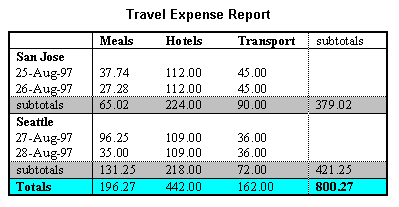
This table lists travel expenses at two locations: San Jose and Seattle, by date, and category (meals, hotels, and transport). The following image shows how a visual user agent might render it.
[Description of travel table]
<table border="1">
  <caption>Travel Expense Report</caption>
  <tr>
    <th></th>
    <th id="header2" axis="expenses">Meals</th>
    <th id="header3" axis="expenses">Hotels</th>
    <th id="header4" axis="expenses">Transport</th>
    <td>subtotals</td>
  </tr>
  <tr>
    <th id="header6" axis="location">San Jose</th>
    <th></th>
    <th></th>
    <th></th>
    <td></td>
  </tr>
  <tr>
    <td id="header7" axis="date">25-Aug-97</td>
    <td headers="header6 header7 header2">37.74</td>
    <td headers="header6 header7 header3">112.00</td>
    <td headers="header6 header7 header4">45.00</td>
    <td></td>
  </tr>
  <tr>
    <td id="header8" axis="date">26-Aug-97</td>
    <td headers="header6 header8 header2">27.28</td>
    <td headers="header6 header8 header3">112.00</td>
    <td headers="header6 header8 header4">45.00</td>
    <td></td>
  </tr>
  <tr>
    <td>subtotals</td>
    <td>65.02</td>
    <td>224.00</td>
    <td>90.00</td>
    <td>379.02</td>
  </tr>
  <tr>
    <th id="header10" axis="location">Seattle</th>
    <th></th>
    <th></th>
    <th></th>
    <td></td>
  </tr>
  <tr>
    <td id="header11" axis="date">27-Aug-97</td>
    <td headers="header10 header11 header2">96.25</td>
    <td headers="header10 header11 header3">109.00</td>
    <td headers="header10 header11 header4">36.00</td>
    <td></td>
  </tr>
  <tr>
    <td id="header12" axis="date">28-Aug-97</td>
    <td headers="header10 header12 header2">35.00</td>
    <td headers="header10 header12 header3">109.00</td>
    <td headers="header10 header12 header4">36.00</td>
    <td></td>
  </tr>
  <tr>
    <td>subtotals</td>
    <td>131.25</td>
    <td>218.00</td>
    <td>72.00</td>
    <td>421.25</td>
  </tr>
  <tr>
    <th>Totals</th>
    <td>196.27</td>
    <td>442.00</td>
    <td>162.00</td>
    <td>800.27</td>
  </tr>
</table> 8 Tables for layout
Editorial Note: Refer to section (to be written) at beginning of "Data Tables" that provides information about deciding if a table is used for data or layout.
However, when it is necessary to use a table for layout, the table must linearize in a readable order. When a table is linearized, the contents of the cells become a series of paragraphs (e.g., down the page) one after another. Cells should make sense when read in row order and should include structural elements (that create paragraphs, headings, lists, etc.) so the page makes sense after linearization.
Also, when using tables to create a layout, do not use structural markup to create visual formatting. For example, the TH (table header) element, is usually displayed visually as centered, and bold. If a cell is not actually a header for a row or column of data, use style sheets or formatting attributes of the element.
8.1 Layout tables (deprecated)
This technique relates to the following sections of the guidelines:
Task:
Avoid layout tables.
Authors should consider using style sheets for layout and positioning. This technique deprecates the use of layout tables. Do not use the table element for layout purposes unless the desired effect absolutely cannot be achieved using CSS.
8.2 Table elements allowed in layout tables
This technique relates to the following sections of the guidelines:
Task:
Only use the td, table, and trelements and the border, cellspacing, and cellpadding attributes in layout tables. Do not use th, tbody, caption, colgroup, tfoot, and thead in layout tables.
The th element is used to create header information for data cells. When the th element is used, user agents and assistive technologies might try to associate the contents of the cell with others in the same column or row. If a user knows the table is used for layout, they can use different navigation strategies to make sense of the table.
Editorial Note: The HTML 4.01 spec seems to preclude using the td element for anything except data. The HTML WG has said that tables are only for data (full stop). We need to solicit HTML WG feedback about this section.
8.3 Summaries of layout tables
Task:
If the summary is used on a layout tables, the value must be null (summary="").
Using a null summary is similar to a null alt-text; the author is indicating that the table is used for presentation purposes.
8.4 Linear reading order of tables
This technique relates to the following sections of the guidelines:
Task:
Create a logical reading order of cells in layout tables.
Editorial Note: Instead of providing a linear text alternative, ensure that the table can be linearized.
Tables used to lay out pages where cell text wraps pose problems for older screen readers that do not interpret the source HTML or browsers that do not allow navigation of individual table cells. These screen readers will read across the page, reading sentences on the same row from different columns as one sentence.
For example, if a table is rendered like this on the screen:
There is a 30% chance of       Classes at the University

rain showers this morning,     of Wisconsin will resume

but they should stop before    on September 3rd.

the weekend.
This might be read by a screen reader as:
There is a 30% chance of Classes at the University rain showers this morning, of Wisconsin will resume but they should stop before on September 3rd. the weekend.
Screen readers that read the source HTML will recognize the structure of each cell, but for older screen readers, content developers may minimize the risk of word wrapping by limiting the amount of text in each cell. Also, the longest chunks of text should all be in the last column (rightmost for left-to-right tables). This way, if they wrap, they will still be read coherently. Content developers should test tables for wrapping with a browser window dimension of "640x480".
Editorial Note:
See issue 251 for internationalization issue (not much).
Since table markup is structural, and we suggest separating structure from presentation, we recommend using style sheets to create layout, alignment, and presentation effects. Thus, the two columns in the above example could have been created using style sheets. Please refer to the section on style sheets for more information.
It is usually very simple to linearize a table used to layout a page - simply strip the table markup from the table. There are several tools that do this, and it is becoming more common for screen readers and some browsers to linearize tables.
However, linearizing data tables requires a different strategy. Since data cells rely on the information provided by surrounding and header cells, the relationship information that is available visually needs to be translated into the linear table.
For example, specify the column layout order. The natural language writing direction may affect column layout and thus the order of a linearized table. The
dir
attribute specifies column layout order (e.g., dir="rtl" specifies right-to-left layout).
Editorial Note: also the case for layout tables?
Editorial Note: Provide an example
Editorial Note: again, there are tools to help produce linearized versions of data tables. We will provide a link
This markup will also help browsers linearize tables (also called table "serialization"). A row-based linear version may be created by reading the row header, then preceding each cell with the cell's column header. Or, the linearization might be column-based. Future browsers and assistive technologies will be able to automatically translate tables into linear sequences or navigate a table cell by cell if data is labeled appropriately. The WAI Evaluation and Repair Tools Working Group maintains a list of tools some of which help authors determine if tables will linearize in a readable order. Refer to [WAI-ER].
Quicktest!
To get a better understanding of how a screen reader would read a table, run a piece of paper down the page and read your table line by line.
9 Links
This section explains how to create hyperlinks that are compatible and comprehensible to users of assistive technologies.
9.1 Supplement link text with the title attribute
This technique relates to the following sections of the guidelines:
Task:
Where appropriate, use the title attribute of the a element to clarify links.
Editorial Note: We're not sure how the title attribute should relate to the link text.
9.2 Text for images used as links
This technique relates to the following sections of the guidelines:
Task:
Use text alternatives for images which are used as links.
When an image is used as the content of a link, specify a text alternative for the image. The text alternative should describe the function of the link.
Example:
This example uses the alt attribute of the img element to describe a graphical link.
<a href="routes.html">
   <img src="topo.gif" alt="Current routes at Boulders Climbing Gym" />
</a>
Example:
If you provide link text, use empty quotes as the alt attribute value of the img element. (e.g.: alt="") Note that this text will appear on the page next to the image.
Editorial Note: Need more clarification that this is null alt-text and not a space? Point to a section in images that describes null alt-text in more detail.
<a href="routes.html">
  <img src="topo.gif" alt="" />
  Current routes at Boulders Climbing Gym
</a>
9.3 Image and text links side by side
This technique relates to the following sections of the guidelines:
Task:
Combine adjacent image and text links that point to the same resource.
Many kinds of links have both a text and iconic link adjacent to each other. Often the text and the icon link are rendered in separate links, in part to create a slight visual separation from each other. Visually they appear to be the same link, but they are experienced by many people as two identical links and can be confusing. To avoid this, some authors omit alternative text from the image, but then there is a link with an unclear destination. The preferred method to address this is to put the text and image together in one link, and provide null alternative text on the image to eliminate duplication of text.
Editorial Note: [#226] We need to make a recommendation about what to do if a text and image link are adjacent to each other but in separate table cells.
Example:
An icon and text link are side by side. The alt text for the image is the same as the text link beside it, leading to a "stutter" effect as the link is read twice.
<a href="products.html">
  <img src="icon.gif" alt="Products page" />
</a>
<a href="products.html">
  Products page
</a>
Example:
An icon and text link are side by side. In an attempt to remove the "stutter" the alt text for the image is null. However, now one of the links has an unknown destination.
<a href="products.html">
  <img src="icon.gif" alt="" />
</a>
<a href="products.html">
  Products page
</a>
Example:
An icon and text are within the same link. The icon has null alt text and the text beside it describes the link.
<a href="products.html">
  <img src="icon.gif" alt="" />
  Products page
</a>
9.4 Link groups
This technique relates to the following sections of the guidelines:
Task:
Group links structurally and identify the group with the
title
attribute.
Group links via one of the following mechanisms (in descending order of preference):
When links are grouped into logical sets (for example, in a navigation bar that appears on every page in a site) they should be marked up as a unit. Navigation bars are usually the first thing someone encounters on a page. People who are sighted are often able to ignore navigation parts and start reading the content of the page. Someone using a screen reader must first listen to the text of each link in the navigation bar before reading the interesting content. There are several ways to mark up content so that a user with a screen reader can jump over the navigation bar and avoid reading all of the links.
Although graphical menus and link groups are accessible when alt attributes are used, there are advantages to creating navigation menus that are completely text-based. Graphical text is not easily scalable. The size of graphical text cannot be increased easily by those who may need a larger font. Alternatively, text based menus allow for relative font sizes to be used on menu links. Relative font sizes can be easily increased in most browsers without the use of assistive technology.
Editorial Note: The above paragraph outlines benefits for using text-based navigation. It may be appropriate to expand these ideas into an optional technique in a future draft.
9.5
tabindex to skip link groups (future)
This technique relates to the following sections of the guidelines:
Task:
Use the HTML 4.01
tabindex
attribute to allow users to jump to an anchor after the set of navigation links. This attribute is not yet widely supported.
Editorial Note: This creates user agent problems, this technique needs to say don't do it.
9.6 Skipping link groups
This technique relates to the following sections of the guidelines:
Task:
Include a link that allows users to skip over grouped links.
If there are five or more navigation links
and/or other content that comes before the main content of the page then the
skip navigation technique should probably be used. If there are twenty links
and other elements before the main content, one of these techniques
definitely should be used. The link should be at or very near the top of the page; it is a link with a
local target just before the beginning of the main content.
Editorial Note: Issue 241 describes user agent issues and workarounds for this.
Example:
In this example, the
map
element groups a set of links, the title attribute identifies it as a navigation bar,
tabindex
is set on an anchor following the group, and a link at the beginning of the group links to the anchor after the group. Also, note that the links are separated by non-link, printable characters (surrounded by spaces).
<map title="Navigation Bar">
  <p>
    [<a href="#how">Bypass navigation bar</a>]
    [<a href="home.html">Home</a>]
    [<a href="search.html">Search</a>]
    [<a href="new.html">New and highlighted</a>]
    [<a href="sitemap.html">Site map</a>]
  </p>
</map>
<h1>
  <a id="how" name="how" tabindex="1">How to use our  site</a>
</h1>
<!-- content of page -->
9.7 Hide link groups
This technique relates to the following sections of the guidelines:
Task:
Provide a style sheet that allows users to hide the set of navigation links.
Some designers would prefer not to have the skip link visible to all users.
There are several techniques used to hide the skip link.
-
Use an image that otherwise needs no text alternative
and place the link text as alt text on that image. When using the tab key the link text will be heard by a screen reader and
without a screen reader the href can be observed in the status bar of IE. E.g., <a href="#main"><img src="spacer.gif" width="1" height="1" alt="Skip Navigation"></a>
-
Use the same foreground and background colors on the link
text (assume back text on white background in code example). When using the tab key the link text will be heard by a screen reader and
without a screen reader the href can be observed in the status bar of IE. It may be useful to consider making the link visible when the mouse is moved over the link or
the link receives focus with the tab key.
-
Hide the skip link by positioning it off screen with CSS, e.g., a.skip {position: absolute; left: -1000em; width: 20em;}. When using the tab key the link text will be heard by a screen reader and
without a screen reader the href can be observed in the status bar of IE.
Do not hide the skip link using the display property; either display:none or
display:hidden. Screen readers will not speak text with display:none and
sometimes will not speak text with display:hidden.
9.8 Keyboard access
This technique relates to the following sections of the guidelines:
Task:
Use the accesskey attribute of navigational elements to allow rapid keyboard access.
Keyboard access to active elements of a page is important for many users who cannot use a pointing device. User agents may include features that allow users to bind keyboard strokes to certain actions. HTML 4.01 allows content developers to specify keyboard shortcuts in documents via the
accesskey
attribute.
Note: Until user agents provide an overview of which key bindings are available, provide information on the key bindings.
Editorial Note: The Protocols and Formats working group has suggested that the accesskey attribute needs to be re-engineered. Threads discussing this are at and .
Example:
In this example, if the user activates Alt + C (in most user agents), the link will be followed.
<a accesskey="C" href="doc.html">XYZ company home page</a>
Example:
This example assigns "U" as the accesskey (via
accesskey
). Typing the access key modifier plus the key, e.g., Alt + U, gives focus to the label, which in turn gives focus to the input control, so that the user can input text.
<form action="submit" method="post">
  <p>
    <label for="user" accesskey="U">name</label>
    <input type="text" name="user" id="user" />
  </p>
</form>
This technique relates to the following sections of the guidelines:
Do not use the accesskey attribute if browsers will automatically activate when the key is pressed.
The HTML specification indicates that when keyboard shortcut defined with accesskey is used, the element is focused and, for some elements, activated (see the accesskey definition). If the Web page will be viewed in browsers that conform to this specification, do not use accesskey because automatic activation may cause accessibility problems.
Editorial Note: We do not like the necessity of providing this technique, since it essentially defines a workaround for browsers that actually are conformant to spec, but the HTML specification is in conflict with the WCAG in this instance.
9.10 Accesskey conflicts
This technique relates to the following sections of the guidelines:
Task:
Do not use accesskey if browsers will create a conflict with their own features.
On many common browsers, the key combination to activate accesskey is the same as the combination to activate the browser's own interface mnemonics. For most such browsers, when a particular accesskey is defined in a Web page, the HTML takes precedence and the feature of the browser's user interface becomes unavailable or more difficult to access with the keyboard. Avoid using the accesskey until user agents resolve this problem.
This technique relates to the following sections of the guidelines:
Do not cause pop-ups or other windows to appear and do not change the current window without informing the user.
Editorial Note: include info about using target attribute on A to generate new windows. test that an unknown target causes a new window to open.
Example:
This example demonstrates two ways to inform users that a new window will be opened when the link is selected.
<a href="page2.html" target="_blank">
  More detail (opens new window)
</a>
OR
<a href="page2.html" target="_blank">
  <img src="newwindow.gif" alt="opens in new window" />
  More detail
</a>
This technique relates to the following sections of the guidelines:
Do not cause pop-ups or other windows to appear and do not change the current window without informing the user.
Content developers should avoid specifying a new window as the target of a frame with target="_blank".
Editorial Note: This should be relaxed to fit current WCAG 2.0 thinking. i.e., "extreme changes in context are identified before they occur so the user can determine if they wish to proceed or so they can be prepared for the change" Thus, pop-ups are allowed as long as the user is notified before the pop-up appears. Also, more and more user agents may be configured to not display pop-ups or display them in the background, thus no change in context effects the user.
9.13 Opening new windows
This technique relates to the following sections of the guidelines:
Task:
Use the target attribute to open new windows, not scripts.
9.14 The link element and navigation tools
This technique relates to the following sections of the guidelines:
Task:
Use the link element to describe the structure of your document.
Content developers should use the link element and link types (refer to [HTML4] section 6.12) to describe document navigation mechanisms and organization. This allows user agents to implement standardized navigation tools for your site, or allow ordered printing of a set of documents.
Editorial Note: It would be good to provide more information on the exact benefit here. Screen shots or something.
Example:
The following link elements might be included in the head of chapter 2 of a book:
Editorial Note: Include screen shots from iCab here.
<html xmlns="http://www.w3.org/1999/xhtml">
  <head>
    <link rel="Next" href="chapter3" />
    <link rel="Prev" href="chapter1" />
    <link rel="Start" href="cover" />
    <link rel="Glossary" href="glossary" />
    <title>Chapter 2</title>
  </head>
  <body>
    ...
  </body>
</html>
9.15 The link element and alternative documents
Task:
Use the link element to refer to accessible alternative documents.
The link element may be used to designate alternative documents. Browsers should load the alternative page automatically based on the user's browser type and preferences.
Example:
User agents that support link will load the alternative page for those users whose browsers may be identified as supporting "aural","braille", or "tty" rendering.
<html xmlns="http://www.w3.org/1999/xhtml">
  <head>
    <title>Welcome to the Virtual Mall!</title>
    <link title="Text-only version" rel="alternate"
      href="text_only" media="aural, braille, tty" />
  </head>
  <body>
    ...
  </body>
</html>
10 Images
This section discusses accessibility of images (including simple animations such as GIF animations) and image maps.
For information about math represented as images, refer to the section on using text markup and style sheets rather than images.
10.1 Short text alternatives for img elements ("alt-text")
This technique relates to the following sections of the guidelines:
Task:
Use the alt attribute of the img element to provide a text alternative for images.
When using the
img
element, specify a short text alternative with the
alt
attribute. Note. The value of this attribute is referred to as "alt-text".
Example:
The image contains alt text that plays the same function on the page as the image. Note that it does not necessarily describe the visual characteristics of the image itself.
<img src="companylogo.gif" alt="Company Name">
10.2 Null alt text
Task:
Use null alternative text for decorative or spacer images.
If content developers cannot use style sheets and must use invisible or
transparent images (e.g., with IMG) to lay out images on the page, they should use null alt text, alt="". This indicates to assistive technology that the image can be safely ignored.
Example:
Do not use or the text "spacer" as the text alternative for
images.
my poem requires a big space<IMG src="10pttab.gif" alt="&nbsp;&nbsp;&nbsp;">here
<IMG src="spacer.gif" alt="spacer">
<IMG src="colorfulwheel.gif" alt="The wheel of fortune">
10.3 Misuse of alternative text
This technique relates to the following sections of the guidelines:
Task:
Do not use alt for any purpose other than to provide a meaningful text alternative.
Alternative text is sometimes used to provide textual information that is not an appropriate text alternative of the image. Most often this is used to affect search engine results. This alt text can present major barriers to users of text views of the document.
10.4 Image titles
Task:
Do not use the title attribute on images.
10.5 Short text alternatives for object elements
This technique relates to the following sections of the guidelines:
Task:
Use the body of the object element to provide a text alternative for image objects.
When using
object
, specify a text alternative in the body of the object element.
Example:
The image object has content that provides a brief description of the function of the image.
<object data="companylogo.gif" type="image/gif">
   Company Name
</object>
10.6 Long descriptions of images
This technique relates to the following sections of the guidelines:
Task:
For images using the img element, describe detailed information in a separate file, and use the longdesc attribute to direct users to that file.
When a short text alternative does not suffice to adequately convey the function or role of an image, provide additional information in a file designated by the
longdesc
attribute.
Example:
This example directs users to a file called "2001sales.html" to describe the sales data for 2001.
Here are the contents of 2001sales.html:
In sales97.html:
A chart showing how sales in 1997 progressed. The chart is a bar-chart showing percentage increases in sales by month. Sales in January were up 10% from December 1996, sales in February dropped 3%, ..
<img src="97sales.gif" alt="Sales for 1997" longdesc="sales97.html">
10.7 Long description of objects
This technique relates to the following sections of the guidelines:
Task:
For images using the object element, describe detailed information in the body of the tag, providing links to other content where appropriate.
When using object, specify longer text alternative within the element's content.
Note that object content, unlike "alt text", can include markup. Thus, content developers can provide a link to additional information from within the OBJECT element.
Example:
This example presents a long description of the image inside the object element.
<object data="97sales.gif" type="image/gif">
  Sales in 1997 were down subsequent to our
  <a href="anticipated.html">anticipated purchase</a> ...
</object>
Example:
This example presents a link to a long description inside the object element.
<object data="97sales.gif" type="image/gif">
  Chart of our Sales in 1997. A
  <a href="desc.html">textual description</a>
  is available.
</object>
10.8 D links (deprecated)
This technique relates to the following sections of the guidelines:
Task:
For user agents that don't support longdesc, provide a description link as well next to the graphic.
Example:
This example uses a descriptive link to provide a description link to the document sales.html.
<img src="97sales.gif" alt="Sales for 1997" longdesc="sales.html">
<a href="sales.html" title="Description of 1997 sales figures">[D]</a>
10.9 Describe images without longdesc
This technique relates to the following sections of the guidelines:
Task:
Describe images in document text as needed.
Editorial Note: We hope to deprecate this technique in the future but right now felt it is useful.
10.10 ASCII art
This technique relates to the following sections of the guidelines:
Task:
Provide a means to skip over multi-line ASCII art.
Avoid ASCII art (character illustrations) and use real images instead since it is easier to supply a text alternative for images. However, if ASCII art must be used provide a link to jump over the ASCII art.
If the ASCII art is complex, ensure that the text alternative adequately describes it.
Example:
A link, placed before ASCII art, targets a named anchor after the ASCII art.
<a href="#post-art">skip over ASCII art</a>
<!-- ASCII art goes here -->
<a id="post-art" name="post-art">caption for ASCII art</a>
Example:
<pre title="Figure showing the percentage of photosensitive
  patients in whom a photoconvulsive response was elicited by
  a 2 second train of flashes with eyes open and closed.">
  %   __ __ __ __ __ __ __ __ __ __ __ __ __ __
100 |             *                             |
 90 |                *  *                       |
 80 |          *           *                    |
 70 |             @           *                 |
 60 |          @                 *              |
 50 |       *        @              *           |
 40 |                   @              *        |
 30 |    *  @              @  @           *     |
 20 |                                           |
 10 |    @                       @  @  @  @     |
      0  5 10 15 20 25 30 35 40 45 50 55 60 65 70
      Flash frequency (Hz)
</pre>
10.11 Emoticons
Task:
Use emoticons and other ASCII symbols judiciously.
Another way to replace ASCII art is to use human language substitutes. For example, <wink>might substitute for a winking smiley: ;-). Or, the word "therefore" can replace arrows consisting of dashes and greater than signs (e.g., -->), and the word "great" for the uncommon abbreviation "gr8".
Example:
Another option for smaller ascii art is to use an
abbr
element with
title
.
<abbr title="smiley in ASCII art">:-)</abbr>
10.12 Text in images
This technique relates to the following sections of the guidelines:
Task:
Use HTML-structured text plus CSS to achieve styled text, not text in images.
Present text as HTML rather than in a bitmap images. There are several reasons for this:
-
Text is directly available to assistive technologies without requiring text alternatives
-
Text can contain HTML structure elements
-
Color contrast can be adjusted by the user
-
Size can be adjusted by the user
Editorial Note: This should also map to resizing when that is added to guidelines.
10.13 Background images
This technique relates to the following sections of the guidelines:
Task:
Do not use background images.
Do not use the background attribute to display a background image.
11 Image Maps
An image map is an image that has "active regions". When the user selects one of the regions, some action takes place -- a link may be followed, information may be sent to a server, etc. To make an image map accessible, content developers must ensure that each action associated with a visual region may be activated without a pointing device.
11.1 Use client side image map
This technique relates to the following sections of the guidelines:
Task:
Provide client-side image maps instead of server-side image maps except where the regions cannot be defined with an available geometric shape.
Image maps are created with the
map
element. HTML allows two types of image maps: client-side (the user's browser processes a URI) and server-side (the server processes click coordinates). For all image maps, content developers must supply a text alternative.
Content developers should create client-side image maps (with
usemap
) rather than server-side image maps (with
ismap
) because server-side image maps require a specific input device.
11.2 Provide text links for server side image maps.
This technique relates to the following sections of the guidelines:
Task:
Provide redundant text links for each active region of a server-side image map.
If server-side image maps must be used (e.g., because the geometry of a region cannot be represented with values of the
shape
attribute), authors must provide the same functionality or information in an alternative accessible format. One way to achieve this is to provide a textual link for each active region so that each link is navigable with the keyboard. If you must use a server-side image map, please consult the section on server-side image maps
When a server-side image map must be used, content developers should provide an alternative list of image map choices. There are three techniques:
-
Include the alternative links within the body of an
object
element (refer to the previous example illustrating links in the object element).
-
If
img
is used to insert the image, provide an alternative list of links after it and indicate the existence and location of the alternative list (e.g., via that
alt
attribute).
-
If other approaches don't make the image map accessible, create an alternative page that is accessible.
Example:
A server side image map with duplicate text links provided on the page.
<a href="http://www.example.com/cgi-bin/imagemap/my-map">
  <img src="welcome.gif" alt="Welcome! (Text links follow)"
    ismap="ismap" />
</a>
<p>
  [<a href="reference.html">Reference</a>]
  [<a href="media.html">Audio Visual Lab</a>]
</p>
11.3 Provide redundant text links for client side image map (deprecated)
This technique relates to the following sections of the guidelines:
Task:
Provide redundant text links for each active region of a client-side image map.
In addition to providing a text alternative for client side image map regions, provide redundant textual links. For each area, provide an a on the page with the same href and the same link text as the alt of the area. If the
a
element is used instead of area, the content developer may describe the active regions and provide redundant links at the same time.
Editorial Note: The last sentence describes a practices that works inconsistently if at all. See Roberto Scano's post. Should we remove it?
Editorial Note: In WCAG 1 this is an "until user agents" requirement. What should we do with it?
11.4 Provide text alternatives for selectable areas of client-side image maps
This technique relates to the following sections of the guidelines:
Task:
Provide alternative text for the area element.
Provide text alternatives for image maps since they convey visual information. As with other links, the link text should make sense when read out of context. Refer to the section on Links for information on writing good link text. Users may also want keyboard shortcuts to access frequently followed links. Refer to the section on Keyboard access to links.
If
area
is used to create the map, use the
alt
attribute.
Editorial Note: We need to adjust the above to match whatever we end up saying about clear link text, above.
Example:
This example uses the alt attribute of the area element to provide text alternatives of image map links.
<img src="welcome.gif" usemap="#map1"
    alt="Image map of areas in the library" />
<map id="map1" name="map1">
  <area shape="rect" coords="0,0,30,30"
    href="reference.html" alt="Reference" />
  <area shape="rect" coords="34,34,100,100"
    href="media.html" alt="Audio visual lab" />
</map> 12 Programmatic objects and applets
The object element in HTML allows authors to embed programmatic code written in other languages, such as Java or Macromedia Flash. However, not all user agents are able to process these objects. Many users of assistive technologies are not able to access the content in programmatic objects. This section explains how to ensure that the content you provide is accessible to those users.
12.1 Text and non-text alternatives for applets and programmatic objects
This technique relates to the following sections of the guidelines:
Task:
Provide a text alternative inside the object element.
Example:
This example shows a text alternative for a Java applet using the object element.
<object classid="java:Press.class" width="500" height="500">
  As temperature increases, the molecules in the balloon...
</object>
Example:
This example takes advantage of the fact the object elements may be nested to provide for alternative representations of information.
<object classid="java:Press.class" width="500" height="500">
  <object data="Pressure.mpeg" type="video/mpeg">
    <object data="Pressure.gif" type="image/gif">
      As temperature increases, the molecules in the balloon...
    </object>
  </object>
</object>
12.2 Alt content for embed
This technique relates to the following sections of the guidelines:
Task:
Provide alternative content for embed with noembed.
Provide alternative content for the embed element in a noembed element. The noembed is rendered only if the embed is not supported. While it can be positioned anywhere on the page, the best location is beside or as a child of embed.
Editorial Note: Is it true that noembed can go either beside or inside embed? Is there a preference?
Example:
noembed is provided beside an embed.
<embed src="moviename.swf" width="100" height="80"
  pluginspage="http://example.com/shockwave/download/" />
<noembed>
  <img alt="Still from Movie" src="moviename.gif"
    width="100" height="80" />
</noembed>
12.3 Alt text for embed
This technique relates to the following sections of the guidelines:
Task:
Provide alt for embed.
Provide alternative content for the embed element in the alt attribute.
Example:
alt is provided for embed.
<embed src="moviename.swf" width="100" height="80"
  pluginspage="http://example.com/shockwave/download/"
  alt="Still from Movie" />
12.4 Embedding multimedia objects
This technique relates to the following sections of the guidelines:
Task:
Use the embed element within the object element for backward compatibility.
Some objects, such as those requiring a plug-in, should also use the
object
element. However, for backward compatibility with Netscape browsers, use the proprietary embed element within the object element as follows:
For more information refer to [MACROMEDIA].
Deprecated Example:
This example demonstrates how to use embed with the object element to preserve backward compatibility.
<object classid="clsid:A12BCD3F-GH4I-56JK-xyz"
    codebase="http://example.com/content.cab"
    width="100" height="80">
  <param name="Movie" value="moviename.swf" />
  <embed src="moviename.swf" width="100" height="80"
      pluginspage="http://example.com/shockwave/download/" />
  <noembed>
    <img alt="Still from Movie" src="moviename.gif"
    width="100" height="80" />
  </noembed>
</object> 13 CSS Techniques
This section includes techniques for CSS that are somewhat specific to HTML. It is unclear whether these techniques should remain as part of the HTML techniques or should become part of the CSS techniques. It is desirable to maintain a clean separation of technologies. But it may not be helpful to put these techniques in a general-purpose CSS document if they are too HTML-specific.
13.1 CSS styling
This technique relates to the following sections of the guidelines:
Task:
Use CSS, not HTML, to style documents.
General technique about using CSS instead of HTML elements to style documents.
Editorial Note: Link to General technique about semantic markup.
14 Frames
For visually enabled users, frames may organize a page into different zones. For non-visual users, relationships between the content in frames (e.g., one frame has a table of contents, another the contents themselves) must be conveyed through other means.
Frames as implemented today (with the
frameset
,
frame
, and
iframe
elements) are problematic for several reasons:
-
Without scripting, they tend to break the "previous page" functionality offered by browsers.
-
It is impossible to refer to the "current state" of a frameset with a URI; once a frameset changes contents, the original URI no longer applies.
-
Opening a frame in a new browser window can disorient or simply annoy users.
14.1 Providing a frame title
This technique relates to the following sections of the guidelines:
Task:
Use the title attribute of the frame element.
Use the title attribute of the frame element to describe the contents of each frame. This provides a label for the frame so users can determine which frame to enter and explore in detail.
Note that the title attribute labels frames, and is different from the title element which labels documents. Both should be provided, since the first facilitates navigation among frames and the second clarifies your current location.
The title attribute is not interchangeable with the name attribute. The title labels the frame for users; the name labels it for scripting and window targeting. The name is not presented to the user, only the title is.
Example:
This example shows how to use the title attribute with frame.
<html xmlns="http://www.w3.org/1999/xhtml">
  <head>
    <title>A simple frameset document</title>
  </head>
  <frameset cols="10%, 90%">
    <frame src="nav.html" title="Navigation bar" />
    <frame src="doc.html" title="Documents" />
    <noframes>
      <body>
        <a href="lib.html" title="Library link">Select to
        go to the electronic library</a>
      </body>
    </noframes>
  </frameset>
</html>
14.2 Frame name
This technique relates to the following sections of the guidelines:
Task:
Provide a meaningful name to identify frames.
Provide a name for frames in addition to title. it is useful to have a name attribute that is at least meaningful to benefit technologies that do not support title, and a title attribute that takes advantage of the fact that you can have several words in it.
14.3 Describing frame relationships (deprecated)
This technique relates to the following sections of the guidelines:
Task:
Using the longdesc attribute of the frame element, describe the purpose of frames and how frames relate to each other if it is not obvious by frame titles alone.
The use of longdesc (long description) in frames is not recommended
because the longdesc attribute in frames is currently not well supported by user
agents.
Editorial Note: Note that if the a frame's contents change, the text alternative will no longer apply. Also, links to descriptions of a frame should be provided along with other alternative content in the
noframes
element of a
frameset
.
Example:
This example uses the longdesc attribute of the frame element to link to a document called "frameset-desc.html", which contains this copy:
#Navbar - this frame provides links to the major sections of the site: World News, National News, Local News, Technological News, and Entertainment News.
#Story - this frame displays the currently selected story.
#Index - this frame provides links to the day's headline stories within this section.
<!DOCTYPE html PUBLIC "-//W3C//DTD XHTML 1.0
Transitional//EN"
"http://www.w3.org/TR/xhtml1/DTD/xhtml1-transitional.dtd">
<html xmlns="http://www.w3.org/1999/xhtml">
  <head>
    <title>Today's news</title>
  </head>

  <frameset cols="10%,*,10%">
    <frameset rows="20%,*">
      <frame src="promo.html" name="promo"
        title="promotions" />
      <frame src="sitenavbar.html" name="navbar"
        title="Sitewide navigation bar"
        longdesc="frameset-desc.html#navbar" />
    </frameset>
    <frame src="story.html" name="story"
      title="Selected story - main content"
      longdesc="frameset-desc.html#story" />
    <frameset rows="*,20%">
      <frame src="headlines.html" name="index"
        title="Index of other national headlines"
        longdesc="frameset-desc.html#headlines" />
      <frame src="ad.html" name="adspace"
        title="Advertising" />
    </frameset>

    <noframes>
      <body>
        <p>
          <a href="noframes.html">No frames version</a>
        </p>
        <p>
          <a href="frameset-desc.html">Descriptions of
          frames.</a>
        </p>
      </body>
    </noframes>
  </frameset>
</html>
14.4 Writing for browsers that do not support FRAME
This technique relates to the following sections of the guidelines:
Task:
Use the noframes element to support user agents that don't support frames.
Provide meaningful content in the noframes element. noframes follows the frameset and contains a body element.
Meaningful content can include a version of the entire content of the frames in the frameset, or it can consist of instructions and links for users to find the content. Often the links point to the frame documents, outside their frames context. noframes content must not consist of instructions for users to switch to a frames-capable browser.
Example:
In this example, the user will receive a link to table_of_contents.html, which would allow him or her to navigate through the site without using frames.
<html xmlns="http://www.w3.org/1999/xhtml">
  <head>
    <title>This is top.html</title>
  </head>
  <frameset cols="50%, 50%" title="Our big document">
    <frame src="main.html" title="Where the content is displayed" />
    <frame src="table_of_contents.html" title="Table of Contents" />
    <noframes>
      <body>
        <a href="table_of_contents.html">Table of
        Contents.</a>
        <!-- other navigational links that are available in main.html
                  are available here also. -->
      </body>
    </noframes>
  </frameset>
</html>
14.5 Frame sources
This technique relates to the following sections of the guidelines:
Task:
Use only HTML documents as frame sources.
Content developers must provide text alternatives of frames so that their contents and the relationships between frames make sense. Note that as the contents of a frame change, so must change any description. This is not possible if an image or other object is inserted directly into a frame. Thus, content developers should always make the source (src) of a frame an HTML file. Images may be inserted into the HTML file and their text alternatives will evolve correctly.
Editorial Note: This is worded as if there are no exceptions. Isn't it possible to design an accessible frameset that uses non-html resources as the frame source?
Example:
This example shows a frameset linking to HTML documents.
<html xmlns="http://www.w3.org/1999/xhtml">
  <head>
    <title>A correct frameset document</title>
  </head>
  <frameset cols="100%" title="Evolving frameset">
    <frame name="goodframe" src="apples.html" title="Apples" />
  </frameset>

  <!-- In apples.html -->
  <p><img src="apples.gif" alt="Apples" /></p>
</html>
Example:
This incorrect example links directly to an image. Note that if, for example, a link causes a new image to be inserted into the frame: the initial title of the frame ("Apples") will no longer match the current content of the frame ("Oranges").
<p>Visit a beautiful grove of
  <a target="badframe" href="oranges.gif" title="Oranges">oranges</a>
</p>

<html xmlns="http://www.w3.org/1999/xhtml">
  <head>
    <title>A bad frameset document</title>
  </head>
  <frameset cols="100%" title="Static frameset">
    <frame name="badframe" src="apples.gif" title="Apples" />
  </frameset>
</html>
14.6 Descriptive links for inaccessible frame source
This technique relates to the following sections of the guidelines:
Task:
Links to frames that load inaccessible formats are sufficiently descriptive.
If the source of a frame is not accessible, provide a link to a description with the longdesc attribute of the frame element.
14.7 Alternative content for iframe
This technique relates to the following sections of the guidelines:
Task:
Provide accessible alternative content for the iframe element.
Provide alternative content for iframe by providing meaningful and accessible content between the start and end tags.
14.8 Longdesc for iframe
This technique relates to the following sections of the guidelines:
Task:
Don't use longdesc on iframe.
Editorial Note: We just want to say that while HTML permits longdesc, it isn't meaningful to provide.
15 Forms
This section discusses the accessibility of forms and form controls that one can put in a FORM element.
15.1 Explicit form labels
Task:
Use the label element to associate form elements with their labels.
For each form control, provide an explicit label in a label element. A label is attached to a specific form control through the use of the for attribute. The value of the for attribute must be the same as the value of the id attribute of the form control.
Reset and submit buttons (<input type="reset"/> or <input type="submit"/>), image buttons (<input type="img"/>), and script buttons (<button></button>) do not need explicit labels since they have labels implicitly associated via their value or alt attributes or via element content for button.
Example:
The following text field has the explicit label of "First name:". Note that the label
for matches the id attribute. The id sometimes shares the same value as the name but both must be provided, and the id must be unique on the page.
<label for="firstname">First name:</label>
<input type="text" name="firstname" id="firstname" tabindex="1" />
15.2 Implicit labels for form controls (deprecated)
Task:
Do not use the label element implicitly.
According to the HTML 4.01 specification, the label element can be wrapped around both the form control and its label text to create an "implicit label", as in
<label>First name: <input type="text" name="firstname" /></label>
. In practice this is not supported by user agents and should not be used. Use explicit labels as described in Explicit form labels.
15.3 The title attribute to label form controls
Task:
Use title to label form controls that can't be individually labeled.
Form controls that cannot have an individual label associated with the label element (see Explicit form labels) can be labeled with the title attribute.
Editorial Note: This relates to bugs 243 and 273.
15.4 Grouping form controls
Task:
Use the fieldset and legend elements in HTML 4 to group form controls logically.
Content developers should group information where natural and appropriate). When form controls can be grouped into logical units, use the
fieldset
element and label those units with the
legend
element.
Editorial Note: Try to make this less subjective, i.e. replace "natural," "appropriate," and "logical units" with something more objective.
Radio button and checkbox groups that provide multiple value choices for a single field name, should in particular be grouped this way. This indicates the relationship of the elements, separates them from other groups of radio buttons or checkboxes, and is consistent with form design conventions.
Example:
This example uses the fieldset element to group a user's personal information together, and labels that grouping with the legend element.
<form action="http://example.com/adduser" method="post">
  <fieldset>
    <legend>Personal information</legend>
    <label for="firstname">First name:</label>
    <input type="text" id="firstname" tabindex="1" />
    <label for="lastname">Last name:</label>
    <input type="text" id="lastname" tabindex="2" />
    ...more personal information...
  </fieldset>

  <fieldset>
    <legend>Medical History</legend>
    ...medical history information...
  </fieldset>
</form>
Example:
Use fieldset to group radio buttons and checkboxes.
15.5 Grouping options of select elements
Task:
Use the optgroup to group options logically under the select element.
Content developers should group information where natural and appropriate. For long lists of menu selections (which may be difficult to track), content developers should group
select
items (defined by
option
) into a hierarchy using the
optgroup
element. Specifies a label for the group of options with the
label
attribute on optgroup.
Editorial Note: In practice, following this technique may create problems for some user agents. We need to provide user agent support information, and possibly mark this as a future technique.
Example:
This example uses the optgroup element to logically group several options (using the option element) into categories labeled "PortMaster 3", "PortMaster 2", and "IRX".
<form action="http://example.com/prog/someprog" method="post">
  <select name="ComOS">
    <optgroup label="PortMaster 3">
      <option label="3.7.1" value="pm3_3.7.1">
        PortMaster 3 with ComOS 3.7.1
      </option>
      <option label="3.7" value="pm3_3.7">
        PortMaster 3 with ComOS 3.7
      </option>
      <option label="3.5" value="pm3_3.5">
        PortMaster 3 with ComOS 3.5
      </option>
    </optgroup>
    <optgroup label="PortMaster 2">
      <option label="3.7" value="pm2_3.7">
        PortMaster 2 with ComOS 3.7
      </option>
      <option label="3.5" value="pm2_3.5">
        PortMaster 2 with ComOS 3.5
      </option>
    </optgroup>
    <optgroup label="IRX">
      <option label="3.7R" value="IRX_3.7R">
        IRX with ComOS 3.7R
      </option>
      <option label="3.5R" value="IRX_3.5R">
        IRX with ComOS 3.5R
      </option>
    </optgroup>
  </select>
</form>
This technique relates to the following sections of the guidelines:
Create a logical tab order through links, form controls, and objects.
Editorial Note: Describe use of accesskey. Indicate whether links, form controls, and objects have their own "tabspaces" or whether they share a common one.
Editorial Note: It is often preferable to keep the default tab order than to create one according to this technique. We should speak to that, here or in General techniques.
Example:
In this example, we specify a tabbing order among elements (in order, "field2", "field1", "submit") with
tabindex
:
<form action="#" method="post">
  <p>
    <input tabindex="2" type="text" name="field1" />
    <input tabindex="1" type="text" name="field2" />
    <input tabindex="3" type="submit" name="submit" />
  </p>
</form>
15.7 Text alternatives for submit buttons
This technique relates to the following sections of the guidelines:
For image submit buttons, use the alt attribute of the input element to provide a functional label. This label should indicate the button's nature as a submit button, not attempt to describe the image. The label is especially important if there are multiple submit buttons on the page that each lead to different results.
The input element is used to create many kinds of form controls. Although the HTML DTD permits the alt attribute on all of these, it should be used only on image submit buttons. User agent support for this attribute on other types of form controls is not well defined, and other mechanisms should be used to label these controls.
Example:
This example uses the alt attribute of an image submit button to label it as a "submit" button.
<form action="http://example.com/prog/text-read" method="post">
  <input type="image" name="submit" src="button.gif" alt="Submit" />
</form>
15.8 Place-holding characters in empty controls (deprecated)
Task:
Until user agents handle empty controls correctly, include default, place-holding characters in edit boxes and text areas.
Editorial Note: This is a negative technique, an example of something you shouldn't do. This technique corresponds to a WCAG 1.0 checkpoint. There is a proposal for an erratum that states the until user agents clause is met and this checkpoint (and thus technique) are no longer necessary.
Example:
This example fills a textarea element with code so that legacy assistive technologies will recognize it.
<textarea name="yourname" rows="20" cols="80">
  Please enter your name here.
</textarea>
Label tabular form elements with title when a unique form label is not possible.
16 Script techniques
This is a placeholder for certain techniques that will need to appear in the script techniques and / or have a home in HTML techniques because of the tight relationship between script and HTML.
16.1 Keyboard shortcuts for directly accessible scripts
This technique relates to the following sections of the guidelines:
16.2 Device dependent event handlers
This technique relates to the following sections of the guidelines:
Task:
When device dependent event handlers are used, provide another device-dependent fallback.
Provide redundant input mechanisms (i.e., specify two handlers for the same element, both of which have the same code associated with them):
Device Handler Correspondences| Mouse handler | Keyboard handler |
|---|
onmousedown
|
onkeydown
|
onmouseup
|
onkeyup
|
onclick
|
onkeypress
|
onmouseover
|
onfocus
|
onmouseout
|
onblur
|
Note that there is no keyboard equivalent to double-clicking (ondblclick) or mouse movement (onmousemove) in HTML 4.0. Avoid using these elements.
Editorial Note: Note that onclick is now effectively device independent (bug 490).
16.3 Abstract event handlers
Task:
Use abstract, not device-specific, event handlers.
Avoid device-dependent, particularly mouse-dependent, event handlers. Use logical event handlers such as onfocus, onactivate, etc. Provide fallbacks to keyboard or logical event handlers for mouse event handlers.
16.4 Auto submit combo boxes
This technique relates to the following sections of the guidelines:
Task:
Do not use auto submit combo boxes.
Select menus that open a new page with more than one option must use the submit button instead of triggering with the onchange event because they cannot be used with the keyboard.
If some design principle demands the use of onChange, a title attribute can clarify the issue, like this: title="Use alt down arrow to open a list of languages."
17 References
- ASTER
- For information about ASTER, an "Audio System For Technical Readings", consult T. V. Raman's home page.
- CSS1
-
CSS, level 1 Recommendation, B. Bos, H. Wium Lie, eds., 17 December 1996, revised 11 January 1999. This CSS1 Recommendation is http://www.w3.org/TR/1999/REC-CSS1-19990111. The latest version of CSS1 is available at http://www.w3.org/TR/REC-CSS1.
- CSS2
-
CSS, level 2 Recommendation , B. Bos, H. Wium Lie, C. Lilley, and I. Jacobs, eds., 12 May 1998. This CSS2 Recommendation is http://www.w3.org/TR/1998/REC-CSS2-19980512/. The latest version of CSS2 is available at http://www.w3.org/TR/REC-CSS2.
- HTML4
- Dave Raggett, Arnaud Le Hors, Ian Jacobs, Eds., HTML 4.01 Specification, W3C Recommendation. (See http://www.w3.org/TR/html401.)
- IBMJAVA
-
IBM Guidelines for Writing Accessible Applications Using 100% Pure Java are available from IBM Special Needs Systems.
- JAVAACCESS
- Information about Java Accessibility and Usability is available from the Trace R and D Center.
- MACROMEDIA
-
Flash OBJECT and EMBED Tag Syntax from Macromedia.
- MATHML
- "Mathematical Markup Language", P. Ion and R. Miner, eds., 7 April 1998, revised 7 July 1999. This MathML 1.0 Recommendation is http://www.w3.org/1999/07/REC-MathML-19990707 . The latest version of MathML 1.0 is available at http://www.w3.org/TR/REC-MathML.
- TRACE
- The Trace Research and Development Center. Consult this site for a variety of information about accessibility, including a scrolling Java applet that may be frozen by the user.
- WAI-ER
- The WAI Evaluation and Repair Working Group
- WCAG10-CSS-TECHNIQUES
- "CSS Techniques for Web Content Accessibility Guidelines 1.0", W. Chisholm, G. Vanderheiden, and I. Jacobs, eds. The latest version of this document is available at http://www.w3.org/TR/WCAG10-CSS-TECHS/.
- WCAG20
- "Web Content Accessibility Guidelines 2.0", B. Caldwell, W. Chisholm, J. White, and G. Vanderheiden, eds.
- XHTML1
- "XHTML 1.0 The Extensible HyperText Markup Language (Second Edition)" Steven Pemberton, et al., 26 January 2000, revised 1 August 2002. This XHTML1 Recommendation is http://www.w3.org/TR/2002/REC-xhtml1-20020801/. The latest version of XHTML1 is http://www.w3.org/TR/xhtml1/.