W3C

CSS basic box model

W3C Working Draft 9 August 2007

This version:
http://www.w3.org/TR/2007/WD-css3-box-20070809
Latest version:
http://www.w3.org/TR/css3-box
Previous version:
http://www.w3.org/TR/2002/WD-css3-box-20021024
Editors:
Bert Bos (W3C)

Abstract

CSS (Cascading Style Sheets) describes the rendering of documents on various media. When textual documents (e.g., HTML) are laid out on visual media (e.g., screen or print), CSS models the document as a hierarchy of boxes containing words, lines, paragraphs, tables, etc. each with properties such as size, color and font.

This module describes the basic types of boxes, with their padding and margin, and the normal “flow” (i.e., the sequence of blocks of text with margins in-between). It also defines “floating” boxes, but other kinds of layout, such as tables, absolute positioning, ruby annotations, grid layouts, columns and numbered pages, are described by other modules. Also, the layout of text inside each line (including the handling of left-to-right and right-to-left scripts) is defined elsewhere.

Boxes may contain either horizontal or vertical lines of text. Boxes of different orientations may be mixed in one flow. (This is a level 3 feature.)

Status of this document

This section describes the status of this document at the time of its publication. Other documents may supersede this document. A list of current W3C publications and the latest revision of this technical report can be found in the W3C technical reports index at http://www.w3.org/TR/.

Publication as a Working Draft does not imply endorsement by the W3C Membership. This is a draft document and may be updated, replaced or obsoleted by other documents at any time. It is inappropriate to cite this document as other than work in progress.

The (archived) public mailing list www-style@w3.org (see instructions) is preferred for discussion of this specification. When sending e-mail, please put the text “css3-box” in the subject, preferably like this: “[css3-box] …summary of comment…

This document was produced by the CSS Working Group (part of the Style Activity).

This document was produced by a group operating under the 5 February 2004 W3C Patent Policy. W3C maintains a public list of any patent disclosures made in connection with the deliverables of the group; that page also includes instructions for disclosing a patent. An individual who has actual knowledge of a patent which the individual believes contains Essential Claim(s) must disclose the information in accordance with section 6 of the W3C Patent Policy.

This module should eventually replace corresponding parts of the revised CSS level 2 specification [CSS21]. But this is an early draft and any differences to level 2 are most likely unintentional, unless they concern new features, such as vertical text or the marquee effect. Please help us improve the next draft by pointing out such differences.

Table of contents

1. Dependencies on other modules

This CSS module depends on the following other CSS modules:

2. Introduction

Note: The model in this specification differs from the model described in the CSS level 2 specification [CSS21], because (1) it is generalized to apply also to vertical text and (2) it adds properties to control the marquee effect, (speed, direction, etc.). The marquee effect is allowed, but UA-dependent in level 2.

CSS assumes that the document to lay out is modeled as a tree of elements. Each element has an ordered list of zero or more child elements, with an optional string of text before the list, in-between the children and after the list. The unique element that has no parent is called the root element.

CSS describes how each element and each string of text is laid out by transforming the document tree into a tree of rectangular boxes, whose size and position depends on their properties. There are block-level boxes, line boxes and inline-level boxes. A block-level box is like a paragraph. A line box is like a line of text. And inline-level boxes are like words inside a line.

The precise rules are below and in other modules, but in summary, a block-level box contains either other block-level boxes (e.g., a section containing paragraphs, or a table containing rows), or it contains line boxes (e.g., a paragraph containing lines of text). A line box contains inline-level boxes (e.g., a line with words in different styles). An inline-level box may contain either text interspersed with more inline-level boxes, or it may contain a block-level box (e.g., a small table that is rendered inline).

Schematic representation of rel

Relation between four displayed boxes in the rendered document (on the right) and the three corresponding elements in the source document on the (left).

The tree of boxes closely mirrors the tree of elements. Each element is transformed into zero or more boxes. If the element is not the root element, then each of its boxes is either a child of a box of the parent element, or it is a child of a box of the element itself. In other words, there may be more or fewer boxes than there are elements, but each box belongs to exactly one element.

For example, a fragment of HTML such as

<ul>
 <li>The first item in the list.
 <li>The second item.
</ul>

may result in one block-level box for the ul element, containing two block-level boxes for the two li elements, each of which has one line box (i.e., one line of text). Both line boxes contain two inline-level boxes: one that contains the list bullet and one that contains the text.

Note how the li is transformed into multiple boxes, including one that contains “generated content,” viz., the list bullet, which is not present in the source document.

If the document is rendered in a narrow window, it may be that the li elements get transformed into even more boxes, because the text requires multiple lines. And if the document is rendered on paper, it may be that a page break falls in the middle of the ul element, so that it is not transformed into a single block-level box, but into two smaller ones, each on a different page.

Properties are set on elements and influence how the element is turned into boxes, but in this specification we refer interchangeably to “the P property of an element” and “the P property of a box” (both of which actually mean “the value of property P of…”), unless it is important to distinguish the box and the element, e.g., because the element has several boxes and they don't all have the same value for the property.

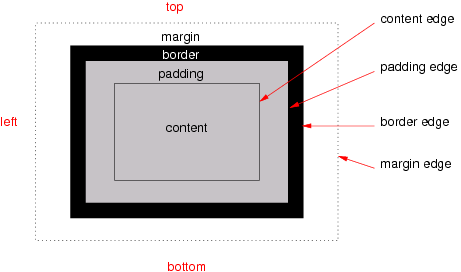
Diagram of a typical box, showing the content, padding,
    border and margin areas

The various areas and edges of a typical box

Boxes have padding, a border and margins (see the figure). Different properties determine the thickness of each of these (which may be zero).

Each box has a content area. The rectangle that bounds this area is the content edge. Around the content area is the padding area and its outside bounds are called the padding edge. Outside the padding is the border area and the outside boundary of that area is the border edge. Finally, outside the border is the margin area and its outer edge is the margin edge.

When the specification says that the padding or border is “absent” on some side of the box, that actually means that its thickness is zero.

Note that the margin, unlike the border and padding, may have a negative thickness. That is one way to make adjacent boxes overlap each other.

A box is horizontal if its ‘block-progression’ property is ‘tb’, otherwise it is vertical.

3. How to read this specification

All sections are normative, unless stated otherwise.

Examples look like this and normally start with the word “Example.” Examples are not normative.

Notes look like this and normally start with the word “Note.” Notes are not normative.

Editorial notes look like this. They will be removed before the document becomes Candidate Recommendation.

Each property is defined in part in the text and in part by a table that groups together a number of facts about the property, including a regular expression to restrict its syntax. See [where?] for the meaning. The “Inherited” and “Initial” rows in the table are used by the Cascading and Inheritance module [CSS3CASCADE] and “Media” by the Media Queries specification [MEDIAQ].

The specification may refer to the used value and the computed value of a property. Unless stated explicitly, the short form “value” means the computed value.

4. Types of boxes

4.1. The ‘display’ property

Name: display
Value: inline | block | inline-block | list-item | run-in | compact | table | inline-table | table-row-group | table-header-group | table-footer-group | table-row | table-column-group | table-column | table-cell | table-caption | ruby | ruby-base | ruby-text | ruby-base-group | ruby-text-group | <template>| none
Initial: inline
Applies to: all elements
Inherited: no
Percentages: N/A
Media: visual (‘none’ applies to all media)
Computed value: specified value, except for floats, root elements and positioned elements; see text

This property, in combination with ‘float’ and ‘position’, determines the type of box or boxes that are generated for an element. The values are as follows:

inline
Inline boxes.
block
Block boxes.
inline-block
A block box, which itself is flowed as a single inline box, similar to a replaced element. The inside of an inline-block is formatted as a block box, and the box itself is formatted as an inline box.
list-item
One or more block boxes and one marker box. Marker boxes are defined in the Lists module [CSS3LIST]. If the Lists module is not ready, define the position of the marker and the list-style property here? Or refer to CSS 2.1 instead?
run-in
Either block or inline boxes, depending on context (see Run-in boxes). Properties apply to run-in boxes based on their final status (inline-level or block-level).
compact
Either block boxes or a marker box, depending on context (see Compact boxes). Properties apply to compact boxes based on their final status.
table, inline-table, table-row-group, table-header-group, table-footer-group, table-row, table-column-group, table-column, table-cell, table-caption
See the Tables module [CSS3TBL].
ruby, ruby-base, ruby-text, ruby-base-group, ruby-text-group
See the Ruby module [CSS3RUBY].
<template>
See the Advanced Layout module [CSS3LAYOUT].
none
This value causes an element to generate no boxes (i.e., the element has no effect on layout). Descendant elements do not generate any boxes either; this behavior cannot be overridden by setting the ‘display’ property on the descendants.

Note that ‘none’ does not create an invisible box; it creates no box at all. See ‘visibility’ for a mechanisms that enables an element to generate boxes that affect formatting but are not visible themselves.

The computed value is the same as the specified value, except when ‘float’ is not ‘none’ or when the element is the root element. In those cases, the computed value is as follows:

Specified value Computed value
inline-table table
inline, run-in, table-row-group, table-column, table-column-group, table-header-group, table-footer-group, table-row, table-cell, table-caption, inline-block block
others same as specified

The value of ‘position’ may also influence the computed value. See [CSS3TBL].

In fact, the complete rules are:
  1. If ‘display’ is ‘none’, then ‘float’ and ‘position’ do not apply.
  2. Otherwise, if ‘position’ is neither ‘static’ nor ‘relative’, then ‘display’ is set according to the table above. (And float does not apply.)
  3. Otherwise, if float is not ‘none’, then ‘display’ is set according to the table above.
  4. Otherwise, if the element is the root element, then ‘display’ is set according to the table above.
  5. Otherwise, the computed value of ‘display’ is the same as the specified value.

4.2. Block-level boxes, containing blocks, flows and anonymous boxes

A block-level box is a box that has a used value for ‘display’ of ‘block’, ‘list-item’, ‘table’, ‘table-*’ (i.e., all table boxes) or <template>. A block-level element is an element all of whose top-level non-anonymous boxes are block-level.

An inline-level box is a box that has a used value for ‘display’ of ‘inline’, ‘inline-block’, ‘inline-table’ or ‘ruby’. [What about the other ruby values?]

An anonymous box, informally, is a box that cannot be addressed with CSS selectors. All its properties, except for ‘display’, have their default values (either the initial value or inherited). Anonymous boxes are created when the CSS box model requires a child box with a certain value for ‘display’, but the child actually has a different value. In that case an anonymous box of the right kind is created and wraps the child (or children). Other modules (e.g., [CSS3TBL], [CSS3TEXT]) may also define anonymous boxes. The anonymous boxes defined by this module are the following:

An example of the last point above is this document fragment:

<p>Somebody whose name I have
forgotten, said, long ago: <q>a box is
a box,</q> and he probably meant it.</p>

with these style rules:

p { display: block }
q { display: block; margin: 1em }

The p element has both line boxes and a child box for the q element, which is a block-level element. The line boxes before the q are wrapped in an anonymous block-level box and so are the line boxes after the q. The resulting tree of boxes might be as follows (refer to the figure):

The P element has two line boxes before the q and one after.
     The first two are wrapped in an anonymous box, the last one is wrapped
     in another anonymous box.

When the fragment is rendered, the text before the q is wrapped in an anonymous block and the text after the q in another.

Note that the anonymous boxes defined in this module are all block-level, but anonymous boxes defined in other modules may be different.

The containing block of a box is a rectangle that is associated with the box and that is used in various definitions in this specification. Apart from a size and a position, the rectangle also has ‘direction’ and ‘block-progression’ properties. The containing block of a box is defined as follows:

Note that the above is modified by the Absolute Positioning module [CSS3POS]: in particular, if a box's ‘position’ property is neither ‘static’ nor ‘relative’, its containing block is established differently.

A flow root is a box that satisfies at least one of the following:

Note that an element with ‘display: inline’ therefore cannot be a flow root: it doesn't float (otherwise its ‘display’ would be ‘block’), and neither ‘overflow’ nor ‘block-progression’ apply to inlines.

The terminology in the CSS level 2 specification is different. A flow root is called “an element that establishes a new formatting context.”

Other modules may define additional flow roots. [Can we thus remove ‘table-caption’, ‘table-cell’, and ‘position’ from the list above?]

The flow (a.k.a. normal flow) of a given flow root is a set of boxes. A box belongs to the flow if:

  1. The used value of its ‘display’ is ‘block’, ‘list-item’, ‘table’ or <template>.
  2. The used value of its ‘float’ is ‘none’.
  3. The used value of its ‘position’ is ‘static’ or ‘relative’.
  4. It is either a child of the flow root or a child of a box that belong to the flow.

For example, the fragment

<div class=sidebar>
 <p>Text in a sidebar.
 <p>Here is quote:
 <blockquote lang=ja>
  <p>...
 </blockquote>
 <p>Etc. etc.
</div> 

with the style

div.sidebar { block-progression: tb; float: left }
blockquote[lang|=ja] { block-progression: rl; height: 10em }

defines two flows:

  1. The div is a flow root, because it floats. Its flow consist of the 1st, 2nd and 4th p and the blockquote.
  2. The blockquote is vertical, while its parent is horizontal and it is thus a flow root. Its flow is formed by the 3rd p.

(The div itself belongs to a third flow, but its flow root is not shown in the fragment.)

Note that a flow root is not necessarily block-level, it may be an ‘inline-block’, e.g.

The boxes of a flow are laid out inside their flow root one after the other in the direction of the ‘block-progression’ property of the flow root and in the same order as in the source document. Their position is given by how much their margins overlap (see “Collapsing margins”) and by the fact that their side margin edges coincide with content edges of their containing blocks. More precisely: Each box's left and right margin edges coincide with the left and right content edges of its containing block (if the flow root is ‘tb’), or its top and bottom margin edges coincide with the top and bottom content edges of its containing block (if the flow root is ‘rl’ or ‘lr’).

[Define viewport and canvas]

4.3. Run-in boxes

A run-in box behaves as follows:

  1. If the run-in box contains a block box, the run-in box becomes a block box.
  2. If a sibling block box (that does not float and is not absolutely positioned) follows the run-in box, the run-in box becomes the first inline box of the block box. A run-in cannot run in to a block that already starts with a run-in or that itself is a run-in.
  3. Otherwise, the run-in box becomes a block box.

A ‘run-in’ box is useful for run-in headers, as in this example:

<!DOCTYPE HTML PUBLIC "-//W3C//DTD HTML 4.01//EN">
<HTML>
  <HEAD>
    <TITLE>A run-in box example</TITLE>
    <STYLE type="text/css">
      H3 { display: run-in }
    </STYLE>
  </HEAD>
  <BODY>
    <H3>A run-in heading.</H3>
    <P>And a paragraph of text that
       follows it.
  </BODY>
</HTML>

This example might be formatted as:

A run-in heading. And a
paragraph of text that 
follows it.

Despite appearing visually as part of the following block box, a run-in element still inherits properties from its parent in the source tree. Please consult the section on generated content for information about how run-in boxes interact with generated content. [where?]

4.4. Compact boxes

Define here or in extended box module?

5. The padding properties

Name: padding
Value: [ <length> | <percentage> ]{1,4}
Initial: (see individual properties)
Applies to: all elements
Inherited: no
Percentages: width* of containing block
Media: visual
Computed value: see individual properties
*) if the containing block is horizontal, otherwise the height
Name: padding-top , padding-right, padding-bottom, padding-left
Value: [ <length> | <percentage> ]
Initial: 0
Applies to: all elements
Inherited: no
Percentages: width* of containing block
Media: visual
Computed value: <length>
*) if the containing block is horizontal, otherwise the height

Sets the thickness of the padding area. The value may not be negative.

Padding’ is a shorthand for the other four properties. If ‘padding’ has four values, they are for top, right, bottom and left in that order. If left is omitted, it is the same as right. If bottom is omitted it is the same as top, if right is omitted it is the same as top.

Note that percentages on ‘padding-top’ and ‘padding-bottom’ are relative to the width of the containing block, not the height (at least in a horizontal flow; in a vertical flow they are relative to the height).

Note that percentages are not required for CSS level 2.

For example, the following two ways to set the padding of h1 are equivalent:

h1 { padding: 0.5em }
h1 { padding-top: 0.5em;
     padding-right: 0.5em;
     padding-bottom: 0.5em;
     padding-left: 0.5em }

6. Margins

6.1. The margin properties

Name: margin-top , margin-right, margin-bottom, margin-left
Value: <length> | <percentage> | auto
Initial: 0
Applies to: see text
Inherited: no
Percentages: width* of containing block
Media: visual
Computed value: the percentage as specified or the absolute length or ‘auto
*) if the containing block is horizontal, otherwise the height
Name: margin
Value: [ <length> | <percentage> | auto ]{1,4}
Initial: (see individual properties)
Applies to: see text
Inherited: no
Percentages: width* of containing block
Media: visual
Computed value: see individual properties
*) if the containing block is horizontal, otherwise the height

These properties set the thickness of the margin area. The value may be negative.

Margin’ is a shorthand for the other four. If ‘margin’ has four values, they set top, right, bottom and left in that order. If left is omitted, it is the same as right. If bottom is omitted, it is the same as top. If right is omitted it is the same as top.

The properties apply to all boxes except certain table-* boxes (see [CSS3TBL]) and certain inline-level boxes (see [CSS3TEXT]).

Margins must satisfy certain constraints, which means that the used value may be different from the computed value. See “Calculating widths, heights and margins.”

Note that in a horizontal flow, percentages on ‘margin-top’ and ‘margin-bottom’ are relative to the width of the containing block, not the height (and in vertical flow, ‘margin-left’ and ‘margin-right’ are relative to the height, not the width).

For example, the following two ways of setting the margins of p are equivalent:

p { margin: 1em 2em }
p { margin-top: 1em;
    margin-right: 2em;
    margin-bottom: 1em;
    margin-left: 2em }

6.2. Collapsing margins

Certain adjoining margins combine to form a single margin. Those margins are said to “collapse.” Margins are adjoining if there are no nonempty content, padding or border areas or clearance to separate them.

For example, in the following fragment with the given style rules:

p { display: block; margin: 2em 0 1em 0 }
div { display: block; margin: 2.5em 0 }
...
<p>First paragraph</p>
<div>
  <p>Second paragraph</p>
</div>

the bottom margin of the first p (=1em), the top margin of the div (=2.5em) and the top margin of the second p (=2em) collapse. The result is a single margin of 2.5em (the maximum of the three) between the bottom of the first p and the top of the second.

[add image]

In the following fragment,

p { display: block; margin: 2em 0 1em 0 }
div { display: block; margin: 2.5em 0;
      border: thin solid }
...
<p>First paragraph</p>
<div>
  <p>Second paragraph</p>
</div>

the bottom margin of the first p and the top margin of the div collapse, but the top margin of the second p does not collapse with them, because it is not adjoining; the border of the div separates them.

[add image]

If a set of adjoining margins collapses, then the width of the resulting margin is M - N, where M is the maximum of the adjoining margins that are positive, or zero if there are none; and N is the minimum of the adjoining margins that are negative, or zero if there are none.

We call an element or box collapsed through if two of its margins collapse with each other.

The most common use of collapsing through elements is that empty paragraphs don't cause extra white space:

<p>First paragraph
<p>Second paragraph
<p>
<p>Last paragraph

There is equal space between the first and second paragraphs as between the second and last.

The following two sets of rules determine which margins collapse.

Except when forbidden by the list above, the following margins collapse:

In a horizontal flow, the bottom margin of an in-flow block-level element is always adjoining to the top margin of its next in-flow block-level sibling, unless that sibling has clearance:

<p style="margin-bottom: 2em">The bottom margin of this
box…</p>

<p style="margin-top: 3em">… collapses with the top margin
of this box, to yield max(2em, 3em) = 3em margin.</p>

The top margin of an in-flow block-level element is adjoining to its first in-flow block-level child's top margin if the element has no top border, no top padding, and the child has no clearance:

<div style="margin-top: 2em; padding: 0; border: 0">
  <p style="margin-top: 3em">
    The top margin of the DIV and the P
    collapse, to yield max(2em, 3em) = 3em margin.
  </p>
</div>

The bottom margin of an in-flow block-level element with a ‘height’ of ‘auto’ and ‘min-height’ less than the element's used height and ‘max-height’ greater than the element's used height is adjoining to its last in-flow block-level child's bottom margin if the element has no bottom padding or border:

<div style="margin-bottom: 2em; padding: 0; border: 0;
    height: auto; min-height: 0; max-height: 100em">
  <p style="margin-bottom: 3em">
    The bottom margin of the DIV and the P collapse, to yield max(2em,
    3em) = 3em margin.
  </p>
</div>

An element's own margins are adjoining if the ‘min-height’ property is zero, and it has neither vertical borders nor vertical padding, and it has a ‘height’ of either 0 or ‘auto’, and it does not contain a line box, and all of its in-flow children's margins (if any) are adjoining:

<div style="margin-top: 2em; margin-bottom: 3em">
  <p style="position: absolute">
    The DIV is empty and its top and bottom margins collapse.
  </p>
</div>

When an element's own margins collapse, and that element has had clearance applied to it, its top margin collapses with the adjoining margins of subsequent siblings but that resulting margin does not collapse with the bottom margin of the parent block:

<div style="margin-bottom: 2em">
  <p style="float: left">
    The margins of the next two Ps collapse
  <p style="clear: left; margin-top: 4em; margin-bottom: 3em">
    
  </p>
  <p style="margin-top: 1em; margin-bottom: 1em">
    
  </p>
</div>

The top and bottom margins of the two empty Ps collapse all together. But they can't collapse with the bottom of the DIV, because one of the two empty P's has clearance.

Check this. This is probably the only possible interpretation of the rules, but it is certainly not obvious that the clearance of one element may stop later elements from collapsing…

Collapsing is based on the used value of ‘padding’, ‘margin’, and ‘border’ (i.e., after resolving any percentages). The collapsed margin is calculated over the used value of the various margins.

7. The ‘width’ and ‘height’ properties

Name: width
Value: <length> | <percentage> | auto
Initial: auto
Applies to: all elements but non-replaced inline elements, table rows, and row groups
Inherited: no
Percentages: refer to width of containing block
Media: visual
Computed value: the percentage or ‘auto’ as specified or the absolute length; ‘auto’ if the property does not apply
Name: height
Value: <length> | <percentage> | auto
Initial: auto
Applies to: all elements but non-replaced inline elements, table columns, and column groups
Inherited: no
Percentages: see prose
Media: visual
Computed value: the percentage or ‘auto’ (see prose under <percentage>) or the absolute length; ‘auto’ if the property does not apply

These properties specify the width and height of the content area, padding area or border area (depending on ‘box-sizing’) of certain boxes.

Values have the following meanings:

<length>
Specifies the width of the content area using a length unit.
<percentage>
Specifies a percentage width. The percentage is calculated with respect to the width of the generated box's containing block. If the containing block's width depends on this element's width, then the resulting layout is undefined in CSS3.
auto
The width depends on the values of other properties. See the sections below.

Do we want to define unknown percentages in CSS3? Something simple, such as ‘auto’, or something more fancy, such as trying to solve percentages?

Negative values are illegal.

For example, the following rule fixes the content width of paragraphs at 100 px:

p { width: 100px }

8. The ‘min-width’, ‘max-width’, ‘min-height’ and ‘max-height’ properties

Name: min-width, min-height
Value: <length> | <percentage> | inherit
Initial: 0
Applies to: all elements but non-replaced inline elements, table rows, and row groups
Inherited: no
Percentages: refer to width, resp. height of containing block
Media: visual
Computed value: the percentage as specified or the absolute length
Name: max-width, max-height
Value: <length> | <percentage> | none
Initial: none
Applies to: all elements but non-replaced inline elements, table rows, and row groups
Inherited: no
Percentages: refer to width, resp. height of containing block
Media: visual
Computed value: the percentage as specified or the absolute length or ‘none

These properties allow authors to constrain content widths and heights to a certain range. Values have the following meanings:

<length>
Specifies a fixed minimum or maximum for ‘width’ or ‘height’.
<percentage>
Specifies a minimum or maximum for ‘width’ or ‘height’ as a percentage of the corresponding dimension of the containing block. If that containing block's dimension is negative, the used value is zero. If that containing block's dimension depends on this element's dimension, then the resulting layout is undefined. Or: use the initial value?
none
No limit on the width or height of the box.

Negative values are illegal.

9. Calculating widths, heights and margins

The following two algorithms define the used value of ‘width’ and ‘height’ respectively and also the used values of the ‘margin’ properties and of ‘top’, ‘right’ ‘bottom’ and ‘left’.

Note that they do not affect the computed values of ‘width’ and ‘height’. Also note that in some cases the used width has to be known in order to calculate the used height, or vice versa,

For ‘width’:

  1. The tentative used width is calculated (without ‘min-width’, and ‘max-width’) following the rules in the subsections below.
  2. If the tentative used width is greater than ‘max-width’, the same rules are applied again, but this time using the computed value of ‘max-width’ as the computed value for 'width.
  3. If the resulting width is smaller than ‘min-width’, the same rules are applied again, but this time using the computed value of ‘min-width’ as the computed value for ‘width’.

For ‘height’:

  1. The tentative used height is calculated (without ‘min-height’, and ‘max-height’) following the rules under “Calculating widths, heights and margins” below.
  2. If the tentative used height is greater than ‘max-height’, the same rules are applied again, but this time using the computed value of ‘max-height’ as the computed value for 'height.
  3. If the resulting height is smaller than ‘min-height’, the same rules are applied again, but this time using the computed value of ‘min-height’ as the computed value for ‘height’.

However, for replaced elements with an intrinsic ratio and both ‘width’ and ‘height’ specified as ‘auto’, the algorithm is as follows:

Select from the table the resolved height and width values for the appropriate constraint violation. Take the max-width and max-height as max(min, max) so that minmax holds true. In this table w and h stand for the results of the width and height computations ignoring the ‘min-width’, ‘min-height’, ‘max-width’ and ‘max-height’ properties. Normally these are the intrinsic width and height, but they may not be in the case of replaced elements with intrinsic ratios.

Constraint violation Resolved width Resolved height
none w h
w > max-width max-width max(max-width * h/w, min-height)
w < min-width min-width min(min-width * h/w, max-height)
h > max-height max(max-height * w/h, min-width) max-height
h < min-height min(min-height * w/h, max-width) min-height
(w > max-width) and (h > max-height), where (max-width/w ≤ max-height/h) max-width max(min-height, max-width * h/w)
(w > max-width) and (h > max-height), where (max-width/w > max-height/h) max(min-width, max-height * w/h) max-height
(w < min-width) and (h < min-height), where (min-width/w ≤ min-height/h) min(max-width, min-height * w/h) min-height
(w < min-width) and (h < min-height), where (min-width/w > min-height/h) min-width min(max-height, min-width * h/w)
(w < min-width) and (h > max-height) min-width max-height
(w > max-width) and (h < min-height) max-width min-height

Then apply the appropriate rules in the subsections below, as if ‘width’ and ‘height’ were computed as these values.

Note that some values of the ‘image-scaling’ property ([CSS3PAGE]) may further change the used values of ‘width’ and ‘height’.

The following subsections apply if the element's containing block is horizontal. If it is vertical, the same rules apply, but with every occurrence of “left” replaced by “top,” “right” by “bottom,” “top” by “right,” “bottom” by “left”, “height” by “width” and “width” by “height.”

9.1. Inline, non-replaced elements

The ‘width’ and ‘height’ properties do not apply. For each of ‘left’, ‘right’, ‘top’, ‘bottom’, ‘margin-left’, ‘margin-right’, ‘margin-top’ and ‘margin-bottom’, the used value is equal to the computed value, except that a computed value of ‘auto’ becomes a used value of ‘0’.

Note that this section applies equally when the containing block is horizontal as when it is vertical.

9.2. Inline or floating, replaced elements

The used values of ‘margin-left’, ‘margin-right’, ‘margin-top’ and ‘margin-bottom’ are equal to the computed value, except that a computed value of ‘auto’ becomes a used value of ‘0’.

If ‘height’ and ‘width’ both have computed values of ‘auto’ and the element also has an intrinsic width, then that intrinsic width is the used value of ‘width’.

If ‘height’ and ‘width’ both have computed values of ‘auto’ and the element also has an intrinsic height, then that intrinsic height is the used value of ‘height’.

If ‘height’ and ‘width’ both have computed values of ‘auto’ and the element has no intrinsic width, but does have an intrinsic height and intrinsic ratio; or if ‘width’ has a computed value of ‘auto’, ‘height’ has some other computed value, and the element has an intrinsic ratio; then the used value of ‘width’ is:

(used height) * (intrinsic ratio)

If ‘height’ and ‘width’ both have computed values of ‘auto’ and the element has no intrinsic height, but does have an intrinsic width and intrinsic ratio; or if ‘height’ has a computed value of ‘auto’, ‘width’ has some other computed value, and the element has an intrinsic ratio; then the used value of ‘height’ is:

(used width) / (intrinsic ratio)

If ‘height’ and ‘width’ both have computed values of ‘auto’ and the element has an intrinsic ratio but no intrinsic height or width and the containing block's width doesn't itself depend on the replaced element's width, then the used value of ‘width’ is calculated from the constraint equation used for block-level, non-replaced elements in normal flow. The used value for ‘height’ is: (used width) / (intrinsic ratio).

If ‘width’ has a computed value of ‘auto’, but none of the conditions above are met, then the used value of ‘width’ becomes 300px. If 300px is too wide to fit the device, UAs should use the width of the largest rectangle that has a 2:1 ratio and fits the device instead.

If ‘height’ has a computed value of ‘auto’ and none of the rules above define its used value, then the used value of ‘height’ must be set to the height of the largest rectangle that has a 2:1 ratio, has a height not greater than 150px, and has a width not greater than the device width.

Theoretically, a device may be wider than than 300px but not tall enough for 150px. In that case the resulting replaced element will be too tall. But this is the formulation in CSS 2.1 and it seems not worth improving such an edge case.

Percentage intrinsic widths are first evaluated with respect to the containing block's width, if that width doesn't itself depend on the replaced element's width. If it does, then a percentage intrinsic width on that element can't be resolved and the element is assumed to have no intrinsic width.

Note that this section applies equally when the containing block is horizontal as when it is vertical.

9.3. Block-level, non-replaced elements in normal flow when ‘overflow’ computes to ‘visible

This section also applies to block-level non-replaced elements in normal flow when ‘overflow’ does not compute to ‘visible’ but has been propagated to the viewport.

The following constraints must hold among the used values of the properties.

margin-left’ + ‘border-left-width’ + ‘padding-left’ + ‘width’ + ‘padding-right’ + ‘border-right-width’ + ‘margin-right’ + scrollbar width (if any) = width of containing block

If ‘width’ is not ‘auto’ and ‘border-left-width’ + ‘padding-left’ + ‘width’ + ‘padding-right’ + ‘border-right-width’ + scrollbar width (if any) (plus any of ‘margin-left’ or ‘margin-right’ that are not ‘auto’) is larger than the width of the containing block, then any ‘auto’ values for ‘margin-left’ or ‘margin-right’ are, for the following rules, treated as zero. We should drop this paragraph. It causes blocks that are wider than their parent not to be centered (unlike blocks that are narrower), which looks strange.

All the above properties that have a computed value other than ‘auto’ have a used value equal to the computed value, except if they all have a computed value other than ‘auto’. Then the values are said to be “over-constrained” and one of the used values will have to be different from its computed value. If the ‘direction’ property of the containing block has the value ‘ltr’, the specified value of ‘margin-right’ is ignored and the value is calculated so as to make the equality true. If the value of ‘direction’ is ‘rtl’, this happens to ‘margin-left’ instead.

If there is exactly one value specified as ‘auto’, its used value follows from the equality.

If ‘width’ is set to ‘auto’, any other ‘auto’ values become ‘0’ and ‘width’ follows from the resulting equality.

If both ‘margin-left’ and ‘margin-right’ are ‘auto’, their used values are equal. This horizontally centers the element with respect to the edges of the containing block.

The “scrollbar width” value is only relevant if the user agent uses a scrollbar as its scrolling mechanism. See the definition of the ‘overflow’ property.

If ‘margin-top’, or ‘margin-bottom’ are ‘auto’, their used value is 0. If ‘height’ is ‘auto’, the height depends on whether the element has any block-level children and whether it has padding or borders:

If it only has inline-level children, the height is the distance between the top of the topmost line box and the bottom of the bottommost line box.

If it has block-level children, the height is the distance between the top border-edge of the topmost block-level child box that doesn't have margins collapsed through it and the bottom border-edge of the bottommost block-level child box that doesn't have margins collapsed through it. However, if the element has a nonzero top padding and/or top border, or is the root element, then the content starts at the top margin edge of the topmost child. (The first case expresses the fact that the top and bottom margins of the element collapse with those of the topmost and bottommost children, while in the second case the presence of the padding/border prevents the top margins from collapsing.) Similarly, if the element has a nonzero bottom padding and/or bottom border, then the content ends at the bottom margin edge of the bottommost child.

Only children in the normal flow are taken into account (i.e., floating boxes and absolutely positioned boxes are ignored, and relatively positioned boxes are considered without their offset). Note that the child box may be an anonymous block box.

9.4. Other block-level, non-replaced elements in normal flow

This section applies to block-level, non-replaced elements when ‘overflow’ does not compute to ‘visible’ (except if the ‘overflow’ property's value has been propagated to the viewport).

Apply the rules for block-level, non-replaced elements in normal flow, but ignore the resulting values for ‘height’, ‘margin-top’ and ‘margin-bottom’.

If ‘margin-top’, or ‘margin-bottom’ are ‘auto’, their used value is 0. If ‘height’ is ‘auto’, its used value is defined by “‘Auto’ heights for flow roots.”

9.5. Inline-block’ or floating, non-replaced elements

The used values of ‘margin-left’, ‘margin-right’, ‘margin-top’ and ‘margin-bottom’ are their computed values, except that a computed value of ‘auto’ gives a used value of 0.

The used value of ‘width’ is the computed value, unless that is ‘auto’, when used value is the shrink-to-fit width.

The used value of ‘height’ is the computed value, unless that is ‘auto’, when the used value is defined by “‘Auto’ heights for flow roots.”

For inline-block boxes, the margin box is used when calculating the height of the line box. Does this belong here?

9.6. Absolutely positioned, non-replaced elements

For the purposes of this section and the next, the term static position (of an element) refers, roughly, to the position an element would have had in the normal flow. More precisely:

But rather than actually calculating the dimensions of that hypothetical box, user agents are free to make a guess at its probable position.

For the purposes of calculating the static position, the containing block of fixed positioned elements is the initial containing block instead of the viewport, and all scrollable boxes should be assumed to be scrolled to their origin.

This constraint must hold among the used values:

left’ + ‘margin-left’ + ‘border-left-width’ + ‘padding-left’ + ‘width’ + ‘padding-right’ + ‘border-right-width’ + ‘margin-right’ + ‘right’ + scrollbar width (if any) = width of containing block

If all three of ‘left’, ‘width’, and ‘right’ are ‘auto’: First set any ‘auto’ values for ‘margin-left’ and ‘margin-right’ to 0. Then, if the ‘direction’ property of the containing block is ‘ltr’ set ‘left’ to the static position and apply rule number three below; otherwise, set ‘right’ to the static position and apply rule number one below.

If none of the three is ‘auto’: If both ‘margin-left’ and ‘margin-right’ are ‘auto’, solve the equation under the extra constraint that the two margins get equal values, unless this would make them negative, in which case when direction of the containing block is ‘ltr’ (‘rtl’), set ‘margin-left’ (‘margin-right’) to zero and solve for ‘margin-right’ (‘margin-left’). Should we remove the phrase starting with “unless”? If one of ‘margin-left’ or ‘margin-right’ is ‘auto’, solve the equation for that value. If the values are over-constrained, ignore the value for ‘left’ (in case the ‘direction’ property of the containing block is ‘rtl’) or ‘right’ (in case ‘direction’ is ‘ltr’) and solve for that value.

Otherwise, set ‘auto’ values for ‘margin-left’ and ‘margin-right’ to 0, and pick the one of the following six rules that applies.

  1. left’ and ‘width’ are ‘auto’ and ‘right’ is not ‘auto’, then the width is shrink-to-fit. Then solve for ‘left’.
  2. left’ and ‘right’ are ‘auto’ and ‘width’ is not ‘auto’, then if the ‘direction’ property of the containing block is ‘ltr’ set ‘left’ to the static position, otherwise set ‘right’ to the static position. Then solve for ‘left’ (if ‘direction is ’'rtl‘) or ‘right’ (if ‘direction’ is ’ltr'').
  3. width’ and ‘right’ are ‘auto’ and ‘left’ is not ‘auto’, then the width is shrink-to-fit. Then solve for ‘right’.
  4. left’ is ‘auto’, ‘width’ and ‘right’ are not ‘auto’, then solve for ‘left’.
  5. width’ is ‘auto’, ‘left’ and ‘right’ are not ‘auto’, then solve for ‘width’.
  6. right’ is ‘auto’, ‘left’ and ‘width’ are not ‘auto’, then solve for ‘right’.

This constraint must also hold among the used values:

top’ + ‘margin-top’ + ‘border-top-width’ + ‘padding-top’ + ‘height’ + ‘padding-bottom’ + ‘border-bottom-width’ + ‘margin-bottom’ + ‘bottom’ + scrollbar height (if any) = height of containing block

If all three of ‘top’, ‘height’, and ‘bottom’ are ‘auto’, set ‘top’ to the static position and apply rule number three below.

If none of the three are ‘auto’: If both ‘margin-top’ and ‘margin-bottom’ are ‘auto’, solve the equation under the extra constraint that the two margins get equal values. If one of ‘margin-top’ or ‘margin-bottom’ is ‘auto’, solve the equation for that value. If the values are over-constrained, ignore the value for ‘bottom’ and solve for that value.

Otherwise, pick the one of the following six rules that applies.

  1. top’ and ‘height’ are ‘auto’ and ‘bottom’ is not ‘auto’: The used value of ‘bottom’ is its computed value. The used height is defined by “‘Auto’ heights for flow roots.” The used values of ‘margin-top’ and ‘margin-bottom’ are their computed values, except that any ‘auto’ gives a used value of 0. Finally, the constraint gives the used value of ‘top’.
  2. top’ and ‘bottom’ are ‘auto’ and ‘height’ is not ‘auto’: The used value of ‘top’ is its static position. The used values of ‘margin-top’ and ‘margin-bottom’ are their computed values, except that any ‘auto’ gives a used value of 0. Finally, the constraint gives the used value for ‘bottom’.
  3. height’ and ‘bottom’ are ‘auto’ and ‘top’ is not ‘auto’: The used height is defined by “‘Auto’ heights for flow roots.” The used values of ‘margin-top’ and ‘margin-bottom’ are their computed values, except that any ‘auto’ gives a used value of 0. Finally, the constraint gives the used value of ‘bottom’.
  4. top’ is ‘auto’, ‘height’ and ‘bottom’ are not ‘auto’: The used values of ‘margin-top’ and ‘margin-bottom’ are their computed values, except that any ‘auto’ gives a used value of 0. The constraint gives the used value for ‘top’.
  5. height’ is ‘auto’, ‘top’ and ‘bottom’ are not ‘auto’: The used values of ‘margin-top’ and ‘margin-bottom’ are their computed values, except that any ‘auto’ gives a used value of 0. The constraint gives the used value for ‘height’.
  6. bottom’ is ‘auto’, ‘top’ and ‘height’ are not ‘auto’: The used values of ‘margin-top’ and ‘margin-bottom’ are their computed values, except that any ‘auto’ gives a used value of 0. The constraint gives the used value for ‘bottom’.

The “scrollbar height” and “scrollbar width” values are only relevant if the user agent uses a scrollbar as its scrolling mechanism. See the definition of the ‘overflow’ property.

9.7. Absolutely positioned, replaced elements

This situation is similar to the previous one, except that the element may have an intrinsic size or ratio. The sequence of substitutions is now:

  1. The used value of ‘width’ and ‘height’ is determined as for inline replaced elements.
  2. For each of ‘top’, ‘right’, ‘bottom’, ‘left’, ‘margin-top’, ‘margin-right’, ‘margin-bottom’ and ‘margin-left’, if the computed value is not ‘auto’, the used value is equal to the computed value.
  3. If both ‘left’ and ‘right’ have the value ‘auto’, then if ‘direction’ of the containing block is ‘ltr’, the used value of ‘left’ is its static position; else if ‘direction’ is ‘rtl’, the used value of ‘right’ is its static position.
  4. If both ‘top’ and ‘bottom’ have the value ‘auto’, then the used value of ‘top’ is its static position.
  5. If ‘left’ or ‘right’ (or both) are ‘auto’, and ‘margin-left’ is ‘auto’, then the used value of ‘margin-left’ is 0.
  6. If ‘left’ or ‘right’ (or both) are ‘auto’, and ‘margin-right’ is ‘auto’, then the used value of ‘margin-right’ is 0.
  7. If neither ‘left’ nor ‘right’ are ‘auto’ and both ‘margin-left’ and ‘margin-right’ are ‘auto’, then the used values satisfy the extra constraint that ‘margin-right’ and ‘margin-left’ are equal, unless this would make them negative, in which case when the direction of the containing block is ‘ltr’ (‘rtl’), the used value of ‘margin-left’ (‘margin-right’) is 0. Remove the part starting with “unless”? It looks better to center the image.

The remaining used values, if any, follows from these two constraints:

left’ + ‘margin-left’ + ‘border-left-width’ + ‘padding-left’ + ‘width’ + ‘padding-right’ + ‘border-right-width’ + ‘margin-right’ + ‘right’ + scrollbar width (if any) = width of containing block

top’ + ‘margin-top’ + ‘border-top-width’ + ‘padding-top’ + ‘height’ + ‘padding-bottom’ + ‘border-bottom-width’ + ‘margin-bottom’ + ‘bottom’ + scrollbar height (if any) = height of containing block

If the first equation is over-constrained, ignore the value for either ‘left’ (in case the ‘direction’ property of the containing block is ‘rtl’) or ‘right’ (in case ‘direction’ is ‘ltr’) and solve for that value.

If the second equation is over-constrained, ignore the value for ‘bottom’ and solve for that value.

9.8. Block-level, replaced elements in normal flow

Apply the rules for inline replaced elements, but ignore the resulting values for ‘margin-left’ and ‘margin-right’. To compute the used value of those, apply the rules for block-level, non-replaced elements using the used values just found for ‘width’, ‘border’ and ‘padding’ as if they were the computed values.

9.9. Floating, non-replaced elements

The used values of the margins are equal to the computed values, except that the used values of any margins computed as ‘auto’ are ‘0’.

The used value of ‘width’ is equal to the computed value, except that if ‘width’ is computed as ‘auto’, the used value is the shrink-to-fit width.

If the computed value of ‘height’ is not ‘auto’, the used value is the computed value. Otherwise the used height depends on the descendants, as defined in “‘Auto’ heights for flow roots.”

9.10. Auto’ heights for flow roots

In certain cases (see the preceding sections), the height of an element is computed as follows:

If it only has inline-level children, the height is the distance between the top of the topmost line box and the bottom of the bottommost line box.

If it has block-level children, the height is the distance between the top margin-edge of the topmost block-level child box and the bottom margin-edge of the bottommost block-level child box.

Absolutely positioned children are ignored, and relatively positioned boxes are considered without their offset. Note that the child box may be an anonymous block box.

In addition, if the element has any floating descendants whose bottom margin edge is below the bottom, then the height is increased to include those edges. Only floats that are children of the element itself or of descendants in the normal flow are taken into account, e.g., floats inside absolutely positioned descendants or other floats are not.

9.11. Shrink-to-fit

Calculation of the shrink-to-fit width is similar to calculating the width of a table cell using the automatic table layout algorithm. Roughly: calculate the preferred width by formatting the content without breaking lines other than where explicit line breaks occur, and also calculate the preferred minimum width, e.g., by trying all possible line breaks. CSS does not define the exact algorithm. Thirdly, find the available width: in this case, this is the width of the containing block minus the used values of ‘margin-left’, ‘border-left-width’, ‘padding-left’, ‘padding-right’, ‘border-right-width’, ‘margin-right’, and the widths of any relevant scroll bars.

Then the shrink-to-fit width is: min(max(preferred minimum width, available width), preferred width).

Define in more detail, using a text by David Baron.

10. Floating boxes

10.1. Introduction to floats

(This section is not normative.)

A float is a box that is shifted to the left or right on the current line. The most interesting characteristic of a float (or “floating” box) is that content may flow along its side (or be prohibited from doing so by the ‘clear’ property). Content flows down the right side of a left-floated box and down the left side of a right-floated box. The following is a (non-normative) introduction to float positioning and content flow; the exact rules governing float positioning are given in the next section.

A floated box is shifted to the left or right until its outer edge touches the containing block edge or the outer edge of another float. If there is a line box, the top of the floated box is aligned with the top of the current line box.

If there isn't enough horizontal room for the float, it is shifted downward until either it fits or there are no more floats present.

Since a float is not in the flow, non-positioned block boxes created before and after the float box flow vertically as if the float didn't exist. However, line boxes created next to the float are shortened to make room for the margin box of the float. If a shortened line box is too small to contain any further content, then it is shifted downward until either it fits or there are no more floats present. Any content in the current line before a floated box is re-flowed in the first available line on the other side of the float. In other words, if inline boxes are placed on the line before a left float is encountered that fits in the remaining line box space, the left float is placed on that line, aligned with the top of the line box, and then the inline boxes already on the line are moved accordingly to the right of the float (the right being the other side of the left float) and vice versa for rtl and right floats.

In the following document fragment, the containing block is too narrow to contain the content next to the float, so the content gets moved to below the floats where it is aligned in the line box according to the text-align property.

p { width: 10em; border: solid aqua; }
span { float: left; width: 5em; height: 5em; border: solid blue; }

...

<p>
  <span> </span>
  Supercalifragilisticexpialidocious
</p>

This fragment might look like this:

Image illustrating the effect of an unbreakable piece of
     content being reflowed to just after a float which left insufficient
     room next to it for the content to fit.

The text is too long to fit in a shortened line box next to the float (dark blue box) and so it is pushed down until it is passed the float.

Several floats may be adjacent, and this model also applies to adjacent floats in the same line.

The following rule floats all IMG boxes with class="icon" to the left (and sets the left margin to ‘0’):

img.icon { 
  float: left;
  margin-left: 0;
}

Consider the following HTML source and style sheet:

<!DOCTYPE HTML PUBLIC "-//W3C//DTD HTML 4.01//EN">
<HTML>
  <HEAD>
    <TITLE>Float example</TITLE>
    <STYLE type="text/css">
      IMG { float: left }
      BODY, P, IMG { margin: 2em }
    </STYLE>
  </HEAD>
  <BODY>
    <P><IMG src=img.png alt="This image will illustrate floats">
       Some sample text that has no other...
  </BODY>
</HTML>

The IMG box is floated to the left. The content that follows is formatted to the right of the float, starting on the same line as the float. The line boxes to the right of the float are shortened due to the float's presence, but resume their “normal” width (that of the containing block established by the P element) after the float. This document might be formatted as:

Image illustrating how floating boxes interact with
     margins.

An image showing the various margins of the BODY, P and IMG element. Not that the top margin of the floating IMG does not collapse with the top margins of the P and BODY elements.

Formatting would have been exactly the same if the document had been:

<BODY>
  <P>Some sample text 
  <IMG src=img.png alt="This image will illustrate floats">
           that has no other...
</BODY>

because the content to the left of the float is displaced by the float and re-flowed down its right side.

As stated in “Collapsing margins,” the margins of floating boxes never collapse with margins of adjacent boxes. Thus, in the previous example, vertical margins do not collapse between the P box and the floated IMG box.

The contents of floats are stacked as if floats generated new stacking contexts, except that any elements that actually create new stacking contexts take part in the float's parent's stacking context. A float can overlap other boxes in the normal flow (e.g., when a normal flow box next to a float has negative margins). When this happens, floats are rendered in front of non-positioned in-flow blocks, but behind in-flow inlines.

Here is another illustration, showing what happens when a float overlaps borders of elements in the normal flow.

Image showing a floating image that overlaps the borders of
     two paragraphs: the borders are interrupted by the image.

A floating image obscures borders of block boxes it overlaps.

The following example illustrates the use of the ‘clear’ property to prevent content from flowing next to a float.

Assuming a rule such as this:

p { clear: left }

formatting might look like this:

Image showing a floating image and the effect of 'clear:
     left' on the two paragraphs.

Both paragraphs have set ‘clear: left’, which causes the second paragraph to be “pushed down” to a position below the float – “clearance” is added above its top margin to accomplish this (see the ‘clear’ property).

10.2. The ‘float’ property

Name: float
Value: left | right | none | <page-floats>
Initial: none
Applies to: all, but see 9.7
Inherited: no
Percentages: N/A
Media: visual
Computed value: as specified

This property specifies whether a box should float to the left, right, or not at all. It may be set for any element, but only applies to elements that generate boxes that are not absolutely positioned. The values of this property have the following meanings:

left
...
right
...
none
...
<page-floats>
See Generated Content for Paged Media [CSS3GCPM].

10.3. Rules for positioning floats

[To do: copy from CSS2 [CSS21] and generalize to vertical text]

Note that a box with a value of ‘float’ other than ‘none’ is a flow root.

The border box of a table, a block-level replaced element, or an element in the normal flow that is a flow root (such as an element with ‘overflow’ other than ‘visible’) must not overlap any floats in the same flow as the element itself. If necessary, implementations should clear the said element by placing it below any preceding floats, but may place it adjacent to such floats if there is sufficient space, by increasing one margin and decreasing the opposite margin. (“Sufficient space” means that the opposite margin does not become negative.)

10.4. The ‘clear’ property

Name: clear
Value: none | left | right | both
Initial: none
Applies to: block-level elements
Inherited: no
Percentages: N/A
Media: visual
Computed value: as specified

[To do: copy from CSS2 [CSS21] and generalize to vertical text]

11. Overflow

11.1. The ‘overflow’, ‘overflow-x’ and ‘overflow-y’ properties

In the preceding sections, several things (such as flow roots) depend on the value of ‘overflow’. We probably need to rewrite them in terms of “overflow-x and/or -y” or similar.

Name: overflow-x, overflow-y,
Value: visible | hidden | scroll | auto | no-display | no-content
Initial: visible
Applies to: non-replaced block-level elements and non-replaced ‘inline-block’ elements
Inherited: no
Percentages: N/A
Media: visual
Computed value: as specified, except ‘visible’, see text
Name: overflow
Value: [ visible | hidden | scroll | auto | no-display | no-content ]{1,2}
Initial: see individual properties
Applies to: non-replaced block-level elements and non-replaced ‘inline-block’ elements
Inherited: no
Percentages: N/A
Media: visual
Computed value: as specified, except ‘visible’, see text

These properties specify whether content is clipped when it overflows the element's content area. It affects the clipping of all of the element's content except any descendant elements (and their respective content and descendants) whose containing block is the viewport or an ancestor of the element. ‘Overflow-x’ determines clipping at the left and right edges, ‘overflow-y’ at the top and bottom edges.

Overflow’ is a shorthand. If it has one keyword, it sets both ‘overflow-x’ and ‘overflow-y’ to that keyword; if it has two, it sets ‘overflow-x’ to the first and ‘overflow-y’ to the second. Keywords have the following meanings:

visible
This value indicates that content is not clipped, i.e., it may be rendered outside the content box.
hidden
This value indicates that the content is clipped an