
Techniques for Authoring Tool Accessibility
W3C Note 4 May 2000
- This version:
- http://www.w3.org/TR/2000/NOTE-ATAG10-TECHS-20000504
- (plain text,
HTML gzip tar archive, HTML zip archive,
PostScript,
PDF)
- Latest version:
- http://www.w3.org/TR/ATAG10-TECHS
- Previous version:
- http://www.w3.org/TR/2000/NOTE-ATAG10-TECHS-20000203
- Editors:
- Jutta Treviranus -
ATRC, University of Toronto
- Charles McCathieNevile - W3C
- Ian Jacobs - W3C
- Jan Richards - University of Toronto
Copyright
©1999 - 2000 W3C® (MIT,
INRIA, Keio), All Rights
Reserved. W3C liability,
trademark, document
use and software
licensing rules apply.
This document provides information to authoring tool developers who wish to
satisfy the checkpoints of "Authoring Tool Accessibility Guidelines 1.0" [ATAG10]. It includes suggested techniques, sample
strategies in deployed tools, and references to other accessibility resources
(such as platform-specific software accessibility guidelines) that provide
additional information on how a tool may satisfy each checkpoint.
This document is part of a series of accessibility documents published by
the W3C Web Accessibility Initiative
(WAI).
This section describes the status of this document at the time of its
publication. Other documents may supersede this document. The latest status of
this document series is maintained at the W3C.
This document is a W3C Note, published as an informative appendix to
"Authoring Tool Accessibility Guidelines 1.0". This document updates the previous version of this Note but does
not represent consensus within the WAI Authoring Tools Guidelines (AUWG) Working
Group, nor within W3C. This document is likely to change and should not be
cited as reference material or anything other than "work in progress". The WAI
Interest Group was invited
to review the material that led to this version of the document. The
Working Group expects to update this document in response to queries raised by
implementors of the Guidelines, for example, to cover new technologies.
Suggestions for additional techniques are welcome.
For further information about Working Group decisions, please consult the minutes of AUWG Meetings.
This document has been produced by the
Authoring Tool Accessibility Guidelines Working Group (AUWG) as part of the Web Accessibility Initiative (WAI). The goals of the Working Group are
discussed in the AUWG
charter.
Please send general comments about this document to the public mailing list:
w3c-wai-au@w3.org (public archives).
A list of current W3C Recommendations and other technical documents
including Working Drafts and Notes can be found at http://www.w3.org/TR.
The "Authoring Tool Accessibility Guidelines 1.0"
[ATAG10] has two goals: to assist developers in designing authoring tools
that produce accessible Web content and to assist developers in creating an
accessible authoring interface. The present "Techniques Document" suggests to
developers some strategies for meeting those goals.
Implementation of techniques for some of these guidelines requires
familiarity with the Web Content Accessibility Guidelines (WCAG)
1.0 [WCAG10]. In
addition, readers are strongly encouraged to become familiar with the
"Techniques for Web Content Accessibility Guidelines 1.0" [WCAG10-TECHS]
and "Techniques for User Agent Accessibility Guidelines 1.0"
[UAAG10-TECHS].
Note: The techniques in this document are merely
suggestions; they are not required for conformance to "Authoring Tool Accessibility Guidelines 1.0". These
techniques are not necessarily the only way of satisfying the checkpoint, nor
are they necessarily a definitive set of requirements for satisfying a
checkpoint.
This document has the same structure as the "Authoring Tool Accessibility Guidelines 1.0" [ATAG10]: seven guidelines,
each of which includes at least one checkpoint. Information about checkpoint priorities is found in the
"Authoring Tool Accessibility Guidelines 1.0".
Unlike "Authoring Tool Accessibility Guidelines 1.0", the current document includes a list of techniques
after each checkpoint. Techniques may be suggested strategies, references to
other accessibility resources (noted "Reference"), or examples of how deployed
tools satisfy the checkpoint (noted "Sample").
For some guidelines there are techniques or information that are relevant to
the entire guideline. These are provided at the end of the section for the
relevant guideline.
Some of the sample techniques describe how Amaya satisfies the checkpoints.
Amaya [AMAYA] is both
an HTML authoring tool and a browser. Amaya's default editing view is WYSIWYG-style. The Amaya
techniques are also available as a single "sample implementation" document
[AMAYA-SAMPLE].
If the tool automatically generates markup, many authors will be unaware of
the accessibility status of the final content unless they expend extra effort
to review it and make appropriate corrections by hand. Since many authors are
unfamiliar with accessibility, authoring tools are responsible for
automatically generating accessible markup, and where appropriate, for guiding
the author in producing accessible content.
Many applications feature the ability to convert
documents from other formats (e.g., Rich Text Format) into a markup
format specifically intended for the Web such as HTML. Markup changes may also
be made to facilitate efficient editing and manipulation. It is essential that
these processes do not introduce inaccessible markup or remove accessibility content,
particularly when a tool hides the markup changes from the author's view.
Checkpoints:
- 1.1 Ensure that the author can
produce accessible content in
the markup language(s)
supported by the tool. [Priority 1] (Checkpoint
1.1)
-
- 1.2 Ensure that the tool preserves all
accessibility information
during authoring,
transformations, and
conversions. [Priority 1] (Checkpoint
1.2)
-
- When transforming a table to a list or list of lists, ensure that table
headings are transformed into headings and that summary or caption information
is retained as rendered content. This transformation may not be
reversible.
- Even when a document's graphical layout has been rearranged, ensure that
the document makes sense when rendered serially. For example, prompt the author
to confirm linearized reading order after the graphical layout has changed.
Desktop publishing software often has such a feature.
- When importing images with associated descriptions to an HTML document make
the descriptions available through appropriate markup. For instance, in HTML
use
"longdesc" or "alt".
- When converting from a word-processor format to HTML, ensure that headings
and list items are transformed into appropriate headings of the appropriate
level, and list items in the appropriate type of list (rather than as plain
text with font formatting)
- Do not transform text into images - use style sheets for presentation
control, or an XML application such as Scalable Vector Graphics [SVG] that keeps the text as text.
If this is not possible, ensure that the text that is converted is available as
equivalent text for the image.
- Ensure that the tool recognizes and preserves elements that are defined in
the relevant specification(s) even if it is unable to render them in a
publishing view or preview mode. This is relevant for WYSIWYG page authoring tools, tools that
handle image formats which allow the incorporation of equivalent text or data,
and tools for multimedia and data-processing.
- When converting linked elements such as footnotes or endnotes either
provide them as inline content or maintain two-way linking. In HTML, this
should be hypertext links rather than plain-text references.
- Sample: The predefined transformations shipped with Amaya preserve
all element content. The transformation language allows the preservation of
attribute values, but this is not done by all the supplied
transformations.
- 1.3 Ensure that when the tool
automatically generates markup it conforms to the W3C's Web Content Accessibility Guidelines 1.0 [WCAG10]. [Relative Priority] (Checkpoint
1.3)
-
- Use consistent document structures. For a tool that does site-wide
management, provide consistent navigation systems and document structures.
- Include markup that provides equivalent alternatives for media-dependent
elements or content.
- Do not use structural
markup for presentation effects, or presentation markup for known
structures. For example, use list markup of an appropriate type rather than
creating multiple line paragraphs and beginning each line with an image of a
bullet. Do not use list markup for an indentation effect.
- Do not publish Web content in markup languages that do not allow for
equivalent alternative information to be included for media-specific
presentations (such as images or video, sound, etc).
- New markup languages are constantly being developed, and in many cases
offer improvements to the structure and utility of Web content. In implementing
a new or extended markup language, it is important to ensure that a tool does
not remove access to information that had been inherent in the base markup
language.
The same can apply to a format that simplifies an existing format. For
example, producing a modified HTML DTD that did not include the
"alt" attribute for the IMG element, or effectively working
to such a DTD by not implementing a means to include the attribute, compromises
the accessibility of any included IMG elements.
- Reference: The Web Accessibility Initiative's Protocols and Formats
group have a draft set of notes about creating accessible markup languages [XMLGL].
- Sample: Amaya generates markup that conforms to level-A, and allows
the author to generate markup that is triple-A through the user interface.
- 1.4 Ensure that templates provided
by the tool conform to the Web Content Accessibility Guidelines 1.0 [WCAG10]. [Relative Priority] (Checkpoint
1.4)
-
- Produce accessible representations for site maps generated by the authoring
tool.
- Provide equivalent alternatives for all non-text content (images, audio,
etc).
- Use consistent navigation mechanisms.
- Ensure that event-handlers for scripts are device-independent.
- Ensure that color schemes provide sufficient contrast for people or
technology with poor color separation.
- Ensure that the natural language of the template is identified.
- Provide navigation bars.
- Provide keyboard shortcuts for important links, etc.
- Sample: Amaya has templates, which have not yet been checked for
conformance to WCAG
1.0 [WCAG10].
- Some sample templates are available: (Note that these samples are still
subject to review, and may require changes. Sample set one includes:
Conformance with standards promotes interoperability and accessibility by
making it easier to create specialized user
agents that address the needs of users with disabilities. In
particular, many assistive technologies used with browsers and multimedia
players are only able to provide access to Web
documents that use valid markup. Therefore, valid markup is an
essential aspect of authoring tool accessibility.
Where applicable use W3C
Recommendations, which have been reviewed to ensure accessibility and
interoperability. If there are no applicable W3C Recommendations, use a published standard that enables
accessibility.
Checkpoints:
-
2.1 Use the latest versions of W3C Recommendations when they are available and appropriate
for a task. [Priority 2] (Checkpoint 2.1)
- W3C specifications have undergone review specifically to ensure that they
do not compromise accessibility, and where possible, they enhance it.
-
- When creating documents or markup languages, make full use of W3C Recommendations. For example, when creating mathematical
content for the Web use MathML [MATHML] rather than another markup language. Use applicable HTML 4
[HTML4]
structures.
- Specifications that become W3C Recommendations after an authoring tool's
development cycles permit input are not considered "available" in time.
- Ensure that the tool recognizes and preserves elements that are defined in
the relevant specification(s) even if it is unable to render them. This is
particularly important for WYSIWYG editing
tools.
- Sample: Amaya supports HTML 4 [HTML4], XHTML 1.0 [XHTML10], and most of CSS1 [CSS1]. It provides partial support for MathML [MATHML] and some
experimental support for Scalable Vector Graphics [SVG].
- 2.2 Ensure that the tool automatically
generates valid markup. [Priority 1] (Checkpoint
2.2)
- This is necessary for user agents to
be able to render Web content in a manner appropriate to a particular user's
needs.
-
- Produce valid HTML/XML. Refer to [HTML-XML-VALIDATOR].
- Publish proprietary language specifications or DTDs on the Web, to allow
documents to be validated.
- Use namespaces and schemas to make documents that can be automatically
transformed to a known markup language.
- Sample: Amaya implements each language according to the published
specifications.
- 2.3 If markup produced by the tool does
not conform to W3C specifications,
inform the author. [Priority 3] (Checkpoint
2.3)
-
- Invalid markup can be highlighted through the use of style sheets. Refer also to checkpoint
4.1.
- A tool that provides a Web editing mode and a non-Web editing mode can
change modes when invalid markup is introduced. Refer also to checkpoint
4.1.
- Sample: If Amaya imports or generates markup that does not conform
to W3C specifications it is highlighted in the structure view. This occurs when
Amaya tries to repair invalid markup and cannot successfully do so.
Well-structured information and equivalent
alternative information are cornerstones of accessible design,
allowing information to be presented in a way most appropriate for the needs of
the user without constraining the creativity of the author. Yet producing
equivalent information, such as text alternatives for images and auditory
descriptions of video, can be one of the most challenging aspects of Web
design, and authoring tool developers should attempt to facilitate and automate
the mechanics of this process. For example, prompting authors to include
equivalent alternative information such as text
equivalents, captions, and
auditory descriptions at appropriate
times can greatly ease the burden for authors. Where such information can be
mechanically determined and offered as a choice for the author (e.g., the
function of icons in an automatically-generated navigation bar, or expansion of
acronyms from a dictionary), the tool can assist the author. At the same time,
the tool can reinforce the need for such information and the author's role in
ensuring that it is used appropriately in each instance.
Checkpoints:
- 3.1 Prompt the author to provide equivalent alternative information (e.g.,
captions, auditory descriptions, and collated text transcripts for video).
[Relative Priority] (Checkpoint
3.1)
- Note: Some checkpoints in the Web Content Accessibility
Guidelines 1.0
[WCAG10] may not apply.
-
- When a multimedia object is inserted, prompt the author for relevant
alternatives: functional replacement and long description for images, text
captions (as text or as a URI), video of signed translations for audio, and
audio descriptions for video (as well as alternatives for its audio
components).
- Provide an author with the option of specifying alternative information, or
electing to insert null alternative information for images, audio, video.
Default to an accessibility error such as no
TITLE or
DESC element for SVG images. Prompt the author to identify the type of
image (decorative, a navigation icon, etc.).
- When video is inserted, prompt the author for a still image as part of the
alternative information.
- When inserting objects such as spreadsheets or word processor documents,
offer the option of providing a Web-formated version. For example, a
spreadsheet or a word processor document in a proprietary format could also be
published as an HTML document. Tools that dynamically generate Web content may
use HTTP content negotiation to facilitate this.
- Satisfying checkpoint
3.5 would provide much of the required functionality. Refer also to checkpoint 4.1. Refer also to checkpoint
6.2..
- Sample: Amaya prompts the author to provide equivalent text for
IMG and AREA elements, and CAPTION for
the TABLE element.
- Some Techniques are listed below for different languages, according to Web
Content Guidelines checkpoints.
-
- WCAG Checkpoint 1.1
Provide a text equivalent for every non-text element
[Priority 1]
- Refer also to WCAG checkpoint 9.1 and WCAG checkpoint 13.10.
- Techniques for WCAG
checkpoint 1.1
- HTML
-
- prompt for
longdesc and alt for img
elements
- prompt for
alt for area elements
- prompt for text transcript for audio objects.
- prompt for collated text transcript for movies.
- SVG
- Prompt for a
title and desc for each
g group
- SMIL
- Prompt for
alt, longdesc, a text or
textstream object for audio, image and
video objects
- WCAG
Checkpoint 1.2 Provide redundant text links for each active region
of a server-side image map.
[Priority 1]
- Refer also to WCAG checkpoint 1.5 and WCAG checkpoint 9.1.
- Techniques for
WCAG checkpoint 1.2
- HTML
- Use the same User interface for server and client side image map creations,
including prompting for alternatives for each region. Use alternatives provided
to generate redundant text-based links for server-side maps.
- Prompt for text which describes the range and the effect of possible
coordinate entries, and generate an alternative, form-based entry system.
- WCAG
Checkpoint 1.3
Until user agents can automatically read aloud the text equivalent of a
visual track, provide an auditory description of the important information of
the visual track of a multimedia presentation.
[Priority 1]
- Techniques for
WCAG checkpoint 1.3
- SMIL
-
- Prompt the author to provide an audio track that includes description, if
necessary with an alternative version of the video.
- WCAG
Checkpoint 1.4 For any time-based multimedia presentation (e.g., a
movie or animation), synchronize equivalent alternatives (e.g., captions or
auditory descriptions of the visual track) with the presentation. [Priority 1]
- Techniques
for WCAG checkpoint 1.4
- HTML
-
- Use a format such as SMIL which allows for the inclusion and
synchronization of equivalent tracks
- XML
-
- Use SMIL timing to synchronize equivalents
- WCAG
Checkpoint 1.5 Until
user agents render text equivalents for client-side image map links,
provide redundant text links for each active region of a client-side image map.
[Priority 3]
- Refer also to WCAG checkpoint 1.2 and WCAG checkpoint 9.1.
- Techniques for
WCAG checkpoint 1.5
- HTML
- Use the
alt associated with area elements to
build a redundant text navigation bar
- WCAG Checkpoint
2.1 Ensure that all information conveyed with color is also
available without color, for example from context or markup. [Priority 1]
- Techniques for WCAG
checkpoint 2.1
- WCAG Checkpoint
2.2 Ensure that foreground and background color combinations provide
sufficient contrast when viewed by someone having color deficits or when viewed
on a black and white screen. [Priority 2 for images, Priority 3 for
text].
- Techniques for WCAG
checkpoint 2.2
- HTML, SVG, CSS
- Where only one color has been specified (for example a background but not
foreground) ask the author to specify (or confirm default) colors for other
parts, where possible from a range that has sufficient contrast.
- WCAG Checkpoint
3.1 When an appropriate markup language exists, use markup rather
than images to convey information.
[Priority 2]
- Refer also to WCAG guideline 6 and
WCAG guideline 11.
- Techniques for WCAG
checkpoint 3.1
- HTML
-
- Where images are readable through Optical Character Recognition (OCR) as
text, use text with CSS styling.
- XHTML, XML
-
- Where images are readable through Optical Character Recognition (OCR) as
text use SVG
- Where images are recognizable as mathematical content, use MathML
- Prompt the author to use a markup language for text, mathematics, etc.
- WCAG Checkpoint
6.2 Ensure that equivalents for dynamic content are updated when the
dynamic content changes. [Priority 1]
- Techniques for WCAG
checkpoint 6.2
- HTML
-
- Where scripts change the src attribute of images, prompt the author to
include changes in the alt attribute or element content.
- SVG, XHTML
-
- Where SMIL animation is used, prompt the author to ensure that
desc and title elements are appropriately updated by the
animation
- WCAG Checkpoint
6.3 Ensure that pages are usable when scripts, applets, or other
programmatic objects are turned off or not supported. If this is not possible,
provide equivalent information on an alternative accessible page. [Priority 1]
- Techniques for WCAG
checkpoint 6.3
- HTML
- Ask for equivalents for scripts, and applets, for example a movie (and
collated text transcripts, audio, etc)
- WCAG Checkpoint
6.5 Ensure that dynamic content is accessible or provide an
alternative presentation or page.
[Priority 2]
- Techniques for WCAG
checkpoint 6.5
- WCAG Checkpoint
7.1 Until user
agents allow users to control flickering, avoid causing the screen
to flicker. [Priority 1]
- Note. People with photosensitive epilepsy can have
seizures triggered by flickering or flashing in the 4 to 59 flashes per second
(Hertz) range with a peak sensitivity at 20 flashes per second as well as quick
changes from dark to light (like strobe lights).
- Techniques for WCAG
checkpoint 7.1
- HTML (relying on lowsrc attribute - not in W3C recommendation)
- Prompt for a non-animated "lowsrc" version of animated images.
- WCAG Checkpoint
7.2 Until user
agents allow users to control blinking, avoid causing content to
blink (i.e., change presentation at a regular rate, such as turning on and
off). [Priority 2]
- Techniques for WCAG
checkpoint 7.2
- WCAG Checkpoint
7.3 Until user
agents allow users to freeze moving content, avoid movement in
pages. [Priority 2]
- When a page includes moving content, provide a mechanism within a script or
applet to allow users to freeze motion or updates. Using style sheets with
scripting to create movement allows users to turn off or override the effect
more easily. Refer also to WCAG guideline 8.
- Techniques for WCAG
checkpoint 7.3
- WCAG Checkpoint
8.1 Make programmatic elements such as scripts and applets directly
accessible or compatible with assistive technologies [Priority 1 if functionality is important and
not presented elsewhere, otherwise Priority 2.]
- Refer also to WCAG guideline 6.
- Techniques for
WCAG checkpoint 8.1
- WCAG Checkpoint
9.1 Provide client-side image maps instead of server-side image maps
except where the regions cannot be defined with an available geometric shape.
[Priority 1]
- Refer also to WCAG checkpoint 1.1, WCAG checkpoint 1.2, and WCAG checkpoint 1.5.
- Techniques for
WCAG checkpoint 9.1
- HTML
- Use the same interface for defining areas of client- and server-side maps,
and produce the image as client-side where possible
- WCAG Checkpoint
11.1 Use W3C technologies when they are available and appropriate
for a task and use the latest versions when supported.
[Priority 2]
- Techniques for WCAG
checkpoint 11.1
- Raster images (PNG, JPEG, GIF)
-
- Use RDF to incorporate textual equivalents in image encodings
- Vector images
-
- Use SVG, and prompt the author to provide appropriate title and desc
elements for each
g element.
- WCAG Checkpoint
11.3 Provide information so that users may receive documents
according to their preferences (e.g., language, content type, etc.) [Priority 3]
- Techniques for
WCAG checkpoint 11.3
- WCAG Checkpoint
11.4 If, after best
efforts, you cannot create an accessible page, provide a link to an alternative
page that uses W3C technologies, is accessible, has equivalent information (or functionality), and is
updated as often as the inaccessible (original) page.
[Priority 1]
- Techniques for WCAG
checkpoint 11.4
- General
- Note that the alternative page is required to be an accessible version,
rather than simply a plain text or other partial view of the information
- WCAG Checkpoint
13.2 Provide metadata to add semantic information to pages and
sites. [Priority 2]
- Refer also to WCAG checkpoint 13.5.
- Techniques for WCAG
checkpoint 13.2
- Images
- Metadata can be added to most image formats commonly used on the Web,
including PNG, JPEG, GIF, and SVG. See the W3C Note "Describing and retrieving
photos using RDF and HTTP" [[RDFPIC]].
- WCAG Checkpoint
14.2 Supplement text with graphic or auditory presentations where
they will facilitate comprehension of the page.
[Priority 3]
- Refer also to WCAG guideline 1.
- Techniques for WCAG checkpoint
14.2
- HTML
- Provide libraries of accessible clip art to illustrate common concepts, or
allow the author to build them. See also ATAG 3.5
- 3.2 Help the author create structured
content and separate information from its presentation. [Relative Priority] (Checkpoint
3.2)
- Note: Some checkpoints in Web Content
Accessibility Guidelines 1.0 [WCAG10] may not apply.
-
- Recognize collections of uppercase letters as likely abbreviations (in
languages that have case) and prompt the author for an expansion, to be
provided in markup (e.g., in HTML, with
abbr or
acronym).
- Prompt the author to identify the structural role of content that has been
emphasized through styling.
- In Japanese, Chinese, and other appropriate languages, prompt the author
for text that can be used as a ruby for unusual ideographs or ideographic
groups. Refer to
[RUBY].
- Prompt the author for header information for tabular data.
- Prompt the author (and allow them to specify a default suggestion) for the
language of a document.
- Sample: In future releases Amaya is expected to prompt the author
for
"title" for ABBR, acronym,
object, and IMG elements, and label for
form controls. The user interface of Amaya was developed to guide
authors to produce structured documents. Style in Amaya is created as a
stylesheet.
- Some techniques for different languages are listed below, organized by Web
Content Accessibility Guidelines checkpoints.
-
- WCAG Checkpoint
1.1 Provide a text equivalent for every non-text element [Priority 1]
- Refer also to WCAG checkpoint 9.1 and WCAG checkpoint 13.10.
- Techniques for WCAG
checkpoint 1.1
- WCAG
Checkpoint 1.2 Provide redundant text links for each active region
of a server-side image map.
[Priority 1]
- Refer also to WCAG checkpoint 1.5 and WCAG checkpoint 9.1.
- Techniques for
WCAG checkpoint 1.2
- HTML
- Ask the author to identify regions in an image map, or to describe how the
coordinates will be used so that a form-based input method can be
generated.
- WCAG
Checkpoint 1.3 Until
user agents can automatically read aloud the text equivalent of a visual
track, provide an auditory description of the important information of the
visual track of a multimedia presentation.
[Priority 1]
- Synchronize the
auditory description with the audio track as per WCAG checkpoint 1.4. Refer to WCAG checkpoint 1.1 for information about textual
equivalents for visual information.
- Techniques for
WCAG checkpoint 1.3
- WCAG
Checkpoint 1.4 For any time-based multimedia presentation (e.g., a
movie or animation), synchronize equivalent alternatives (e.g., captions or
auditory descriptions of the visual track) with the presentation. [Priority 1]
- Techniques
for WCAG checkpoint 1.4
- WCAG
Checkpoint 1.5 Until
user agents render text equivalents for client-side image map links,
provide redundant text links for each active region of a client-side image map.
[Priority 3]
- Refer also to WCAG checkpoint 1.2 and WCAG checkpoint 9.1.
- Techniques for
WCAG checkpoint 1.5
- HTML
- Use the
alt associated with area elements to
build a redundant text navigation bar
- WCAG Checkpoint
2.1 Ensure that all information conveyed with color is also
available without color, for example from context or markup. [Priority 1]
- Techniques for WCAG
checkpoint 2.1
- General
- Prompt the author to identify a class, or markup element for uses of
color.
- WCAG Checkpoint
2.2 Ensure that foreground and background color combinations provide
sufficient contrast when viewed by someone having color deficits or when viewed
on a black and white screen. [Priority 2 for images, Priority 3 for
text].
- Techniques for WCAG
checkpoint 2.2
- WCAG Checkpoint
3.1 When an appropriate markup language exists, use markup rather
than images to convey information.
[Priority 2]
- Refer also to WCAG guideline 6 and
WCAG guideline 11.
- Techniques for WCAG
checkpoint 3.1
- WCAG Checkpoint
3.3 Use style sheets to control layout and presentation. [Priority 2]
- Techniques for WCAG
checkpoint 3.3
- WCAG Checkpoint
3.5 Use header elements to convey document structure and use them
according to specification.
[Priority 2]
- Techniques for WCAG
checkpoint 3.5
- Text / hypertext
-
- Prompt the author to identify headings and subheadings
- Provide an "outline" or "structure" view which allows the author to easily
grasp the heading structure, and edit it.
- WCAG Checkpoint
3.6 Mark up lists and list items properly.
[Priority 2]
- Techniques for WCAG
checkpoint 3.6
- text / hypertext
-
- Include lists (marked as lists) in a collapsible structure view
- WCAG Checkpoint
3.7 Mark up quotations. Do not use quotation markup for formatting
effects such as indentation.
[Priority 2]
- Techniques for WCAG checkpoint
3.7
- HTML
- Automatically include (configurable or localized) quotation marks around
quotations. This will encourage authors to use the markup, and not to misuse
it.
- Where material appears within quote marks ask the author if this is a
quotation.
- WCAG Checkpoint
4.1 Clearly identify changes in the natural language of a document's
text and any text
equivalents (e.g., captions).
[Priority 1]
-
Techniques for WCAG checkpoint 4.1
- WCAG Checkpoint
4.2 Specify the expansion of each abbreviation or acronym in a
document where it first occurs.
[Priority 3]
- Techniques for WCAG
checkpoint 4.2
- HTML
- Ask the author to provide an expansion for
abbr and
acronym elements or confirm that a previously supplied one should be
used again.
- General
- Provide a dictionary mechanism that recognizes abbreviations and prompts
the author to include appropriate markup.
- WCAG Checkpoint
4.3 Identify the primary natural language of a document. [Priority 3]
- Techniques for WCAG
checkpoint 4.3
- General:
- Ask the author to identify the language of any document. Provide a
mechanism for setting a default.
- WCAG Checkpoint
5.1 For data tables, identify row and column headers. [Priority 1]
- Techniques for WCAG
checkpoint 5.1
- WCAG Checkpoint
5.2 For data tables that have two or more logical levels of row or
column headers, use markup to associate data cells and header cells. [Priority 1]
- For example, in HTML, use THEAD, TFOOT, and TBODY to group rows, COL and
COLGROUP to group columns, and the "axis", "scope", and "headers" attributes,
to describe more complex relationships among data.
- Techniques for WCAG
checkpoint 5.2
- HTML
- Ask the author to group columns, rows, or blocks of cells that are
related.
- WCAG
Checkpoint 5.3 Do not use tables for layout unless the table makes
sense when linearized. Otherwise, if the table does not make sense, provide an
alternative equivalent (which may be a linearized
version). [Priority 2]
- Refer also to WCAG checkpoint 3.3.
- Techniques for
WCAG checkpoint 5.3
- HTML
-
- Prompt the author to identify tables which are used as layout devices.
- For layout tables, provide a linearized version, and offer it as a link
from the table or as a replacement. An example tool which linearizes tables is
tablin.
- WCAG Checkpoint
5.4 If a table is used for layout, do not use any structural markup
for the purpose of visual formatting.
[Priority 2]
-
Techniques for WCAG checkpoint 5.4
- WCAG Checkpoint
5.5 Provide summaries for tables.
[Priority 3]
- Techniques for WCAG
checkpoint 5.5
- HTML
-
- In a table creation wizard, include a summary or caption dialog
- Render the
caption, title and
summary of a table, or prompt for content.
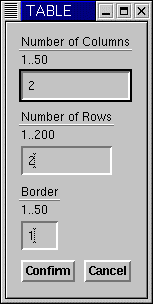 Amaya's user interface guides the author to include a caption for tables,in the
following way: When the author creates a table, a dialog is generated which
asks for number of rows, columns, border width
Amaya's user interface guides the author to include a caption for tables,in the
following way: When the author creates a table, a dialog is generated which
asks for number of rows, columns, border width
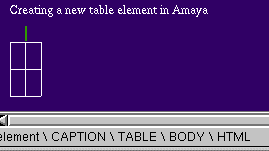 The author selects the appropriate
information and a table is created. The cursor is placed at the position of the
table caption. The status line, which appears at the bottom of the image, shows
that the position is in the caption element of the table. (This is a standard
part of the Amaya user interface).
The author selects the appropriate
information and a table is created. The cursor is placed at the position of the
table caption. The status line, which appears at the bottom of the image, shows
that the position is in the caption element of the table. (This is a standard
part of the Amaya user interface).
- WCAG Checkpoint
5.6 Provide abbreviations for header labels. [Priority 3]
- Techniques for WCAG
checkpoint 5.6
- HTML
- Prompt for an abbreviated form of each table header (
th)
- WCAG Checkpoint
6.1 Organize documents so they may be read without style sheets. For
example, when an HTML document is rendered without associated style sheets, it
must still be possible to read the document.
[Priority 1]
- Techniques
for WCAG checkpoint 6.1
- HTML
- Provide a "draft" view which does not use styling.
- WCAG Checkpoint
6.2 Ensure that equivalents for dynamic content are updated when the
dynamic content changes. [Priority 1]
- Techniques for WCAG
checkpoint 6.2
- SVG
- Prompt for appropriate changes to
title and desc
elements which are children of the target of an animate.
- HTML
- See also frames.
- WCAG Checkpoint
6.3 Ensure that pages are usable when scripts, applets, or other
programmatic objects are turned off or not supported. If this is not possible,
provide equivalent information on an alternative accessible page. [Priority 1]
- Refer also to WCAG guideline 1.
- Techniques for WCAG
checkpoint 6.3
- HTML
-
- Prompt for server-side alternatives for scripts and applets
- Prompt for
noscript content for each script.
- Prompt for alternative content for applets and programmatic objects (for
example
object elements which have a code
attribute).
- WCAG
Checkpoint 6.4 For scripts and applets, ensure that event handlers
are input device-independent.
[Priority 2]
- Refer to the definition of device
independence.
- Techniques
for WCAG checkpoint 6.4
- Applet development
-
- Prompt the author to include device-independent means of activation
- WCAG Checkpoint
6.5 Ensure that dynamic content is accessible or provide an
alternative presentation or page.
[Priority 2]
- Techniques for WCAG
checkpoint 6.5
- HTML
- Ask the author for:
- appropriate links and content to include in a
noframes
element
- a server-side alternative to applets and script functions
- WCAG Checkpoint
7.1 Until user
agents allow users to control flickering, avoid causing the screen
to flicker. [Priority 1]
- Techniques for WCAG
checkpoint 7.1
- WCAG Checkpoint
7.2 Until user
agents allow users to control blinking, avoid causing content to
blink (i.e., change presentation at a regular rate, such as turning on and
off). [Priority 2]
- Techniques for WCAG
checkpoint 7.2
- WCAG Checkpoint
7.3 Until user
agents allow users to freeze moving content, avoid movement in
pages. [Priority 2]
- Refer also to WCAG guideline 8.
- Techniques for WCAG
checkpoint 7.3
- WCAG Checkpoint
7.5 Until user
agents provide the ability to stop auto-redirect, do not use markup
to redirect pages automatically. Instead, configure the server to perform
redirects. [Priority 2]
- Techniques for WCAG
checkpoint 7.5
- WCAG
Checkpoint 8.1 Make programmatic elements such as scripts and
applets directly accessible or compatible with assistive technologies [Priority 1 if functionality is important and
not presented elsewhere, otherwise Priority 2.]
- Refer also to WCAG guideline 6.
- Techniques for
WCAG checkpoint 8.1
- WCAG Checkpoint
9.1 Provide client-side image maps instead of server-side image maps
except where the regions cannot be defined with an available geometric shape.
[Priority 1]
- Refer also to WCAG checkpoint 1.1, WCAG checkpoint 1.2, and WCAG checkpoint 1.5.
- Techniques for
WCAG checkpoint 9.1
- HTML
- where regions are not easily defined, ask the author to provide information
that can be used to generate a form-based input method and explains how the
coordinates input will be used. For example, on a map the input might be used
to lookup latitude and longitude of a point and then give information about
that point.
- WCAG Checkpoint
9.2 Ensure that any element that has its own interface can be
operated in a device-independent manner.
[Priority 2]
- Refer also to WCAG guideline 8.
- Techniques for WCAG
checkpoint 9.2
- WCAG
Checkpoint 9.3 For scripts, specify logical event handlers rather
than device-dependent event handlers.
[Priority 2]
- Techniques
for WCAG checkpoint 9.3
- WCAG Checkpoint
9.4 Create a logical tab order through links, form controls, and
objects. [Priority 3]
- Techniques for WCAG
checkpoint 9.4
- HTML
- Where there are only a few links that change in each page of a collection,
ask the author if they should receive focus first. If so, then give them a
tabindex, leaving the rest to after the tabindexed links have been
focussed.
- WCAG Checkpoint
9.5 Provide keyboard shortcuts to important links (including those
in
client-side image maps), form controls, and groups of form controls.
[Priority 3]
- Techniques for
WCAG checkpoint 9.5
- HTML
- Ask authors to specify an accesskey for links that appear common to a
number of pages
- WCAG Checkpoint
10.1 Until user
agents allow users to turn off spawned windows, do not cause pop-ups
or other windows to appear and do not change the current window without
informing the user. [Priority 2]
- Techniques for WCAG
checkpoint 10.1
- HTML
- Where a link or active element will spawn a new window, prompt the author
for
title text to make this clear.
- WCAG Checkpoint
10.2 Until user
agents support explicit associations between labels and form
controls, for all form controls with implicitly associated labels, ensure that
the label is properly positioned.
[Priority 2]
- Refer also to WCAG checkpoint 12.4.
- Techniques for
WCAG checkpoint 10.2
- WCAG Checkpoint
10.4 Until user
agents handle empty controls correctly, include default,
place-holding characters in edit boxes and text areas.
[Priority 3]
- Techniques for WCAG
checkpoint 10.4
- HTML
- Prompt the author for default place-holder text. Offer the value of the
name attribute as a default.
- WCAG Checkpoint
10.5 Until user
agents (including assistive technologies) render adjacent links
distinctly, include non-link, printable characters (surrounded by spaces)
between adjacent links. [Priority 3]
- Techniques for WCAG
checkpoint 10.5
- WCAG Checkpoint
11.2 Avoid deprecated features of W3C technologies. [Priority 2]
- Techniques for WCAG
checkpoint 11.2
- WCAG
Checkpoint 11.3 Provide information so that users may receive
documents according to their preferences (e.g., language, content type, etc.)
[Priority 3]
- Note. Use content negotiation where possible.
- Techniques for
WCAG checkpoint 11.3
- WCAG Checkpoint
11.4 If, after best
efforts, you cannot create an accessible page, provide a link to an alternative
page that uses W3C technologies, is accessible, has equivalent information (or functionality), and is
updated as often as the inaccessible (original) page.
[Priority 1]
- Techniques for WCAG
checkpoint 11.4
- WCAG Checkpoint
12.1 Title each frame to facilitate frame identification and
navigation. [Priority 1]
- Techniques for WCAG
checkpoint 12.1
- HTML
-
- Prompt the author for a short, human-readable title for each frame. Default
text presented in the prompt could use the
title defined for the
document referenced in the src
- WCAG Checkpoint
12.2 Describe the purpose of frames and how frames relate to each
other if it is not obvious by frame titles alone.
[Priority 2]
- Techniques for WCAG
checkpoint 12.2
- HTML
-
- Prompt the author for a
longdesc for each frame in a
frameset.
- Prompt the author to add a
noframes section to the frameset.
Encourage the author to include sufficient links to navigate the site, and
relevant information. For example, where a frameset defines a navigation frame
and a welcome page, include the content of each of these frames in the
noframes.
- WCAG Checkpoint
12.3 Divide large blocks of information into more manageable groups
where natural and appropriate.
[Priority 2]
- Refer also to WCAG guideline 3.
- Techniques for
WCAG checkpoint 12.3
- HTML
- Where there are more than 10 choices in a list (
select,
checkbox or radio boxes) ask the author to identify
subgroups
- WCAG Checkpoint
12.4 Associate labels explicitly with their controls. [Priority 2]
- Techniques for WCAG
checkpoint 12.4
- HTML
- Ask authors to mark explicitly the labels for form inputs
(
input and textarea elements)
- WCAG Checkpoint
13.1 Clearly identify the target of each link. [Priority 2]
- Techniques for WCAG
checkpoint 13.1
- General
- Prompt the author to provide text which can be used as a title for a
link.
- WCAG Checkpoint
13.2 Provide metadata to add semantic information to pages and
sites. [Priority 2]
- Refer also to WCAG checkpoint 13.5.
- Techniques for WCAG
checkpoint 13.2
- General
- Ask authors for information about a page or site. If its function is known
(see also WCAG checkpoint 13.9) add this information as metadata.
- WCAG Checkpoint
13.3 Provide information about the general layout of a site (e.g., a
site map or table of contents).
[Priority 2]
- Techniques for WCAG
checkpoint 13.3
- General
- Prompt the author to provide a link or content describing the structure of
the site, and its accessibility features.
- WCAG Checkpoint
13.4 Use navigation mechanisms in a consistent manner. [Priority 2]
- Techniques for
WCAG checkpoint 13.4
- WCAG Checkpoint
13.5 Provide navigation bars to highlight and give access to the
navigation mechanism. [Priority 3]
- Techniques for WCAG
checkpoint 13.5
- WCAG Checkpoint
13.6 Group related links, identify the group (for user agents), and,
until user
agents do so, provide a way to bypass the group. [Priority 3]
- Techniques for WCAG
checkpoint 13.6
- HTML
- Ask authors if lists of links are a group and should be a map.
- WCAG Checkpoint
13.9 Provide information about document collections (i.e., documents
comprising multiple pages.).
[Priority 3]
- Techniques for WCAG
checkpoint 13.9
- General
-
- Pattern-matching - ask authors to specify the role of pages linked from a
navigation bar.
- Where common names are used (search, home, map) as links, ask the author to
confirm these functions for use in linking.
- WCAG Checkpoint
13.10 Provide a means to skip over multi-line ASCII art. [Priority 3]
- Refer to WCAG checkpoint 1.1 and the example of
ascii art in the glossary.
- Techniques for WCAG
checkpoint 13.10
- HTML
- Where a PRE element is used with substantial punctuation and non-words, ask
for text alternative.
- WCAG
Checkpoint 14.1 Use the clearest and simplest language appropriate
for a site's content. [Priority 1]
- Techniques
for WCAG checkpoint 14.1
- General
-
- Provide readability ratings for text.
- Provide a thesaurus function
- Provide a grammar-checking function
- WCAG Checkpoint
14.2 Supplement text with graphic or auditory presentations where
they will facilitate comprehension of the page.
[Priority 3]
- Refer also to WCAG guideline 1.
- Techniques for WCAG checkpoint
14.2
- 3.3 Ensure that prepackaged content
conforms to the Web Content Accessibility Guidelines 1.0 [WCAG10].
[Relative Priority] (Checkpoint
3.3)
- For example, include captions, an
auditory description, and a collated text transcript with prepackaged movies. Refer also to checkpoint 3.4.
- Use formats that allow for accessible annotation to be included in the
files, such as SMIL, PNG, and SVG.
- Provide long descriptions, and associated text files with appropriate text equivalent in clip-art
collections.
- Provide video description files with prepackaged video.
- Provide text caption files for prepackaged audio, or video with auditory
track(s).
- Including pre-written descriptions for all multimedia files (e.g.,
clip-art) packaged with the tool will save authors time and effort, cause a
significant number of professionally written descriptions to circulate on the
Web, provide authors with convenient models to emulate when they write their
own descriptions, and show authors the importance of description writing.
- Refer also to checkpoint
3.5.
- Sample: Amaya does not provide any clip art or other prepackaged
content.
-
3.4 Do not automatically generate equivalent alternatives. Do not reuse
previously authored alternatives without author confirmation, except when the
function is known with certainty.
[Priority 1] (Checkpoint
3.4)
- For example, prompt the author
for a text equivalent of an image.
If the author has already provided a text equivalent for the same image used in
another document, offer to reuse that text and prompt the author for
confirmation. If the tool automatically generates a "Search" icon, it would be
appropriate to automatically reuse the previously authored text equivalent for
that icon. Refer also to
checkpoint 3.3 and
checkpoint 3.5.
Note: Human-authored equivalent alternatives may be
available for an object (for example, through checkpoint 3.5 and/or checkpoint 3.3). It is
appropriate for the tool to offer these to the author as defaults.
- Items used throughout a Website, such as graphical navigation bars, should
have standard alternative information. However the author should be prompted to
edit or approve this the first time it is used in a site, and when the
destination of the links is changed by the author.
- If the author has not specified alternative text for an
IMG,
or specified that none is required, default to having no "alt"
attribute, so that an accessibility problem will be noted. Refer also to checkpoint
4.1.
- Where an object has already been used in a document, the tool should offer
the alternative content that was supplied for the first or most recent use as a
default.
- 3.5 Provide functionality for managing,
editing, and reusing alternative
equivalents for multimedia objects.
[Priority 3] (Checkpoint
3.5)
- Note: These alternative equivalents may be packaged with
the tool, written by the author, retrieved from the Web, etc.
-
- Maintain a database registry that associates object identity information
with alternative information. Whenever an object is used and an equivalent
alternative is provided, ask the author whether they want to add the object (or
identifying information) and the alternative information to the database. In
the case of a text equivalent,
the alternate information may be stored in the document source. For more
substantial information (such as video captions or audio descriptions), the
information may be stored externally and linked from the document source. Allow
different alternative information to be associated with a single object.
- Reference: >Allow authors to make keyword searches of a
description database (to simplify the task of finding relevant images, sound
files, etc.). A paper describing a method to create
searchable databases for video and audio files is available (refer to
[SEARCHABLE]).
- Suggest pre-written descriptions as default text whenever one of the
associated files is inserted into the author's document.
- The use of the Resource Description Framework (RDF) [RDF10], or formats like SVG
can enable a tool to maintain and use libraries of information within the tool
and on the Web.
- This checkpoint is priority 3, meaning that in itself, it does not have a
critical effect on an authoring tool's likelihood of producing accessible
mark-up. However, certain implementations of this Alternative Information
Management Mechanism (AIMM) [APROMPT] have the potential to simultaneously satisfy
several higher priority checkpoints and dramatically improve the usability of
an access aware authoring tool. In particular:
- The AIMM
[APROMPT] should
maintain a list of associations between object file names and authored
responses to prompts for alternative information (per checkpoint 3.1). The
alternative information may take the form of short strings (i.e., "alt"-text)
or pointers to descriptive files (i.e., "longdesc", transcripts, etc.).
Multiple associations for the same object for different languages or contexts
should also be handled.
- The AIMM
[APROMPT] would
offer the associated alternative information as a default whenever the
appropriate associated object is selected for insertion. If no previous
association is found, the field should be left empty (i.e., no purely
rule-generated alternative information should be used). Note:
The term "default" implies that the alternative information is offered for the
author's approval. The term does not imply that the default alternative
information is automatically placed without the author's approval. Such
automatic placement may only occur when in situations where the function of the
object is known with certainty, per checkpoint 3.4. Such a situation might arise in the case of a
"navigation bar builder" that places a navigation bar at the bottom of every
page on a site. In this case, it would be appropriate to use the same
"alt"-text automatically for every instance of a particular image (with the
same target) on every page.
- The alternative information mechanism should be closely integrated with the
pre-written alternative information provided for all packaged multimedia files,
per checkpoint 3.3. This
would allow the alternative information to be automatically retrieved whenever
the author selected one of the packaged objects for insertion. An important
benefit of the system would be the ease of adding a keyword search capability
that would allow efficient location of multimedia based on its alternative
information.
Many authoring tools allow authors to create documents with little or no
knowledge about the underlying markup. To ensure accessibility, authoring tools
must be designed so that they can (where possible, automatically) identify inaccessible markup,
and enable its correction even when the markup itself is hidden from the
author.
Authoring tool support for the creation of accessible Web content should
account for different authoring styles. Authors who can configure the tool's
accessibility features to support their regular work patterns are more likely
to accept accessible authoring practices (refer to guideline 5). For example,
some authors may prefer to be alerted to accessibility problems when they occur, whereas
others may prefer to perform a check at the end of an editing session. This is
analogous to programming environments that allow users to decide whether to
check for correct code during editing or at compilation.
Note: Validation of markup is an essential aspect of
checking the accessibility of content.
Checkpoints:
- 4.1 Check for and inform the author of accessibility problems.
[Relative Priority] (Checkpoint
4.1)
- Note: Accessibility problems should be
detected automatically where possible. Where this is not possible, the tool may
need to prompt the author to make decisions or to
manually check for certain types of problems.
-
- Reference: The WAI Evaluation and Repair group [WAI-ER] is developing a document that
discusses detailed techniques for testing content according to the Web Content
Accessibility Guidelines. A draft of that document is available [AUTO-TOOL].
- Where the tools cannot test for accessibility errors, provide the author
with the necessary information, wizards, etc. to check for themselves. Refer also to checkpoint
5.1.
- Include alerts for
WCAG 1.0
[WCAG10] Priority 1 checkpoints in the default configuration.
- Provide an editing view that shows equivalent alternatives in the main
content view to make it clear that they are necessary. This will make it
obvious when they are missing.
- Provide a preview mode that uses alternative content. Although this can
give authors a clear understanding of some problems very easily, it should be
made clear that there are many ways in which a page may be presented (aurally,
text-only, text with pictures separately, on a small screen, on a large screen,
etc.). A view that renders the document as it might appear without technologies
such as style sheets and images enabled, or the ability to turn those features
off and on in the editing view, will also give an author some idea of whether a
document's logical order has been correctly preserved, whether alternative text
is appropriate, etc.
- Highlight problems detected when documents are opened, when an editing or
insertion action is completed, or while an author is editing. Using CSS classes
to indicate accessibility problems will enable the author to easily configure
the presentation of errors.
- Where there is a change in the writing script used, prompt the author to
identify whether there has been a change in language
- Alert authors to accessibility problems when saving.
- Accessibility problems can be highlighted using strategies similar to spell
checking within a word processor. Accessibility alerts within the document can
be linked to context sensitive help. Refer also to checkpoint 4.2..
- Allow authors to choose different alert levels based on the priority of
authoring accessibility recommendations.
- If interruptive warnings are used, provide a means for the author to
quickly set the warning to non-obtrusive to avoid frustration.
- Reference: There are online tools whose output can be integrated
with the user interface. Other tools are available for incorporation in
existing software, either as licensed products or in some cases as "open
source" solutions. The WAI Evaluation and Repair group maintains information
about available tools
[WAI-ER].
- Reference: Refer also to the WAI accessibility references listed in
techniques for Refer
also to checkpoint 1.1..
- Reference: The Web Accessibility Initiative's Protocols and Formats
group have a draft set of notes about creating accessible markup languages [XMLGL].
- Sample: Amaya currently checks for validity, but the only warning of
invalid markup appears in the structure view. The Amaya developers are
investigating automating an accessibility check and author notification. Where
Amaya detects an error, it identifies and highlights the incorrect code in the
structure view, allowing the author to delete it.
- 4.2 Assist authors in correcting accessibility
problems. [Relative Priority] (Checkpoint
4.2)
- At a minimum, provide context-sensitive help with the
accessibility checking required by checkpoint 4.1
-
- Reference: The WAI Evaluation and Repair group [WAI-ER] is developing a document that
discusses detailed techniques for repairing accessibility errors in content
according to the Web Content Accessibility Guidelines. A draft of that document
is available
[AUTO-TOOL].
- Assist authors in ways that are consistent with the look and feel of the
authoring tool.
- Provide context sensitive-help for accessibility errors. Refer also to guideline 6.
- Where there are site-wide errors, to make correction more efficient, allow
the author to make site-wide changes or corrections. For example, this may be
appropriate for a common error in markup, but may not be appropriate in
providing a text equivalent that is appropriate for one use of an image but
completely inappropriate for the other uses of the image on the same site (or
even the same page).
- Allow authors to control both the nature and timing of the correction
process.
- Provide a mechanism for authors to navigate sequentially among uncorrected
accessibility errors Refer
also to checkpoint 7.4..
- Possible implementation strategy: Where there are errors in a document
Amaya could alert the author and warn that the document must be changed, and
present the structure view highlighting areas where it has changed the markup,
allowing the author to abort the editing session or save the changed version
under a new name.
-
4.3 Allow the author to preserve markup not recognized by the tool.
[Priority 2] (Checkpoint
4.3)
- Note: The author may have included or
imported markup that enhances accessibility but is not recognized by the
tool.
-
- Provide a summary of all automated structural changes that may affect
accessibility.
- Provide options for the author to confirm or override removal of markup on
a change-by-change basis or as a batch process.
- If changes to the markup are necessary for the tool to further process the
document (for example, a tool that requires valid markup when a document is
opened), inform the author.
- Do not change the DTD without notifying the author.
- 4.4 Provide the author with a summary of
the document's accessibility status.
[Priority 3] (Checkpoint
4.4)
-
- Provide a list of all accessibility errors found in a Web page.
- Provide a summary of accessibility problems remaining by type and/or by
number.
- 4.5 Allow the author to transform presentation markup that
is misused to convey structure into structural markup, and to
transform presentation markup used for style into style sheets. [Priority 3] (Checkpoint
4.5)
-
- Some examples of transformations include: HTML table-based layout into CSS,
HTML
BR to the P element, HTML (deprecated)
FONT into heuristically or author-determined structure, Word processor
styles to Web styles, HTML deprecated presentational markup into CSS, XHTML
span into ruby, MathML presentational markup to
semantic markup.
- Allow the author to define transformations for imported documents that have
presentation, rather than structural, markup.
- Allow the author to create style rules based on the formatting properties
of an element, and then apply the rule to other elements in the document, to
assist conversion of documents to the use of style sheets
- Include pre-written transformations to rationalize multiple tables, and to
transform (deprecated) presentation HTML into style sheets.
- Remember that accessibility information, including attributes or properties
of the elements being transformed, must be preserved - see checkpoint 1.2
- Sample: Amaya provides a language for specifying structure
transformations, and a large number of predefined transformations are
included.
When a new feature is added to an existing software tool without proper
integration, the result is often an obvious discontinuity. Differing color
schemes, fonts, interaction styles, and even software stability can be factors
affecting author acceptance of the new feature. In addition, the relative
prominence of different ways to accomplish the same task can influence which
one the author chooses. Therefore, it is important that creating accessible
content be a natural process when using an authoring tool.
Checkpoints:
- 5.1 Ensure that functionality related to
accessible authoring
practices is naturally integrated into the overall look and feel of the
tool. [Priority 2] (Checkpoint
5.1)
-
- Ensure that author can utilize the tool's accessible authoring features by
the same interaction styles used for other features in the program. For
example, if the tool makes use of onscreen symbols such as underlines or
coloration change rather than dialogs for conveying information, then the same
interface techniques should be used to convey accessibility information.
- The same fonts, text sizes, colors, symbols, etc. that characterize other
program features should also characterize those dealing with
accessibility.
- Include considerations for accessibility - such as the
"alt"
and "longdesc" attributes of the HTML IMG element -
right below the "src" attribute in a dialogue box, not buried
behind an "Advanced..." button.
- Allow efficient and fast access to accessibility-related settings with as
few steps as possible needed to make any changes that will generate accessible
content.
- The accessibility features should be designed as integral components of the
authoring tool application, not plug-ins or other peripheral components that
need to be separately obtained, installed, configured or executed
- The default installation of the authoring tool should include all
accessibility features enabled. The author may have the option to disable these
features later on.
- A help page that describes how to make an HTML image map should include
adding alternative information for each
AREA element in the
MAP as part of the process. Any examples of code should give either
block content with text links, or AREA elements that all have
relevant "alt" attribute values.
- When an author creates an HTML frameset, suggest the links from the
navigation bar (and perhaps the content of the "first page") as the content for
the
NOFRAMES element.
- Sample: In Amaya some accessibility features are part of relevant
dialogs. Others, such as longdesc and title attributes must be separately
generated by the author. The development team will integrate these into the
relevant dialogues in future releases.
-
5.2 Ensure that accessible authoring
practices supporting Web Content Accessibility Guidelines 1.0 [WCAG10] Priority 1
checkpoints are among the most obvious and easily initiated by the author.
[Priority 2] (Checkpoint 5.2)
-
- When the author has selected text to format, the use of CSS should be
emphasized rather than the (deprecated) HTML
FONT element.
- Highlight the most accessible solutions when presenting choices for the
author.
- Providing an editing view that shows equivalent alternatives in the main
content view will make it clear that they are necessary, and will make it
obvious when they are missing.
- If there is more than one option for the author, and one option is more
accessible than another, place the more accessible option first and make it the
default. For example, when requesting equivalent alternatives for an image with
the HTML
OBJECT element, offer an unchecked option for a null
value (i.e., there is no content, implying the image has no real function) with
the cursor positioned in the entry field for alternative text (and, if
available, provide the appropriate value from the "Alternative Information
Management Mechanism"; refer to checkpoint 3.5) rather than offering the filename as a default
suggestion, or selecting the null "alt" value as a default.
- Sample: Amaya's user interface guides the author to produce
structured content, with presentation elements separated into style sheets.
Providing an equivalent alternative is mandatory at the time of inserting some
elements.
Web authors may not be familiar with accessibility issues that arise when
creating Web content. Therefore, help and documentation must include
explanations of accessibility
problems, and should demonstrate solutions with examples.
Checkpoints:
- 6.1 Document all features that promote the
production of accessible content.
[Priority 1] (Checkpoint
6.1)
-
- Ensure that accessibility solutions are present in all help text
descriptions of markup practices (e.g., HTML
IMG elements should
appear with an "alt" attribute and a "longdesc"
attribute wherever appropriate).
- Ensure that electronic documentation complies with the Web Content
Accessibility Guidelines 1.0 [WCAG10]
- Link from help text to any automated correction utilities.
- Provide examples of accessible design practices in online tutorials.
- Include help documentation for all accessible authoring practices supported
by the tool.
- Link those mechanisms used to identify accessibility problems (e.g., icons,
outlining or other emphasis within the user interface) to help files.
- Sample: Amaya help pages for images and image maps
[AMAYA-HELP-IMG] include providing text alternatives as part of the
process. There is a help page on configuring Amaya, that documents how to
change the default keyboard bindings.
- 6.2 Ensure that creating accessible
content is a naturally integrated part of the documentation, including
examples. [Priority 2] (Checkpoint
6.2)
-
- In help text, when explaining the accessibility issues related to
non-deprecated elements, emphasize appropriate solutions rather than explicitly
discouraging the use of the element.
- Explain the importance of utilizing accessibility features generally and
for specific instances.
- Take a broad view of accessibility-related practices; for example, do not
refer to text equivalents as being
"for blind authors" but rather as "for authors who are not viewing
images".
- Avoid labelling accessibility features of the tool with a "handicapped"
icon, as this can give the impression that accessible design practices only
benefit disabled authors.
- In help text, emphasize accessibility features that benefit multiple
groups. In particular the principles of supporting flexible display and control
choices have obvious advantages for the emergence of hands free, eyes-free,
voice-activated browsing devices such as Web phone, the large number of slow
Web connections, and Web users who prefer text-only browsing to avoid "image
clutter".
- Provide examples of all accessibility solutions in help text, including
those of lower priority in
WCAG 1.0
[WCAG10].
- Implement context-sensitive help for all special accessibility terms as
well as tasks related to accessibility.
- Document the tool's conformance to ATAG 1.0 [ATAG10].
- Include current versions of, or links to relevant specifications in the
documentation (e.g. HTML 4 [HTML4], CSS
[CSS2].) This is particularly relevant for markup languages that are easily
hand edited, such as most XML languages [XML].
- Include a tutorial specifically on checking for and correcting Web
accessibility problems.
- Link to or provide URIs for more information on accessible Web authoring,
such as WCAG 1.0 [WCAG10], and other
accessibility-related resources.
- Ensure that documentation examples conform to WCAG 1.0 [WCAG10], at least to the level that the tool conforms to
ATAG 1.0
[ATAG10].
- Clearly label any examples that display practices that reduce
accessibility.
- Sample: Accessible authoring features are added to the documentation
as they are incorporated into Amaya, as part of the normal documentation of the
relevant feature.
- 6.3 In a dedicated section,
document all features of the tool that promote the production of accessible
content. [Priority 3] (Checkpoint
6.3)
-
- Sample: Amaya documentation has a basic accessibility section, which
is an option in Amaya's help menu.
The authoring tool is a software program with standard user interface
elements and as such must be designed according to relevant user interface
accessibility guidelines. When custom interface components are created, it is
essential that they be accessible through the standard access mechanisms for
the relevant platform so that assistive technologies can be used with them.
Some additional user interface design considerations apply specifically to
Web authoring tools. For instance,
authoring tools must ensure that the author can edit (in an editing view) using one set of stylistic preferences
and publish using different styles. Authors with low vision may need large text
when editing but want to publish with a smaller default text size. The style
preferences of the editing view must not affect the markup of the published
document.
Authoring tools must also ensure that the author can navigate a document
efficiently while editing, regardless of disability. Authors who use screen
readers, refreshable braille displays, or screen magnifiers can make limited
use (if at all) of graphical artifacts that communicate the structure of the
document and act as signposts when traversing it. Authors who cannot use a
mouse (e.g., people with physical disabilities or who are blind) must use the
slow and tiring process of moving one step at a time through the document to
access the desired content, unless more efficient navigation methods are
available. Authoring tools should therefore provide an
editing view that conveys a sense of the overall structure and
allows structured navigation.
Note: Documentation, help files, and installation are part
of the software and need to be available in an
accessible form.
Checkpoints:
- 7.1 Use all applicable operating
system and accessibility standards and conventions (Priority 1 for standards
and conventions that are essential to accessibility; Priority 2 for those that
are important to accessibility; Priority 3 for those that are beneficial to
accessibility). (Checkpoint
7.1)
- The techniques for this checkpoint include references to checklists and
guidelines for a number of platforms and to general guidelines for accessible applications.
-
- Not all of the guidelines and checklists for application accessibility are
prioritized according to their impact on accessibility. For instance, the
priorities in "The Microsoft Windows Guidelines for Accessible Software Design"
[MS-SOFTWARE] are partially determined by a logo requirement program.
Therefore developers may need to compare the documents they are using to other
guidelines. WCAG 1.0
[WCAG10] and UAAG
1.0 [UAAG10] both
have priority systems that are directly compatible with the priorities in [ATAG10].
- User Interfaces are sometimes built as Web content, and, as such, should
follow the Web Content Accessibility Guidelines 1.0 [WCAG10]. Refer also to guideline 1.
- Guidelines for specific platforms include
- Reference: "IBM Guidelines for Writing Accessible Applications Using
100% Pure Java" [JAVA-ACCESS] R. Schwerdtfeger, IBM Special Needs
Systems.
- Reference: "An ICE Rendezvous Mechanism for X Window System Clients"
[ICE-RAP], W.
Walker. A description of how to use the ICE and RAP protocols for X Window
clients.
- Reference: "Information for Developers About Microsoft Active
Accessibility" [MSAA]
Microsoft Corporation.
- Reference: "The Inter-Client communication conventions manual" [ICCCM]. A protocol for
communication between clients in the X Window system.
- Reference: "Lotus Notes accessibility guidelines" [NOTES-ACCESS]
IBM Special Needs Systems.
- Reference: "Java accessibility guidelines and checklist"
[JAVA-CHECKLIST] IBM Special Needs Systems.
- Reference: "The Java Tutorial. Trail: Creating a GUI with JFC/Swing" [JAVA-TUT]. An online tutorial that describes how to
use the Swing Java Foundation Class to build an accessible User Interface.
- Reference: "Macintosh Human Interface Guidelines" [APPLE-HI] Apple
Computer Inc.
- Reference: "The Microsoft Windows Guidelines for Accessible Software
Design"
[MS-SOFTWARE].
- Guidelines for specific software types include
- Reference: "The Three-tions of Accessibility-Aware HTML Authoring
Tools"
[ACCESS-AWARE], J. Richards.
- Reference: "User Agent Accessibility Guidelines (Working Draft)" J.
Gunderson, I. Jacobs eds. (This is a work in progress) [UAAG10]
- General guidelines for producing accessible software include:
- Reference: "Accessibility for applications designers" [MS-ENABLE] Microsoft
Corporation.
- Reference: "Application Software Design Guidelines" [TRACE-REF] compiled
by G. Vanderheiden. A thorough reference work.
- Reference: "Designing for Accessibility" [SUN-DESIGN] Eric Bergman and Earl
Johnson. This paper discusses specific disabilities including those related to
hearing, vision, and cognitive function.
- Reference: "EITAAC Desktop Software standards" [EITAAC] Electronic Information Technology
Access Advisory (EITACC) Committee.
- Reference: "Requirements for Accessible Software Design" [ED-DEPT] US Department of
Education, version 1.1 March 6, 1997.
- Reference: "Software Accessibility" [IBM-ACCESS] IBM Special Needs Systems
- Reference: "Towards Accessible Human-Computer Interaction" [SUN-HCI] Eric Bergman,
Earl Johnson, Sun Microsytems 1995. A substantial paper, with a valuable print
bibliography.
- Reference: "What is Accessible Software" [WHAT-IS] James W. Thatcher, Ph.D., IBM,
1997. This paper gives a short example-based introduction to the difference
between software that is accessible, and software that can be used by some
assistive technologies.
- The following are common requirements for producing accessible software.
This list does not necessarily cover all requirements for all platforms, and
items may not apply to some software.
- Draw text and objects using system conventions.
- Make mouse, keyboard, and
API activation of events consistent.
- Provide a user interface that is "familiar" (to system standards, or across
platform).
- Use system standard indirections and APIs wherever possible.
- Ensure all dialogs, subwindows, etc., satisfy these requirements.
- Avoid blocking assistive technology functions (sticky/mouse keys,
screenreader controls, etc.) where possible.
- Allow users to create profiles.
- Allow control of timing, colors, sizes, input/output devices and
media.
- Allow users to reshape the user interface - customize toolbars, keyboard
commands, etc.
- Provide Keyboard access to all functions.
- Document all keyboard bindings.
- Provide customizable keyboard shortcuts for common functions.
- Provide logical navigation order for the keyboard interface.
- Avoid repetitive keying wherever possible.
- Provide mouse access to functions where possible.
- Provide graphical (text) equivalents for sound warnings.
- Allow sounds to be turned off.
- Provide text equivalents for images/icons.
- Use customizable (or removable) colors/patterns.
- Ensure high contrast is available (as default setting).
- Provide text equivalents for all audio.
- Use icons that are resizeable or available in multiple sizes.
- Do not rely on color alone for meaning. Use color for differentiation, in
combination with accessible cues (text equivalents, natural language,
etc.).
- Position related text labels and objects consistently, and in an obvious
manner (labels before objects is recommended).
- Group related controls.
- Ensure default window sizes fit in screen.
- Allow for window resizing (very small to very large).
- Clearly identify the user focus (and expose it via API).
- Unexpected events should not be caused by viewing content (for example by
moving the focus to a new point).
- Allow user control of timing - delays, time-dependent response, etc.
- Allow for navigation between as well as within windows.
- Provide documentation for all features of the tool.
- Ensure that help functions are accessible.
- Sample: Amaya is currently available for two platforms: Unix and
Windows. There is some work required on both platforms to bring it into line
with conventions, in particular to provide conformance with the User Agent
Guidelines [UAAG10],
and to implement Microsoft Active Accessibility [MSAA] in the Windows version. It is being re-written to
take advantage of the improved accessibility support possible in Gnome (it
currently uses Motif) in the Unix version. The Documentation is all available
online as HTML and has been reviewed to ensure it conforms to WCAG 1.0 [WCAG10].
- 7.2 Allow the author to change the
presentation within editing views
without affecting the document markup.
[Priority 1] (Checkpoint
7.2)
- This allows the author to edit the document according to personal
requirements, without changing the way the document is rendered when
published.
-
- In representing the source structure of a document mark elements with text
brackets rather than with purely graphic representations. For example,
"</>" is regarded as a text bracket, since it is made of character
elements.
- Allow the author to create audio style sheets using a graphical
representation rather than an audio one (with accessible representation, of
course).
- An authoring tool that offers a "rendered view" of a document, such as a
browser preview mode, may provide an editing view whose presentation can be
controlled independently of the rendered view.
- A WYSIWYG
editor may allow an author to specify a local style sheet, that will override
the "published" style of the document in the editing view.
- Sample: Amaya allows the author to create local style sheets, and to
enable or disable each style sheet that is linked to a document.
-
7.3 Allow the author to edit all properties of each element and object in an accessible
fashion. [Priority 1] (Checkpoint 7.3)
-
- An authoring tool may offer several editing views of the same document,
such as a source mode that allows direct editing of all properties.
- Allow the author to individually edit each attribute of the elements in an
HTML or XML document, for example, through a menu. Note: This
must include the ability to add valid values for attributes that are not
present, as well as changing current values of attributes.
- For a site management tool, allow the author to render a site map in text
form (e.g., as a structured tree file).
- Allow the author to specify that alternative information (or identifiers
such as a URI or filename) are rendered in place of images or other multimedia
content while editing.
- Include attributes / properties of elements in a view of the
structure.
- Provide access to a list of properties via a "context menu" for each
element.
- Graphically represented elements cannot be identified by assistive
technologies that render text as braille, speech, or large print, unless there
is appropriate information available as text. For example, some HTML authoring
tools render start and end tags as graphics. Such tag representations need to
have a text equivalent to be accessible to assistive technologies.
- Sample: Amaya allows each attribute to be edited through the menu or
through the structure view. Element types can be assigned through the menu
system.
- 7.4 Ensure that the editing view allows navigation via the
structure of the document in an accessible fashion.
[Priority 1] (Checkpoint
7.4)
-
- Some tools, such as those used to translate from one format to another, do
not have an editing view.
- Allow the author to navigate via an "outline" or "structure" of the
document being edited. This is particularly important for people who are using
a slow interface such as a small braille device, or speech output, or a single
switch input device. It is equivalent to the ability provided by a mouse
interface to move rapidly around the document.
- To minimally satisfy this checkpoint, allow navigation from element to
element.
- In a hypertext document allow the author to navigate among links and active
elements of a document.
- For SMIL and other time-based presentations, allow the author to navigate
temporally through the presentation.
- Allow the author to navigate regions of an image, or the document tree for
an image expressed in a structured language such as Scalable Vector Graphics [SVG].
- Implement the HTML
"accesskey" attribute, and activate it in
editing views
- Sample: Amaya provides a structure view, that can be navigated
element by element, a Table of Contents view, that allows navigation via the
headings, and a links view, that allows sequential navigation via the links in
the document. It also provides configurable keyboard navigation of the HTML
structure - parent, child, next and previous sibling elements.
-
7.5 Enable editing of the structure of the document in an accessible
fashion. [Priority 2] (Checkpoint
7.5)
-
- An authoring tool may offer a structured tree view of the document,
allowing the author to move among, select and cut, copy or paste elements of
the document.
- A WYSIWYG tool
may allow elements to be selected, and copied or moved while retaining their
structure.
- A tool may allow transformation from one element type to another, such as
- HTML paragraphs to lists and back;
- HTML
BR to P;
- SMIL transformations between
switch, excl, and
par;
- HTML (deprecated)
FONT into heuristically determined
structure;
- Lists of lists to tables and back;
- MathML transformations between semantic and presentation markup;
- Transforming the SVG
g element to symbol;
- Giving a structural role to a part of an element, such as an SVG
g or an HTML p element.
- Sample: Amaya allows the author to select
elements (including containers) and cut, copy and paste them with
their attributes and properties in any of the formatted, structure and
alternate views.
-
7.6 Allow the author to search within editing views.
[Priority 2] (Checkpoint 7.6)
-
- Search functions are already present in almost every text and hypertext
editing tools. The simplest allow searching for a sequence of characters, while
more powerful searches can include the ability to perform searches that are
case sensitive or case-insensitive, the ability to replace a search string, the
ability to repeat a previous search to find the next or previous occurrence, or
to select multiple occurrences with a single search.
- The ability to search for a particular type of structure is useful in a
structured document, structured image such as a complex SVG image, etc.
- In an image editor, the ability to select an area by properties (such as
color, or closeness of color) is useful. This is common in middle range and
high end image processing software.
- The ability to search a database for particular content, or to search a
collection of files at once (a simple implementation of the latter is the Unix
function "grep") is an important tool in managing large collections, especially
those that are dynamically converted into Web content.
- The use of metadata (per WCAG 1.0 [WCAG10]) can allow for very complex searching of large
collections, or of timed presentations. Refer also to the paper "A Comparison
of Schemas for Dublin Core-based Video Metadata Representation" [SEARCHABLE] for
discussion specifically addressing timed multimedia presentations.
- Sample: Amaya provides a search function. Because all editing views
are synchronized, any search text found will be selected in each of the
available views.
These guidelines often refer to the practice of prompting and to a lesser
extent alerting. The following guidelines and selected checkpoints make
explicit use of them:
- guideline 3 (Support
the creation of accessible content)
...prompting authors to include equivalent alternative
information such as text equivalents, captions,
and auditory descriptions at appropriate times can greatly ease the burden for
authors....
- checkpoint 3.1
(Prompt the author to provide equivalent alternative
information (e.g., captions, auditory descriptions, and collated text
transcripts for video). [Relative Priority])
- checkpoint 3.4 (Do not
automatically generate equivalent alternatives. Do not reuse previously
authored alternatives without author confirmation, except when the function is
known with certainty. [Priority 1]) For example, prompt the
author for a text equivalent of an image....
- guideline 4 (Provide
ways of checking and correcting inaccessible content)
- checkpoint 4.1
(Check for and inform the author of accessibility problems. [Relative
Priority])
Note: Accessibility problems should be detected automatically where possible.
Where this
is not possible, the tool may need to prompt the author to
make decisions or to manually
check for certain types of problems.
The importance of these concepts in the document and a perceived ambiguity
of their meanings has been identified as a source of confusion. This
appendix will attempt to clarify the issue.
The word prompting is used in the document to denote all user interface
methods by which the author is given an opportunity to add accessible
content. The following are responses to concerns raised by
developers.
- There is no requirement that prompting be modal. In other words, the
author should not necessarily be prevented from performing other tasks when
accessibility problems exist.
- There is no requirement that prompting be dedicated to one accessibility
issue. In other words, the author may be presented with a number of
issues within one prompt, only one or several of which may relate to
accessibility.
- There is no requirement that prompting be inflexible. A user-flexible
schedule should be an important component of the system.
Note: As a general rule, the implementation of prompting
should be governed by
checkpoint 5.1 (Ensure that functionality related to accessible authoring
practices is naturally integrated into the overall look and feel of the tool.
[Priority 2])
A user configurable schedule allows individual authors to determine, to some
extent, how and when they will be prompted about accessibility issues.
For example, authors should have control over the stringency of the checks
(i.e., WCAG level A, double-A or triple-A) and the scheduling of prompting
(i.e., as problems occur or at the completion of authoring). Of course, the
extent of this configurability should be determined by developers on an
individual basis. Some tool developers may decide to restrict authors to
several global settings while others might allow authors to make fine grained
distinctions, such as different scheduling for different types of problems.
Authoring tool support for the creation of accessible Web content should
account for different authoring styles. Authors who can configure the tool's
accessibility features to support their regular work patterns are more likely
to accept accessible authoring practices 5 Integrate accessibility
solutions into the overall "look and feel". . For example, some authors may
prefer to be alerted to accessibility problems when they occur, whereas others
may prefer to perform a check at the end of an editing session. This is
analogous to programming environments that allow users to decide whether to
check for correct code during editing or at compilation. (from the
introduction to guideline
4)
In Microsoft Word 2000, spelling errors can be flagged and corrected in
several ways depending on the preferences that the author has set on the
spelling property card. Below is a screen shot of this card:
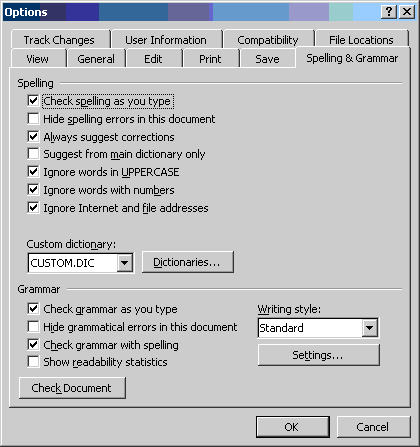 D
D
All authoring tools will have ways of conveying information to users and
collecting information in return. These methods vary according to factors
such as the design of the tool and the user interface conventions for its
platform. The following is relatively generic overview of how these methods can
be used for accessibility prompting. Keep in mind that these categories may
overlap. For example, an intrusive alert may contain a prompt edit field.
Prompts are basically requests for information. On most GUI platforms,
prompts take the form of dialog boxes that request information from the
user. The author answers the requests by setting modifying control values
(i.e. typing text in a textbox or selecting a checkbox). Prompts are relatively
unintrusive because they are often displayed at the user's request. For
example, when the user has chosen to save a document and the application
prompts for the user to enter a name. However, once the author has dismissed a
prompt, its message is unavailable unless the user requests it again.
For the purposes of the Guidelines, prompts can be used to encourage authors
to provide information required for accessibility. For example, in the case of
HTML, a prominently displayed alt-text entry field in an image insertion
dialog, would constitute a prompt.
In the Guidelines, the interface priority of controls related to
accessibility is governed by
checkpoint 5.2 (Ensure that accessible authoring practices supporting Web
Content Accessibility Guidelines 1.0 [WCAG10] Priority 1 checkpoints are among
the most obvious and easily initiated by the author.[Priority 2]). This
checkpoint does not require that accessibility concerns obscure the other
editing tasks. The checkpoint merely emphasizes that these controls
should be allotted screen presence that is appropriate for their importance.
For example, in MacroMedia's Dreamweaver 2 HTML authoring tool, a property
toolbar is displayed with fields that are appropriate to the currently selected
element. In cases such as the image element, the author can toggle the toolbar
between a limited and extended set of properties. Importantly, in terms of checkpoint 5.2, the
alt attribute property is afforded sufficient field priority to appear
on the limited version of the toolbar.
 D
D
Conformance with checkpoint
5.2 may be reinforced by visually highlighting accessibility features with
colour, icons, underlining, etc. For example, in Allaire's HomeSite
authoring tool, attention is drawn more explicitly to an accessibility-related
prompt fields. In this case, the Homesite tag editor dialog contains symbols,
colour changes and explanatory text highlight alt-text as required for HTML 4.0
and necessary for accessibility.
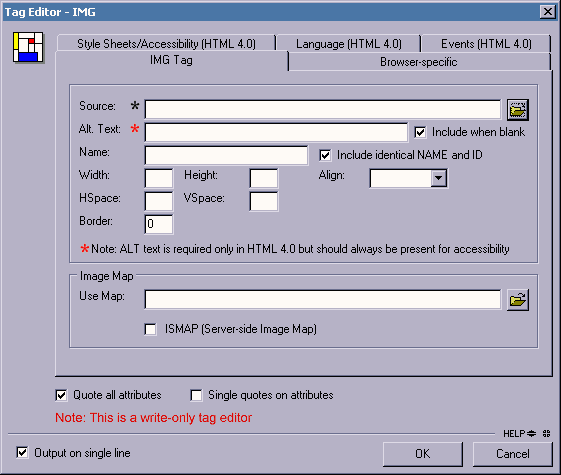 D
D
Sometimes a number of accessible editing tasks are required for a single
element. Instead of dispersing these prompts over multiple dialog boxes, it may
be more effective to draw them together into one group of controls. In the
following example, also from Allaire HomeSite, the multiple accessibility
requirements of the HTML input form control (i.e. Access Key, Tab Index, Title
and Label Text) are prompted for from within the same dialog.
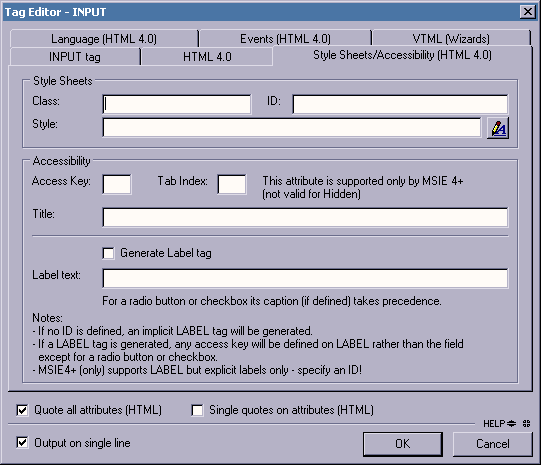 D
D
In some cases, authors may benefit from the sequential presentation of a
number of prompts. This technique usually takes the form of a wizard or a
checker. In the case of a wizard, relatively complex interactions are broken
down into a number of simple steps so that later steps can take into account
information provided by the user in earlier steps. A checker is a special case
of a wizard in which the number of detected errors determines the number of
steps.
The first example is a spelling and grammar checker from Microsoft Word
2000. Notice how all the problems are displayed in a standard way: type of
problem (i.e. "not in dictionary"), the problem instance (i.e. "There are a few
spelling mistakes") and suggested fixes (i.e. a list of suggested correct
words). The user also has a number of correcting options, some of which can
store responses to affect how the same situation is handled later.
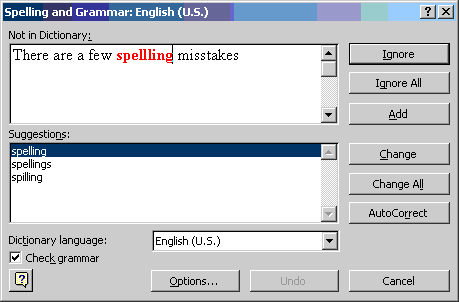 D
D
In an accessibility checker, the same is true, however the dialog template
has to be somewhat more flexible since the problems can range from a missing
text string for a multimedia object to missing structural information for a
table to improper use of colour. In the following example, from A-Prompt, the
author is prompted to add alternate text for an image as part (8 of 20) of a
correction run. Notice that, like the spell checker, the prompt includes a
statement of the problem (i.e. "missing alternate text for an image"), the
problem instance (i.e. earthrise.gif), and suggested fixes (i.e. a
suggestion from the alt-text registry, "An earth-rise as seen from the surface
of the moon"). In addition, the dialog also has some instructive text to aid
the author in writing text if necessary.
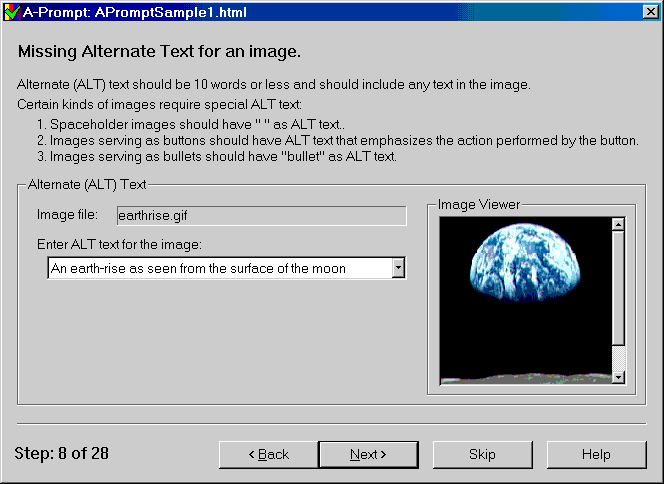 D
D
Alerts warn the author that there are problems that need to be addressed.
The art of attracting the author's attention is a tricky issue. The way authors
are alerted, prompted, or warned can influence their view of the tool and even
their opinion of accessible authoring. 5 Integrate accessibility
solutions into the overall "look and feel". .
Intrusive alerts are informative messages that interrupt the editing process
for the author. For example, intrusive alerts are often presented when an
author's action could cause a loss of data. Intrusive alerts allow problems to
be brought to the author's attention immediately. However, authors may resent
the constant delays and forced actions. Many people prefer to finish expressing
an idea before returning to edit its format. The following screenshot shows an
example of an intrusive alert that might be displayed if the author fails to
enter Alt-text at an image insertion prompt.
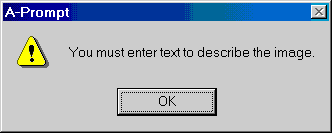 D
D
When the author dismisses an intrusive alert, the program may or may not
display a prompt allowing the author make the appropriate action.
Note: While intrusive alerts are the least user-friendly
form of prompting, there are situations in which the editing process is
complete and publishing to the Web appears imminent. This may be the case when
a document composed in a proprietary (non-Web format) is saved out into Web
format. In these cases, unintrusive alerts are not an option since there
is simply no editing process left. An alternative to a number of alerts might
be a number of sequential prompts (i.e. wizard) that could take the user
through a process by which the inaccessible proprietary document is converted
into an accessible Web document.
Unintrusive alerts are interface objects such as icons, underlines, and
gentle sounds that can be presented to the author without requiring immediate
action. For example, in some word processors misspelled text is highlighted in
the text, without forcing the author to make the correction immediately. These
alerts allow authors to continue editing with the knowledge that problems will
be easy to identify at a later time. However, authors may choose to ignore the
alerts altogether. As an example, Microsoft Word 2000 includes the option
to underline spelling errors in red and grammatical errors in green. (Note that
a user must be able to change this default presentation - users who are
red-green colorblind, for example, will not be able to perceive the information
being conveyed by this default). When the user right-clicks on the highlighted
text, they are presented with several correction options.
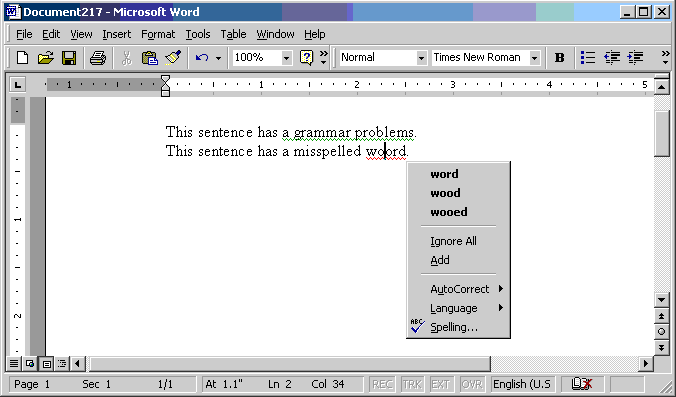 D
D
Another Microsoft product, FrontPage 2000, uses unintrusive alerts in its
HTML editing environment to indicate syntax errors. As the author types,
the syntax is automatically checked. The author is allowed to make syntax
errors, but the colour of the text signals that an error has been made.
 D
D
In the context of the Authoring Tool guidelines, such unintrusive alert
techniques could be used to indicate which parts of a document or site contain
accessibility problems. This will inform the author about the type and number
of errors without interrupting their editing process.
- Accessibility (Also: Accessible)
- Within these guidelines, "accessible Web content" and "accessible authoring
tool" mean that the content and tool can be used by people regardless of
disability.
- To understand the accessibility issues relevant to authoring tool design,
consider that many authors may be creating content in contexts very different
from your own:
- They may not be able to see, hear, move, or may not be able to process some
types of information easily or at all;
- They may have difficulty reading or comprehending text;
- They may not have or be able to use a keyboard or mouse;
- They may have a text-only display, or a small screen.
- Accessible design will benefit people in these different authoring
scenarios and also many people who do not have a physical disability but who
have similar needs. For example, someone may be working in a noisy environment
and thus require an alternative representation of audio information. Similarly,
someone may be working in an eyes-busy environment and thus require an audio
equivalent to information they cannot view. Users of small mobile devices (with
small screens, no keyboard, and no mouse) have similar functional needs as some
users with disabilities.
- Accessibility
Awareness
- An "accessibility-aware" application is one that has
been designed to account for authors' differing needs, abilities, and
technologies. In the case of authoring tools, this means that (1) care has been
taken to ensure that the content produced by user-authors is accessible and (2)
that the user interface has been designed to be usable with a variety of
display and control technologies.
- Accessibility
Information
- "Accessibility information" is content, including information and markup,
that is used to improve the accessibility of a document. Accessibility
information includes, but is not limited to, equivalent alternative information.
- Accessibility
Problem (Also:
Inaccessible Markup)
- Inaccessible Web content or authoring tools cannot be used by some people
with disabilities. The Web Content Accessibility Guidelines 1.0 [WCAG10] describes how to
create accessible Web content.
- Accessible Authoring
Practice
- "Accessible authoring practices" improve the accessibility of Web content.
Both authors and tools engage in accessible authoring practices. For example,
authors write clearly, structure their content, and provide navigation aids.
Tools automatically generate valid markup and assist authors in providing and
managing appropriate equivalent alternatives.
- Alert
- An "alert" draws the author's attention to an event or situation. It may
require a response from the author. An alert warns the
author that there are problems that need to be addressed. Attracting the
author's attention artfully can be challenging, since author perceptions of
alerts, prompts, and warnings can influence opinions of the tool and even of
accessible authoring.
- An Unintrusive
Alert is an alert such as an icon, underlining, or gentle sound
that can be presented to the author without necessitating immediate action. For
example, in some word processors misspelled text is highlighted without forcing
the author to make immediate corrections. These alerts allow authors to
continue editing with the knowledge that problems will be easy to identify at a
later time. However, authors may become annoyed at the extra formatting or may
choose to ignore the alerts altogether.
- An Interruptive Alert is
an informative message that interrupts the editing process for the author. For
example, interruptive alerts are often presented when an author's action could
cause a loss of data. Interruptive alerts allow problems to be brought to the
author's attention immediately. However, authors may resent the constant delays
and forced actions. Many people prefer to finish expressing an idea before
returning to edit its format.
- Alternative Information (Also:
Equivalent
Alternative)
- Content is "equivalent" to other content when both fulfill essentially the
same function or purpose upon presentation to the user. Equivalent alternatives
play an important role in accessible authoring practices since certain types of
content may not be accessible to all users (e.g., video, images, audio, etc.).
Authors are encouraged to provide text equivalents for non-text content since
text may be rendered as synthesized speech for individuals who have visual or
learning disabilities, as braille for individuals who are blind, or as
graphical text for individuals who are deaf or do not have a disability. For
more information about equivalent alternatives, please refer to the Web Content
Accessibility Guidelines
WCAG 1.0
[WCAG10].
- Text equivalents for still images can be short ("Site
Map Link") or long (e.g., "Figure 4 shows that the population of bacteria
doubled approximately every twenty hours over the first one hundred hours,
increasing from about 1000 per milliliter to about 32,000 per milliliter.").
Text equivalents for audio clips are called "text transcripts". Captions are essential text equivalents for
movie audio. Another essential text equivalent for a movie is a "collated text transcript." An essential non-text
equivalent for movies is "auditory
description" of the key graphical elements of a presentation.
- Attribute
- This document uses the term "attribute" as used in SGML and XML ([XML]): Element types may be
defined as having any number of attributes. Some attributes are integral to the
accessibility of content (e.g., the
"alt", "title",
and "longdesc" attributes in HTML).
- In the following example, the attributes of the
beverage element type are "flavour", which has the value
"lots", and "colour", which has the value "red":
<beverage flavour="lots" colour="red">my favourite</beverage>
- Auditory Description
- An "auditory description" provides information about actions, body
language, graphics, and scene changes in a video. Auditory descriptions are
commonly used by people who are blind or have low vision, although they may
also be used as a low-bandwidth equivalent on the Web. An auditory description
is either a pre-recorded human voice or a synthesized voice (recorded or
automatically generated in real time). The auditory description must be
synchronized with the auditory track of a video presentation, usually during
natural pauses in the auditory track.
- Authoring Tool
- An "authoring tool" is any software that is used to produce content for
publishing on the Web. Authoring tools include:
- Editing tools specifically designed to produce Web content (e.g., WYSIWYG
HTML and XML editors);
- Tools that offer the option of saving material in a Web format (e.g., word
processors or desktop publishing packages);
- Tools that transform documents into Web formats (e.g., filters to transform
desktop publishing formats to HTML);
- Tools that produce multimedia, especially where it is intended for use on
the Web (e.g., video production and editing suites, SMIL authoring
packages);
- Tools for site management or site publication, including tools that
automatically generate Web sites dynamically from a database, on-the-fly
conversion and Web site publishing tools;
- Tools for management of layout (e.g., CSS formatting tools).
- Automated Markup
Insertion Function
- "Automated markup insertion functions" are the features
of an authoring tool that allow the author to produce markup without directly
typing it. This includes a wide range of tools from simple markup insertion
aids (such as a bold button on a toolbar) to markup managers (such as table
makers that include powerful tools such as "split cells" that can make multiple
changes) to high level site building wizards that produce almost complete
documents on the basis of a series of author preferences.
- Captions
- "Captions" are essential text equivalents for movie audio. Captions consist of
a
text transcript of the auditory track of
the movie (or other video presentation) that is synchronized with the video and
auditory tracks. Captions are generally rendered graphically and benefit people
who can see but are deaf, hard-of-hearing, or cannot hear the audio.
- Conversion Tool
- A "conversion tool" is any application or application feature (e.g., "Save
as HTML") that transforms convent in one format to another format (such as a
markup language).
- Check for
- As used in checkpoint
4.1, "check for" can refer to three types of checking:
- In some instances, an authoring tool will be able to check for
accessibility problems automatically. For example, checking for validity (checkpoint 2.2) or
testing whether an image is the only content of a link.
- In some cases, the tool will be able to "suspect" or "guess" that there is
a problem, but will need confirmation from the author. For example, in making
sure that a sensible reading order is preserved a tool can present a linearized
version of a page to the author.
- In some cases, a tool must rely mostly on the author, and can only ask the
author to check. For example, the tool may prompt the author to verify that
equivalent alternatives for multimedia are appropriate. This is the minimal
standard to be satisfied. Subtle, rather than extensive, prompting is more
likely to be effective in encouraging the author to verify accessibility where
it cannot be done automatically.
- Current User
Selection
- When several views co-exist, each may have a selection, but only one is active, called the
"current user selection." User selections may be rendered specially (e.g.,
graphically highlighted).
- Description Link
(D-link)
- A "description link", or D-Link, is an author-supplied
link to additional information about a piece of content that might otherwise be
difficult to access (image, applet, video, etc.).
- Document
- A "document" is a series of elements that are defined by a
markup language (e.g., HTML 4 or an XML
application).
- Editing an
element
- "Editing an element" involves making changes to one or
more of an element's attributes or properties. This applies to all editing,
including, but not limited to, direct coding in a text editing mode, making
changes to a property dialog or direct User Interface manipulation.
- Editing View
- An "editing view" is a view provided by the authoring
tool that allows editing.
- Element
- An "element" is any identifiable object within a document, for example, a
character, word, image, paragraph or spreadsheet cell. In [HTML4] and [XML], an element refers to a pair of tags and their
content, or an "empty" tag - one that requires no closing tag or content.
- Focus
- The "focus" designates the active element (e.g., link,
form control, element with associated scripts, etc.) in a view that will react
when the user next interacts with the document.
- Generation
Tool
- A "generation tool" is a program or script that produces
automatic markup "on the fly" by following a template or set of rules. The
generation may be performed on either the server or client side.
- Image
Editor
- An image editor is a graphics program that provides a
variety of options for altering images of different formats.
- Inform
- To "inform" is to make the author aware of an event or situation through alert, prompt, sound,
flash, or other means.
- Inserting an
element
- "Inserting an element" involves placing that element's
markup within the markup of the file. This applies to all insertions,
including, but not limited to, direct coding in a text editing mode, choosing
an automated insertion from a pull-down menu or tool bar button,
"drag-and-drop" style insertions, or "paste" operations.
- Markup Language
- Authors encode information using a "markup language" such as HTML [HTML4], SVG [SVG], or MathML [MATHML].
- Multimedia
Authoring Tool
- A "multimedia authoring tool" is software that
facilitates integration of diverse media elements into an comprehensive
presentation format. Multimedia includes video, audio, images, animations,
simulations, and other interactive components.
- Presentation
Markup
- "Presentation markup" is markup
language that encodes information about the desired presentation or
layout of the content. For example, Cascading Style Sheets ([CSS1], [CSS2]) can be used to control fonts, colors, aural
rendering, and graphical positioning. Presentation markup should not be used in
place of structural markup to
convey structure. For example, authors should mark up lists in HTML with proper
list markup and style them with CSS (e.g., to control spacing, bullets,
numbering, etc.). Authors should not use other CSS or HTML incorrectly to lay
out content graphically so that it resembles a list.
- Prompt
- A "prompt" is a request for author input, either information or a decision.
A prompt requires author response. For example, a text equivalent entry field prominently displayed in
an image insertion dialog would constitute a prompt. Prompts can be used to
encourage authors to provide information needed to make content accessible
(such as alternative text
equivalents).
- Property
- A "property" is a piece of information about an element, for example
structural information (e.g., it is item number 7 in a list, or plain text) or
presentation information (e.g., that it is marked as bold, its font size is
14). In XML and HTML, properties of an element include the type of the element
(e.g.,
IMG or DL), the values of its attributes, and information associated by means of a
style sheet. In a database, properties of a particular element may include
values of the entry, and acceptable data types for that entry.
- Publishing
Tool
- A "publishing tool" is software that allows content to
be uploaded in an integrated fashion. Sometimes these tools makes changes such
as local hyper-reference modifications. Although these tools sometimes stand
alone, they may also be integrated into site management tools.
- Rendered
Content
- The "rendered content" of an element is that which the
element actually causes to be rendered by the user agent. This may differ from
the element's structural content. For example, some elements cause external
data to be rendered (e.g., the
IMG element in [HTML4]), and in some cases, browsers may
render the value of an attribute (e.g., "alt",
"title") in place of the element's content.
- Rendered View,
Preview
- A "rendered view" simulates for the author how a user
will interact with the content being edited once published.
-
Selection
- A "selection" is a set of elements identified for a
particular operation. The user selection identifies a set of elements for
certain types of user interaction (e.g., cut, copy, and paste operations). The
user selection may be established by the user (e.g., by a pointing device or
the keyboard) or via an accessibility Application Programmatic Interface (API).
A view may have several selections, but only one user selection.
- Site Management
Tool
- A "site management tool" provides an overview of an
entire Web site indicating hierarchical structure. It will facilitate
management through functions that may include automatic index creation,
automatic link updating, and broken link checking.
- Structural
Markup
- "Structural markup" is markup
language that encodes information about the structural role of
elements of the content. For example, headings, sections, members of a list,
and components of a complex diagram can be identified using structural markup.
Structural markup should not be used incorrectly to control presentation or
layout. For example, authors should not use the
BLOCKQUOTE element
in HTML [HTML4] to
achieve an indentation visual layout effect. Structural markup should be used
correctly to communicate the roles of the elements of the content and presentation markup should be
used separately to control the presentation and layout.
- Transcript
- A "transcript" is a text representation of sounds in an audio clip or an
auditory track of a multimedia presentation. A "collated text transcript" for a
video combines (collates) caption text with text descriptions of video
information (descriptions of the actions, body language, graphics, and scene
changes of the visual track). Collated text transcripts are essential for
individuals who are deaf-blind and rely on braille for access to movies and
other content.
- Transformation
- A "transformation" is a process that changes a document or object into
another, equivalent, object according to a discrete set of rules. This includes
conversion tools, software that
allows the author to change the
DTD defined for the original document to another DTD, and the ability to change the markup of lists and
convert them into tables.
- User Agent
- A "user agent" is software that retrieves and renders Web content. User
agents include browsers, plug-ins for a particular media type, and some
assistive technologies.
-
User-Configurable Schedule
- A "user-configurable schedule" allows the user to
determine the type of prompts and alerts that are used, including when they are
presented. For example, a user may wish to include multiple images without
being prompted for alternative information, and then provide the alternative
information in a batch process, or may wish to be reminded each time they add
an image. If the prompting is done on a user-configurable schedule they will be
able to make that decision themselves. This technique allows a tool to suit the
needs a wide range of authors.
- Video
Editor
- A "video editor" is software for manipulating video
images. Video editing includes cutting segments (trimming), re-sequencing
clips, and adding transitions and other special effects.
- View
- Authoring tools may render the same content in a variety of ways; each
rendering is called a "view." Some authoring tools will have several different
types of view, and some allow views of several documents at once. For instance,
one view may show raw markup, a second may show a structured tree, a third may
show markup with rendered objects while a final view shows an example of how
the document may appear if it were to be rendered by a particular browser. A
typical way to distinguish views in a graphic environment is to place each in a
separate window.
Many thanks to the following people who have contributed through review and
comment: Jim Allan, Denis Anson, Kitch Barnicle, Kynn Bartlett, Harvey Bingham,
Judy Brewer, Carl Brown, Dick Brown, Wendy Chisholm, Aaron Cohen, Rob Cumming,
Daniel Dardailler, Mark Day, BK Delong, Martin Dürst, Kelly Ford, Jamie
Fox, Edna French, Sylvain Galineau, Al Gilman, Jon Gunderson, Eric Hansen,
Phill Jenkins, Len Kasday, Brian Kelly, Marja-Riitta Koivunen, Sho Kuwamoto,
Jaap van Lelieveld, Susan Lesch, William Loughborough, Greg Lowney, Karen
McCall, Thierry Michel, Charles Oppermann, Dave Pawson, Dave Poehlman, Loretta
Reid, Bruce Roberts, Chris Ridpath, Gregory Rosmaita, Bridie Saccocio, Janina
Sajka, John Slatin, Jim Thatcher, Irène Vatton, Gregg Vanderheiden,
Pawan Vora, Jason White, and Lauren Wood.
For the latest version of any
W3C specification please consult the list of W3C
Technical Reports at http://www.w3.org/TR.
- [ACCESS-AWARE]
- "The Three-tions of
Accessibility-Aware HTML Authoring Tools," J. Richards.
- [AMAYA]
- Amaya, developed at W3C, is both an authoring tool and browser with a
WYSIWYG-style user
interface. Amaya serves as a testbed for W3C specifications. Source code,
binaries, and further information are available at http://www.w3.org/Amaya/. The techniques in this
document are based on Amaya version 2.4.
- [AMAYA-HELP-IMG]
- "Images and
Client-side Image Maps," Amaya's Help page for images and image maps.
- [AMAYA-SAMPLE]
- "Amaya - Authoring Tool Accessibility Guidelines 1.0 sample implementation" Describes how Amaya,
W3C's WYSIWYG browser/authoring tool, satisfies the guidelines.
- [APPLE-HI]
- "Macintosh
Human Interface Guidelines," Apple Computer Inc.
- [APROMPT]
- The A-prompt tool allows authors to check many accessibility features in
HTML pages, and incorporates an "Alternative Information Management Mechanism"
(AIMM)) to manage equivalent alternative information for known
resources. The tool is built in such a way that the functions can be
incorporated into an authoring tool. A-prompt tool is a freely available
example tool developed by the Adaptive Technology Resource Center at the
University of Toronto, and the TRACE center at the University of Wisconsin. The
source code for the tool is also available at http://aprompt.snow.utoronto.ca.
- [ATAG10]
- "Authoring Tool Accessibility Guidelines 1.0," J. Treviranus, C.
McCathieNevile, I. Jacobs, and J. Richards, eds. The latest version is available at
http://www.w3.org/WAI/AU/ATAG10.
- [AUTO-TOOL]
- "Techniques For Evaluation And
Implementation Of Web Content Accessibility Guidelines," C. Ridpath.
- [CSS1]
- "CSS, level 1
Recommendation," B. Bos and H. Wium Lie, eds., 17 December 1996, revised 11
January 1999. This CSS1 Recommendation is
http://www.w3.org/TR/1999/REC-CSS1-19990111. The latest version of CSS1 is available at
http://www.w3.org/TR/REC-CSS1. Note: CSS1 has been superseded
by CSS2. Tools should implement the CSS2 cascade.
- [CSS2]
- "CSS, level 2
Recommendation," B. Bos, H. Wium Lie, C. Lilley, and I. Jacobs, eds., 12
May 1998. This CSS2 Recommendation is
http://www.w3.org/TR/1998/REC-CSS2-19980512. The latest version of CSS2 is available at
http://www.w3.org/TR/REC-CSS2.
- [CSS2-ACCESS]
- "Accessibility
Features of CSS," I. Jacobs and J. Brewer, eds., 4 August 1999. This W3C
Note is http://www.w3.org/1999/08/NOTE-CSS-access-19990804. The latest version of Accessibility Features of
CSS is available at http://www.w3.org/TR/CSS-access.
- [ED-DEPT]
- "Requirements
for Accessible Software Design," US Department of Education, version 1.1
March 6, 1997.
- [EITAAC]
- "
EITACC Desktop Software standards," Electronic Information Technology
Access Advisory (EITACC) Committee.
- [HTML-XML-VALIDATOR]
- The W3C HTML Validation Service
validates HTML and XHTML markup.
- [HTML4]
- "HTML 4.01
Recommendation," D. Raggett, A. Le Hors, and I. Jacobs, eds., 24 December
1999. This HTML 4.01 Recommendation is
http://www.w3.org/TR/1999/REC-html401-19991224. The latest version of HTML 4 is available at
http://www.w3.org/TR/html4.
- [HTML4-ACCESS]
- "WAI Resources:
HTML 4.0 Accessibility Improvements," I. Jacobs, J. Brewer, and D.
Dardailler, eds. This document describes accessibility features in HTML
4.0.
- [IBM-ACCESS]
- "Software
Accessibility," IBM Special Needs Systems.
- [ICCCM]
- "The Inter-Client
communication conventions manual." A protocol for communication between
clients in the X Window system.
- [ICE-RAP]
- "An ICE
Rendezvous Mechanism for X Window System Clients," W. Walker. A description
of how to use the ICE and RAP protocols for X Window clients.
- [JAVA-ACCESS]
- "IBM Guidelines for
Writing Accessible Applications Using 100% Pure Java," R. Schwerdtfeger,
IBM Special Needs Systems.
- [JAVA-CHECKLIST]
- "Java Accessibility
Guidelines and Checklist," IBM Special Needs Systems.
- [JAVA-TUT]
- "The Java
Tutorial. Trail: Creating a GUI with JFC/Swing." An online tutorial that
describes how to use the Swing Java Foundation Class to build an accessible
User Interface.
- [MATHML]
- "Mathematical
Markup Language," P. Ion and R. Miner, eds., 7 April 1998, revised 7 July
1999. This MathML 1.0 Recommendation is
http://www.w3.org/1999/07/REC-MathML-19990707. The latest version of MathML 1.0 is available
at http://www.w3.org/TR/REC-MathML.
- [MS-ENABLE]
- "Accessibility for
Applications Designers," Microsoft Corporation.
- [MS-SOFTWARE]
- "The
Microsoft Windows Guidelines for Accessible Software Design."
Warning! This is a "self-extracting archive", an application that will
probably only run on MS-Windows systems.
- [MSAA]
- "Information for
Developers About Microsoft Active Accessibility," Microsoft
Corporation.
- [NOTES-ACCESS]
- "Lotus Notes
Accessibility Guidelines," IBM Special Needs Systems.
- [RDF10]
- "Resource
Description Framework (RDF) Model and Syntax Specification," O. Lassila, R.
Swick, eds. The 22 February 1999 Recommendation is
http://www.w3.org/TR/1999/REC-rdf-syntax-19990222. The latest version of RDF 1.0 is
available at http://www.w3.org/TR/REC-rdf-syntax.
- [RUBY]
- "Ruby Annotation,"
M. Sawicki, M. Suignard, M. Ishikawa, and M. Dürst, eds. The 17 December
1999 Working Draft is http://www.w3.org/TR/1999/WD-ruby-19991217. The latest
version is available at http://www.w3.org/TR/ruby.
- [SEARCHABLE]
- "A
Comparison of Schemas for Dublin Core-based Video Metadata Representation,"
J Hunter.
- [SMIL-ACCESS]
- "Accessibility Features of
SMIL," M.-R. Koivunen and I. Jacobs, eds. This W3C Note is
http://www.w3.org/TR/1999/NOTE-SMIL-access-19990921. The latest version of Accessibility Features of
SMIL is available at available at http://www.w3.org/TR/SMIL-access.
- [SUN-DESIGN]
- "Designing
for Accessibility," Eric Bergman and Earl Johnson. This paper discusses
specific disabilities including those related to hearing, vision, and cognitive
function.
- [SUN-HCI]
- "Towards
Accessible Human-Computer Interaction," Eric Bergman, Earl Johnson, Sun
Microsytems 1995. A substantial paper, with a valuable print bibliography.
- [SVG]
- "Scalable Vector Graphics (SVG) 1.0
Specification (Working Draft)," J. Ferraiolo, ed. The latest version of the
SVG specification is available at http://www.w3.org/TR/SVG.
- [SVG-ACCESS]
- "Accessibility of Scalable
Vector Graphics (Working Draft)," C. McCathieNevile, M.-R. Koivunen, eds.
The latest version is available at http://www.w3.org/1999/09/SVG-access.
- [TRACE-REF]
- "Application
Software Design Guidelines," compiled by G. Vanderheiden. A thorough
reference work.
- [UAAG10]
- "User Agent Accessibility
Guidelines," J. Gunderson and I. Jacobs, eds. The latest version of the
User Agent Accessibility Guidelines is available at
http://www.w3.org/WAI/UA/UAAG10.
- [UAAG10-TECHS]
- "Techniques for User Agent
Accessibility Guidelines 1.0," J. Gunderson, and I. Jacobs, eds. The latest version of Techniques for User
Agent Accessibility Guidelines 1.0 is available at
http://www.w3.org/TR/UAAG10-TECHS/.
- [WAI-ER]
- The Web Accessibility Initiative
Evaluation and Repair Tools Working Group tracks and develops tools that
can help repair accessibility errors.
- [WCAG10]
- "Web Content
Accessibility Guidelines 1.0," W. Chisholm, G. Vanderheiden, and I. Jacobs,
eds., 5 May 1999. This Recommendation is
http://www.w3.org/TR/1999/WAI-WEBCONTENT-19990505. The latest version of the Web Content Accessibility Guidelines
1.0" is available at http://www.w3.org/TR/WCAG10/.
- [WCAG10-TECHS]
- "Techniques for Web Content
Accessibility Guidelines 1.0," W. Chisholm, G. Vanderheiden, and I. Jacobs,
eds. The latest version of
Techniques for Web Content Accessibility Guidelines 1.0 is available at
http://www.w3.org/TR/WCAG10-TECHS/.
- [WHAT-IS]
- "What is Accessible
Software," James W. Thatcher, Ph.D., IBM, 1997. This paper gives a short
example-based introduction to the difference between software that is
accessible, and software that can be used by some assistive technologies.
- [XHTML10]
- "XHTML(TM) 1.0: The
Extensible HyperText Markup Language (Working Draft)," S. Pemberton et al.
The latest version of XHTML 1.0 is
available at http://www.w3.org/TR/xhtml1.
- [XML]
- "The Extensible Markup
Language (XML) 1.0," T. Bray, J. Paoli, C. M. Sperberg-McQueen, eds., 10
February 1998. This XML 1.0 Recommendation is
http://www.w3.org/TR/1998/REC-xml-19980210. The latest version of the XML specification is
available at http://www.w3.org/TR/REC-xml.
- [XMLGL]
- "XML Accessibility Guidelines
(Draft Note)," D. Dardailler, ed. Draft notes for producing accessible XML
document types. The latest version of
the XML Accessibility Guidelines is available at
http://www.w3.org/WAI/PF/xmlgl.
