
Techniques for User Agent Accessibility Guidelines 1.0
W3C Working Draft 6 December 1999
- This version:
- http://www.w3.org/WAI/UA/WD-WAI-USERAGENT-TECHS-19991206
- (plain text, PostScript,
PDF, gzip tar file of
HTML, zip archive of HTML)
- Latest version:
- http://www.w3.org/WAI/UA/WAI-USERAGENT-TECHS
- Previous version:
- http://www.w3.org/WAI/UA/WD-WAI-USERAGENT-TECHS-19991121
- Editors:
- Jon Gunderson, University of Illinois at
Urbana-Champaign
Ian Jacobs, W3C
Copyright ©
1999
W3C® (MIT, INRIA, Keio), All Rights Reserved. W3C liability,
trademark, document use and
software
licensing rules apply.
This document provides techniques for implementing the checkpoints defined
in "User Agent Accessibility Guidelines 1.0". These techniques address
the accessibility of user interfaces, content rendering, program interfaces,
and languages such as the Hypertext Markup Language (HTML), Cascading Style Sheets (CSS) and the Synchronized Multimedia Integration Language
(SMIL).
This document is part of a series of accessibility documents published by
the Web Accessibility Initiative (WAI).
This section describes the status of this document at the time of its
publication. Other documents may supersede this document. The latest status of
this document series is maintained at the W3C.
This is a W3C Working Draft for review by W3C Members and other interested
parties. It is a draft document and may be updated, replaced or obsoleted by
other documents at any time. It is inappropriate to use W3C Working Drafts as
reference material or to cite them as other than "work in progress". This is
work in progress and does not imply endorsement by, or the consensus of, either
W3C or Members of the WAI User Agent (UA) Working Group.
While User Agent Accessibility Guidelines 1.0 strives to be a stable document (as a W3C Recommendation),
the current document is expected to evolve as technologies change and content
developers discover more effective techniques for designing accessible Web
sites and pages.
Please send comments about this document to the public mailing list: w3c-wai-ua@w3.org. Mailing list archives are
available on the Web.
This document has been produced as part of the Web Accessibility Initiative. The goals of the WAI UA Working Group are discussed in the
WAI UA charter. A
list of the UA Working
Group participants is available.
A list of current W3C Recommendations and other technical documents can be
found at http://www.w3.org/TR.
This document suggests techniques for satisfying each requirement of
"User Agent Accessibility Guidelines 1.0". It also includes references to other accessibility resources
(such as platform-specific software accessibility guidelines) that provide
additional information on how a user agent may satisfy each checkpoint. The
Techniques provided are informative examples only, and other strategies may be
used to meet the checkpoint as well as, or in place of, those discussed. The
Techniques Document has been designed to track changes in technology and
implementation solutions and is expected to be updated more frequently than the
current document.
"User Agent Accessibility Guidelines 1.0" is part of a series of accessibility guidelines published by
the Web Accessibility Initiative (WAI) . The series also includes
"Web Content Accessibility Guidelines 1.0" [WAI-WEBCONTENT] and "Authoring Tool
Accessibility Guidelines 1.0" [WAI-AUTOOLS].
The following editorial conventions are used throughout this document:
- HTML
element names are in uppercase letters
(e.g., H1, BLOCKQUOTE, TABLE, etc.)
- HTML attribute names are quoted in
lowercase letters (e.g., "alt", "title", "class", etc.)
Each checkpoint in this document is assigned a priority that indicates its
importance for users with disabilities.
- [Priority
1]
- This checkpoint must be satisfied by user agents,
otherwise one or more groups of users with disabilities will find it impossible
to access information. Satisfying this checkpoint is a basic requirement for
some individuals to be able to use the Web.
- [Priority
2]
- This checkpoint should be satisfied by user agents,
otherwise one or more groups of users with disabilities will find it difficult
to access information. Satisfying this checkpoint will remove significant
barriers to Web access.
- [Priority
3]
- This checkpoint may be satisfied by user agents to make it
easier for one or more groups of users with disabilities to access information.
Satisfying this checkpoint will improve Web accessibility.
This section lists each checkpoint of the Guidelines along with some
possible techniques for satisfying it. Each checkpoint also links to larger
accessibility topics where appropriate.
Checkpoints for user interface accessibility:
- 1.1 Ensure that every functionality
offered through the user interface is available through every input device
API used by the user
agent. User agents are not required to reimplement low-level functionalities
(e.g., for character input or pointer motion) that are inherently bound to a
particular API and most naturally accomplished with that API. [Priority 1]
- Note. The device-independence required by this checkpoint
applies to functionalities described by the other checkpoints in this document
unless otherwise stated by individual checkpoints. This checkpoint does not
require user agents to use all operating system input device APIs, only to make
the software accessible through those they do use.
-
Techniques:
-
Operating system and application frameworks provide standard mechanisms for
controlling application navigation for standard input devices. In the case of
Windows, OS/2, the X Windows System, and MacOS, the window manger provides GUI
applications with this information through the messaging queue. In the case of
non-GUI applications, the compiler run-time libraries provide standard
mechanisms for receiving keyboard input in the case of desktop operating
systems. Should you use an application framework such as the Microsoft
Foundation Classes, the framework used must support the same standard input
mechanisms.
When implementing custom GUI controls do so using the standard input
mechanisms defined above. Examples of not using the standard input devices
are:
- Do not communicate directly with the device. For instance, in Windows, do
not open the keyboard device driver directly. This may circumvent system
messaging. It is often the case that the windowing system needs to change the
form and method for processing standard input mechanisms for proper application
coexistence within the user interface framework.
- Do not implement your own input queue handler. Devices for mobility access,
such as those that use serial keys, use standard system facilities for
simulating keyboard and mouse input to all graphical applications. Example
facilities for generating these input device events are the Journal Playback
Hooks in both OS/2 and Windows. These hooks feed the standard system message
queues in these respective windowing systems. To the application, the resulting
keyboard and mouse input messages are treated as standard input and output
device messages generated by the user's actions.
- If you implement an interface where the user selects text then issues a
command related to it (e.g., select text then create a link using the selected
text as content), all operations related to the selection and operation on the
selected text must be done in a device-independent manner. In the case of a
desktop user agent this means that the user must be able to perform these tasks
using either keyboard or mouse.
-
- 1.2 Use the standard input and output device
APIs of the
operating system. [Priority 1]
- For example, do not directly manipulate the memory
associated with information being rendered since screen review utilities, which
monitor rendering through the standard APIs, will not work properly.
-
Techniques:
-
- When writing textual information in a GUI operating system, use standard
text drawing APIs of an operating system. Text converted to offscreen images or
sequences of strokes cannot be intercepted as text drawing calls at the
graphics engine or display driver subsystem of a GUI. Legacy screen reading
solutions intercept these drawing calls before being transferred to the display
and use the text drawn to create a text model representation of what you see on
the screen. This "offscreen model" is used to speak GUI text. If you do not use
the standard text drawing APIs, legacy screen reading systems will not be able
to render it as speech or Braille. More information on this is provided in the
techniques for
checkpoint 1.5.
- Use operating system resources for rendering audio information. In
operating systems like Windows, a set of standard audio sound resources are
provided to support standard sounds such as alerts. These preset sounds are
used to activate SoundSentry visual queues when a
problem occurs; this benefits users with hearing disabilities. These queues may
be manifested by flashing the desktop, active caption bar, or active window. It
is important to use the standard mechanisms to generated audio feedback so that
operating system or special assistive technologies can add additional
functionality for the hearing disabled.
- Enhance the functionality of standard system controls to improve
accessibility where none is provided by responding to standard keyboard input
mechanisms. For example provide keyboard navigation to menus and dialog box
controls in the Apple Macintosh operating system. Another example is the Java
Foundation Classes, where internal frames do not provide a keyboard mechanisms
to give them focus. In this case your will need to add keyboard activation
through the standard keyboard activation facility for Abstract Window Toolkit
components.
- Use standard operating system resources for rendering audio information.
When doing so, do not take exclusive control of system audio resources. This
could prevent an assistive technology such as screen reader from speaking if
they use software text-to-speech conversion.
-
- 1.3 Ensure that the user can
interact with all active
elements in a
device-independent manner.
[Priority 1]
- For example, users who are blind or have physical disabilities must be able
to activate text links, the links in a client-side
image map, and form controls without a pointing device. Note.
This checkpoint is an important special case of checkpoint 1.1.
-
Techniques:
-
Refer to checkpoint
1.1 and checkpoint
1.5.
Users must be able to activate text links, form controls, image maps, and
other active elements with mouse or keyboard or whatever input device is
supported.
For client-side image maps:
- Render client-side image maps as text links on user demand.
- If a text equivalent (specified
via "alt" or "title" in HTML) is available and not null for the element (like
INPUT or IMG in HTML) that has an associated client-side map, indicate the
presence of a map in text (e.g., "Start of map") plus the text equivalent and
the number of areas in the map. If the text equivalent is null, do not render
the map or its areas.
- For each AREA in the map, if a text equivalent ("alt" or "title") is
available and not null, render the text equivalent as a link. Otherwise, render
some text like "Map area" plus part or all of the href value as a link. If alt
"text" is null for an AREA, do not render that AREA.
- In SMIL, image maps may be created with "anchor" elements using the "href"
attribute for the link. Refer to "Accessibility Features of SMIL" [SMIL-ACCESS] for
details.
- When reading through the whole Web page, read the start of the map's text
equivalent with the number of areas, but skip over the AREA links. To read and
activate the map areas, use keys that read and navigate link by link or element
by element.
Use the document object model to enable device independent activation of
elements:
- When implementing Document Object Model specifications ([DOM1], [DOM2]), allow programmatic activation of active elements,
whether they are links, links in an image map, or any DOM element that can
respond to an event causing a secondary action.
- In the "Document Object Model (DOM) Level 2 Specification" [DOM2], all elements can be
potentially active and it is helpful to allow for activation of all DOM
elements by an assistive technology. For example, a DOM2 'focusin' event may
result in the construction of a pull-down menu by an attached JavaScript
function. Providing a programmatic mechanism of activating the 'focusin'
function will allow users to operate the user agent through speech. Each DOM
element may have more than one set of activation mechanism based on the DOM
event received and it is helpful to enable an assistive technology to enumerate
those functions by description and to activate them. An example of this type of
functionality can be seen in the Java Accessibility API [JAVAAPI]. This API provides an an
AccessibleAction Java interface. This interface provides a list of actions and
descriptions that can be used to describe and activate each function
selectively.
-
-
1.4 Ensure that every functionality offered through the user
interface is available through the standard keyboard API.
[Priority 1]
- The keystroke-only command protocol of the user interface should be
efficient enough to support production use. Functionalities include being able
to show, hide, resize and move graphical viewports
created by the user agent. Note. This checkpoint is an
important special case of
checkpoint 1.1.
-
Techniques:
-
- Ensure that the user can trigger mouseover, mouseout, click, etc. events
from the keyboard.
- Ensure that the user can use the keyboard (e.g., to navigate links
sequentially).
- Ensure that the user can use the graphical user interface menus from the
keyboard.
- Ensure that the keyboard can be used to cut, copy, paste, and drag.
- Ensure that the user can select text using the keyboard standards for the
platform.
- Allow the user to change the state of form controls using the
keyboard.
-
- 1.5 Ensure that all messages to the
user (e.g., informational messages, warnings, errors, etc.) are available
through all output device
APIs used by the
user agent. Do not bypass the standard output APIs when rendering information
(e.g., for reasons of speed, efficiency, etc.).
[Priority 1]
- For instance, ensure that information about how much
content has been viewed is available through output device APIs. Proportional navigation bars
may provide this information graphically, but the information must be available
(e.g., as text) to users relying on synthesized speech or Braille output.
-
Techniques:
-
Operating system and application frameworks provide standard mechanisms for
using standard output devices. In the case of common desktop operating systems
such as Windows, OS/2, and MacOS, standard API are provided for writing to the
display and the multimedia subsystems.
It is important to also support standard output notification of sound such
as notifications found in the Windows control panel for sounds. Windows maps
accessibility features to the event caused by generation of these specific
system sounds. Accessibility features such as
SoundSentry will flash the screen, as appropriate, in response to events
that would cause these sounds to play. This enables users with hearing i to use
the application.
When implementing standard output:
- Do not render text in the form of bitmap before transferring to the screen.
Screen Readers intercept text drawing calls to create a text representation of
the screen, called an offscreen model, which is
read to the user. Common operating system 2D graphics engines and drawing
libraries provide functions for drawing text to the screen. Examples of this
are the Graphics Device Interface (GDI) for Windows, Graphics Programming
Interface (GPI) for OS/2, and for the X Windows System or Motif it is the X
library (XLIB).
- Do not provide your own mechanism for generating pre-defined system
sounds.
- When using a device do not use the device driver directly. In the case of
display drivers, screen readers are designed to monitor what is drawn on the
screen by hooking drawing calls at different points in the of the drawing
process. By calling the display driver directly you may be drawing to the
display below the point at which a screen reader for the blind is intercepting
the drawing call.
- Do not draw directly to the video frame buffer. This circumvents the
interception point at which a screen reader hooks the display calls.
- Do not forget to provide a text
equivalent to voiced messages. Make sure an auditory message also
has a redundant visual text message. For example, a message like "You've got
mail" should also be presented graphically or with text.
- Do not preclude text presentation when providing auditory tutorials.
Tutorials that use speech to guide a user through the operation of the user
agent should also be available at the same time as graphically displayed
text.
-
Checkpoints for content accessibility:
- 2.1 Ensure that the user has access to all
content, including alternative
equivalents for content.
[Priority 1]
- Note. Although it is not a requirement
that alternative equivalents be available at the same time as primary content,
some users may benefit from simultaneous access. For instance, users with low
vision may want to view images (even imperfectly) but require a text equivalent for the image to be rendered in
a very large size or as speech.
-
Techniques:
-
-
- 2.2 Render content according to natural language
identification. [Priority 1]
- For example, render text with the appropriate font
family or synthesized speech dictionary. Lay out text in the appropriate
direction (right-to-left, left-to-right, etc.) Natural language may be
identified by markup (e.g., the
"lang" attribute in HTML 4.0 ([HTML40] section 8.1) or "xml:lang" in XML
1.0 ([XML], section
2.12), or by the HTTP Content-Language header ([RFC2616], section 14.12). Refer also to checkpoint 2.9 and checkpoint 5.4.
- Note. A user agent may not support all
languages. When a user agent supports a language identified by a multipart
identifier (e.g., "en-us"), the user agent must indicate in its conformance
claim which language it claims to support (e.g., "en" alone, "en-us" alone, or
both).
-
Techniques:
- Assistive technologies may recognize different languages and can render
content according to language markup defined for a certain part of the
document. For instance, a screen reader might change the pronunciation of
spoken text according to the language definition. This is usually desired and
done according to the capabilities of the tool. Some specialized tools might
give some finer user control for the pronunciation as well.
Sometimes the user might also want to know when content contains content in
other languages. The user should be able to control rendering of the language
change. For instance, the user might choose to hear "language:German" when the
language changes to German and "language:default" when it changes back. This
may be implemented in CSS 2 with the
':before' and ':after' pseudo-elements ([CSS2], section 5.12.3)
For example, with the following definition in the stylesheet:
    [lang|=es]:before { content: "start Spanish "; }
    [lang|=es]:after { content: " end Spanish"; }
the following HTML example:
<P lang="es" class="Spanish">
 <A href="foo_esp.html"
    hreflang="es">Esta pagina en español</A></P>
might be spoken "start Spanish _Esta pagina en espanol_ end Spanish". Refer
also to information on
matching attributes and attribute values useful for language matching in
CSS 2 ([CSS2], section
5.8.1).
If users don't want to see or hear blocks of content in another language,
allow the user to suggest hiding that content (e.g., with style sheets).
- Implement content negotiation so that users may specify language
preferences. Or allow the user to choose a resource when several are available
in different languages.
- Use an appropriate glyph set when rendering visually.
- Use an appropriate voice set when rendering as speech.
- Render characters with the appropriate directionality. Refer to the
"dir" attribute and the BDO
element in HTML 4.0 ([HTML40], sections 8.2 and 8.2.4 respectively). Refer also to the
Unicode standard
[UNICODE].
- A user agent may not be able to render all characters in a document
meaningfully, for instance, because the user agent lacks a suitable font, a
character has a value that may not be expressed in the user agent's internal
character encoding, etc. In this case, section 5.4
of HTML 4.0
[HTML40] recommends the following for undisplayable characters:
- Adopt a clearly visible (or audible), but unobtrusive mechanism to alert
the user of missing resources.
- If missing characters are presented using their numeric representation, use
the hexadecimal (not decimal) form since this is the form used in character set
standards.
- Refer to "Character Model for the World Wide Web" [CHARMOD], which defines various aspects
of a character model for the World Wide Web. It contains basic definitions and
models, specifications to be used by other specifications or directly by
implementations, and explanatory material. In particular, early uniform
normalization, string identity matching, string indexing, and conventions for
URIs are addressed.
-
- 2.3 Provide time-independent access to
time-dependent active
elements or allow the user to
control the timing of changes.
[Priority 1]
-
Techniques:
-
- Render time-dependent links instead as a static list that occupies the same
screen real estate. Include (temporal) context in the list of links. For
example, provide the time at which the link appeared along with a way to easily
jump to that portion of the presentation.
- Provide easy-to-use controls (including both mouse and keyboard commands)
to allow viewers to pause the presentation and advance and rewind by small and
large time increments.
- Allow the user to navigate sequences of related links that vary over
time.
- Provide a mode in which all active elements are highlighted in some way and
can be navigated sequentially. For example, use a status bar to indicate the
presence of active elements and allow the user to navigate among them with the
keyboard or mouse to identify each element when the presentation is moving and
when it is paused.
- Allow the user to to stop and start the flow of changes to content. Prompt
the user for confirmation of a pending change.
-
- 2.4 When no text equivalent has been
supplied, indicate what type of object is present.
[Priority 2]
-
Techniques:
-
- If no captioning information is available and captioning is turned on,
render "no captioning information available" in the captioning region of the
viewport.
- The "Altifier Tool" [ALTIFIER] illustrates smart techniques for generating text equivalents for images, etc. when the
author hasn't supplied any.
- Use values of other known attributes that might give clues about the
object.
- Refer to the section on frame
techniques.
- Refer to the section on link
techniques.
-
- 2.5 When a text equivalent for content is explicitly
empty (i.e., an empty string), render nothing.
[Priority 3]
Checkpoints for user interface accessibility:
- 2.6 If more than one alternative equivalent is available for
content, allow the user to choose from among the alternatives. This includes
the choice of viewing no alternatives.
[Priority 1]
- For example, if a multimedia presentation has several
tracks of
captions (or subtitles) available (e.g.,
in different languages, different levels of detail, different reading levels,
etc.) allow the user to choose from among them.
-
Techniques:
-
- Distinguish image links from their long descriptions ("longdesc" in
HTML).
- Allow users to received long description text, according to their
preference:
- always
- on request, with a brief signal should indicate its presence (e.g. a
tone)
- on request, but without even that signal.
- Make information available with different levels of detail. For example,
for a voice-activated browser, offer two options for alternative equivalents to
HTML images:
- Speak only "alt" text by default, but allow the user to hear "longdesc"
text on an image by image basis.
- Speak "alt" text and "longdesc" for all images.
- Provide an interface which displays all available tracks, with as much
identifying information as the author has provided, and allow users to choose
which tracks are rendered. For example, if the author has provided "alt" or
"title" for various tracks, use that information to construct the list of
tracks.
- Provide an interface which allows users to indicate their preferred
language separately for each kind of equivalent. The selection can be based on
user preferences in either the user agent (cf., the Content-Language
entity-header field of RFC 2616 [RFC2616], section 14.12) or the operating system. Users with
disabilities may need to choose the language they are most familiar with in
order to understand a presentation which may not include all equivalent tracks
in all desired languages. In addition, international users may prefer to hear
the program audio in its original language while reading captions in their
first language, fulfilling the function of subtitles or to improve foreign
language comprehension. In classrooms, teachers may wish to control the
language of various multimedia elements to achieve specific educational goals.
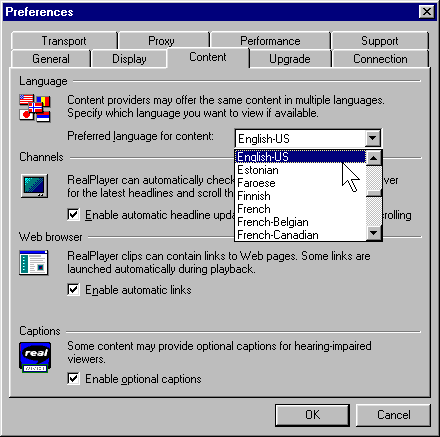
The following image illustrates how users select preferred language for
captions in the Real Player.
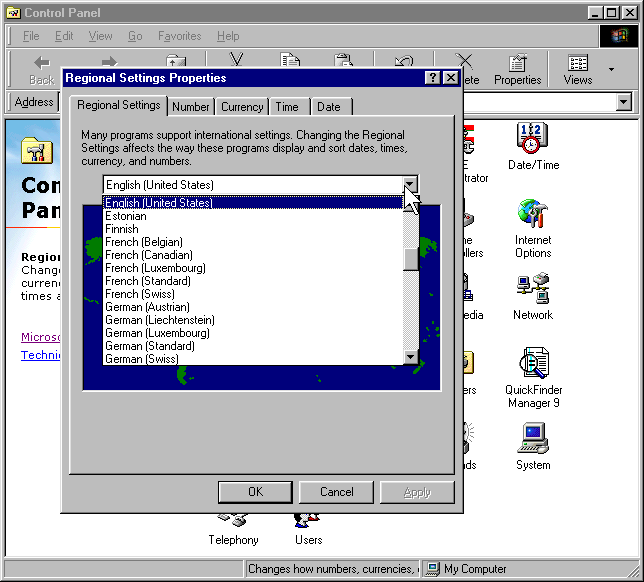
The next image illustrates how users select preferred language in the
Windows operating system under properties for Regional Settings. This
preference could be inherited by the user agent.
-
- 2.7 Allow the user to specify that captions and auditory descriptions be
rendered at the same time as the associated auditory and visual tracks. [Priority 1]
- Note. Respect synchronization cues during rendering.
-
Techniques:
- It is important that captions and auditory descriptions be
rendered synchronously with the primary content. This ensures that users with
disabilities can use the primary and equivalent content in combination. For
example, if a hard-of- hearing user is watching a video and reading captions,
it is important for the captions to be synchronized with the audio so that the
viewer can use any residual hearing. For audio description, it is crucial that
the primary audio track and the auditory description track be kept in sync to
avoid having them both play at once, which would reduce the clarity of the
presentation.
- User agents that play SMIL ([SMIL]) presentations should take advantage of a variety of access
features defined in SMIL (refer to "Accessibility Features of SMIL" [SMIL-ACCESS]). A
future version of SMIL (known currently as SMIL "Boston") is in development and
additional access features may be available when this specification becomes a
W3C Recommendation.
As defined in SMIL 1.0, SMIL players should allow users to turn captions on
and off by implementing the test attribute system-captions which takes the
values "on" and "off." For example, include in the player preferences a way for
users to indicate that they wish to view captions, when available. SMIL files
with captions available should use the following syntax:
<textstream alt="English captions for My Favorite Movie"
            system-captions="on"
            src="closed-caps.txt"/>
In this case, when the user has requested captions, this textstream should
be rendered, and when they have not it should not be rendered.
SMIL 1.0 does not provide a test attribute to control auditory descriptions.
However, future versions of SMIL (including SMIL "Boston") are expected to
include such a test attribute. Should SMIL "Boston" become a W3C
Recommendation, developers should implement it then. A test attribute to turn
auditory descriptions on and off should be implemented in parallel to the
implementation of the 'system-captions' attribute. Users should be able to
indicate the preference to receive auditory description, when content authors
make it available, through the standard preferences setting section of user
interface.
Another test attribute, 'system-overdub-or-captions' in SMIL 1.0, allows the
user to choose between alternate language text or sound. This attribute
specifies whether subtitles or overdub should be rendered for people who are
watching a presentation where the audio may be in a language they do not
understand fluently. This attribute can have two values: "overdub", which
selects for substitution of one voice track for another, and "subtitle", which
means that the user prefers the display of subtitles. However, this attribute
should not be used to determine if users need captions. When both are
available, deaf users will prefer to view captions, which contain additional
information on music, sound effects, and who is speaking, which are not
included in subtitles since those are intended for hearing people.
- User agents that play QuickTime movies should provide the user with
a way to turn on and off the different tracks embedded in the movie. Authors
may use these alternate tracks to provide alternative equivalents for use by
viewers with disabilities. The Apple QuickTime player currently provides this
feature through the menu item "Enable Tracks."
- User agents that play Microsoft Windows Media Object presentations
should provide support for Synchronized Accessible Media Interchange (SAMI), a
protocol for creating and displaying caption text synchronized with a
multimedia presentation. Users should be given a way to indicate their
preference for viewing captions. In addition, user agents which play Microsoft
Windows Media Object presentations should enable viewers to turn on and off
other alternative equivalents, including auditory description and alternate
visual tracks.
- Other video or animation formats should incorporate similar features. At a
minimum, users who are blind and users who are deaf need to be able to turn on
and off auditory description and and captions. The interface to set these
preferences must be accessible. Information on how to author accessible tracks
should be included in documentation about the media player.
-
- 2.8 If a technology allows for more than
one audio track, allow the user to choose from among tracks. [Priority 1]
-
Techniques:
-
- Refer to techniques for [#choose-equivalent].
- Make apparent through the user interface which tracks are meant to be
played mutually exclusively.
-
- 2.9 For identified but unsupported natural languages, allow
the user to request notification of language changes.
[Priority 3]
- Note. The user should be able to request no notification
of language changes.
-
Techniques:
-
A user agent should treat content language as part of contextual
information. When the language changes, the user agent should either render the
content in the supported language or notify the user of the language change (if
configured for notification). Rendering could involve speaking in the
designated language in the case of an audio browser or screen reader. If the
language was not supported, the language change notification could be spoken in
the default language by a screen reader or audio browser.
Language switching for blocks of content may be more helpful than inline
language switching. In some language combinations, less than a few words long
foreign phrases are often well-integrated in the primary language (e.g.,
Japanese being the primary and English being the secondary or quoted). In such
situations, dynamic switching in in-line level may make the reading sound
unnatural, and possibly harder to be understood.
Language information for HTML ("lang", "dir") and the Extensible Markup
Language (XML) ("xml:lang")
should be made available through the Document Object Model (DOM) ([DOM1],
[DOM2]).
User agents may announce language changes using style sheets to generate
text (refer to CSS 2
[CSS2] and XSLT
[XSLT]) that indicates the change of language.
-
In addition to the techniques below, refer also to the section on user control of style.
Checkpoints for content accessibility:
- 3.1 Allow the user to turn on and
off rendering of background images.
[Priority 1]
-
Techniques:
-
-
- 3.2 Allow the user to turn on and
off rendering of background audio.
[Priority 1]
-
Techniques:
-
- Allow the user to turn off background audio through the user
interface.
- Users sometimes specify background sounds with the "bgsound" attribute.
Note. This attribute is not part of HTML 4.0
[HTML40].
- In CSS 2, background sounds may be turned on/off with the
'play-during' property ([CSS2], section 19.6).
-
-
3.3 Allow the user to turn on and off rendering of video. [Priority 1]
-
Techniques:
-
- Allow the user to turn off video through the user interface. Render a still
image in its place.
- Support the 'display' property in CSS.
-
-
3.4 When the user agent renders audio natively, allow the user to
turn on and off rendering of audio.
[Priority 1]
- Note. To render audio natively means that the user agent
drives the speaker directly.
-
Techniques:
-
- Allow the user to turn off audio through the user interface.
- Support the CSS 2
'display',
'play-during', and
'speak' properties in ([CSS2], sections 9.2.5, 19.6, and 19.5, respectively).
-
- 3.5 Allow the user to turn on and off
animated or blinking text.
[Priority 1]
-
Techniques:
-
- Allow the user to turn off animated or blinking text through the user
interface (e.g., by hitting the ESCAPE key to stop animations). Render static
text in place of blinking text.
- The BLINK element. Note. The BLINK element is not defined
by a W3C specification.
- The MARQUEE element. Note. The MARQUEE element is not
defined by a W3C specification.
- The CSS 'blink' value of the 'text-decoration' property.
-
- 3.6 Allow the user to turn on and off
animations and blinking images.
[Priority 1]
-
Techniques:
-
- Allow the user to turn off animated or blinking text through the user
interface (e.g., by hitting the ESCAPE key to stop animations). Render a still
image in its place.x
-
-
3.7 Allow the user to turn on and off support for scripts and
applets. [Priority 1]
- Note. This is particularly important for scripts that
cause the screen to flicker, since people with photosensitive epilepsy can have
seizures triggered by flickering or flashing particularly in the 4 to 59
flashes per second (Hertz) range.
-
Techniques:
- Peak sensitivity to flickering or flashing occurs at 20 Hertz.
- Refer to the section on script
techniques
-
-
3.8 Allow the user to turn on and off rendering of images. [Priority 3]
-
Techniques:
- Refer to techniques for checkpoint 3.1.
-
- 3.9 Allow the user to turn on and off
author-specified forwards that occur after a time delay and without user
intervention. [Priority 3]
-
Techniques:
-
Content refresh according to an author-specified time interval can be
achieved with the following markup in HTML:
<META http-equiv="refresh" content="60">
The user agent should allow the user to disable this type of content
refresh.
Although no HTML specification defines this behavior formally, some user
agents support the use of the META element to refresh the current page after a
specified number of seconds, with the option of replacing it by a different
URI. Instead of this markup, authors should use server-side redirects (with
HTTP).
User agents can provide a link to other content rather than changing the
content automatically.
User agents may also prompt the user and ask whether to continue with
forwards.
-
- For example, when forwarding has been turned off, offer
a static link to the target.
- 3.10 Allow the user to turn on and off
automatic content refresh.
[Priority 3]
- For example, when turned off, indicate to the user that
content needs refreshing and allow the user to do so through the user
interface.
In addition to the techniques below, refer also to the section on user control of style.
Checkpoints for fonts and colors:
- 4.1 Allow the user to control font family. [Priority 1]
-
Techniques:
-
- Implement the CSS 'font-family' property.
- Allow the user to override the author's specified fonts.
- Inherit font information from user's settings for the operating
system.
-
- 4.2 Allow the user to control the size of text. [Priority 1]
- For example, allow the user to specify a font family and
style directly through the user interface. Or, allow the user to give
preferences through a user style sheet. Or allow the user to magnify text.
-
Techniques:
-
- Implement the CSS 'font-size' property.
- Allow the user to configure the user agent to ignore author-specified font
size.
- Inherit font size information from user's settings for the operating
system.
-
- 4.3 Allow the user to control foreground color. [Priority 1]
-
Techniques:
-
- Implement the CSS 'color' and 'border-color' properties.
- Allow the user to specify minimal contrast between foreground and
background colors, adjusting colors dynamically to meet those
requirements.
- Allow the user to impose a specific foreground color, ignoring
author-supplied colors.
- Inherit foreground color information from user's settings for the operating
system.
-
- 4.4 Allow the user to control background color. [Priority 1]
-
Techniques:
-
- Implement the CSS 'background-color' property and other background
properties.
- Allow the user to impose a specific background color, ignoring
author-supplied colors.
- Inherit background color information from user's settings for the operating
system.
-
- 4.5 Allow the user to control selection highlighting (e.g., foreground and
background color). [Priority 1]
-
Techniques:
-
- For instance, in X Windows, the following resources controls the selection
colors in Netscape Navigator: "*selectForeground" and "*selectBackground".
- Implement the CSS 2
"HighLightText and "Highlight" predefined color values ([CSS2], section 18.2).
- Inherit selection/focus information from user's settings for the operating
system.
-
- 4.6 Allow the user to control focus highlighting (e.g., foreground and
background color). [Priority 1]
Checkpoints for applets and animations:
- 4.7 Allow the user to control animation rate. [Priority 2]
Checkpoints for video.
- 4.8 Allow the user to control video frame rates. [Priority 1]
- 4.9 Allow the user to control the position of captions.
[Priority 1]
-
4.10 Allow the user to start, stop, pause, fast forward, and rewind
video. [Priority 2]
Checkpoints for audio:
- 4.11 Allow the user to control audio playback rate. [Priority 1]
- Note. User agents may not be able to
control the playback rate for some audio formats.
- 4.12 When the user agent renders audio
natively, allow the user to
control the audio volume.
[Priority 2]
-
4.13 Allow the user to start, stop, pause, fast forward, and rewind
audio. [Priority 2]
Checkpoints for synthesized speech:
- 4.14 Allow the user to control synthesized speech playback rate.
[Priority 1]
-
Techniques:
-
- In CSS2, use the 'speech-rate' property.
-
- 4.15 Allow the user to control synthesized speech volume. [Priority 1]
- 4.16 Allow the user to control synthesized speech pitch, gender,
and other articulation characteristics.
[Priority 2]
Checkpoints for user interface accessibility:
- 4.17 Allow the user to select from
available author and user style sheets, including no author or user style
sheets. [Priority 1]
- Note. The browsers default style sheet is always
present.
-
Techniques:
-
- Make available "class" and "id" information so that users can override
styles.
- Allow the user to define custom styles for "class" and "id" attributes
specified in the document.
-
-
4.18 Allow the user to
control user
agent-initiated spawned
viewports. [Priority 2]
- For example, in HTML, allow the user to control the process of opening a
document in a new target frame or a viewport created by author-supplied
scripts. In SMIL 1.0, allow the user to control viewports created with
show="new". Control may involve prompting the user to confirm or cancel
the viewport creation. Users may also want to control the size or position of
the viewport and to be able to close the viewport (e.g., with the "back"
functionality).
-
Techniques:
-
User agents may:
- Allow users to turn off support for spawned viewports entirely
- Prompt them before spawning a viewport
For example, user agents may recognize the HTML construct
target="_blank" and spawn the window according to the user's
preference.
-
Checkpoints for content accessibility:
- 5.1 Provide accessible APIs to other technologies. [Priority 1]
- 5.2 Conform to W3C Document Object Model
specifications and export interfaces defined by those specifications. [Priority 1]
- For example, refer to the DOM ([DOM1], [DOM2]). User agents should export these interfaces using
available operating system conventions.
-
Techniques:
-
A Document Object Model (DOM) is an interface to a standardized tree
structure representation of a document. This interface allows authors to access
and modify the document with client-side scripting language (e.g., JavaScript)
in a consistent manner across scripting languages. As a standard interface, a
DOM makes it easier not just for authors but for assistive technology
developers to extract information and render it in ways most suited to the
needs of particular users. Information of particular importance to
accessibility that must be available through the DOM includes:
- Content, including alternative
equivalents.
- Style sheet information (for user control of styles).
- Script and event handlers (for device-independent control of
behavior).
- The document structure (for navigation, creation of alternative
views).
User agents should implement W3C DOM Recommendations, including DOM Level 1
[DOM1] and DOM Level 2
[DOM2]]. The W3C Recommendation for DOM Level 1 ([DOM1]) provides access to HTML and XML document
information. The DOM Level 2 ([DOM2]) is made of a set of core interfaces to create and manipulate
the structure and contents of a document and a set of optional modules. These
modules contain specialized interfaces dedicated to XML, HTML, an abstract
view, generic stylesheets, Cascading Style Sheets, Events, traversing the
document structure, and a Range object.
It is important to note that DOM is designed to be used on a server as well
as a client and therefore a lot of user interface-specific information such as
screen coordinate information is not relevant and not addressed by the DOM
specification.
Assistive technologies also require information about browser highlight
mechanisms (e.g., the selection and focus) that may not be available through
the W3C DOM.
The DOM Level 1 specification states that "DOM applications may provide
additional interfaces and objects not found in this specification and still be
considered DOM compliant."
Note. The WAI Protocols and Formats Working Group is
focusing its efforts on the DOM as the conduit from which to extract
accessibility information and enhance the accessibility of a rendered document
through a user agent.
-
Checkpoints for user interface accessibility:
- 5.3 Use accessibility resources and
conventions of the operating system and supported programming languages,
including those for plug-ins and virtual machine environments. [Priority 1]
- For instance, if the user agent supports Java applets
and provides a Java Virtual Machine to run them, the user agent should support
the proper loading and operation of a Java native assistive technology. This
assistive technology can provide access to the applet as defined by Java
accessibility standards.
-
Techniques:
-
The operating system application programming interfaces (APIs) that support
accessibility are designed to provide a bridge between the standard user
interface supported by the operating system and alternative user interfaces
developed by third-party assistive technology vendors to provide access to
persons with disabilities. Applications supporting these APIs are therefore
generally more compatible with third-party assistive technology.
The User Agent Accessibility Guidelines Working Group strongly recommends
using and supporting APIs that improve accessibility and compatibility with
third-party assistive technology. Third-party assistive technology can use the
accessibility information provided by the APIs to provide an alternative user
interface for various disabilities.
The following is an informative list of currently public APIs that promote
accessibility:
- Microsoft Active Accessibility ([MSAA]) in Windows 95/98/NT versions.
- Sun Microsystems Java Accessibility API ([JAVAAPI]) in Java Code.
Many operating systems have built-in accessibility features for improving
the usability of the standard operating system by persons with disabilities.
When designing software that runs above an underlying operating system,
developers should ensure that the application:
- Makes use of operating system level features. See the appendix of accessibility features for some common
operating systems.
- Inherits operating system settings related to accessibility. Pertinent
settings include font and color information as well as other pieces of
information discussed in this document.
Write output to and take input from standard system APIs rather than
directly from hardware controls where possible. This will enable the I/O to be
redirected from or to assistive technology devices - for example, screen
readers and Braille devices often redirect output (or copy it) to a serial
port, while many devices provide character input, or mimic mouse functionality.
The use of generic APIs makes this feasible in a way that allows for
interoperability of the assistive technology with a range of applications.
User agents should use standard rather than custom controls when designing
user agents. Third-party assistive technology developers are more likely able
to access standard controls than custom controls. If you must use custom
controls, review them for accessibility and compatibility with third-party
assistive technology.
For information about rapid access to Microsoft Internet Explorer's DOM
through COM, refer to
[BHO].
-
-
5.4 Provide programmatic read and write access to user agent
functionalities and user interface controls.
[Priority 1]
- For example, ensure that assistive
technologies have access to information about the current input configuration so
that they can trigger functionalities through keyboard events, mouse events,
etc. Refer also to checkpoint
5.3.
- 5.5 Implement selection and focus mechanisms and make the selection and
focus available to users and through APIs.
[Priority 1]
- Refer also to checkpoint 7.1
and checkpoint 5.4.
Note. This checkpoint is an important special case of checkpoint 5.4.
-
5.6 Provide programmatic notification of changes to content and user
interface controls (including selection and focus).
[Priority 1]
- Refer also to checkpoint
5.3.
-
5.7 Provide programmatic exchange of information in a timely manner.
[Priority 2]
- This is important for synchronous alternative renderings and simulation of
events.
-
5.8 Follow operating system conventions and accessibility settings.
In particular, follow conventions for user interface design, default keyboard
configuration, product installation, and documentation. [Priority 2]
- Refer also to
checkpoint 10.5.
-
Techniques:
-
Develop the UA User Interface (UI) with standard interface components per
the target platform(s). Most major operating system platforms provide a series
of design and usability guidelines; these should be followed when possible (see
platforms below). These checklists, style guides, and human interface
guidelines provide very valuable information for developing applications (e.g.,
UAs) for any platform/operating system/GUI.
For instance, software should use the standard interface for keyboard events
rather than working around it.
Evaluate your standard interface components on the target platform against
any built in operating system accessibility functions (see Appendix 8) and be
sure your UA operates properly with all these functions.
For example, take caution with the following:
- Microsoft Windows supports an accessibility function called "High
Contrast". Standard window classes and controls automatically support this
setting. However, applications created with custom classes or controls must
understand how to work with the "GetSysColor" API to ensure compatibility with
High Contrast.
- Apple Macintosh supports an accessibility function called "Sticky Keys".
Sticky Keys operates with keys the operating system recognizes as modifier
keys, and therefore a custom UA control should not attempt to define a new
modifier key.
Some guidelines for specific platforms:
- "Macintosh Human Interface Guidelines" [APPLE-HI] Apple Computer Inc.
- "IBM Guidelines for Writing Accessible Applications Using 100% Pure Java"
[JAVA-ACCESS].
- "An ICE Rendezvous Mechanism for X Window System Clients" [ICE-RAP].
- "Information for Developers About Microsoft Active Accessibility" [MSAA].
- "The Inter-Client communication conventions manual" [ICCCM].
- "Lotus Notes accessibility guidelines" [NOTES-ACCESS].
- "Java accessibility guidelines and checklist" [JAVA-CHECKLIST].
- "The Java Tutorial. Trail: Creating a GUI with JFC/Swing" [JAVA-TUT].
- "The Microsoft Windows Guidelines for Accessible Software Design"
[MS-SOFTWARE].
General guidelines for producing accessible software:
Follow System Conventions for loading Assistive Technologies:
User agents should follow operating system or application environment (e.g.,
Java) conventions for loading assistive technologies. In the case of Java
applets, the browser's Java Virtual Machine should follow the Sun convention
for loading an assistive technology. Writing an application that follows the
Java system conventions for accessible software does not allow the applet to be
accessible if an assistive technology designed for that environment cannot be
run to make the applet accessible. Refer to the appendix
on loading assistive technologies for DOM access for information about how
an assistive technology developer can load its software into a Java Virtual
Machine.
-
Checkpoints for content accessibility:
- 6.1 Implement the accessibility
features of supported specifications (markup languages, style sheet languages,
metadata languages, graphics formats, etc.).
[Priority 1]
- Note. The Techniques Document [UA-TECHNIQUES] discusses
accessibility features of W3C specifications.
-
Techniques:
-
- The accessibility features of Cascading Style Sheets ([CSS1], [CSS2]) are described in "Accessibility Features of CSS" [CSS-ACCESS].
Note that CSS 2 includes properties for controlling synthesized speech
styles.
- The accessibility features of SMIL 1.0 [SMIL] are described in "Accessibility Features of SMIL"
[SMIL-ACCESS].
- The following is a list of accessibility features of HTML 4.0 [HTML40] in addition to
those described in techniques for checkpoint 2.1:
- The
CAPTION element (section 11.2.2) for rich table captions.
- Table elements (THEAD,
TBODY, TFOOT (section 11.2.3),
COLGROUP, and
COL (section 11.2.4) that group table rows and columns into meaningful
sections.
- Attributes (
"scope",
"headers", and
"axis", section 11.2.6) that non-visual browsers may use to render a table
in a linear fashion, based on the semantically significant labels.
- The
"tabindex" attribute (section 17.11.1) for assigning the order of keyboard
navigation within a document.
- The
"accesskey" attribute (section 17.11.2) for assigning keyboard commands to
active components such as
links and form controls.
-
- 6.2 Conform to W3C specifications when they
are appropriate for a task.
[Priority 2]
- For instance, for markup, implement HTML 4.0 [HTML40] or XML 1.0 [XML]. For style sheets, implement
CSS ([CSS1], [CSS2]). For mathematics,
implement MathML
[MATHML]. For synchronized multimedia, implement SMIL 1.0 [SMIL]. For access to the
structure of HTML or XML documents, implement the DOM ([DOM1], [DOM2]).
Refer also to checkpoint 5.2.
- Note. For reasons of backward
compatibility, user agents should continue to support deprecated features of
specifications. The current guidelines refer to some deprecated language
features that do not necessarily promote accessibility but are widely
deployed.
Checkpoints for user interface accessibility:
-
7.1 Allow the user to navigate viewports (including frames). [Priority 1]
- Note. For example, when all frames of a
frameset are displayed side-by-side, allow the user to navigate among them with
the keyboard. Or, when frames are accessed or viewed one at a time (e.g., by a
text browser or speech synthesizer), provide a list of links to other frames.
Navigating into a viewport makes it the current viewport.
-
Techniques:
-
- Some operating systems provide a means to navigate among all open windows
using multiple input devices (e.g., keyboard and mouse). This technique would
suffice for switching among user agent viewports that are separate windows.
However, user agents may also provide a mechanism to shift the focus among user
agent windows, independent of the standard operating system mechanism.
- Consult the section on frame
techniques.
-
- 7.2 For user agents that offer a
browsing history mechanism, when the user returns to a previous view, restore
the point of regard in
the viewport. [Priority 1]
- For example, when users navigate "back" and "forth"
among views, for each view they should find the viewport position where they
left it.
-
7.3 Allow the user to navigate just among cells of a table (notably
left and right within a row and up and down within a column). [Priority 1]
- Note. Navigation techniques include
keyboard navigation from cell to cell (e.g., using the arrow keys) and page
up/down scrolling. Refer also to checkpoint 1.1 and
checkpoint 5.4.
-
Techniques:
- Refer to the section on table
navigation.
-
-
7.4 Allow the user to navigate all active elements. [Priority 1]
- Navigation mechanisms may range from sequential (e.g.,
sequential navigation) to direct (e.g., by entering link text) to searching on
active elements only (e.g., based on form control text, associated labels, or
form control names). Note. This checkpoint is an important
special case of checkpoint
7.7.
-
7.5 Allow the user to navigate just among all active elements. [Priority 2]
- Note. In checkpoint 7.4, navigation may include non-active elements
in addition to active elements.
-
Techniques:
-
Allow the user to sequential navigate all active elements using a single
keystroke. User agents might also provide other sequential navigation
mechanisms for particular element types or semantic unit. For example "Find the
next table" or "Find the previous form".
It is important that application developers maintain a logical element
navigation order. For instance, users may use the keyboard to navigate among
elements or element groups and using the arrow keys within a group of elements.
One example of a group of elements is a set of radio buttons. Users should be
able to navigate to the group of buttons, then be able to select each button in
the group. Similarly, allow users to navigate from table to table, but also
among the cells within a given table (up, down, left, right, etc.)
- How to indicate that something is in navigation order in Java: A component
is inclusive in the sequential navigation order when added to a panel and its
isFocusTraversable() method returns true. A component can be removed from the
navigation order by simply extending the component, overloading this method,
and returning false.
- Give the users the option of navigating to and activating a link,
or just moving the focus to the link. When the user returns to the page after
following the link, restore focus to that link.
- Many user agents today allow users to navigate sequentially by tabbing --
for example, using the "tab" key for forward navigation and "shift-tab" for
reverse navigation. Because the "tab" key is typically on one side of the
keyboard while arrow keys are located on the other, users should be allowed to
configure the user agent so that sequential navigation is possible with keys
that are physically closer to the arrow keys. Refer also to checkpoint 10.3.
Excessive use of sequential navigation can reduce the usability of software
for both disabled and non-disabled users. Direct access (e.g., through keyboard
shortcuts) should also be possible. Providing direct access involves:
- Assigning each active element a unique identifier (or use the identifier
provided by the author, e.g., "accesskey" in HTML). For example number each
active element in a document.
- Documenting how the user may access elements.
- Allowing direct access by element content (e.g., the first letter of
element content).
- Allowing direct access to a table cell by its row/column position.
-
-
7.6 Allow the user to search for rendered text content, including text equivalents of visual and
auditory content. [Priority 2]
-
Note. Use operating system conventions for marking the
result of a search (e.g., selection and
focus).
-
Techniques:
-
- Allow users to search for element content and attribute values
(human-readable ones).
- Allow forward and backward searching from the point of regard, beginning of
document, or end of document.
- Allow users to search the document source view.
- For forms, allow users to find required controls. Allow users to search on
labels as well as content of some controls.
- Allow the user to search among just text
equivalents of other content.
- For multimedia presentations:
- Allow users to search and examine time-dependent media elements and links
in a time-independent manner. For example, present a static list of
time-dependent links.
- Allow users to find all media elements active at a particular time in the
presentation.
- Allow users to view a list of all media elements or links of the
presentations sorted by start or end time or alphabetically.
- For frames, allow users to search for content in all frames (without having
to be in a particular frame).
-
-
7.7 Allow the user to navigate according to structure. [Priority 2]
- For example, allow the user to navigate familiar elements of a document:
paragraphs, tables, headers, lists, etc. Note. Use operating
system conventions to indicate navigation progress (e.g., selection and
focus).
-
Techniques:
-
- DOM is minimal (tree navigation)
- Best navigation will involve a mix of source tree information and rendered
information.
- May use commonly understood document models rather than strict Document
Type Definition (DTD) navigation.
E.g., properly nesting headers in HTML. Headers should be used only to convey
hierarchy, not for graphical side-effects.
- Goal of simplifying the structure view as much as possible.
- Allow the user to control level of detail/ view of structure.
- Depth first as well as breadth first possible. Allow next/previous sibling,
up to parent, and end of element.
- Navigation of synchronized multimedia: allow users to stop, pause, fast
forward, advance to the next clip, etc.
- Allow the user to navigate characters, words, sentences, paragraphs,
screenfuls, and other language-dependent pieces of text content. This may be
particularly useful with a speech-based user interface. Precise and flexible
navigation of this kind with a system cursor is often useful when browsing with
accessibility aids. Evidence of this point is that the leading Windows screen
readers have super-imposed such navigation on a popular web browser that does
not natively support it (e.g., Winvision, Window-Eyes, and JAWS with Internet
Explorer).
-
Skipping navigation bars:
Author-supplied navigation mechanisms such as navigation bars at the top of
each page may force users with screen readers or some physical disabilities to
wade through numerous links on each page of a site. User agents may facilitate
browsing for these users by allowing them to skip recognized navigation bars
(e.g., through a configuration option). Some techniques for doing so
include:
- Provide a functionality to jump to the first non-link content.
- In HTML, the MAP element may be used to mark up a navigation bar (even when
there is no associated image). Thus, users might ask that MAP elements not be
rendered in order to hide links inside the MAP element. Note.
Starting in HTML 4.0, the MAP element allows block content, not just AREA
elements.
-
- 7.8 Allow the user to configure structured navigation. [Priority 3]
- For example, allow the user to navigate only paragraphs, or only headers
and paragraphs, etc.
-
Techniques:
-
- Allow the user to navigate by element type.
- Allow the user to navigate HTML elements that share the same "class"
attribute.
- Allow the user to expand or shrink portions of the structured view (control
detail level) for faster access to important parts content.
-
Checkpoints for content accessibility:
-
8.1 Convey the author-specified purpose of each table and the
relationships among the table cells and headers.
[Priority 1]
- For example, provide information about table headers, how headers relate to
cells, table caption and summary information, cell position information, table
dimensions, etc. Note. This checkpoint is an important special
case of checkpoint
2.1.
-
Techniques:
-
- Refer to the section on table
techniques
- Allow the user to access this information on demand (e.g., by activating a
menu or keystroke).
-
-
8.2 Indicate whether a focused link has been marked up to indicate
that following it will involve a fee.
[Priority 2]
- Note. This checkpoint is an important
special case of checkpoint 8.3.
"Common Markup for micropayment per-fee-links" [MICROPAYMENT] describes how authors
may mark up micropayment information in an interoperable manner. This
information may be provided through the standard user interface provided the
interface is accessible. Thus, any prompt asking the user to confirm payment
must be accessible.
-
Techniques:
-
- Refer to the section on link
techniques.
- Allow the user to access this information on demand (e.g., by activating a
menu or keystroke for a focused link).
-
-
8.3 Provide information to help the user decide whether to follow a
focused link. [Priority 2]
- Note. Useful information includes:
whether the link has already been visited, whether it designates an internal
anchor, the type of the target resource, the length and size of an audio or
video clip that will be started, and the expected
natural language of target resource.
-
Techniques:
-
- Refer to the section on link
techniques.
- Allow the user to access this information on demand (e.g., by activating a
menu or keystroke).
- Implement CSS ':visited' and ':link' pseudo-classes, with ':before' class
and the 'content' property to insert text before a link such as "visited" or
"un-visited".
-
Checkpoints for user interface accessibility:
- 8.4 Provide a mechanism for highlighting and identifying
(through a standard interface where available) the current viewport, selection, and focus.
[Priority 1]
- Note. This includes highlighting and
identifying frames. Refer
also to checkpoint 9.1.
-
Techniques:
-
- If colors are used to highlight the current viewport, selection, or focus,
allow the user to set preferred colors and to ensure sufficient contrasts.
- If the current viewport is a window, allow the user to cause the window to
pop to the foreground.
- If the current viewport is a frame or the user doesn't want windows to pop
to the foreground, use colors, reverse videos, or other visual clues to
indicate the current viewport. For speech or Braille output, render the title
or name of a frame or window and indicate changes in the current viewport.
- Use operating system conventions, where available, for specifying selection
and focus (e.g., schemes in Windows).
- Implement the CSS pseudo-classes ':hover', ':active', and ':focus'. This
will allow users to modify focus presentation in user style sheets.
Refer also to the section on frame
techniques
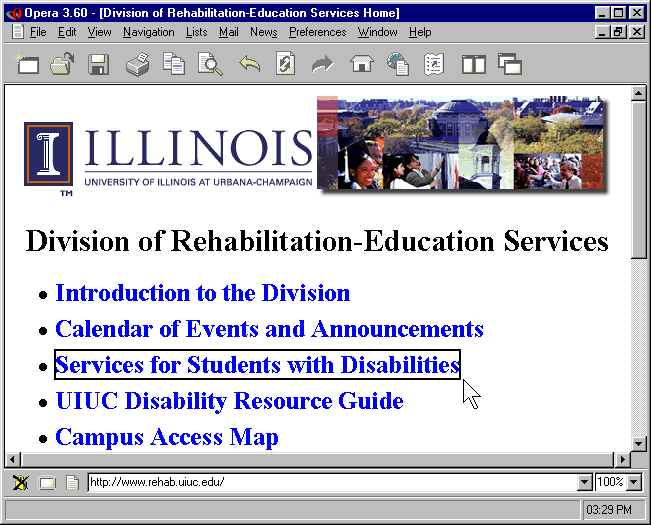
The following image illustrates the use by Opera 3.6 of a solid line border
to indicate focus:
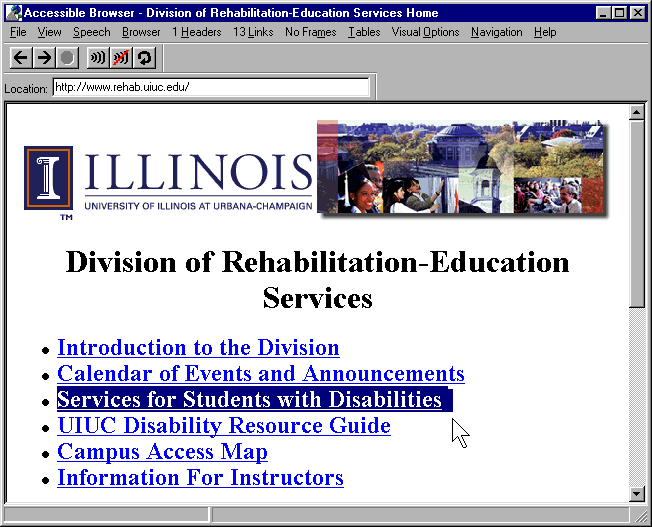
The following image illustrates the use of system highlight colors to
indicate focus:
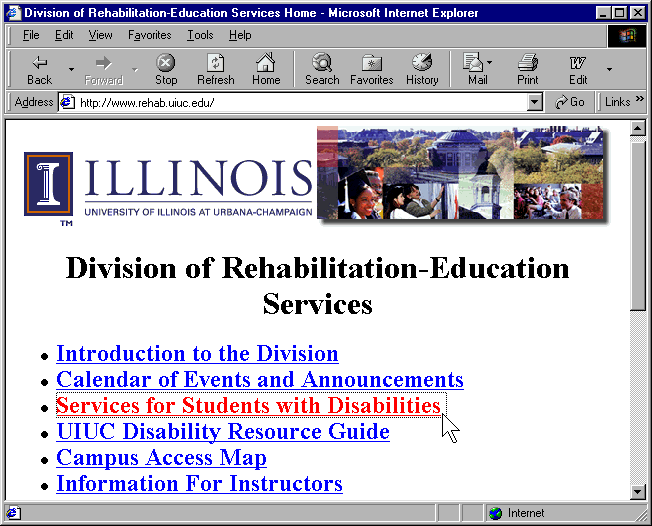
The following image illustrates the use of a dotted line border to indicate
focus:
-
- 8.5 Provide an outline view of a
resource built from the resource's structural elements (e.g., frames, headers,
lists, forms, tables, etc.)
[Priority 2]
- For example, for each frame in a frameset, provide a
table of contents composed of headers where each entry in the table of contents
links to the header in the document.
-
Techniques:
-
- Use commonly understood document models rather than strict DTD navigation.
E.g., properly nesting headers in HTML.
- For documents that don't use structure properly, user agents may try to
create an outline from presentation elements used (insufficiently) to convey
structure.
- Allow the user to shrink and expand the outline view selectively.
- Provide context-sensitive navigation: for instance, when the user navigates
to a list or table, provide locally useful navigation mechanisms (e.g., within
a table, cell-by-cell navigation) using similar input commands.
- Refer to the section on list
techniques.
The following technique ideas were provided by the National Information
Standards Organization
[NISO]:
A "Navigation Control Center" (NCC) (NCC) resembles a traditional table of
contents, but it is more. The NCC contains links to all headings at all levels
in the book. In addition to the headings, links to all pages are inserted.
Finally we include in the NCC links to all items that the reader may select to
turn off for reading. For example, if the reader has the automatic reading of
footnotes turned off, there must be a way to quickly get back to that
information. For this reason, the reference to the footnote is placed in the
NCC and the reader can go to the reference, understand the context for the
footnote, and then read the footnote. All items that have the option of turning
off automatic reading can be reached through the NCC.
Once the reader is at a desired location and wishes to begin reading, the
navigation process changes. Of course, the reader may elect to read
sequentially, but often some navigation is required (e.g., frequently people
navigate forward or backward one word or character at a time). Moving from one
sentence or paragraph at a time is also needed. This type of local navigation
is different from the global navigation used to get to the location of what you
want to read. It is frequently desirable to move from one block element to the
next. For example, moving from a paragraph to the next block element which may
be a list, blockquote, or sidebar is the normally expected mechanism for local
navigation.
-
- 8.6 Allow the user to configure the
outline view. [Priority 3]
- For example, allow the user to control the level
of detail of the outline.
Refer also to checkpoint 8.5. Refer
also to checkpoint 5.4.
- 8.7 Allow the user to configure what
information about links to present.
[Priority 3]
- Note. Using color as the only
distinguishing factor between visited and unvisited links does not suffice
since color may not be perceivable by all users or rendered by all devices. Refer also to checkpoint 8.3.
-
Techniques:
-
- Allow the user to access this information on demand (e.g., by activating a
menu or keystroke).
- Implement CSS ':visited' and ':link' pseudo-classes, with ':before' class
and the 'content' property to insert text before a link such as "visited" or
"un-visited".
-
- 8.8 Provide a mechanism for highlighting and identifying (through a
standard interface where available) active elements.
[Priority 3]
- Note. User agents may satisfy this
checkpoint by implementing the appropriate style sheet mechanisms, such as link
highlighting.
- 8.9 Maintain consistent user agent
behavior and default configurations between software releases. Consistency is
less important than accessibility and adoption of operating system conventions.
[Priority 3]
- In particular, make changes conservatively to the layout
of user interface controls, behavior of existing functionalities, and default
keyboard configuration.
Checkpoints for user interface accessibility:
- 9.1 Provide information about user agent-initiated content and
viewport changes through the user interface and through APIs.
[Priority 1]
- For example, inform the users when a script causes a
popup menu to appear.
-
Techniques:
-
- Refer to the section on frame
techniques
- Render the changed content graphically.
- Highlight the current viewport.
- Emit an audible signal when a change occurs.
- Make DOM methods fire a "change" event that can be trapped.
-
- 9.2 Ensure that when the selection or focus changes, it is in a viewport after the change. [Priority 2]
-
Techniques:
-
- There are time when the focus changes (e.g., link navigation) and the
viewport must be moved to track it. There are other times when the viewport
changes position (e.g., scrolling) and the focus must be moved to follow it. In
both cases, the focus (or selection) is in the viewport after the change.
- Make sure that search windows do not place the new focus that is the found
object under a search popup.
- When the focus changes, "register" the newly focused element in the
navigation sequence; sequential navigation should start from there.
- Only change selection/focus in the current viewport, not other
viewports.
-
- 9.3 Prompt the user to confirm any form
submission triggered indirectly, that is by any means other than the user
activating an explicit form submit control.
[Priority 2]
-
Techniques:
-
- Put up a dialog indicating the form will be submitted if it is done by an
onChange, after a certain time, or for other script-based submission. Allow the
user to suppress these dialogs for good.
- If the submit button is not the last control in the form, and no controls
after it have been focused, put up a dialog pointing this out/asking if the
user has filled in the information after the button.
- If a Javascript submission is fired, allow the user to ask for it to be
intercepted and trigger the dialog mentioned above.
-
- For example, do not submit a form automatically when a
menu option is selected, when all fields of a form have been filled out, on a
mouseover event, etc.
- 9.4 Allow the user to configure
notification preferences for common types of content and viewport changes.
[Priority 3]
- For example, allow the user to choose to be notified (or
not) that a script has been executed, that a new
viewport has been opened, that a pulldown menu has been opened, that
a new frame has received focus, etc.
-
Techniques:
-
- Refer to the section on frame
techniques
- Allow the user to specify an element type for which notification should be
disabled (e.g., table, body, img, ...)
- Allow the user to disable notification of changes to CSS properties
- Allow the user to disable notification of images that are changed
-
- 9.5 When loading content (e.g., document,
video clip, audio clip, etc.) indicate what portion of the content has loaded
and whether loading has stalled.
[Priority 3]
-
Techniques:
-
Status information - on resource loading - should be provided in a
device-independent manner. Techniques include text and non-text status
indicators. Users should be able to request status information or have it
rendered automatically. User agents may allow users to configure when status
information should be rendered (e.g., by hiding or showing the status bar).
Screen readers may provide access on demand (e.g., through the keyboard) to
the most recent status information, or to announce the new information whenever
it changes.
Useful status information:
- Document proportions (numbers of lines, pages, width, etc.)
- Number of elements of a particular type (e.g., tables)
- The viewport is at the beginning or end of the document.
- Size of document in bytes.
User agents may allow users to configure what status information they want
rendered. Allow users to access status information on demand through a keyboard
or other shortcut.
Indicate when loading has finished, for example with a percentage indication
or a special message. Indication must not depend on a particular output
device.
-
- 9.6 Indicate the relative position of the
viewport in content (e.g., the percentage of an audio or video clip that has
been played, the percentage of a Web page that has been viewed, etc.). [Priority 3]
- Note. The user agent may calculate the
percentage according to focus position, selection position, or viewport
position, depending on how the user has been browsing.
-
Techniques:
-
- Provide a scrollbar for the viewport.
- Give the size of the document as well, so that users may decide whether to
download for offline viewing. For example, the playing time of an audio file
could be stated in terms of hours, minutes, and seconds. The size of a
primarily text based web page might be stated in both kilobytes and screens,
where a screen of information is calculated based on the current dimensions of
the viewport.
- List the current "page" as page X of a total of Y pages.
- Use a variable pitch audible signal to indicate position.
- Keep the information numerically and generate the output on user request.
See new HTML work on Forms for further examples (a slider is like a dial is
like a menu of lots of options...)
- Provide standard markers for specific percentages through the document
(mile posts)
- Provide markers for positions relative to some position - a user selected
point, the bottom, the H1, etc.
- Put a marker on the scrollbar, or a highlight at the bottom of the page
while scrolling (so you can see what was the bottom before you started
scrolling
-
Checkpoints for user interface accessibility:
- 10.1 Provide information directly to
the user and through APIs about the current user-specified input configuration (e.g.,
keyboard or voice bindings specified through the user agent's user interface).
[Priority 1]
-
Techniques:
-
If the currently active configuration changes locally (e.g., a search prompt
opens, changing the keyboard mapping for the duration of the prompt), alert the
user. The user must also be informed of the changed (currently active)
configuration. Do not rely on visual or audio cues alone to alert the user of
the change. Do not limit the user to only one type of alert mechanism. Do not
rely on visual cues (e.g., the underlining of an accelerator key) alone to
inform the user of changes in the configuration.
Named configurations are easier to remember. This is especially important
for persons with certain types of cognitive disabilities. For example, if the
invocation of a search prompt changes the currently active configuration, the
user may remember more easily which keystrokes are active in search mode if
alerted that there is a "Search Mode". Context-sensitive help (if available)
should reflect the change in mode, and a list of keybindings for the current
mode should be readily available to the user.
- Specified by the HTML 4.0
"tabindex" attribute ([HTML40], section 17.11.1).
- Provide a list of form controls according to the sequential navigation
order of the form. This allows users to know whether, for example, a submit
button is the last control in a form or whether the user must activate controls
that follow it.
- Provide a structured view of form controls (e.g., those grouped by LEGEND
or OPTGROUP in HTML) along with their labels.
- Specified by the HTML 4.0
"accesskey" attribute ([HTML40], section 17.11.2).
- Use system conventions to indicate the current configuration.
- Document the default configuration.
- Allow direct access to active elements (links, form controls, etc.). For
instance, through a menu that allows users to enter a link number of link text
and to move the focus there.
- Allow the user to separate setting the focus and activating the control.
For links, first-time users of a page may want to hear link text (focus) before
deciding whether to follow the link (activate). More experienced users of a
page would prefer to follow the link directly, without the intervening focus
step.
- Allow the user to configure the user agent so that the current viewport is
automatically maximized. For example, the parent window of the browser would
automatically be maximized when launched, and each child window would
automatically be maximized when it received input focus. Maximizing does not
necessarily mean occupying the whole screen or parent window; it means
expanding the current window so that the need to scroll horizontally or
vertically is as little as possible.
-
- 10.2 Provide information directly
to the user and through APIs about the current author-specified input configuration (e.g.,
keyboard bindings specified in content such as by "accesskey" in HTML 4.0).
[Priority 2]
-
Techniques:
-
Distinguish the following classes of user input configurations:
- What are the defaults "out of the box"?
- What are the current settings different from those out of the box.
- What are those in effect for the current document only?
- What are those that have been overridden by the configuration of the
current document? Also, how to access functionalities no longer available due
to the current input configuration.
In association with local (e.g., this page only) and off-default bindings,
provide information about how to work around the override.
Note that user support personnel, particularly remote support personnel,
will need the "departures from shipping defaults" view for orientation.
The above classes may be distinguished by displayed properties in a combined
presentation as well as by filtering to present only a restricted class.
Some reserved keyboard shortcuts are listed in the appendix on accessibility features of some operating systems.
In case of conflicts between author-supplied configuration and
user-supplied, operating system defaults, or user agent default configurations,
here is some possible behavior:
- Do not override default system and user agent controls, but alert the user
of author-supplied configuration and provide a pass-through mechanism to allow
author-specified configurations that conflict with default UA or OS keybindings
to be invoked.
- Allow author-defined configurations to override user agent and operating
system configurations, but alert the user of the conflicts and provide a
pass-through mechanism so that the conflicting user agent or operating system
configurations can be invoked.
- Remap author-supplied configurations to currently unused keystrokes, voice
commands, etc. and alert the user to which configurations have been
remapped.
-
-
10.3 Allow the user to change and control the input configuration. Users
should be able to activate a functionality with a single-stroke (e.g.,
single-key, single voice command, etc.).
[Priority 2]
- For voice-activated browsers, allow the user to modify
what voice commands activate functionalities Similarly, allow the user to
modify the graphical user interface for quick access to commonly used
functionalities (e.g., through buttons).
-
Techniques:
-
Provide a convenient interface for allowing users to control input
configurations. For example, allow them to select from available options,
rather than having them enter combinations themselves. This will speed up
configuration and reduce questions to support staff later on how to configure
the user agent.
User agents that allow users to customize or reconfigure mappings from
keyboard, voice, etc. to user agent functionalities should allow each mapping
to be accompanied by a description so that the user can understand the mapping.
For example, if "Control-P" maps to a print functionality, a short description
would be "Print" or "Print setup".
- Profiles
- Default values
- Device-independent configuration
When using a physical keyboard, some users require single-key access, others
require that keys activated in combination be physically close together, while
others require that they be spaced physically far apart. When allowing users to
configure keyboard access to functionalities, user agents must consider
operating system conventions, author-specified shortcuts, and user preferences.
The user agent's default configuration should include shortcuts for frequently
performed actions and should respect operating system conventions.
To illustrate problems some users with poor motor control encounter and why
single-key access is important: Put the keyboard Repeat Delay to very short and
the Repeat rate to very fast (or whatever rate is bothersome). The slightest
touch or accidental bump will generate a key press, illustrating the challenge
key combinations pose.
User agents, to allow the user to turn on and off author-specified keyboard
configurations, may offer a checkbox in the keyboard mapping dialog to that
would toggle the support for author-specified keyboard configurations. In HTML
4.0, authors may specify keyboard behavior with the
"tabindex" and
"accesskey" attributes ([HTML40], sections 17.11.1 and 17.11.2, respectively).
Allow users to restore easily the user agent's default configuration.
-
- 10.4 Use operating system conventions
to indicate the input
configuration. [Priority 2]
- For example, on some operating systems, if a functionality is available
from a menu, the letter of the key that will activate that functionality is
underlined. Note. This checkpoint is an important special case
of checkpoint 5.8.
-
Techniques:
- In some operating systems, information about shortcuts is rendered visually
using an underscore under a character in a menu item or button corresponding to
the shortcut key activated with an ALT+character. For menu accelerators the
text in the menu item is often followed by a CNTRL+function key. These are
conventions used by the Sun Java Foundations Classes [JAVA-TUT] and Microsoft Foundations
Classes for Windows.
-
- 10.5 Avoid default input configurations that
interfere with operating system conventions.
[Priority 2]
- For example, the default configuration should not
include "Alt-F4" or "Control-Alt-Delete" on operating systems where that
combination has special meaning to the operating system. In particular, default
configurations should not interfere with the mobility access keyboard modifiers
reserved for the operating system. Refer also to guideline 5.
-
10.6 Allow the user to
configure the user agent in named profiles that may be shared (by other
users or software). [Priority 2]
- Users must be able to select from among available
profiles or no profile (i.e., the user agent default settings).
-
Techniques:
-
Configuration profiles allow individual users to save their user agent
settings and re-apply them easily. This is particularly valuable in an
environment where several people may use the same machine. Profiles may include
rendering preferences as well as user email address, proxy information,
stylesheet preferences, etc.
The user should be able to easily transfer profiles between installations of
the same user agent. One way to facilitate this is to follow applicable
operating system conventions for profiles.
Users should be able to switch rapidly between profiles (or the default
settings) and to set a new default profile. This is helpful when:
- Several people use the same machine.
- One user is being helped by another who may not recognize the information
being displayed using the user's profile.
User agents may apply a profile when the user logs in. They may also allow
users to apply settings interactively, for example by allowing them to choose
from a list of named profiles in a menu.
Sample profiles (based on common usage scenarios) can assist users in the
initial set up of the user agent. These profiles can serve as models and may be
copied and fine-tuned to meet an individual's particular needs.
Cascading Style Sheets may be part of a source document or linked
externally. Stand-alone style sheets are useful for implementing user profiles
in public access computer environments where several people use the same
computer. User profiles allow for convenient customization and may be shared by
a group.
A text profile may be pasted in email and is useful for technical support
purposes.
-
- 10.7 Provide default input configurations for
frequently performed operations.
[Priority 3]
- Make the most frequently used commands easy to access. In particular,
provide convenient mappings to functionalities that promote accessibility such
as navigation of links.
-
Techniques:
-
- Ask users with different disabilities and combinations of disabilities to
test your configurations.
- Allow users to accomplish tasks through repeated keystrokes (e.g.,
sequential navigation) since this means less physical repositioning for all
users.
- However, repeated keystrokes may not be efficient for some tasks. For
instance, do not require the user to position the pointing device by pressing
the "down arrow" key repeatedly.
- Input configurations should allow quick and direct access that does not
rely on graphical output. Do not require the user to navigate through "space"
(through a graphical user interface) as the only way to activate a
functionality.
-
- 10.8 Allow the user to configure the graphical arrangement of
user interface controls. [Priority 3]
-
Techniques:
-
- Allow multiple icon sizes (big, small, other sizes).
- Allow the user to choose icons and/or text
- Allow the user to change the grouping of icons
- Allow the user to change the position of control bars, icons, etc. Do not
rely solely on drag-and-drop for reordering tool bar; the user must be able to
configure the user interface in a device-independent manner (e.g., through a
text-based profile).
-
Checkpoints for user interface accessibility:
-
11.1 Provide a version of the product documentation that conforms to the
Web Content Accessibility Guidelines.
[Priority 1]
- User agents may provide documentation in many formats,
but at least one must be accessible per the Web Content Accessibility
Guidelines [WAI-WEBCONTENT]. Alternative equivalents for content, navigation
mechanisms, and illustrations will all help make the documentation
accessible.
-
Techniques:
-
It is essential that any web-based support and/or documentation that is
produced or maintained by the manufacturer of a user agent or by a
sub-contractor of the user agent's developer, conform to the Web Content
Accessibility Guidelines [WAI-WEBCONTENT]. This includes (but is not limited
to):
- text equivalents of all
graphics
- extended descriptions of screen-shots, flow-charts, etc.
- clear and consistent navigation and search mechanisms
- use of the NOFRAMES element when the support/documentation is presented in
a FRAMESET
- serial listings of keystrokes and keybindings
Accessing documentation in familiar applications is particularly important
to users with disabilities who must learn the functionalities of their tools
and be able to configure them for their needs. Commonly used applications are
also more likely to be compatible with assistive technology. Electronic
documentation should not be provided in proprietary formats.
Where possible, allow users to download documentation in a single block
(e.g., single HTML file, zip archive of several HTML and image files, etc.)
Run-time help and any Web-based help or support information, as well as the
documentation distributed with the tool, must be fully accessible to persons
with disabilities. Per
checkpoint 1.1, the user must be able to invoke the run-time help with a
simple, well documented keystroke command. It is strongly suggested that the
keybinding used to invoke the UAs help system be the default "Help" keybinding
for the operating system.
Users with print disabilities may need or desire documentation in
alternative formats such as Braille (refer to "Braille Formats: Principles of
Print to Braille Transcription 1997" [BRAILLEFORMATS]), large print, or audio tape.
User agent manufacturers may provide user manuals in alternative formats.
Documents in alternative formats can be created by agencies such as Recording for the Blind and Dyslexic and the National Braille Press.
User instructions should be expressed in an input device-independent manner.
Provide instructions for using or configuring the user agent in a manner that
can be understood by a user of any input device including a mouse or keyboard.
For example, "Select the Home button on the toolbar" or "Select Home from the
Go menu to return to the Home page."
Universal design means that access to features that help accessibility
should be integrated into standard menus. User agents should avoid regrouping
access to accessibility features into specialized menus.
Proper documentation is important to developers with disabilities, not just
users with disabilities. A disabled user may be a developer using the user
agent as a test bed or someone who needs critical information that can only be
obtained by as direct a path to the tool's mechanics and "under-the-hood"
features as possible. Detailed accessible documentation (e.g., distributed on
CD-ROM) is important to allow assistive technology developers access to APIs,
etc.
Ensure that product identification codes are accessible to users so they may
install their software. Codes printed on product cases will not be accessible
to people with visual disabilities.
-
- 11.2 Document all user agent features
that promote accessibility.
[Priority 1]
- For example, review the documentation or help system to
ensure that it discusses the functionalities addressed by the checkpoints of
this document.
-
Techniques:
-
Include references to accessibility features in these parts of the
documentation:
- Indexes. Include terms related to product accessibility in the
documentation index (e.g., "accessibility", "disability" or
"disabilities").
- Tables of Contents. Include terms related to product accessibility in the
documentation table of contents (e.g., features that promote
accessibility)
- Include instructions on how to modify all user configurable defaults and
preferences (e.g, images, video, style sheets, and scripts) as specified by the
documentation.
- Include a list of all keyboard shortcuts or other input configuration
information in the accessibility section of the documentation.
- Document the features implemented to conform with these Guidelines.
-
- 11.3 Document the default input configuration (e.g.,
default keyboard bindings).
[Priority 1]
-
Techniques:
-
Here is a table showing mappings between Netscape Navigator functions (or
potential functions) and their keyboard shortcuts in Macintosh, Unix, and
Windows versions. If a function exists in the browser but does not have a
shortcut, its corresponding cell is marked with an asterisk(*). If the function
does not exist, it is left blank. Note. This table lists some,
but not all, functionalities and keyboard shortcuts of Netscape Navigator. It
is meant to illustrate, not serve as definitive documentation.
Some entries contain links to special notes. The number in parentheses
following the link is the number of the relevant note.
Linear version of of Netscape
Navigator Keyboard Shortcuts.
Netscape Navigator Keyboard Shortcuts
| Function |
Macintosh (v 4.61) |
Unix (v 4.51) |
Windows (v 4.7) |
| Move within a document |
| Scroll to next page |
Page Down |
Page Down |
Page Down |
| Scroll to previous page |
Page Up |
Page Up |
Page Up |
| Scroll to top |
* |
* |
Ctrl-Home |
| Scroll to bottom |
* |
* |
Ctrl-End |
| Move between documents |
| Open a new document |
Command+L |
Alt+O |
Ctrl+O |
| Stop loading a document |
Command+. |
Esc |
Esc |
| Refresh a document |
Command+R |
Alt+R |
Ctrl+R |
| Load previous document |
Command+[
or
Command+Left Arrow |
Alt+Left Arrow |
Alt+Left Arrow |
| Load next document |
Command+]
or
Command+Right Arrow |
Alt+Right Arrow |
Alt+Right Arrow |
| Navigate elements within a document |
| Move focus to next frame |
* |
* |
* |
| Move focus to previous frame |
* |
* |
* |
| Move focus to next active element
(1) |
Tab |
Tab |
Tab |
| Move focus to previous active element
(1) |
Shift+Tab |
Shift+Tab |
Shift+Tab |
| Find word in page |
Command+F |
Alt+F |
Ctrl+F |
| Act on HTML elements |
| Select a link |
* |
* |
Enter |
| Toggle a check box |
* |
* |
Shift or Enter |
| Activate radio button |
* |
* |
Shift |
| Move focus to next item in an option box |
* |
* |
Down Arrow or Right Arrow |
| Move focus to previous item in an option box |
* |
* |
Up Arrow or Left Arrow |
| Select item in an option box |
* |
* |
Enter |
| Press a button (2) |
Return |
Enter |
Enter |
| Navigate menus |
| Activate menu |
* |
* |
Alt+ the underlined letter in the menu title |
| Deactivate menu |
* |
Esc |
Esc |
| Move focus to next menu item |
* |
* (3) |
Down Arrow |
| Move focus to previous menu item |
* |
* (3) |
Up Arrow |
| Select menu item |
* |
underlined letter in the menu item |
Enter |
| Move focus to submenu |
* |
* (3) |
Right Arrow |
| Move focus to main menu |
* |
* (3) |
Left Arrow |
| Navigate bookmarks |
| View bookmarks menu |
* (4) |
* |
Alt+C+B |
| Move focus to next item in bookmarks menu |
Down Arrow (4) |
* |
Down Arrow |
| Move focus to previous item in bookmarks menu |
Up Arrow (4) |
* |
Up Arrow |
| Select item in bookmarks menu |
Return (4) |
* |
Enter |
| Add bookmark |
Command+D |
Alt+K |
Ctrl+D |
| Edit bookmarks |
Command+B |
Alt+B |
Ctrl+B |
| Delete current bookmark (5) |
Delete |
Alt+D |
Delete |
| Navigate history list |
| View history list |
Command+H |
Alt+H |
Ctrl+H |
| Move focus to next item in history list |
* |
* |
Down Arrow |
| Move focus to previous item in history list |
* |
* |
Up Arrow |
| Move focus to first item in history list |
* |
* |
Left Arrow |
| Select item in history list |
* |
* |
Enter (6) |
| Close history list |
Command+W |
Alt+W |
Ctrl+W |
| Define view |
| Increase font size (7) |
Shift+Command+] |
Alt+] |
Ctrl+] |
| Decrease font size (7) |
Shift+Command+[ |
Alt+[ |
Ctrl+[ |
| Change font color |
* |
* |
* |
| Change background color |
* |
* |
* |
| Turn off author-defined style sheets |
* |
* |
* |
| Turn on user-defined style sheets
(8) |
? |
? |
? |
| Apply next user-defined style sheet |
? |
? |
? |
| Apply previous user-defined style sheet |
? |
? |
? |
| Other functionalities |
| Access to documentation |
* |
* |
* |
-
Notes.
- In Windows, active elements can be links,
text entry boxes, buttons, checkboxes, radio buttons, etc. In Unix and
Macintosh, Tab cycles through text entry boxes only.
- In Windows, this works for any button,
since any button can gain the focus using keyboard commands. In Unix and
Macintosh, this only applies to the "Submit" button following a text
entry.
- In Unix, the menus can not be opened with
shortcut keys. However, once a menu is opened it stays opened until it is
explicitly closed, which means that the menus can still be used with shortcut
keys to some extent. Sometimes left and right arrows move between menus and up
and down arrows move within menus, but this does not seem to work consistently,
even within a single session.
- In Macintosh, you can not explicitly view
the bookmarks menu. However, if you choose "Edit Bookmarks", which does have a
keyboard shortcut, you can then navigate through the bookmarks and open
bookmarked documents in the current window.
- To delete a bookmark you must first
choose "Edit Bookmarks" and then move the focus to the bookmark you want to
delete.
- In Windows, when you open a link from
the history menu using Enter, the document opens in a new
window.
- All three systems have menu items (and
corresponding shortcut keys) meant to allow the user to change the font size.
However, the menu items are consistently inactive in both Macintosh and Unix.
The user seems to be able to actually change the font sizes only in
Windows.
- It is important to allow users to set
their own cascading style sheets (css). Although Netscape does currently allow
the user to override the author's choice of foreground color, background color,
font, and font size, it does not allow some of the advanced capabilities that
make cascading style sheets so powerful. For example, a blind user may want to
save a series of style sheets which show only headers, only links, etc., and
then view the same page using some or all of these style sheets in order to
orient himself to the contents and organization of the page before reading any
of the actual content.
-
- 11.4 In a dedicated section, document all features of the user
agent that promote accessibility.
[Priority 2]
- For example, list all pertinent features in a chapter
entitled "Accessibility Features". Note that this is a more specific
requirement than
checkpoint 11.2.
-
Techniques:
- When providing, in a dedicated section, documentation for all features of
the user agent that promote accessibility, it is also essential that such
information be clearly and obviously linked to other sections of the
documentation, where appropriate. A dedicated section documenting the features
of the user agent that promote accessibility, however, must not be the only
method of documenting such features.
-
This section introduces some general techniques to promote accessibility in
user agent functionality. A list of assistive technologies and browsers [USERAGENTS]
designed for accessibility is available at the WAI Web site.
Users must have access to document content, however they are browsing.
Content can come from:
- the document source, both primary content and alternative equivalents. Document source
includes element content, attribute values, and referenced content (e.g.,
images).
- style sheets.
- the user agent.
The most basic way to give users access to content is to render the entire
document in one stream, whether it be a two-dimensional graphical layout, audio
stream, or line-by-line Braille stream). However, user agents should do much
more to ensure that users can understand a page by:
- Preserving structure when rendering
- Allowing the user to select specific content and query its structure or
context
- Allowing access to alternative equivalents of content.
- Using and generating metadata to provide context
- Allowing the user to configure the user agent for different rendering
options
These topics are addressed below.
Retain structure when rendering. For example, a graphical rendering of
tables conveys relationships among cells. Serial renderings (e.g., to speech)
must also make those relationships apparent, otherwise users will not know
where a table cell ends, or a list item, etc. One technique for maintaining
structure is to precede content with "header" information (upon user demand).
For example, give the position of a table cell or it's associated headers. Or
indicate the position of a list item within nested lists.
Provide "intelligent" structure that may not be exactly what the DTD says.
For instance, in HTML, header elements do not nest, but presenting the document
as hierarchical may give users a better sense of document structure. Use common
idioms where known, even if they are not expressly in the DTD.
In the Amaya browser
[AMAYA], users may access attribute values as follows: Place the cursor at
the element in question, open/swap to the structure view. You are shown list of
attributes and values. Another technique: select the element (press escape in
Linux), then the attributes are all available from the attributes menu. For
"alt", one can also look at the alternate view, which renders text equivalents instead of images - a
lynx-like view. All the views are synchronized for navigation (and for
editing).
Users may want to select content based on the rendering structure alone
(i.e., that amounts to selecting across element borders).
Users may want to select content based on structure (e.g., a table cell).
Amaya allows users to "climb" the document tree by positioning the cursor and
pressing the Escape key. Each Escape selects one node higher in the document
tree, up to the root.
Speech-based user agents providing accessible solutions for images should,
by default, provide no information about images for which the author
has provided no text equivalent. The reason
for this is that the image will clutter the user's view with unusable
information adding to the confusion. In the case of an speech rendering,
nothing should be spoken for the image element. This user should be able to
turn off this option to find out what images were inaccessible so that the
content author could be contacted to correct the problem.
In the case of videos, an assistive technology should, by default, notify
the user that a video exists as this will likely result in the launch of a
plug-in. In the case of a video, user agents should indicate what type of video
it is, accompanied by any associated alternative equivalent. User agents should
prefer plug-ins that support system-specific accessibility features over those
that don't.
In the case of applets, an assistive technology should, by default, notify
the user that an applet exists, as this will likely result in the launch of an
associated plug-in or browser specific Java Virtual Machine. In the case of an
applet, the notification should include any associated alternative equivalents. This is especially
important since applets typically do provide an application frame that would
provide application title information.
When an applet is loaded, it should support the Java system conventions for
loading an assistive technology (refer to the appendix on
loading assistive technologies for DOM access). When the applet receives
focus, the browser user agent should first notify the user about the applet as
described in the previous paragraph and turn control over to the assistive
technology that provides access to the Java applet.
Suppose an object with a preferred geometry is specified and not rendered,
should the alternative equivalent be rendered in the preferred (but empty)
region? What if the alternative equivalent exceeds the size of the preferred
geometry? One option is to allow the user to specify through the UI whether to
respect the preferred geometries or ignore them.
In addition to providing information about content, user agents must provide
contextual information. For example:
- table cell row/column position
- table cell header information.
- Nested list item numbers
- Content language
User agents can use style sheet languages such as CSS 2 [CSS2] and XSLT [XSLT] to generate contextual information.
To ensure accessibility, users must have final control over
certain renderings.
- For changing text size, allow font size changes or provide a zoom
mechanism.
- To hide content, use the CSS 'display' and
'visibility' properties ([CSS2], sections 9.2.5 and 11.2, respectively).
Implement CSS ([CSS1],
[CSS2]) including the CSS 2 cascade
order (section 6.4.1) and user style sheets. The CSS 2 cascade order
ensures that user style sheets with "!important"
(section 6.4.2) take precedence over
author styles, giving users final control. Style sheets give authors
design flexibility while offering users final control over presentation (refer
also to Web
Content Accessibility Guidelines 1.0 checkpoint 3.3 ([WAI-WEBCONTENT]). CSS should be implemented by user agents
that implement CSS for text that it renders. CSS includes properties for audio,
Braille (fixed and refreshable), screen, and print rendering, and all relevant
properties for supported output media should be implemented.
Note that in the CSS cascade order, markup is given less weight than style
sheet rules. Thus, an author may use both presentation markup and style sheets,
and user agents that support style sheets will prefer the latter.
A user style sheet can be implemented through a user interface, which means
that the user may not have to understand how to write style sheets; they are
generated or the user agent acts as though they were. For an example of this,
refer to the style sheets implementation of Amaya [AMAYA], which provides a GUI-based interface to
create and apply internal style sheets. The same technique could be used to
control a user style sheet.
For images, applets, and animations:
Background images may be controlled by the use of local style sheets, and
more effectively if these can be dynamically updated. Animation rate depends on
the players used. User agents that provide native rendering of animation (for
example a movie player, a driver for animated GIF images, or a java machine)
should enable the control of animation rates, or at least allow the user to
stop, and to play frame-by-frame, as well as straight rendering. A user agent
could provide control of the general timing of a presentation, combined with
the ability to select from available tracks manually. An issue to bear in mind
is that when animation is synchronized with audio, a user may need the ability
to play the animation separately from the associated audio.
For time-based presentations:
Implement user controls to start, atop, rewind and pause presentations, and
where multiple tracks are supported, to choose which tracks should be rendered.
SMIL 1.0 [SMIL] provides
for a number of these features. A SMIL implementation should provide for direct
user control, as well as activation of the controls through a published API,
for developers of assistive technologies.
For user agents rendering audio:
On selecting from among available description tracks. SMIL 1.0 [SMIL] allows users to specify
captions in different languages. By setting language preferences in the SMIL
player, users may access captions (or audio) in different languages.
The G2 player from Real Networks currently allows users to specify which
language they prefer, which can be evaluated in a SMIL document to choose from
among text or audio tracks. Currently only one language can be indicated which
does not permit choosing, for example, English spoken audio with Spanish
captions.
The Quicktime player currently permits turning on and off any number of
tracks individually, which can include audio, video, and text.
For user agents rendering video:
Implement the CSS positioning and/or SMIL layout languages. Allow the user
to freeze a presentation, manually move and resize component visual tracks
(including captions, subtitles and signed translations) and to apply CSS
stylesheets to text-based presentation and SVG.
For user agents rendering speech:
CSS 2 aural
style sheet properties ([CSS2], section 19) can allow users to control speech rate, volume,
and pitch. These can be implemented by allowing the user to write and apply a
local style sheet, or can be automatically generated by means of (accessible)
user controls, which should also be controllable through an API.
User interface:
- Allow the user to select large or small buttons and controls (and ensure
that these values are applied consistently across the user interface)
- Allow the user to control features such as menu font sizes, or speech rates
- this may be achieved through use of operating system standards.
- Allow the user to regroup buttons and controls, and reorder menus.
- Address broken link handling so that it doesn't disorient users. For
example, leave viewport as is and notify user.
- Provide the user with media-independent information about the status of a
link as the link is chosen. For example, do not rely solely on font styles or
color changes to alert the user whether or not the link has previously been
followed. The user should be able to pick from amongst a list of alert
mechanisms (i.e. color changes, sound clips, status line messages, etc.), and
should not be limited to only one type of alert mechanism.
- For assistive technologies: Provide the user with the option to have the
"title" (if present) or the hyperlink text made available to the user when the
user navigates from link to link.
- Alert the user if following a link involves the payment of a fee.
- When presenting the user with a list of the hyperlinks contained in a
document, allow the user to choose between "Display links using hyperlink text"
or "Display links by title (if present)", with an option to toggle between the
two views. For a link without a title, use the link text.
- Provide the user with orientation information about the listed links. For
example, identify a selected link as "Link X of Y", where "Y" is the total
number of links available in the document.
- Offer the user a list of links which have been visited and a list of links
which have not yet been visited, or provide a media-independent mechanism to
distinguish between visited and unvisited links. Do _not_ rely on visual or
aural prompts alone to signify the difference between visited and
unvisited links.
- Offer the user a list of links which are internal (i.e., local to document)
and those which are external, or provide a media-independent mechanism to
distinguish between external and internal links in a list of links. Do
not rely on visual or aural prompts *alone* to signify the difference
between internal and external links.
- Use the
CSS2 ':before' pseudo-elements ([CSS2], section 5.12.3) to clearly indicate that something
is a link (e.g., 'A:before { content : "LINK:" }').
- Implement the CSS pseudo-class ':hover'.
Lynx allows the user to choose from the following options for images without
"alt" supplied:
- Insert a generic placeholder (e.g., [IMAGE]) in place of the image.
- Insert the file name in place of the image.
- Render nothing.
The same technique might be used when "alt" is supplied but whitespace only.
However, if an image with empty or whitespace "alt" text is part of a link:
- Insert a generic placeholder (e.g., [LINK]) in place of the image.
- If supplied for the link element, render the "title" attribute.
- Otherwise, if the link designates an HTML document, use the content of the
TITLE element in that document as link text.
- Otherwise render the filename or URI of the designated resource.
Lynx [LYNX] numbers
each link and other element and provides information about the relative
position of the section of the document. Position is relative to the current
page and the number of the current page out of all pages. Each page usually has
24 lines.
Information about link status and other properties can be provided in an
information view such as that provided by Netscape Navigator about how many and
what types of elements are in a document.
User agents should not consider that all local links (to anchors in the same
page) have been visited when the page has been visited.
User agents may use graphical or aural icons to indicate visited links or
broken links.
Users should be able to:
- Configure what information about links they wish presented to them.
- Turn on and off automatic rendering of this information when a link is
focused.
- Get information about a focused link on demand, even if automatic rendering
has been turned off.
Ordered lists help non-visual users navigate. Non-visual users may "get
lost" in lists, especially in nested lists and those that do not indicate the
specific nest level for each list item. Until user agents provide a means to
identify list context clearly (e.g., by supporting the ':before' pseudo-element
in CSS2), content developers should include contextual clues in their
lists.
For numbered lists, compound numbers (or letters, numbers, etc.) are more
informative than simple numbers. Thus, a list numbered "1, 1.1, 1.2, 1.2.1,
1.3, 2, 2.1," provides more context than the same list without compound
numbers, which might be formatted as follows:
1.
  1.
  2.
    1.
  3.
2.
  1.
and would be spoken as "1, 1, 2, 1, 2, 3, 2, 1", conveying no information
about list depth.
CSS ([CSS1], [CSS2]) allow users to control
number styles (for all list, not just ordered) through user style sheets.
Example.
The following CSS 2 style sheet (taken from CSS 2,
section 12.5) shows how to specify compound numbers for nested lists
created with either UL or OL elements. Items are numbered as "1", "1.1",
"1.1.1", etc.
<STYLE type="text/css">
   UL, OL { counter-reset: item }
   LI { display: block }
   LI:before { content: counters(item, "."); counter-increment: item }
</STYLE>
End example.
Even without CSS, user agents may allow users to turn on and off contextual
rendering of nested lists.
Tables were designed to structure relationships among data. In graphical
media, tables are often rendered on a two-dimensional grid, but this is just
one possible interpretation of the data. On the Web, the HTML TABLE element has
been used more often than not to achieve a formatting effect ("layout tables")
rather than as a way to structure true tabular data ("data tables").
Layout tables cause problems for some screen readers and when rendered,
confuse users. Even data tables can be difficult to understand for users that
browse in essentially one dimension, i.e. for whom tables are rendered
serially. The content of any table cell that visually wraps onto more than one
line can be a problem. If only one cell has content that wraps, there is less
problem if it is in the last column. Large tables pose particular problems
since remembering cell position and header information becomes more difficult
as the table grows.
User agents facilitate browsing by providing access to specific table cells
and their associated header information. How headers are associated with table
cells is markup language-dependent.
Tabular navigation is required by people with visual disabilities and some
types of learning disabilities to determine the content of a particular cell
and spatial relationships between cells (which may convey information). If
table navigation is not available users with some types of visual disabilities
and learning disabilities may not be able to understand the purpose of a table
or table cell.
A linear view of tables -- cells presented row by row or column by column --
can be useful, but generally only for simple tables. Where more complex
structures are designed, allowing for the reading of a whole column from header
downward is important as is carrying the ability to perceive which header
belongs to which column or group of columns if more than one is spanned by that
header. It is important for whole cells to be made available as chunks of data
in a logical form. It might be that a header spans several cells so the header
associated with that cell is part of the document chunk for that and each of
the other cells spanned by that header. Inside the cell, order is important. It
must be possible to understand what the relationships of the items in a cell
are to each other.
Properly constructed data tables generally have distinct TH head cells and
TD data cells. The TD cell content gains implicit identification from TH cells
in the same column and/or row.
For layout tables, a user agent can assist the reader by indicating that no
relationships among cells should be expected. Authors should not use TH cells
just for their formatting purpose in layout tables, as those TH cells imply
that some TD cells should gain meaning from the TH cell content.
When a table is "read" from the screen, the contents of multiline cells may
become intermingled. For example, consider the following table:
This is the top left cell    This is the top right cell
of the table.                of the table.

This is the bottom left      This is the bottom right
cell of the table.           cell of the table.
If read directly from the screen, this table might be rendered as "This is
the top left cell This is the top right cell", which would be confusing to the
user.
A user agent should provide a means of determining the contents of cells as
discrete from neighboring cells, regardless of the size and formatting of the
cells. This information is made available through the DOM [DOM1]).
Non-graphical rendering of information by a browser or an assistive
technology working through a browser will generally not render more than a
single cell, or a few adjacent cells at a time. Because of this, the location
of a cell of interest within a large table may be difficult to determine for
the users of non-graphical rendering.
In order to provide equivalent access to these users, compliant browsers
should provide a means of determining the row and column coordinates of the
cell having the selection via input (e.g., keyboard) commands. Additionally, to
allow the user of a non-graphical rendering technology to return to a cell, the
browser should allow a means of moving the selection to a cell based on its row
and column coordinates.
At the time the user enters a table, or while the selection is located
within a table, the user agent should allow an assistive technology to provide
information to the user regarding the dimensions (in rows and columns) of the
table. This information, in combination with the summary, title, and caption,
can allow the user with a disability to quickly decide whether to explore the
table of skip over it.
Dimensions is an appropriate term, though dimensions needn't be constants.
For example a table description could read: "4 columns for 4 rows with 2 header
rows. In those 2 header rows the first two columns have "colspan=2". The last
two columns have a common header and two subheads. The first column, after the
first two rows, contains the row headers.
Some parts of a table may have 2 dimensions, others three, others four, etc.
Dimensionality higher than 2 are projected onto 2 in a table presentation.
The contents of a cell in a data table are generally only comprehensible in
context (i.e., with associated header information, row/column position,
neighboring cell information etc.). User agents provide users with header
information and other contextual information. Techniques for rendering cells
include:
- Provide this information through an API.
- Render cells as blocks. This may assist some screen readers. Using this
strategy, the user agent might render individual cells with the relevant top
and side headers attached.
- Allow navigation and querying of cell/header information. When the
selection is on an individual cell, the user would be able to use a keyboard
command to receive the top and left header information for that cell. The user
agent should appropriately account for headers that span multiple cells.
- Allow users to read one table column or row at a time, which may help them
identify headers.
- Ignore table markup entirely. This may assist some screen readers. However,
for anything more than simple tables, this technique may lead to
confusion.
User agents should use the
HTML 4.0 algorithm to calculate header information ([HTML40], section 11.4.3).
Since not all tables are designed with the header information, user agents
should provide, as an option, a "best guess" of the header information for a
cell. Note that data tables may be organized top-to-bottom, bottom-to-top,
right-to-left, and left-to-right, so user agents should consider all edge rows
when seeking header information.
Some repair strategies for finding header information include:
- Consider that the top or bottom row to contains header information.
- Consider that the leftmost or rightmost column in a column group contains
header information.
- If cells in an edge row or column span more than one row or column,
consider the following row or column to contain header information as
well.
The user may choose the form and amount of this information, possibly
announcing the row heads only once and then the column head or its abbreviation
("abbr") to announce the cell content.
Issues to consider:
- TH cells on both the left and right of the table need to be
considered.
- For TH cells with "rowspan" set: the content of those TH cells must be
considered for each of the N-1 rows below the one containing that TH
content.
- An internal TH in a row surrounded on either side by TDs has no means to
specify to which (row or column) that TH overrides what existed to its left or
above it.
- Finding column header cells assumes they are all above the TD cell to which
they apply.
- A TH with "colspan" set needs to be included in the list of TH for the M-1
columns to the right of the column in which the TH is found.
If the user agent is taking a guess at header information, the user agent
might find two or more possibilities. Provide the user with a mechanism to
review the possible choices and make a selection.
Users of screen readers or other serial access devices cannot easily glean
information about a page "at a glance". This is particularly difficult when
accessing two-dimensional tables and trying to determine their content.
Therefore, contextual information about tables (available from author-supplied
markup or generated by the user agent) is very important to making them
accessible.
Text metadata about tables can come from a number of elements, attributes,
the structure of the table itself, or other sources. Useful information to make
available to users includes:
- The number of column groups and columns.
- The number of row groups and rows, in particular information about table
headers and footers.
- Which rows contain header information (whether at the top or bottom of the
table).
- Which columns contain header information (whether at the left or right of
the table).
- Whether there are subheads.
- How many rows or columns a header spans.
- The row/column dimensions of the table.
The user should be able to get table summary information from inside a cell.
It might be helpful to provide two types of table summary information, i.e. a
brief summary and a more detailed summary.
All users should be able to determine quickly the nature and purpose of a
table. Examining the table visually often conveys a sense of the table contents
with a quick scan of the cells. Users with blindness or low vision, users who
have difficulty translating printed material, or users in an eyes-busy or
speech-based environment may not able to do this. Table summary information can
convey the nature of a table; in HTML, summary information for tables comes
from the "summary" attribute on the TABLE element as well as the CAPTION
element.
An auditory rendering agent, when the point-of-regard moves to a table,
might say, "Table: Tax tables for 1998," thus identifying the nature of the
table. The user could then use keyboard commands to move the selection to the
next logical block of information, or use a different command to "burrow" into
the table.
The "burrow" command should have an opposite "up" command, which would move
the selection from an individual cell to the table as a whole, so that the user
can leave a table from any cell within it, rather than navigating to the
end.
If the user moves the focus up to look over the summary information, it
should be possible to burrow back to the same cell.
When navigating a table that contains another table, this strategy can avoid
confusion. For example, if each row of a table contained five cells, but the
second row contained a 4x4 table in the third cell, a user could be disoriented
when the row did not end as expected. However, when the selection moved to the
third cell of the table, a compliant browser would report that this was a
table, and describe its contents. The user would have the option of navigating
to the fourth cell of the parent table, or burrowing into the table within this
cell.
When rendering tabular information, the fact that it is tabular information
should be apparent. For a graphical user agent, such information is commonly
made obvious by the border attribute or by visually apparent aligned white
space between columns. However, for a non-graphical agent, such information
must also be made evident.
As the user agent shifts the selection to a table, it should first allow
users to access summary information about the table (e.g., the CAPTION element
or the "summary" attribute in HTML). Access to this information allows the user
to determine whether or not to examine the contents of the table, or to move
the selection to the next block of content. Users should be able to choose
not to have the summary information presented, if, for example, they visit
a table frequently and don't want to hear the summary information repeated each
time.
In many data tables, the meaning of the contents of a cell are related to
the contents of adjacent cells. For example, in a table of sales figures, the
sales for the current quarter might be best understood in relation to the sales
for the previous quarter, located in the adjacent cell.
In order to provide access to contextual information for individuals using
non-graphical browsers, or for individuals with certain types of learning
disabilities, it is necessary for the user agent to allow the selection to be
moved from cell to cell, both right/left and up/down via keyboard commands. The
UA should inform the user when navigation has led to a table edge.
The most direct method of performing such navigation would be via the cursor
keys, though other navigation strategies might be used.
Users of graphical browsers can easily locate cells within a table that are
at the intersection of a row and column of interest. To provide equivalent
access to users of non-graphical browsers, equivalent means of navigation
should be provided. The search function of a browser will allow the user to
locate key terms within a table, but will not allow the user to find cells that
are at the intersection of rows and columns of interest.
A rich set of navigation functions could include:
- jump to specific cell
- up/down 1 or more rows
- left/right 1 or more columns
- bottom row in same column
- right column in same row
- jump to row headers for cell
- jump to column headers for cell
- jump back to cell
In some tables, cells may span more than one row or column and this affects
navigation techniques. For example, if you navigate up into a cell which spans
three columns, which cell above the span cell should you go into if you go up
another cell? Or what happens if you are in the last cell of a row and the
previous row has fewer columns?
- An advanced search mode might provide entries for header information,
allowing the user to find information at the intersection of columns and rows
using the key terms.
- A search mode might allow the user to search for key terms that are related
to key header terms, allowing searches to be restricted to specific rows or
headers within a table.
The header information visible in a TH cell may be abbreviated, in which
case it should be user preference to see the "abbr" value if any or the full
contents.
Axis information may also help the user search into confined portions of the
table.
Column groups and row groups are other confining partitions of a table in
which a search may be limited.
Software:
Frames were originally designed for use by graphical user interfaces to
allow the graphical viewport to be broken up into pieces that could change
independently (e.g,. selecting an entry in a table of contents in one frame
changes the contents of a second frame). However Frames can pose problems users
who rely on synthesized speech, refreshable Braille, and magnified views. The
ability to access frame alternatives is also important for some users with
cognitive disabilities. Problems include:
- Orientation: What frame am I in? How is the frameset organized? What is the
relationship among frames? What happens in frame B when I select a link in
frame A?
- Navigation: How do I get from frame to frame?
To help users, user agents should:
- Consider the author's alternative presentation to frames (e.g., provided by
the
HTML 4.0 NOFRAMES element ([HTML40], section 16.4.1).
- Inform the user that they are viewing a frameset.
- Provide information about the number of frames in the frameset.
- Provide (possibly nested) lists of links to each frame in the frameset. The
link text can be the frame title (given by "title" or "name" if "title" is not
present). Or, if no title or name are available, render the title (e.g., the HTML
TITLE element
[HTML40], section 7.4.2) of the document that is loaded into the frame.
Other alternative renderings for a frameset include simply rendering each frame
in the frameset sequentially as a block (e.g., aligned vertically in a
graphical environment).
- Highlight the current frameset (e.g., with a thick border, by displaying
the name of the current frameset in the status bar, etc.
- Provide information about the current frame. Make available frame title for
speech synthesizers and Braille devices.
- If a page does not have a list of links within a frame available outside
the frame, make the list available outside the frame.
- Allow navigation between frames (forward and backward through the nested
structure, return to global list of links to frames). Note.
Recall that the user must be able to navigate frames through all supported
input devices.
- Allow navigation to alternative equivalents.
- Allow the user to bookmark the current frame.
- Inform the user if an action in one frame causes the content of another
frame to change. Allow the user to navigate quickly to the frame(s) that
changed.
To name frames in HTML, use:
- The "title" attribute on FRAME, or if not present,
- The "name" attribute on FRAME, or if not present,
- Title information of the referenced frame source (e.g., the TITLE element
of the source HTML document), or
- Title information of the referenced long description (e.g., what "longdesc"
refers to in HTML), or
- Frame context (e.g., "Frame 2.1.3" to indicate the path to this frame in
nested framesets).
Users may also use information about the number of images and words in the
frame to guess the purpose of the frame. For example, few images and few words
is probably a title, more words is probably an index, many words is probably
text area.
Frame structure information should be available through the DOM and
appropriate accessibility interfaces. Using DOM and operating specific
accessibility API to expose frame information provides one means for assistive
technologies to provide alternative control of frames and rendering of frame
information. The user agent should fully implement the DOM Level 1
Recommendation [DOM1]
API related to frames: HTMLFrameSetElement, HTMLFrameElement, and
HTMLIFrameElement.
For people with visual disabilities who enlarge text on the screen to
improve readability, frames become distorted and unusable. Other users with
cognitive disabilities sometimes become disoriented in complex side-by-side
frame configurations. To improve access to frames, user agents should allow
frames to be viewed as a list so the user can identify the number of frames and
the functions of each frame. If NOFRAMES information is present it should also
be rendered so the user can optionally use that view of the information.
Consider renderings of the following document:
<!DOCTYPE HTML PUBLIC "-//W3C//DTD HTML 4.0 Frameset//EN">
<HTML lang="en">
<HEAD>
  <META http-equiv="Content-Type"
           content="text/html; charset=iso-8859-1">
  <TITLE>Time Value of Money</TITLE>
</HEAD>

<FRAMESET COLS="*, 388">
  <FRAMESET ROWS="51, *">
    <FRAME src="sizebtn" marginheight="5" marginwidth="1"
       name="Size buttons" title="Size buttons">
    <FRAME src="outlinec" marginheight="4" marginwidth="4"
       name="Presentation Outline"
           title="Presentation Outline">
  </FRAMESET>

  <FRAMESET ROWS="51, 280, *">
    <FRAME src="navbtn" marginheight="5" marginwidth="1"
       name="Navigation buttons"
       title="Navigation buttons">
    <FRAME src="slide001" marginheight="0" marginwidth="0"
      name="Slide Image" title="Slide Image">
    <FRAME src="note001" name="Notes" title="Notes">
  </FRAMESET>
<NOFRAMES>
<P>List of Presentation Slides</P>
<OL>
<LI><A HREF="slide001">Time Value of Money</A>
<LI><A HREF="slide002">Topic Overview</A>
<LI><A HREF="slide003">Terms and Short Hand</A>
<LI><A HREF="slide004">Future Value of a Single CF</A>
<LI><A HREF="slide005">Example 1: FV example:The
NBA’s new Larry Bird exception</A>
<LI><A HREF="slide006">FV Example: NBA’s Larry
Bird Exception (cont.)</A>
<LI><A HREF="slide007">SuperStar’s Contract
Breakdown</A>
<LI><A HREF="slide008">Present Value of a Single
Cash Flow</A>
<LI><A HREF="slide009">Example 2: Paying Jr, and
A-Rod</A>
<LI><A HREF="slide010">Example 3: Finding Rate of
Return or Interest Rate</A>
<LI><A HREF="slide011">Annuities</A>
<LI><A HREF="slide012">FV of Annuities</A>
<LI><A HREF="slide013">PV of Annuities</A>
<LI><A HREF="slide014">Example 4: Invest Early in
an IRA</A>
<LI><A HREF="slide015">Example 4 Solution</A>
<LI><A HREF="slide016">Example 5: Lotto Fever
</A>
<LI><A HREF="slide017">Uneven Cash Flows: Example
6:Fun with the CF function</A>
<LI><A HREF="slide018">Example 6 CF worksheet inputs</A>
<LI><A HREF="slide019">CF inputs continued</A>
<LI><A HREF="slide020">Non-Annual Interest
Compounding</A>
<LI><A HREF="slide021">Example 7: What rate are
you really paying?</A>
<LI><A HREF="slide022">Nominal to EAR Calculator</A>
<LI><A HREF="slide023">Continuous Interest Compounding</A>
<LI><A HREF="slide024">FV and PV with non-annual
interest compounding</A>
<LI><A HREF="slide025">Non-annual annuities</A>
<LI><A HREF="slide026">Example 8: Finding Monthly
Mortgage Payment</A>
<LI><A HREF="slide027">solution to Example 8</A>
</OL>
</NOFRAMES>
</FRAMESET>
</HTML>
The following illustrate how some user agents handle this frameset.
First, rendering in Microsoft Internet Explorer 5.0 on a Windows
platform:
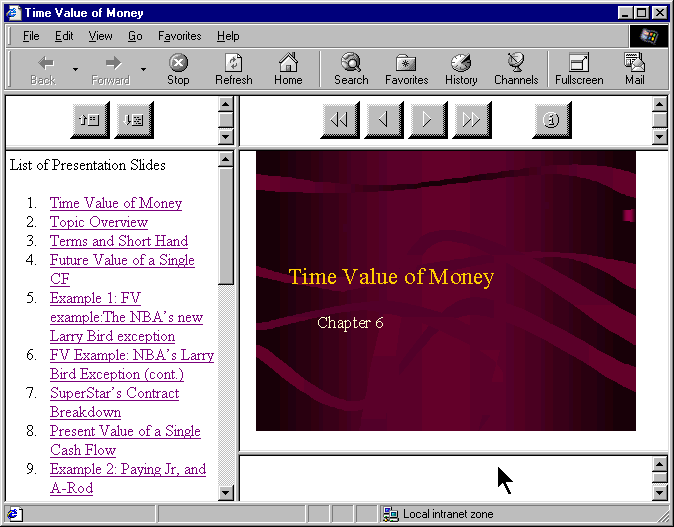
Rendering by Lynx on Linux:
                                        Time Value of Money

   FRAME: Size buttons
   FRAME: Presentation Outline
   FRAME: Navigation buttons
   FRAME: Slide Image
   FRAME: Notes

   List of Presentation Slides
    1. Time Value of Money
    2. Topic Overview
    3. Terms and Short Hand
    4. Future Value of a Single CF
    5. Example 1: FV example:The NBA's new Larry Bird exception
    6. FV Example: NBA's Larry Bird Exception (cont.)
    7. SuperStar's Contract Breakdown
    8. Present Value of a Single Cash Flow
    9. Example 2: Paying Jr, and A-Rod
   10. Example 3: Finding Rate of Return or Interest Rate
   11. Annuities
   12. FV of Annuities
   13. PV of Annuities
   14. Example 4: Invest Early in an IRA
   15. Example 4 Solution
   16. Example 5: Lotto Fever
   17. Uneven Cash Flows: Example 6:Fun with the CF function
   18. Example 6 CF worksheet inputs
   19. CF inputs continued
   20. Non-Annual Interest Compounding
   21. Example 7: What rate are you really paying?
   22. Nominal to EAR Calculator
   23. Continuous Interest Compounding
   24. FV and PV with non-annual interest compounding
   25. Non-annual annuities
   26. Example 8: Finding Monthly Mortgage Payment
   27. solution to Example 8
Graphical rendering by Home Page Reader on Windows:
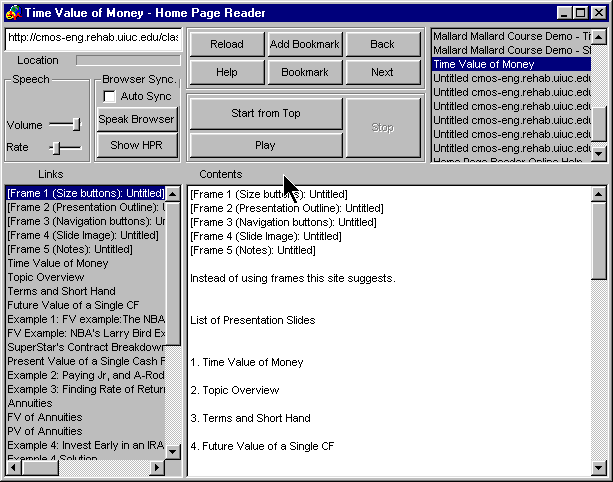
Audio rendering by Home Page Reader on Windows: @@add here?@@
User agents may also indicate the number of frames in a document and which
frame is the current frame via the menu bar or popup menus. Users can configure
the user agent to include a FRAMES menu item in their menu bar. The menu bar
makes the information highly visible to all users and is very accessible to
assistive technologies. In the following snapshot, the menu bar indicates the
number of frames and a check next to the name of the frame element indicates
which is the current frame:
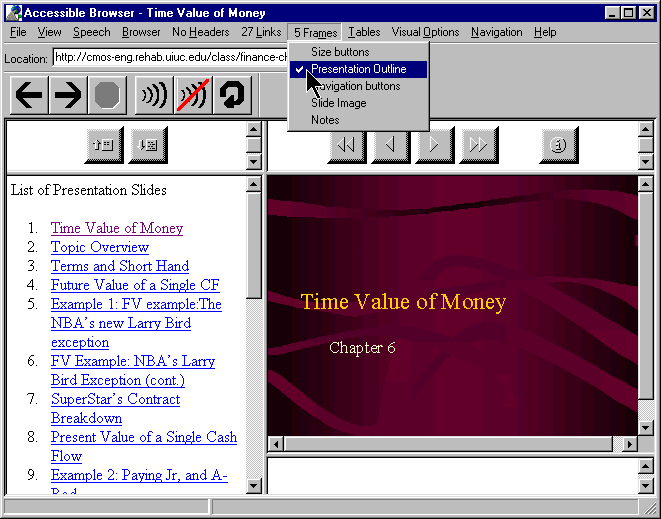
For labels explicitly associated with form controls (e.g., "for" attribute
on LABEL in HTML), make available label information when the user is navigating
among the form controls. This information must be provided in a
device-independent manner, and the user should be able to choose from a list of
mechanisms that provide access to the content of the label.
For semantic information explicitly associated with groupings of form
controls (e.g., groupings of radio buttons or checkboxes contained in a
FIELDSET), make available the information contained in the LEGEND defined for
the FIELDSET to the user. This information must be provided in a
device-independent manner, and the user should be able to choose from a list of
mechanisms that provide access to the content of the LEGEND.
Provide information about the percentage of form that has already been
filled out as the user moves through the form controls. This information must
be provided in a device-independent manner. The user should also be able to
query the user agent through a simple, well-documented mechanism (such as a
keystroke or keystroke combination) to learn what percentage of the form has
been completed.
Allow the user to know what percentage of a form has been completed as the
user navigates the form. will help users avoid prematurely submitting an
incomplete form. This is particularly important for anyone moving through a
form sequentially; users who encounter a submit button usually think this means
the end of a form, but it may not be. (Refer also to the technique detailing
methods of providing users with orientation information about individual form
controls when a form control receives focus for a more detailed discussion of
this issue.)
Provide the user with orientation information about a form. Users should be
able to query the user agent for:
- the presence of a form -- the user should be able to query to user agent
for the presence of a form within the document being rendered. Some user agents
(such as Opera and Netscape Navigator) already indirectly provide such
functionality in a non-interactive manner, through the provision of "form
navigation" keyboard commands. When invoked, these "form navigation" commands
move the user agent's focus to the first form field contained in the document
currently being rendered (provided, of course, that the document contains a
form. Although providing discrete "form navigation" commands allows users to
quickly move to the first form field within a document, users need to be
explicitly notified if the document does not contain a form. Such notification
should be conveyed in a device-independent manner, and the user should not be
limited to one means of notification (i.e., display a message on the status bar
and play a sound).
- the number of forms in a document
Provide the user with orientation information about individual form controls
when a form control receives focus. For example, the most basic orientation
information would be to identify the form control with focus as "Field X of Y",
where "Y" is the total number of fields contained in the form. This will help
prevent users accessing the form serially (such as a blind user using a screen
reader or someone using a voice browser over a phone) from prematurely invoking
the form's submit mechanism. It is a common practice for forms (particularly
those used to query search engines) to be laid out visually, so that the submit
and reset buttons (if present) immediately follow a text-entry field, despite
the presence of other form controls (such as radio buttons and checkboxes)
within the FORM element. A user accessing such a form in a serial manner,
therefore, is likely to mistake the submit button for the end of the form, and
activate it, unaware that it is followed by further form controls which could
-- in the example of a search engine query submission form -- prove an
invaluable aid in tailoring the content being submitted via the form. Use of
such orientation information (i.e., "Field X of Y" or the percentage of the
form completed) will also decrease the amount of time needed to submit the form
(a crucial consideration when forms are being used to facilitate bidding for
online auctions) as well as reduce the frustration of the end user, who, due to
the visually oriented layout of the form, is confused when the submission of
the form repeatedly leads to a message such as "Form Incomplete - Use your
browser's back button to return to the form".
When a document contains more than one form, form control orientation
information should also include data which will identify to which form the form
control with focus belongs. Notification could take the form: Form Z:
Field X of Y
where "Z" identifies the form, "X" the form field with focus an "Y" the
total number of form fields contained in "Form Z".
Provide more detailed orientation information pertaining to form:
- When a grouping of radio buttons receives focus, identify the radio button
with focus as "Radio Button X of Y", where "Y" represents the total number of
radio buttons in the grouping. HTML 4.0 HTML 4.0 specifies the
FIELDSET element ([HTML40], section 17.10), which allows authors to group
thematically related controls and labels. The
LEGEND element ([HTML40], section 17.10) assigns a caption to a FIELDSET. If a
LEGEND has been defined for the grouping of radio boxes, use the information
contained within the LEGEND to more precisely identify the number of radio
buttons in the grouping. For example, if the LEGEND element has been used to
identify a FIELDSET of radio buttons, each of which has a
LABEL element ([HTML40], section 17.9.1) associated with it, as "Connection Rate",
identify the radio button as it receives focus as "Connection Rate: Radio
button X of Y: 28.8kpbs", where "Y" represents the total number of radio
buttons in the grouping and "28.8kbps" is the information contained in the
LABEL associated with the radio button with focus.
- Provide information about what is required for each form control. GUI
browsers, for example, could convey such information via context- sensitive
help. Lynx conveys this information by providing information about the
currently selected form control via a status line message:
- (Radio Button) Use right-arrow or RETURN to toggle
- (Checkbox Field) Use right-arrow or RETURN to toggle
- (Option List) Hit return and use arrow keys and return to select
option
- (Text Entry Field) Enter Text. Use UP or DOWN arrows or "tab" to move
off
- (Textarea) Enter text. UP/DOWN arrows or "tab" to move off (^Ve for editor)
Note. The ^Ve (caret-V, e) command, included in the TEXTAREA
status line message, enables the user to invoke an external editor defined in
the local Lynx configuration file (lynx.cfg). For more information, please
refer to the following technique.
Allow the user to invoke an external editor when a TEXTAREA receives focus.
A user may wish to use an external editor, rather than enter text directly in a
TEXTAREA for myriad reasons, including:
- the ability to more efficiently and expeditiously review the text being
input
- the ability to spell check the text being input
- the ability to use macros or other special features of the external editor,
including the ability to increase the contrast between foreground and
background colors, access to a wider range of screen-display fonts, etc.
- the ability to save a local copy of the text being input
- the user's familiarity with the external editor will encourage the user to
actually enter text into a TEXTAREA--an exercise which is often an extremely
daunting task, given the limitations imposed by the physical dimensions of the
TEXTAREA. A user will also find it much easier to review what he or she has
typed when using an external editor.
Provide information about the order of form controls (e.g., as specified by
"tabindex" in HTML). This is important since:
- most forms are visually oriented, employing changes in font size and
color
- users who access forms serially need to know they have supplied all the
necessary information before submitting the form.
Provide information about required fields. Since authors often use color
changes, font styling, or a graphical symbol alone to express that a field is
required, the user should be able to configure the user agent so that it alerts
him that the field is required for submission of the form content. Strategies
for achieving this include:
- Allow the user to view a list of required form fields. Such a list should
be invokable via a simple and well documented keybinding.
- Allow the user to define an alert mechanism (such as the playing of a
sound) which will be invoked when a required field receives focus. The user
should be able to pick from amongst a list of alert mechanisms (i.e. color or
font-style changes to the field label, the playing of a sound clip, a status
line message, etc.), and should not be limited to only one type of alert
mechanism. Do not rely on visual or aural prompts alone to
signify a required form field.
Allow the user to configure the user agent so that SELECT form fields which
use the "multiple" attribute to allow the end user to select more than one
OPTION can be transformed into a list of checkboxes.
- Preserve the LABELs set for the OPTGROUP and each individual OPTION, and
re-associate them with the user agent generated checkboxes. The LABEL defined
for the OPTGROUP should be converted into a LEGEND for the resultant FIELDSET,
and each checkbox should retain the LABEL defined for the corresponding
OPTION.
- Note. Lynx automatically transforms SELECT form fields
which use the "multiple" attribute to allow the end user to select more than
one OPTION into checkboxes.
Allow the user to exit a menu without selecting any option. For example,
when navigating through OPTION's, have some key like the ESC key ot exit the
list of OPTION's without making a selection.
Allow the user to configure the user agent sot that SELECT form fields can
be transformed into a list of radio buttons.
- Any such transformation should retain the accessibility information defined
for the original form controls.
- Note. Lynx provides this functionality as a configurable
option, which can be changed on-the-fly while a page is being rendered. To
promote the comprehensibility of the transformed output for users using
screen-readers and refreshable Braille displays, Lynx places each OPTION that
it transforms into a radio button on a separate line.
Users (notably users with blindness or any user unaccustomed to online
forms) do not want forms to be submitted without their consent, e.g., when
submitted through scripts. In this case user agents should request confirmation
before submitting the form content. Nor do they wish to be prompted before each
form submission when they have explicitly submitted the form (e.g., through the
standard submit button).
Inadvertently pressing the RETURN or ENTER key is quite a prevalent
phenomenon among users of every level of expertise - especially those who often
find it necessary to switch between user agents. Lynx, for example, uses the
ENTER key within FORMs as a means of exposing drop-down (or pop-up, depending
upon your point of view) SELECT menus. Thus, when one encounters a SELECT menu
using Lynx, one: exposes the content of the menu by pressing the ENTER key, and
then is able to navigate between OPTIONs using the up and down arrows or via
Lynx's text-search feature. When one finds the appropriate OPTION, it is
selected by pressing ENTER, which causes the selected item to be displayed in
the SELECT menu listbox.
The problem posed by the default "submit on enter" feature of most GUI
browsers is not limited to the SELECT menu problem outlined above. Lynx (as
well as several other text-based browsers) uses the ENTER/RETURN key as a means
of toggling several FORM controls, such as the selection of checkboxes and
radio buttons.
Speech users may be frustrated and misdirected by the use of javascript and
event handler controlled pseudo-forms, wherein the user is presented with a
menu (in the form of a listbox in GUI browsers), and is redirected to a
different viewport upon selection of an OPTION. The markup behind such
pseudo-forms is a mix of javascript (in particular the "function
switchpage(select)" command) and HTML FORM controls, which utilize HTML4's
event handler script attributes (in particular the "onchange" event handler
attribute has been defined. An example (gleaned from the document source for
one Web site follows:
<SELECT NAME="condition" onchange="switchpage(this)">
When such a menu is encountered by a individual who is using speech
synthesis in conjunction with a javascript enabled user agent, his or her
instinctual reaction will be to use the UA's navigation mechanism (usually the
up and down arrows) to review the available OPTIONs. However, each time a new
OPTION is displayed, the user is abruptly taken to a new viewport. Conversely,
if one is using a user agent that does not support javascript (or has
javascript support disabled), then the menu is displayed, but since there is no
SUBMIT mechanism associated with it, there is no mechanism by which one can use
the menu to quickly switch viewports - the apparent purpose of this type of
pseudo-form. And while one can avoid having the viewport abruptly changed when
encountering the menu (at least in the Windows environment) by using the
ALT-LEFT-ARROW keystroke to display the menu in a drop-down list, (a) very few
users know this keystroke, and (b) when one encounters a listbox on a page in
an aural environment, one usually assumes that he or she is navigating a valid
FORM, in which there are no unexpected side effects to perusing the contents of
a SELECT menu using the arrow keys
Refer also to Web Content
Accessibility Guidelines 1.0 checkpoint 6.3 [WAI-WEBCONTENT]: Content
developers must ensure that pages are accessible with scripts turned off or in
browsers that don't support scripts.
Some techniques to address form submission:
- Allow the user to configure the user agent. Choices should include:
- "Never Allow Automatic Submission of Form Content " or "Never Submit {Do
Not Prompt}"
- "Always Allow Automatic Submission of Form Content" or "Always Submit
Without Prompting"
- "Prompt Before Submitting Form Content"
The default setting should be: "Prompt before submitting form content", so as
to allow the user to decide whether or not HTML4 event handling will occur
automatically.
- Configuration can be determined by prompting the user the first time an
event handled or script-driven FORM is encountered. Choices should include:
- "Submit" {optional verbiage: "This Time Only"}
- "Do Not Submit" {optional verbiage: "This Time Only"}
- "Always Allow Automatic Submission of Form Content" or "Always Submit
Without Prompting"
- "Never Allow Automatic Submission of Form Content " or "Never Submit {Do
Not Prompt}"
- "Always Prompt Before Submitting Form Content"
If the user chooses "Prompt Before Submitting Form Content", this prompt could
be recycled in an abbreviated fashion. The prompt should include:
- "Submit This Time Only"
- "Do Not Submit"
- "Always Submit and Do Not Ask/Warn Me Again"
- "Never Submit and Do Not Ask/Warn Me Again"
Certain elements of the document language may have associated event handlers
that are triggered when certain events occur. User agents must be able to
identify those elements with event handlers statically associated (i.e.,
associated in the document source, not in a script).
- In HTML
- All of the attributes beginning with the prefix "on": "onblur", "onchange",
"onclick", "ondblclick", "onkeydown", "onkeypress", "onkeyup", "onload",
"onmousedown", "onmousemove", "onmouseout", "onmouseover", "onmouseup",
"onreset", "onselect", "onsubmit", and "onunload".
Allow the user to configure the user agent so that mouseover/mouseout events
may be triggered by (and trigger) focus/blur events. Similarly, allow the user
to use a key command, such as "enter" and "shift-enter" to trigger onclick and
ondblclick events.
Implement DOM 2
[DOM2] events with a single activation event and provide a method for
triggering that event from each supported input device or input API. These
should be the same as the click events and mappings provided above (but note
that a user agent which is also an editor may wish to use single click events
for moving a system caret, and want to provide a different behavior to activate
using the mouse). For example, Amaya [AMAYA] uses a "doAction" command for activating links and
form controls, which can be triggered either by the mouse (and it is possible
to set it for single-click or double-click) or by the keyboard (it is possible
to set it for any key using Amaya's keyboard configuration)
Document the effects of known important scripts to give users an idea in
advance of what they do. Make script source available to users so that those
familiar with the scripting language may be able to understand their
effects.
Note. User agents may already allow users to turn off
scripts for security reasons.
User agents should make available information about abbreviation and acronym
expansions. For instance, in HTML, look for abbreviations specified by the ABBR
and ACRONYM elements. The expansion may be given with the "title"
attribute.
To provide expansion information, user agents may:
- Allow the user to configure that the expansions be used in place of the
abbreviations,
- Provide a list of all abbreviations in the document, with their expansions
(a generated glossary of sorts)
- Generate a link from an abbreviation to its expansion.
- Allow the user to query the expansion of a selected or input
abbreviation.
- If an acronym has no explicit expansion, user agents may look up in a
glossary of acronyms for that page for another occurrence. Less reliably, the
user agent may look for possible expansions (e.g., in parentheses) in
surrounding context.
Several of the more popular mainstream operating systems now include a
common suite of built-in accessibility features that are designed to assist
individuals with varying abilities. Despite operating systems differences, the
built-in accessibility features use a similar naming convention and offer
similar functionalities, within the limits imposed by each operating system (or
particular hardware platform).
The following is a list of built-in accessibility features from several
platforms:
- StickyKeys
- These allow users to perform a multiple simultaneous key sequence by
pressing and releasing each key in sequential order. StickyKeys is designed to
work with only those keys defined as modifier keys. Modifier keys are pressed
in combination with other keys, to change the outcome of the second (or more)
pressed keys. For example, the SHIFT key is defined as a modifier key, since it
is commonly used to create upper case characters. Each operating system or
hardware platform typically defines a set of keys which can act as modifier
keys. The most common modifier keys include SHIFT, CONTROL, and ALTERNATE.
- MouseKeys
- These allow users to move the mouse cursor and activate the mouse button(s)
from the keyboard.
- RepeatKeys
- These allow users to set how fast a key repeats (e.g., sometimes referred
to as typematic rate) when the key is held pressed (e.g., Repeat Rate), and
also allows control over how quickly the key starts to repeat after the key has
been pressed (e.g., delay Until Repeat). Key repeating may also be
eliminated.
- SlowKeys
- These instruct the computer not to accept a key as pressed until it has
been pressed and held down for a specific user adjustable length of time.
- BounceKeys
- These prevent extra characters from being typed if the user bounces (e.g.,
tremor) on the same key when pressing or releasing it.
- ToggleKeys
- These provide an audible indication for the status of keys that have a
toggled state (e.g., keys that maintain status after being released). The most
common toggling keys include Caps Lock, Num Lock, and Scroll Lock.
- SoundSentry
- These monitor the operating system and applications for sounds, and attempt
to provide a graphical indication when a sound is being played. Older versions
of Sound Sentry may have flashed the entire display screen for example, while
newer versions of SoundSentry provide the user with a selection of options,
such as flashing the active window or flashing the active window caption
bar.
The next three built in accessibility features are not as commonly available
as the above group of features, but are included here for definition,
completeness, and future compatibility.
- ShowSounds
- These are user setting or software switches that are available for the
operating system and application (including user agents) APIs to read, to
notify them that the user wishes audio information to also be presented in a
graphical format.
- High Contrast
- These automatically change the display fonts and colors to choices which
should provide for easier reading.
- TimeOut
- These allow the built-in accessibility features to automatically turn off
if the computer is unused for a specified length of time, and is intended for
use when the computer is in a public setting (e.g., library). TimeOut might
also be referred to as reset or automatic reset.
The next accessibility feature listed here is not considered to be a built
in accessibility feature (since it only provides an alternate input channel)
and is presented here only for definition, completeness, and future
compatibility.
- SerialKeys
- These allow a user to perform all keyboard and mouse functions from an
external assistive device (such as communication aid) communicating with the
computer via a serial character stream (e.g., serial port, IR port, etc.)
rather than or in conjunction with, the keyboard, mouse, and other standard
input devices/methods.
Microsoft Windows 95, Windows 98, and Window NT 4.0
For information about Microsoft keyboard configurations (Internet Explorer,
Windows 95, Windows 98, and more), refer to documentation on keyboard
assistance for Internet Explorer and MS Windows [MS-KEYBOARD].
The following accessibility features can be adjusted from the Accessibility
Options Control Panel:
- StickyKeys: modifier keys include SHIFT, CONTROL, and ALTERNATE.
- FilterKeys: grouping term for SlowKeys, RepeatKeys, and BounceKeys.
- MouseKeys
- ToggleKeys
- SoundSentry
- ShowSounds
- Automatic reset: term used for TimeOut
- High Contrast
- SerialKeys
Additional accessibility features available in Windows 98:
- Magnifier
- This is a windowed, screen enlargement and enhancement program used by
persons with low vision to magnify an area of the graphical display (e.g., by
tracking the text cursor, focus, etc.). Magnifier can also invert the colors
used by the system within the magnification window.
- Accessibility Wizard
- This is a setup tool intended to assist a person with making choices which
setting up the accessibility features on a workstation.
Apple Macintosh Operating System
The following accessibility features can be adjusted from the Easy Access
Control panel (Note: Apple convention uses a space within the accessibility
feature names.)
- Sticky Keys: modifier keys include the SHIFT, OPEN APPLE (COMMAND), OPTION
(ALT) and CONTROL keys.
- Slow Keys
- Mouse Keys
The following accessibility features can be adjusted from the Keyboard
Control Panel.
- Key Repeat Rate (e.g., part of RepeatKeys)
- Delay Unit Repeat (e.g., part of RepeatKeys)
The following accessibility feature can be adjusted from the Sound or
Monitors and Sound Control Panel (depends upon which version of the OS).
- Adjusting the volume to off or mute causes the Macintosh to flash the title
bar whenever the operating system detects a sound (e.g., SoundSentry)
Additional accessibility features available for the Macintosh OS:
- CloseView
- This is a full screen, screen enlargement and enhancement program used by
persons with low vision to magnify the information on the graphical display,
and it can also change the colors used by the system.
- SerialKeys
- This is available as freeware from Apple and several other Web sites.
AccessX, X Keyboard Extension (XKB), and the X Window
System
(Note: AccessX became a supported part of the X Window System X Server with
the release of the X Keyboard Extension in version X11R6.1)
The following accessibility features can be adjusted from the AccessX
graphical user interface X client on some DEC, SUN, and SGI operating systems.
Other systems supporting XKB may require the user to manipulate the features
via a command line parameter(s).
- StickyKeys: modifier keys are platform-dependent, but usually include the
SHIFT, CONTROL, and META keys.
- RepeatKeys:
- SlowKeys:
- BounceKeys:
- MouseKeys:
- ToggleKeys:
DOS (Disk Operating System)
The following accessibility features are available from a freeware program
called AccessDOS, which is available from several Internet Web sites including
IBM, Microsoft, and the Trace Center, for either PC-DOS or MS-DOS versions 3.3
or higher.
- StickyKeys: modifier keys include the SHIFT, CONTROL, and ALTERNATE
keys.
- Keyboard Response Group: grouping term for SlowKeys, RepeatKeys, and
BounceKeys
- MouseKeys:
- ToggleKeys:
- SoundSentry (incorrectly name ShowSounds):
- SerialKeys:
- TimeOut:
Ensure your UA can be operated using the standard interfaces on the target
platform(s). Some example tests include:
- All functional UI components must be keyboard accessible and therefore,
must be operable by software or devices that emulate a keyboard. (Use
SerialKeys [see Appendix 8] and/or voice recognition software to test keyboard
event emulation.) Individuals with varying physical abilities should be able to
access your UA using a SerialKeys device or using voice recognition, provided
it is keyboard accessible.
- All functional UI components must track selection and focus. Individuals
who have low vision and use screen magnification software should be able to
follow highlighted item(s) (e.g., selection), text input location (e.g.,
sometimes referred to as the "caret"), and any control or component with focus,
if your UA exposes these properties correctly.
- All functional UI components must provide readable "text" names or labels,
even when not visible. Providing this type of information in your UA along with
the prior two examples, means that individuals who are blind and accessing your
UA using screen reading software and/or a Braille output device should be able
to operate and navigate within it.
- All functional UI components which convey important information using
sound, also need to provide alternate, parallel visual representation of the
information for individuals who are deaf, hard of hearing, or operating your UA
in a noisy or silent environment where the use of sound isn't practical.
- Establish quality control and assurance processes for consistency of access
strategies across software releases.
There are several methods for developers to accomplish this. Most of these
methods fall into four categories:
- Launch the entire AT inside the address space of the (UA) browser
- Launch some part of the AT, a piece of stub code, a DLL, a Browser Helper
Object [special DLL], etc., inside the address space of the (UA) browser
- Write your own combined UA/AT (e.g., pwWebSpeak)
- Out-of-process access to the DOM
These methods are ordered as developments within a rapidly changing
technology with the most recent advances/methods listed first.
Loading assistive technologies for direct access to User
Agent DOMs
Note. This method and the method described in the next
section are very similar. What differs is the amount of, or capability of, the
AT that actually gets loaded in the same process or address space as the User
Agent.)
Access to application specific data across process boundaries might be
costly in terms of performance. Therefore, user agents may wish to provide a
mechanism to load the entire assistive technology (AT), into the process space
of the application as a separate thread with direct access to the DOM.
Determining the Assistive Technologies to load
One technique is to store a reference to an assistive technology in a system
registry file or, in the case of Jave, a properties file. Registry files are
common among many operating system platforms.
In Windows you have the system registry file. On OS/2 you have the
system.ini file and on distributed network client networks you often have
a system registry server that an application running on the network client
computer can query.
In Java 2, the existence of an "accessibility.properties" file causes the
system event queue to examine the file for assistive technologies required for
loading. If the file contains a property called "assistive_technologies", it
will load all registered assistive technologies and start them on their own
thread in the Java Virtual Machine that is a single process. An example entry
for Java is as follows:
assistive_technologies=com.ibm.sns.svk.AccessEngine
In Windows, a similar technique could be followed by storing the name of a
Dynamic Link Library (DLL) for an assistive technology in a designated
assistive technology key name, AT pair. An example entry for Windows could be
as follows:
    HKEY_LOCAL_MACHINE\Software\Accessibility\DOM
           "ScreenReader, VoiceNavigation"
Attaching the Assistive Technologies to the DOM.
Once the assistive technology is determined from the registry, any user
agent on the given operating system can now determine if an assistive
technology needs to be loaded with their application and load it.
On a non-Java platform, a technique to do this would be to create a separate
thread with a reference to the User Agent's DOM using a Dynamic Link Library
(DLL). This new thread will load the DLL and call a specified DLL entry name
with a pointer to the DOM interface. The assistive technology's task will then
run until such time as is necessary to end communication with the DOM.
Once loaded, the assistive technology can monitor the DOM as needed. The
assistive technology has the option of communicating with a main assistive
technology of its own and process the DOM as a caching mechanism for the main
AT application or be used as a bridge to the DOM for the main assistive
technology.
In the future, it will be necessary to provide a more comprehensive
reference to the application that not only provides direct access to it's
client area DOM, but also multiple DOM's that it is processing and an event
model for monitoring them.
Example Technique: Java's Direct Access
Java is a working example where the direct access to application components
is performed in a timely manner. Here, an assistive technology running on a
separate thread monitors GUI events such as focus changes. Focus changes give
the AT notification of which component object has focus. The AT can communicate
directly with all components in the application by walking the parent/child
hierarchy and connecting to each component's methods and monitor events
directly. In this case an AT has direct access to component specific methods as
well as those provided for by the Java Accessibility API. There is no reason
that a DOM interface to UA components could not be provided
In Java 1.1.x, Sun's Java access utilities load an assistive by monitoring
the Java awt.properties file for the presence of assistive technologies and
loads them as shown in the following code example:
import java.awt.*;
import java.util.*;

String atNames = Toolkit.getProperty("AWT.assistive_technologies",null);
if (atNames != null) {
    StringTokenizer parser = new StringTokenizer(atNames," ,");
    String atName;
    while (parser.hasMoreTokens()) {
       atName = parser.nextToken();
       try {
          Class.forName(atName).newInstance();
       }
       catch (ClassNotFoundException e) {
          throw new AWTError("Assistive Technology not found: " + atName);
       }
       catch (InstantiationException e) {
          throw new AWTError("Could not instantiate Assistive" +
                             " Technology: " + atName);
       }
       catch (IllegalAccessException e) {
          throw new AWTError("Could not access Assistive" +
                             " Technology: " + atName);
       } catch (Exception e) {
          throw new AWTError("Error trying to install Assistive" +
                             " Technology: " + atName + " " + e);
       }
    }
}
In the above code example, the function Class.forName(atName).newInstance()
creates a new instance of the assistive technology. The constructor for the
assistive technology will then be responsible for monitoring application
component objects by monitoring system events.
In the following code example, the constructor for the assistive technology
"Access Engine," adds a focus change listener using Java accessibility
utilities. When the assistive technology is notified of an objects gaining
focus it has direct access to that object. If the Object, o, implemented a DOM
interface the assistive technology would now have direct access to the DOM in
the same process space as the application.
   import java.awt.*;
   import javax.accessibility.*;
   import com.sun.java.accessibility.util.*;
   import java.awt.event.FocusListener;

   class AccessEngine implements FocusListener {
      public AccessEngine() {
         //Add the AccessEngine as a focus change listener
         SwingEventMonitor.addFocusListener((FocusListener)this);
      }

      public void focusGained(FocusEvent theEvent) {
         // get the component object source
         Object o = theEvent.getSource();
         // check to see if this is a DOM component
         if (o instanceof DOM) {
            ...
         }
      }
      public void focusLost(FocusEvent theEvent) {
         // Do Nothing
      }
   }
In this example, the assistive technology has the option of running
standalone or acting as a cache for a bridge that communicates with a main
assistive technology running outside the Java virtual machine.
Loading part of the assistive technologies for direct access
to User Agent DOMs
Access to application specific data across process boundaries might be
costly in terms of performance. Therefore, user agents may wish to provide a
mechanism to load part of the assistive technology (AT) into the process space
of the application as a separate thread, with direct access to the DOM, to
provide the specific functionality they require. This could consist of a piece
of stub code, a DLL, a Browser Helper Object, etc. An example of how to do this
follows.
Browser Helper Objects
In order to attach to a running instance of Internet Explorer 4.0, you can
use a "Browser Helper Object." A "Browser Helper Object" is a DLL that will
attach itself to every new instance of Internet Explorer 4.0 (only if you
explicitly run iexplore.exe). You can use this feature to gain access to the
object model of a particular running instance of Internet Explorer. You can
also use this feature to get events from an instance of Internet Explorer 4.0.
This can be tremendously helpful when many method calls need to be made to IE,
as each call will be performed much more quickly than the out of process
case.
There are some requirements when creating a Browser Helper Object
- The application that you create must be an in-proc server (that is,
DLL).
- This DLL must implement IObjectWithSite.
- The IObjectWithSite::SetSite() method must be implemented. It is through
this method that your application receives a pointer to Internet Explorer's
IUnknown. (Internet Explorer actually passes a pointer to IWebBrowser2 but the
implementation of SetSite() receives a pointer to IUnknown.) You can use this
IUnknown pointer to automate Internet Explorer or to sink events from Internet
Explorer.
- It must be registered as a Browser Helper Object as described above.
For more information, please check out:
http://support.microsoft.com/support/kb/articles/Q179/2/30.asp.
http://msdn.microsoft.com/library/techart/bho.htm
Java Access Bridge
In order for native Windows ATs to gain access to Java applications without
the creating a Java native solution Sun Microsystems provides the "Java Access
Bridge." This bridge is loaded as an AT as described in section 6.1.3. The
bridge uses a Java Native Invocation (JNI) to Dynamic Link Library) (DLL)
communication and caching mechanism that allows a native assistive technology
to gather and monitor accessibility information in the Java environment. In
this environment, the AT determines that a Java application or applet is
running and communicates with the Java Access Bridge DLL to process
accessibility information about the application/applet running in the Java
Virtual Machine.
Loading assistive technologies "as" the User Agent with
access to the DOMs
Specialized user agents might also include the necessary assistive
technology as part of their interface, and thus provide possibly the best of
both worlds. An example would be pwWebSpeak, from The Productivity Works [PRODWORKS].
Loading assistive technologies for indirect access to User
Agent DOMs
Access to application specific data across process boundaries or address
space might be costly in terms of performance. However, there are other reasons
to consider when accessing the User Agent DOM that might lead a developer to
wish to access the DOM from their own process or memory address space. One
obvious protection this method provides, is that if the User Agent application
fails, it doesn't disable the user's AT as well. Another consideration would be
legacy systems, where the user relies on their AT for access to other
applications as well as the User Agent, and thus would have their AT loaded all
the time, not just for accessing the User Agent.
There are several ways to gain access to the User Agent's DOM. Most User
Agents support some kind of external interface, or act as a mini-server to
other applications running on the desktop. Internet Explorer is a good example
of this, as IE can behave as a component object model (COM) server to other
applications. Mozilla, the open source release of Navigator also supports cross
platform COM (XPCOM).
An example of using COM to access the IE Object Model can be seen in the
code snippet below. This is an example of how to use COM to get a pointer to
the WebBrowser2 module, which in turn allows you to get a interface/pointer to
the document object, or IE DOM for the Web page in view.
   /* first, get a pointer to the WebBrowser2 control */
   if (m_pIE == NULL) {
      hr = CoCreateInstance(CLSID_InternetExplorer,
           NULL, CLSCTX_LOCAL_SERVER, IID_IWebBrowser2,
           (void**)&m_pIE);

      /* next, get a interface/pointer to the document in view,
         this is an interface to the document object model (DOM)*/

      void CHelpdbDlg::Digest_Document() {
         HRESULT hr;
         if (m_pIE != NULL) {
            IDispatch* pDisp;
            hr = m_pIE->QueryInterface(IID_IDispatch, (void**) &pDisp);
            if (SUCCEEDED(hr)) {

               IDispatch* lDisp;
               hr = m_pIE->get_Document(&lDisp);
               if (SUCCEEDED(hr)) {

                   IHTMLDocument2* pHTMLDocument2;
                   hr = lDisp->QueryInterface(IID_IHTMLDocument2,
                               (void**) &pHTMLDocument2);
                   if (SUCCEEDED(hr)) {

                   /* with this interface/pointer, IHTMLDocument2*,
                      you can then work on the document */
                      IHTMLElementCollection* pColl;
                      hr = pHTMLDocument2->get_all(&pColl);
                      if (SUCCEEDED(hr)) {

                         LONG c_elem;
                         hr = pColl->get_length(&c_elem);
                         if (SUCCEEDED(hr)) {
                            FindElements(c_elem, pColl);
                         }
                         pColl->Release();
                      }
                      pHTMLDocument2->Release();
                   }
                   lDisp->Release();
               }
               pDisp->Release();
            }
         }
      }
   }
For more information on using COM with IE, please visit the Microsoft Web
site:http://www.microsoft.com/com/default.asp
For more information on using XPCOM with Mozilla, please visit the Mozilla
Web site: http://www.mozilla.org/
For a working example of the method described in 6.1.4, please visit the
following web site and review HelpDB, developed as a testing tool for Web table
navigation:
http://trace.wisc.edu/world/web/document_access/
This informative appendix describes some functionalities for assistive technologies to
promote accessibility.
- Indicate the row and column dimensions of a selected table.
Note. User agents should consider multidimensional tables, headers and
footers, and multiple header levels.
Refer also to checkpoint 5.4.
- Describe a selected element's position within larger structures (e.g.,
numerical or relative position in a document, table, list, etc.). For example:
tenth link of fifty links; document header 3.4; list one of two, item 4.5;
third table, three rows and four columns; current cell in third row, fourth
column; etc. Allow users to get this information on demand (e.g., through a
keyboard shortcut). Provide this information on the status line on demand from
the user.
- Provide information about form structure and navigation (e.g., groups of
controls, control labels, navigation order, and keyboard configuration). For
instance, provide information about controls with explicitly associated labels
(the "for" attribute of LABEL in HTML), about which keys activate the form controls (the "accesskey" attribute
in HTML), about the sequential navigation order of the form controls
(the"tabindex" attribute in HTML), and about control groups (the FIELDSET and
OPTGROUP elements in HTML). Refer also to checkpoint 1.3 and checkpoint 7.4.
- Enable announcing of information regarding title, value, grouping, type,
status and position of specific focused elements.
Metadata of all sorts: titles, dimensions, dates, relationships, etc.
promotes accessibility by providing additional context to users. Text metadata
is particularly useful since it can be rendered graphically, as Braille, and as
speech.
- For information about elements and attributes that convey metadata in HTML,
refer to the index of elements and attributes in "Techniques for Web Content
Accessibility Guidelines 1.0" [WAI-WEBCONTENT-TECHS].
- For information about elements and attributes that convey metadata in SMIL,
refer to the index of attributes in the W3C Note "Accessibility Features of
SMIL"
[SMIL-ACCESS].
- With CSS 2, authors can generate content with the
':before' and ':after' pseudo-elements ([CSS2], section 5.12.3). For more information, refer to the
W3C Note "Accessibility Features of CSS" [CSS-ACCESS].
One useful form of metadata is content summary information. Provide
information, for example, about the number of links, forms, tables, images,
significant words, etc.
For example, this information will help a user get an impression about the
purpose of each frame in a frameset. For example, if the content of a frame has
many links, but few significant words, then the frame is probably an index of
some kind. Content with many significant words is probably a text page. Content
with only a couple of pictures and few significant words or links is probably
for decoration.
Tools that work with synthesized speech do not always pronounce text
correctly. Therefore, they should provide additional context so that users can
understand content. Techniques include:
- Spelling words
- Indicating punctuation, capitalization, etc.
- Allowing users to reply words alone and in context.
- Using auditory nuances - including pitch, articulation model, volume, and
orientation - to convey meaning the way fonts, spacing, and borders do in
graphical media.
- Generating context. For example, a user agent might speak the word "link"
before a link, "header" before the text content of a header or "item 1.4"
before a list item.
- Rendering text according in the appropriate natural language.
Refer to "Speak to Write" [SPEAK2WRITE] for information on speech recognition
and accessibility.
- Active
element
- Active elements constitute a user interface for the
document. They have associated behaviors that may be
activated (or "triggered") either through user
interaction or through scripts. Which elements are active depends on the
document language and whether the features are supported by the user agent. In
HTML documents, for example, active elements include links, image maps, form
controls, element instances with a value for the "longdesc" attribute, and
element instances with associated scripts (event handlers) explicitly
associated with them (e.g., through the various "on" attributes).
- An active element's behavior may be triggered through any number of
mechanisms, including the mouse, keyboard, an API, etc. The effect of
activation depends on the element. For instance, when a link is activated, the
user agent generally retrieves the linked resource. When a form control is
activated, it may change state (e.g., check boxes) or may take user input
(e.g., a text field). Activating an element with a script assigned for that
particular activation mechanism (e.g., mouse down event, key press event, etc.)
causes the script to be executed.
- Most systems use the focus to designate the active
element the user wishes to trigger.
- Alternative Equivalents for
Content
- Since rendered
content in some forms is not always accessible to users with
disabilities, authors must supply alternative equivalents for content. In the
context of this document, the equivalent must fulfill essentially the same
function for the person with a disability (at least insofar as is feasible,
given the nature of the disability and the state of technology), as the
"primary" content does for the person without any disability. For example, the
text "The Full Moon" might convey the same information as an image of a full
moon when presented to users. Note that equivalent information focuses on
fulfilling the same function. If the image is part of a link and understanding
the image is crucial to guessing the link target, an equivalent must also give
users an idea of the link target.
- User agents must make the alternative equivalent content
available to users or software that require it (in place of and/or in addition
to the "primary" content). Alternative representations include text equivalents (long and short,
synchronized and unsynchronized) and non-text equivalents (e.g., captions, auditory descriptions, a visual track that shows sign
language translation of a written text, etc.).
The Techniques Document [UA-TECHNIQUES] describes the different mechanisms
authors use to supply alternative equivalents for content. Please also consult
the Web Content Accessibility Guidelines [WAI-WEBCONTENT] and the associated
Techniques document [WAI-WEBCONTENT-TECHS].
- Assistive
Technology
- In the context of this document, an assistive technology
is a user agent that relies on one or more other user agents to help people
with disabilities interact with a computer. For example, screen reader software
is an assistive technology because it relies on browsers or other application
software to enable Web access, notably for people with visual and learning
disabilities.
Examples of assistive technologies that are important in the context of this
document include the following:
- screen magnifiers, which are used by people with visual disabilities to
enlarge and change colors on the screen to improve the visual readability of
text and images.
- screen readers, which are used by people who are blind or have reading
disabilities to read textual information through synthesized speech or Braille
displays.
- alternative keyboards, which are used by people with certain physical
disabilities to simulate the keyboard.
- alternative pointing devices, which are used by people with certain
physical disabilities to simulate mouse pointing and button activations."
- Beyond this document, an assistive technology consists of
software or hardware that has been specifically designed to assist people with
disabilities in carrying out daily activities, e.g., wheelchairs, reading
machines, devices for grasping, alternative computer keyboards or pointing
devices, etc.)
- Auditory
Description
- An auditory description is either a prerecorded human
voice or a synthesized voice (recorded or generated on the fly) describing the
key visual elements of a presentation. The auditory description is synchronized
with the audio track of the presentation, usually during natural pauses in the
audio track. Auditory descriptions include information about actions, body
language, graphics, and scene changes.
- Author
Styles
- Style property values that originate in documents, their
associated style sheets, or come from a server are called author styles.
- Captions
- Captions (or
sometimes "closed captions") are text
transcripts that are synchronized with other auditory or visual
tracks. They convey information about spoken words and non-spoken sounds such
as sound effects. Captions benefit people who are deaf and hard-of-hearing, and
anyone who cannot hear the audio (e.g., when in a crowded room). Captions are
generally rendered graphically above, below, or superimposed over video.
Note. Other terms including the word "caption" may have
different meanings in this document. For instance, a "table caption" is a title
for the table, often positioned graphically above or below the table. In this
document, the intended meaning of "caption" will be clear from context.
-
Configure
- To set user preferences. This may be done through the user
agent's user interface, through configuration files, by scripts, etc.
- Control
- User control of the user agent - interface, behavior,
styles, etc. - means that the user can choose preferred behavior from a set of
options. For instance, control of colors means that the user can choose from
available colors, within the limits offered by the operating system or user
agent.
- The term "control" also means "user interface component"
or "form component" in this document. Which meaning is intended should be
apparent from context.
- Device
Independence
- The ability to make use of software via any input or
output device API provided by the operating system and used by the user agent.
User agents should follow operating system conventions and use standard APIs for device input and
output.
-
Documentation
- Documentation includes all product
documentation, notably installation instructions, the help system, and all
product manuals.
- Documents, Elements, and
Attributes
- A document may be seen as a hierarchy of elements. Element types are defined by a
language specification (e.g., HTML 4.0 or an XML application). Elements may
include content, which generally contributes to the document's content.
Elements may also have attributes
that take values.
- Events and
scripting, Event Handler
- When certain events occur (loading or unloading events,
mouse press or hover events, keyboard events, etc.), user agents often perform
some task (e.g., execute a script). For instance, in most user agents, when a
mouse button is released over a link, the link is activated and the linked
resource retrieved. User agents may also execute author-defined scripts when
certain events occur. The script bound to a particular event is called an event handler.
Note. The interaction of HTML, style sheets, the Document Object Model
([DOM1], [DOM2]), and scripting is
commonly referred to as "Dynamic HTML" or DHTML. However, as there is no W3C
specification that formally defines DHTML, this document will only refer to
event handlers and scripts.
- Focus, Current
Focus
- The user focus designates an
active element in a document. A viewport has at most one focus. When
several viewports co-exist, each may have a focus, but only one is active,
called the current focus. The
current focus is generally presented (e.g.,
highlighted) in a way that makes it stand out.
-
Highlight
- Any mechanism used to emphasize selected or focused
content. Visual highlight mechanisms include dotted boxes, underlining, and
reverse video. Synthesized speech highlight mechanisms may include altering
voice pitch or volume.
- Input
Configuration
- Every user agent functionality available to the user is
mapped to some user interface mechanism, including menus, buttons, keyboard
shortcuts, voice commands. The default input configuration is the mapping the
user finds after installation of the software. The documentation should tell
users what functionalities are available and the user interface should remind
users of the current mapping to the user interface and allow them to figure out
quickly how to use the appropriate software features.
- Insertion
point, Current Insertion Point
- The insertion point is the location where document editing
takes place. The insertion point may be set by the user (e.g., by a pointing
device or the keyboard editing keys) or through an application programming
interface (API). A viewport has at most one logical insertion point. When
several viewports co-exist, each may have an insertion point, but only one is
active, called the current insertion
point Note. Graphical user agents that render
bidirectional text may render the insertion point at two locations on the
screen. Often, the cursor is shown as split into an upper half and a lower
half.
- The insertion point is generally rendered specially (e.g.,
on the screen, by a vertical bar or similar cursor).
- Native
support
- A user agent supports a feature natively if it does not
require another piece of software (e.g., plug-in or external program) for
support. Operating system features adopted as part of the user agent are
considered native. However, since the user agent is responsible for the
accessibility of native features, it is also considered responsible for the
accessibility of adopted operating system features.
Though native support for accessibility features is encouraged, user agents
must still make information available through APIs so that assistive technologies meet
specialized accessibility needs.
- Natural
Language
- Spoken, written, or signed human languages such as French,
Japanese, and American Sign Language. The natural language of content may be
indicated in markup (e.g., by the
"lang" attribute in HTML 4.0 ([HTML40] section 8.1), the
HTML 4.0 "hreflang" attribute for links ([HTML40], section 12.1.5), or by the HTTP
Content-Language header ([RFC2616], section 14.12).
- Properties,
Values, and Defaults
- A user agent renders a document by applying formatting
algorithms and style information to the document's elements. Formatting depends
on a number of factors, including where the document is rendered: on screen,
paper, through speakers, a Braille device, a mobile device, etc. Style
information (e.g., fonts, colors, voice inflection, etc.) may come from the
elements themselves (e.g., certain style attributes in HTML), from style
sheets, or from user agent settings. For the purposes of these guidelines, each
formatting or style option is governed by a
property and each property may take one value from a set of legal
values. (The term "property" in
this document has the meaning ascribed in CSS 2 ([CSS2], section 3). A reference to "styles" in
this document means a set of style-related properties.
- The value given to a property by a user agent when it is
started up is called the property's default
value. User agents may allow users to change default values
through a variety of mechanisms (e.g., the user interface, style sheets,
initialization files, etc.).
- Once the user agent is running, the value of a property
for a given document or part of a document may be changed from the default
value. The value of the property at a given moment is called its current value. Note that changes in
the current value of a property do not change its default value.
- Current values may come from
author styles, user styles,
or user agent defaults.
-
Recognize
- A user agent is said to recognize markup, content types,
or rendering effects when it can identify (through built-in mechanisms, DTDs,
style sheets, headers, etc) the information. For instance, HTML 3.2 user agents
may not recognize the new elements or attributes of HTML 4.0. Similarly, a user
agent may recognize blinking content specified by elements or attributes, but
may not recognize that an applet is blinking. The Techniques Document
[UA-TECHNIQUES] discusses some content that affects accessibility and
should be recognized as such.
- Rendered
content
- An element's rendered content is
that which a user agent renders for the element. This may be what appears
between the element's start and end tags, the value of an attribute (c.f. the "alt", "title", and "longdesc"
attributes in HTML), or external data (e.g., the IMG element in HTML). Content
may be rendered to a graphical display, to an auditory display (to a speaker as
speech and non-speech sounds) or to a tactile display (Braille and haptic
displays). Refer also to the description of alternative equivalents for content.
-
Selection, Current Selection
- The user selection generally identifies a range of content
(text, images, etc.) in a document. The
selection may be structured (based on the document tree) or
unstructured (e.g., text-based). Content may be selected through user
interaction, scripts, etc. The selection may be used for a variety of purposes:
for cut and paste operations, to designate a specific element in a document, to
identify what a screen reader should read, etc.
- The user selection may be set by the user (e.g., by a
pointing device or the keyboard) or through an application programming
interface (API). A viewport has at most one user selection (though the
selection may be rendered graphically as discontinuous text fragments). When
several viewports co-exist, each may have a user selection, but only one is
active, called the current
selection.
- The user selection is usually presented in a way the
stands out (e.g., highlighted). On the screen,
the selection may be highlighted using colors, fonts, graphics, or other
mechanisms. Highlighted text is often used by assistive technologies to
indicate through speech or Braille output what the user wants to read. Most
screen readers are sensitive to highlight colors. Assistive technologies may
provide alternative presentation of the selection through speech, enlargement,
or refreshable Braille display.
- Text
transcript
- A text transcript is a text equivalent of audio
information (e.g., an audio clip). It provides text for both spoken words and
non-spoken sounds such as sound effects. Text transcripts make presentations
accessible to people who are deaf-blind (they may be rendered as Braille) and
to people who cannot play movies, animations, etc. Transcripts may be generated
on the fly (e.g., by speech-to-text converters). Refer also to captions.
- Spawned
Viewport
- Viewports that are created by the user agent process. This
refers to viewports that display content and does not include, for example,
messages or prompts to the user.
- Standard Device
APIs
- Operating systems are designed to be used by default with
devices such as pointing devices, keyboards, voice input, etc. The operating
system (or windowing system) provides standard APIs for these devices that should be used by
user agents and other software for input and output to those devices. For
example, for desktop computers today, user agents are expected to use the mouse
and keyboard APIs for input. For touch screen devices or mobile devices,
standard input APIs may include stylus, buttons, voice, etc. The display and
sound card are considered standard ouput devices for a graphical desktop
computer environment and each has a standard API. Note. What
is considered "standard" for a particular environment will change over
time.
- User-initiated and
User Agent-initiated
- User-initiated actions result from user input to the user
agent. User Agent-initiated actions result from scripts, operating system
conditions, or built-in user agent behavior.
- User
Agent
- A user agent is an application that retrieves and renders
Web resources, including text, graphics, sounds, video, images, and other
objects. An user agent may require additional software to handle some types of
content. For instance, a browser may run a separate program or plug-in to
render sound or video. The additional software is also considered a user agent.
User agents include graphical desktop browsers, multimedia players, text
browsers, voice browsers, and assistive technologies such as screen readers, screen
magnifiers, speech synthesizers, onscreen keyboards, and voice input
software.
- User
Styles
- Style property values that come from user interface
settings, user style sheets, or other user interactions are called user
styles.
- Views, Viewports, Current
View, and Point of Regard
- User agents may handle different types of source
information: documents, sound objects, video objects, etc. The user perceives
the information through a
viewport, which may be a window, frame, a piece of paper, a
speaker, a virtual magnifying glass, etc. A viewport may contain another
viewport (e.g., nested frames, plug-ins, etc.).
- User agents may render the same content in a variety of
ways; each rendering is called a view.
For instance, a user agent may allow users to view an entire document or just a
list of the document's headers. These are two different views of the
document.
- The view is how source information is rendered
and the viewport is where it is rendered. Both the current focus and
the current selection must be in the same viewport, called the current viewport. The current
viewport is generally highlighted when several
viewports co-exist.
- Generally, viewports give users access to all rendered
information, though not always at once. For example, a video player shows a
certain number of frames per second, but allows the user to rewind and fast
forward. A graphical browser viewport generally features scrollbars or some
other paging mechanism that allows the user to bring the rendered content into
the viewport.
- The content currently available in the viewport is called
the user's point of regard.
Since users may be viewing content with browsers that render graphically, as
speech, as Braille, etc., what is meant precisely by "the point of regard" may
vary. It may, depending on the user agent and browsing context, refer to a two
dimensional area (e.g., for graphical rendering) or a single point (e.g., for
aural rendering or voice browsing). User agents should not change the point of
regard unexpectedly as this can disorient users.
Many thanks to the following people who have contributed through review and
comment: Paul Adelson, James Allan, Denis Anson, Kitch Barnicle, Harvey
Bingham, Olivier Borius, Judy Brewer, Bryan Campbell, Kevin Carey, Wendy
Chisholm, David Clark, Chetz Colwell, Wilson Craig, Nir Dagan, Daniel
Dardailler, B. K. Delong, Neal Ewers, Geoff Freed, John Gardner, Al Gilman,
Larry Goldberg, Glen Gordon, John Grotting, Markku Hakkinen, Eric Hansen, Earle
Harrison, Chris Hasser, Kathy Hewitt, Philipp Hoschka, Masayasu Ishikawa, Phill
Jenkins, Earl Johnson, Jan Kärrman (for help with html2ps), Leonard Kasday, George
Kerscher, Peter Korn, Marja-Riitta Koivunen, Josh Krieger, Catherine Laws, Greg
Lowney, Scott Luebking, William Loughborough, Napoleon Maou, Charles
McCathieNevile, Peter Meijer, Karen Moses, Masafumi Nakane, Mark Novak, Charles
Oppermann, Mike Paciello, David Pawson, Michael Pederson, Helen Petrie, David
Poehlman, Michael Pieper, Jan Richards, Hans Riesebos, Joe Roeder, Lakespur L.
Roca, Gregory Rosmaita, Lloyd Rutledge, Liam Quinn, T.V. Raman, Robert
Savellis, Rich Schwerdtfeger, Constantine Stephanidis, Jim Thatcher, Jutta
Treviranus, Claus Thogersen, Steve Tyler, Gregg Vanderheiden, Jaap van
Lelieveld, Jon S. von Tetzchner, Willie Walker, Ben Weiss, Evan Wies, Chris
Wilson, Henk Wittingen, and Tom Wlodkowski,
For the latest version of any W3C specification, please consult the list of
W3C Technical Reports.
- [CHARMOD]
- "Character Model
for the World Wide Web", M. Dürst, 25 February 1999. This W3C Working
Draft is http://www.w3.org/TR/1999/WD-charmod-19990225.
- [CSS1]
- "CSS, level 1
Recommendation", B. Bos, H. Wium Lie, eds., 17 December 1996, revised 11
January 1999. This CSS1 Recommendation is
http://www.w3.org/TR/1999/REC-CSS1-19990111.
- [CSS2]
- "CSS, level 2
Recommendation", B. Bos, H. Wium Lie, C. Lilley, and I. Jacobs, eds., 12
May 1998. This CSS2 Recommendation is
http://www.w3.org/TR/1998/REC-CSS2-19980512.
- [CSS-ACCESS]
- "Accessibility Features of
CSS", I. Jacobs, J. Brewer, The latest version of this W3C Note is
available at http://www.w3.org/TR/CSS-access.
- [DOM1]
- "Document
Object Model (DOM) Level 1 Specification", V. Apparao, S. Byrne, M.
Champion, S. Isaacs, I. Jacobs, A. Le Hors, G. Nicol, J. Robie, R. Sutor, C.
Wilson, and L. Wood, eds. The 1 October 1998 DOM Level 1 Recommendation is
http://www.w3.org/TR/1998/REC-DOM-Level-1-19981001
- [DOM2]
- "Document Object Model (DOM)
Level 2 Specification", L. Wood, A. Le Hors, V. Apparao, L. Cable, M.
Champion, J. Kesselman, P. Le Hégaret, T. Pixley, J. Robie, P. Sharpe,
C. Wilson, eds. The DOM2 specification is a Working Draft at the time of
publication.
- [HTML40]
- "HTML 4.0
Recommendation", D. Raggett, A. Le Hors, and I. Jacobs, eds. The 24 April
1998 HTML 4.0 Recommendation is
http://www.w3.org/TR/1998/REC-html40-19980424
- [MATHML]
- "Mathematical
Markup Language", P. Ion and R. Miner, eds. The 7 April 1998 MathML 1.0
Recommendation is http://www.w3.org/TR/1998/REC-MathML-19980407
- [MICROPAYMENT]
- "Common Markup for
micropayment per-fee-links", T. Michel, ed. The latest version of this W3C
Working Draft is available at http://www.w3.org/TR/Micropayment-Markup.
- [RFC2119]
- "Key words for use in RFCs to
Indicate Requirement Levels", S. Bradner, March 1997.
- [RFC2616]
- "Hypertext Transfer Protocol
-- HTTP/1.1, J. Gettys, J. Mogul, H. Frystyk, L. Masinter, P. Leach, T.
Berners-Lee, June 1999.
- [SMIL]
- "Synchronized
Multimedia Integration Language (SMIL) 1.0 Specification", P. Hoschka,
editor. The 15 June 1998 SMIL 1.0 Recommendation is
http://www.w3.org/TR/1998/REC-smil-19980615
- [SMIL-ACCESS]
- "Accessibility Features of
SMIL", M-R. Koivunen, I. Jacobs. The latest version of this W3C Note is
available at http://www.w3.org/TR/SMIL-access.
- [UA-CHECKLIST]
- An appendix to this document lists all of the checkpoints, sorted by
priority. The checklist is available in either tabular form
(at http://www.w3.org/WAI/UA/WD-WAI-USERAGENT-19991206/full-checklist) or list form (at
http://www.w3.org/WAI/UA/WD-WAI-USERAGENT-19991206/checkpoint-list).
- [UA-TECHNIQUES]
- "Techniques for User Agent Accessibility Guidelines 1.0", J. Gunderson,
I. Jacobs, eds. This document explains how to implement the checkpoints defined
in "User Agent Accessibility Guidelines 1.0". The draft of the Techniques Document available at the time of
this document's publication is
http://www.w3.org/WAI/UA/WD-WAI-USERAGENT-TECHS-19991206. The latest draft of the techniques is available at
http://www.w3.org/WAI/UA/WAI-USERAGENT-TECHS/
- [WAI-AUTOOLS]
- "Authoring Tool
Accessibility Guidelines", J. Treviranus, J. Richards, I. Jacobs, C.
McCathieNevile, eds. The latest Working Draft of these guidelines for designing
accessible authoring tools is available at
http://www.w3.org/TR/WD-WAI-AUTOOLS/
- [WAI-WEBCONTENT]
- "Web Content
Accessibility Guidelines 1.0", W. Chisholm, G. Vanderheiden, and I. Jacobs,
eds. The 5 May 1999 Recommendation is
http://www.w3.org/TR/1999/WAI-WEBCONTENT-19990505
- [WAI-WEBCONTENT-TECHS]
- "Techniques for Web
Content Accessibility Guidelines 1.0", W. Chisholm, G. Vanderheiden, and I.
Jacobs, eds. The latest version of this document is available at
http://www.w3.org/TR/WAI-WEBCONTENT-TECHS
- [WAI-WEBCONTENT-ERT]
- "Techniques For Evaluation And
Implementation Of Web Content Accessibility Guidelines, C. Ridpath. The
latest version of this Working Draft is available at
http://www.w3.org/WAI/ER/IG/ert/.
- [XML]
- "Extensible Markup
Language (XML) 1.0.", T. Bray, J. Paoli, C.M. Sperberg-McQueen, eds. The 10
February 1998 XML 1.0 Recommendation is
http://www.w3.org/TR/1998/REC-xml-19980210
- [XSLT]
- "XSL Transformations
(XSLT) Version 1.0", J. Clark. The 16 November 1999 Recommendation is
http://www.w3.org/TR/1999/REC-xslt-19991116.
Note. W3C does not guarantee stability for any of the
following references outside of its control. These references are included for
convenience.
- [ALTIFIER]
- The Altifier Tool for
generates "alt" text intelligently.
- [AMAYA]
- Amaya is W3C's testbed
browser/editor.
- [APPLE-HI]
- Information on
accessibility guidelines for Macintosh applications. Information on Apple's
scripting model can be found at tn1095 and tn1164. Refer also to
the Inside Macintosh chapter devoted to Interapplication
Communication.
- [BHO]
- Browser Helper
Objects: The Browser the Way You Want It, D. Esposito, January 1999.
- [BRAILLEFORMATS]
- "Braille Formats: Principles of Print
to Braille Transcription 1997" .
- [CCPP]
- Composite Capability/Preference
Profiles (CC/PP): A user side framework for content negotiation, F.
Reynolds, J. Hjelm, S. Dawkins, and S. Singhal, eds. This W3C Note describes a
general yet extensible framework for describing user preferences and device
capabilities. The latest version is available at
http://www.w3.org/TR/NOTE-CCPP/.
- [ED-DEPT]
- "Requirements
for Accessible Software Design", US Department of Education, version 1.1
March 6, 1997.
- [EITAAC]
-
"EITAAC Desktop Software standards", Electronic Information Technology
Access Advisory (EITAAC) Committee.
- [IBM-ACCESS]
- "Software
Accessibility" IBM Special Needs Systems.
- [ICCCM]
- "The Inter-Client
communication conventions manual". A protocol for communication between
clients in the X Window system.
- [ICE-RAP]
- "An ICE
Rendezvous Mechanism for X Window System Clients", W. Walker. A description
of how to use the ICE and RAP protocols for X Window clients.
- [JAVA-ACCESS]
- "IBM Guidelines for
Writing Accessible Applications Using 100% Pure Java", R. Schwerdtfeger,
IBM Special Needs Systems.
- [JAVAAPI]
- Information on Java Accessibility API can be found at Java Accessibility Utilities.
- [JAVA-CHECKLIST]
- "Java Accessibility
Guidelines and Checklist". IBM Special Needs Systems.
- [JAVA-TUT]
- "The Java
Tutorial. Trail: Creating a GUI with JFC/Swing". An online tutorial that
describes how to use the Swing Java Foundation Class to build an accessible
User Interface.
- [LYNX]
- The Lynx Browser.
- [MSAA]
- Information on active accessibility can be found at the Microsoft WWW site on Active
Accessibility.
- [MS-ENABLE]
- Information on
accessibility guidelines for Windows applications.
- [MS-KEYBOARD]
- Information on keyboard assistance for
Internet Explorer and MS Windows.
- [MS-SOFTWARE]
- "The
Microsoft Windows Guidelines for Accessible Software Design".
Note. This page summarizes the guidelines and includes links to the
full guidelines in various formats (including plain text).
- [NISO]
- National Information Standards
Organization. One activity pursued by this organization concerns Digital
Talking Books. Refer to the
"Digital Talking Book Features List" draft for more information.
- [NOTES-ACCESS]
- "Lotus Notes
Accessibility Guidelines" IBM Special Needs Systems.
- [PRODWORKS]
- The Productivity Works.
- [SPEAK2WRITE]
- Speak to Write is a site about
using speech recognition to promote accessibility.
- [SUN-DESIGN]
- "Designing
for Accessibility", Eric Bergman and Earl Johnson. This paper discusses
specific disabilities including those related to hearing, vision, and cognitive
function.
- [SUN-HCI]
- "Towards
Accessible Human-Computer Interaction", Eric Bergman, Earl Johnson, Sun
Microsytems 1995. A substantial paper, with a valuable print bibliography.
- [TRACE-REF]
-
"Application Software Design Guidelines" compiled by G. Vanderheiden. A
thorough reference work.
- [UNICODE]
- The Unicode Consortium. "The Unicode Standard, Version 3.0", Reading, MA,
Addison-Wesley Developers Press, 2000. ISBN 0-201-61633-5. Refer also to
http://www.unicode.org/unicode/standard/versions/.
- [USERAGENTS]
- List of Alternative Web
Browsers. This list is maintained by WAI.
- [WHAT-IS]
- "What is Accessible
Software", James W. Thatcher, Ph.D., IBM, 1997. This paper gives a short
example-based introduction to the difference between software that is
accessible, and software that can be used by some assistive technologies.
- [XGUIDELINES]
- Information on accessibility guidelines
for Unix and X Window applications. The
Open Group has various guides that explain the Motif and Common Desktop
Environment (CDE) with topics like how users interact with Motif/CDE
applications and how to customize these environments. Note. In
X, the terms client and server are used differently from their use when
discussing the Web.